
ແນະນຳ
This manual provides essential information for the safe and efficient use of your ASUS ROG Strix G18 G814 Gaming Laptop. Please read this guide thoroughly before operating your device to ensure proper setup, operation, and maintenance.
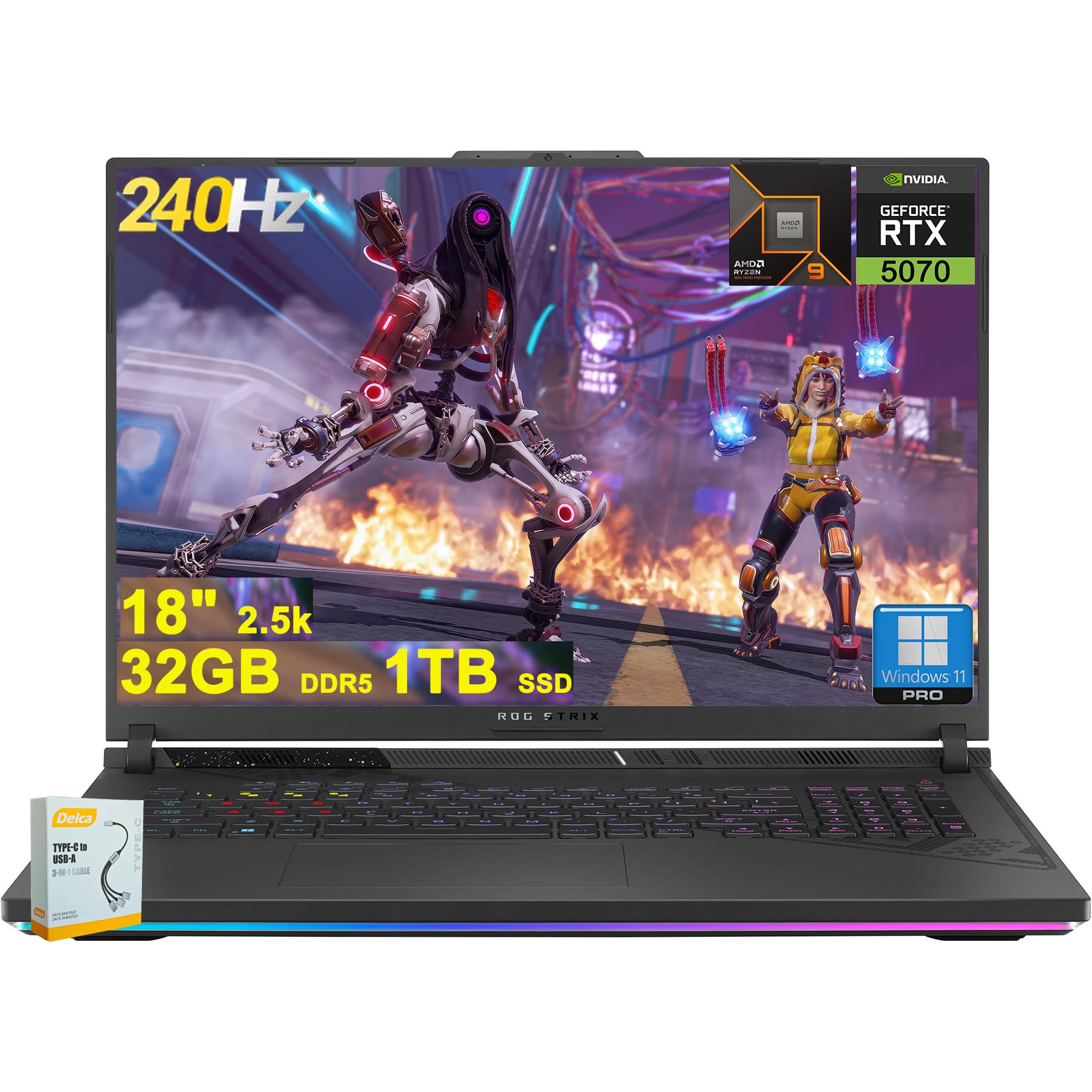
Figure 1: ASUS ROG Strix G18 G814 Gaming Laptop, front view with screen open.
ແມ່ນຫຍັງຢູ່ໃນກ່ອງ
ຫຼັງຈາກແກະກ່ອງອອກແລ້ວ, ໃຫ້ກວດສອບວ່າສິນຄ້າທຸກຢ່າງມີຢູ່ ແລະ ຢູ່ໃນສະພາບດີ.
- ແລັບທັອບເກມ ASUS ROG Strix G18 G814
- ອະແດັບເຕີພະລັງງານ/ເຄື່ອງສາກ

Figure 2: Contents of the ASUS ROG Strix G18 G814 package, including the laptop and power adapter.
ຕັ້ງຄ່າ
1. ການເປີດເຄື່ອງເບື້ອງຕົ້ນ
- ເຊື່ອມຕໍ່ອະແດບເຕີໄຟຟ້າ: ສຽບອະແດບເຕີໄຟໃສ່ຊ່ອງສຽບໄຟຂອງແລັບທັອບ ແລະຈາກນັ້ນເຂົ້າໄປໃນປລັກສຽບໄຟ.
- ເປີດແລັບທັອບ: ເປີດຝາແລັບທັອບຢ່າງລະມັດລະວັງ.
- ເປີດ: ກົດປຸ່ມເປີດປິດ, ໂດຍປົກກະຕິແລ້ວຈະຢູ່ເທິງແປ້ນພິມ. ແລັບທັອບຈະເລີ່ມລຳດັບການບູດເບື້ອງຕົ້ນ.
- ປະຕິບັດຕາມຄໍາແນະນໍາໃນຫນ້າຈໍ: Complete the Windows 11 setup process, including language selection, network connection, and user account creation.
2. ເຊື່ອມຕໍ່ອຸປະກອນເສີມ
Connect external devices such as a mouse, keyboard, or external display to the available ports.

ຮູບ 3: ຂ້າງ view of the ASUS ROG Strix G18 G814, illustrating the various input/output ports including USB-A, USB-C, HDMI, and RJ45 Ethernet.
- USB-A 3.2: For standard USB devices like mice, keyboards, and external drives. (2 ports)
- Type USB 4: For high-speed data transfer, display output, and power delivery. (1 port)
- HDMI 2.1 FRL: ສໍາລັບການເຊື່ອມຕໍ່ກັບຈໍພາຍນອກຫຼືໂທລະພາບ.
- RJ45 Ethernet: ສໍາລັບການເຊື່ອມຕໍ່ເຄືອຂ່າຍມີສາຍ.
- ຫູຟັງ/ໄມໂຄໂບ Jack: ສໍາລັບການປ້ອນ/ອອກສຽງ.
ຄໍາແນະນໍາການດໍາເນີນງານ
ການຄຸ້ມຄອງພະລັງງານ
- ເປີດ: ກົດປຸ່ມເປີດປິດ.
- ປິດລົງ: ຄລິກປຸ່ມ Start, ຈາກນັ້ນກົດປຸ່ມ Power, ຈາກນັ້ນກົດປຸ່ມ Shut down.
- ຮູບແບບການນອນ: Close the lid or select Sleep from the Power menu.
ແປ້ນພິມ ແລະ Touchpad
The laptop features a 4-zone RGB backlit keyboard and a precision touchpad for navigation.

ຮູບທີ 4: ໄລຍະໃກ້ view of the ASUS ROG Strix G18 G814's 4-zone RGB backlit keyboard and touchpad.
- ການຄວບຄຸມໄຟຫຼັງ: Use the dedicated function keys (Fn + Fx) to adjust keyboard backlight brightness or effects.
- ທ່າທາງສຳຜັດ: ອ້າງອີງເຖິງການຕັ້ງຄ່າ Windows ສໍາລັບທ່າທາງແບບຫຼາຍສຳຜັດທີ່ສາມາດປັບແຕ່ງໄດ້.
ຈໍສະແດງຜົນແລະຮູບພາບ
Your laptop is equipped with an 18-inch 2560x1600 IPS display with a 240Hz refresh rate and 100% DCI-P3 color gamut, powered by an NVIDIA GeForce RTX 5070 8GB graphics card.

Figure 5: Visual representation of the 18-inch IPS display with 2560x1600 resolution and 240Hz refresh rate.

Figure 6: Image highlighting the NVIDIA GeForce RTX 5070 graphics card, emphasizing its role in visual performance.
ລະບົບສຽງ
Experience enhanced audio with Smart Amp technology, Dolby Atmos support, and AI Noise-canceling for clear communication.

Figure 7: Visual depicting the audio features, including Dolby Atmos and AI Noise-Canceling Microphone.
Performance and Software
The laptop is powered by an AMD 16-core Ryzen 9 9955HX processor and runs on Windows 11 Pro. It includes 32GB DDR5 RAM and a 1TB SSD for fast performance and storage.

Figure 8: Image illustrating the AMD Ryzen 9 9955HX processor, highlighting its 16-core architecture.
- ລະບົບປະຕິບັດການ: Windows 11 Pro provides a secure and efficient computing environment.
- Crate Armory: Update Armoury Crate software for optimal system management and performance tuning.
ບໍາລຸງຮັກສາ
ອະນາໄມແລັບທັອບ
- ໜ້າຈໍ: ໃຊ້ຜ້າແພອ່ອນໆ ທີ່ບໍ່ມີເສັ້ນດ່າງ ງampສໍາເລັດດ້ວຍນ້ໍາຫຼືເຄື່ອງເຮັດຄວາມສະອາດຫນ້າຈໍ. ຫຼີກເວັ້ນການສານເຄມີທີ່ຮຸນແຮງ.
- Keyboard ແລະ Chassis: ໃຊ້ຜ້າອ່ອນໆ. ສໍາລັບຝຸ່ນ stubborn, a ເລັກນ້ອຍ damp cloth is acceptable. Ensure no liquid enters openings.
- ຮູ: Periodically clean dust from the ventilation grilles using compressed air to maintain optimal cooling performance.
ການດູແລຫມໍ້ໄຟ
- ຫຼີກເວັ້ນອຸນຫະພູມທີ່ຮຸນແຮງ.
- ຢ່າປະຖິ້ມຫມໍ້ໄຟເຕັມທີ່ເລື້ອຍໆ.
- ສໍາລັບການເກັບຮັກສາໃນໄລຍະຍາວ, ສາກໄຟຫມໍ້ໄຟໃຫ້ປະມານ 50-60%.
ການແກ້ໄຂບັນຫາ
| ບັນຫາ | ການແກ້ໄຂທີ່ເປັນໄປໄດ້ |
|---|---|
| ແລັບທັອບບໍ່ເປີດ. | ໃຫ້ແນ່ໃຈວ່າອະແດັບເຕີໄຟເຊື່ອມຕໍ່ຢ່າງປອດໄພກັບແລັບທັອບ ແລະປລັກສຽບໄຟທີ່ເຮັດວຽກໄດ້. ກວດເບິ່ງວ່າປລັກສຽບໄຟເຮັດວຽກຫຼືບໍ່. |
| Screen remains black after power on. | Connect an external monitor to verify if the issue is with the laptop's display. Try pressing Fn + F6 (or the appropriate function key) to toggle display output. |
| ການປະຕິບັດຊ້າ. | Close unnecessary applications. Check for background processes consuming high resources. Ensure drivers are updated, especially graphics drivers. Verify sufficient free storage space on the SSD. |
| ບັນຫາການເຊື່ອມຕໍ່ Wi-Fi. | Restart the laptop and the wireless router. Check Wi-Fi settings in Windows. Ensure Wi-Fi drivers are up to date. |
| Long reboot time after BIOS updates. | This is normal behavior for some BIOS updates. Allow the system to complete the process, which may take several minutes. Do not interrupt the power. |
| Operating System discrepancy (e.g., Windows 11 Home instead of Pro). | Verify the installed OS version via System Information. If there is a discrepancy with the purchased specification, contact your retailer or ASUS support for clarification. |
ຂໍ້ມູນຈໍາເພາະ
| ຊື່ຕົວແບບ | ASUS ROG Strix G18 G814 |
| ໂຮງງານຜະລິດ | AMD 16-core Ryzen 9 9955HX (3 GHz) |
| ຮູບພາບ | ສະເພາະ NVIDIA GeForce RTX 5070 8GB |
| ຈໍສະແດງຜົນ | 18-inch IPS, 2560x1600 resolution, 240Hz refresh rate, 100% DCI-P3 |
| RAM | 32GB DDR5 SDRAM |
| ການເກັບຮັກສາ | SSD 1TB (ໄດຣຟ໌ສະເຕດ) |
| ລະບົບປະຕິບັດການ | Windows 11 Pro |
| ການເຊື່ອມຕໍ່ໄຮ້ສາຍ | Wi-Fi 6E (802.11ax) |
| ທ່າເຮືອ | 2x USB-A 3.2, 1x Type USB 4, 1x HDMI 2.1 FRL, 1x RJ45 Ethernet, Headphone/Mic Combo Jack |
| ແປ້ນພິມ | ແປ້ນພິມ RGB 4 ໂຊນທີ່ມີໄຟ backlit |
| ສຽງ | ສະຫຼາດ Amp, Dolby Atmos, AI Noise-canceling |
| Webກ້ອງ | ກ້ອງ FHD |
| ແບັດເຕີຣີ | 90Wh |
| ຂະໜາດ (LxWxH) | 11.57 x 15.71 x 1.21 ນິ້ວ |
| ນ້ຳໜັກ | 6.63 ປອນ |
ການຮັບປະກັນແລະການສະຫນັບສະຫນູນ
For warranty information, technical support, or service inquiries, please refer to the official ASUS support webເວັບໄຊ ຫຼືຕິດຕໍ່ຮ້ານຂາຍຍ່ອຍຂອງທ່ານ.
ຮອງຮັບ ASUS Webເວັບໄຊ: https://www.asus.com/support/
Please have your product model number (ROG Strix G18 G814) and serial number ready when contacting support.