
Vetroo M06
Vetroo M06 Micro-ATX/Mini-ITX Gaming PC Case Instruction Manual
ຮຸ່ນ: M06
ແນະນຳ
This manual provides detailed instructions for the installation, operation, and maintenance of your Vetroo M06 Micro-ATX/Mini-ITX Gaming PC Case. Please read this manual thoroughly before beginning assembly to ensure proper setup and optimal performance.

Image: The Vetroo M06 Micro-ATX/Mini-ITX Gaming PC Case in black, showcasing its mesh front panel and side window, viewed ຈາກມຸມ.
ຄຸນນະສົມບັດທີ່ສໍາຄັນ
- ການອອກແບບກະທັດຮັດ: Micro-ATX / Mini-ITX form factor with a high-airflow mesh front panel, designed for space-efficient builds.
- ການປັບຄວາມເຢັນທີ່ດີທີ່ສຸດ: Supports up to five 120mm fans and a 240mm top-mounted liquid radiator for efficient thermal management.
- GPU Compatibility: ຮອງຮັບບັດກຣາບຟິກທີ່ມີຄວາມຍາວສູງສຸດ 355 ມມ.
- Flexible PSU Mounting: Features an adjustable power supply installation area with a maximum length of 160mm.
- ການເຊື່ອມຕໍ່ທີ່ທັນສະໄຫມ: Front panel includes USB Type-C and USB 3.0 ports for convenient peripheral access.
ເນື້ອໃນຊຸດ
ກະລຸນາກວດສອບວ່າອົງປະກອບທັງຫມົດແມ່ນມີກ່ອນທີ່ຈະສືບຕໍ່ການຕິດຕັ້ງ:
- Vetroo M06 PC Case
- ກ່ອງອຸປະກອນເສີມ (ສະກູ, ຕົວຍຶດ, ສາຍຮັດ)
- SFX PSU Bracket (1x)
- ຄູ່ມືຜູ້ໃຊ້ (ເອກະສານນີ້)
ຂໍ້ມູນຈໍາເພາະ
| ຄຸນສົມບັດ | ລາຍລະອຽດ |
|---|---|
| ຊື່ຕົວແບບ | M06 |
| ປະເພດກໍລະນີ | Mini-Tower |
| ຄວາມເຂົ້າກັນໄດ້ຂອງເມນບອດ | Micro ATX, Mini ITX |
| ຂະໜາດສິນຄ້າ (L x W x H) | 15.55" x 7.87" x 13.07" (395mm x 200mm x 332mm) |
| ນ້ໍາຫນັກລາຍການ | 13.37 ປອນ (6.06 ກິໂລ) |
| ວັດສະດຸ | Acrylonitrile Butadiene Styrene (ABS), SPCC (0.8mm metal plate) |
| ຄວາມຍາວສູງສຸດຂອງ GPU | 355ມມ |
| ຄວາມສູງຂອງ CPU Cooler ສູງສຸດ | 165ມມ |
| ຄວາມຍາວ PSU ສູງສຸດ | 160mm (Adjustable mounting) |
| ສະຫນັບສະຫນູນພັດລົມ | ພັດລົມສູງສຸດ 5 x 120 ມມ |
| ສະຫນັບສະຫນູນ radiator | 1 x 240mm (Top) |
| ທ່າເຮືອທາງ ໜ້າ I / O | 1 x USB Type-C, 1 x USB 3.0, HD Audio, Power Button, Reset Button |

Image: Diagram illustrating the compact dimensions of the Vetroo M06 PC case, measuring 15.5 inches in depth, 7.8 inches in width, and 13.0 inches in height.

Image: A detailed diagram outlining the compatibility specifications for the Vetroo M06 PC case, including maximum CPU cooler height (165mm), GPU length (355mm), PSU length (160mm), and supported motherboard form factors (M-ATX/ITX).
ການຕິດຕັ້ງແລະການຕິດຕັ້ງ
Before starting, ensure you have a clean, static-free workspace. Refer to your component manuals for specific installation details.
1. ການຕິດຕັ້ງເມນບອດ
- Remove the side panel(s) of the case.
- Install the necessary motherboard standoffs into the case tray according to your motherboard's form factor (Micro-ATX or Mini-ITX).
- ລະມັດລະວັງວາງເມນບອດຂອງທ່ານໃສ່ຈຸດຢືນ, ວາງຮູສະກູ.
- ຮັບປະກັນ motherboard ດ້ວຍ screws.
2. ການຕິດຕັ້ງ GPU
- Remove the appropriate PCIe slot covers from the rear of the case.
- Insert your graphics card into the primary PCIe slot on your motherboard.
- ຮັບປະກັນບັດກາຟິກກັບກໍລະນີດ້ວຍສະກູ.
- Connect any required PCIe power cables from your power supply to the GPU.
3. ການຕິດຕັ້ງ PSU
- Determine the desired mounting position for your power supply. The Vetroo M06 supports adjustable PSU mounting.
- If using an SFX power supply, attach the included SFX bracket to the PSU.
- Slide the power supply into its designated bay and secure it with screws from the rear of the case.
- Route the necessary power cables to your components.

ຮູບພາບ: ພາຍໃນ view of the Vetroo M06 PC case highlighting the three adjustable mounting positions for ATX/SFX power supplies, along with an illustration of the included SFX bracket.
4. Storage Installation (HDD/SSD)
- Locate the designated mounting points for 3.5" HDDs and 2.5" SSDs.
- Secure your storage drives using the provided screws.
- Connect SATA data and power cables to each drive.
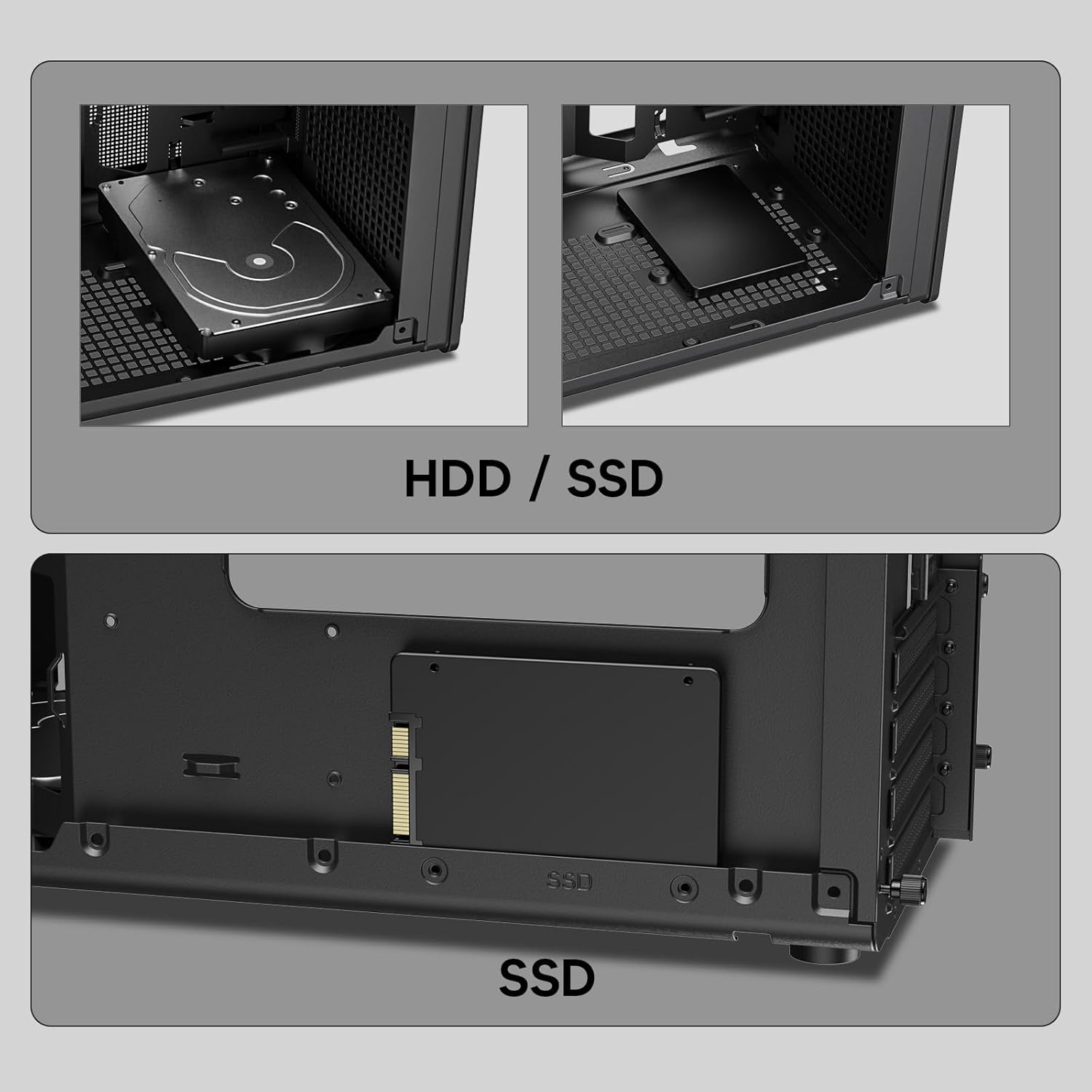
ຮູບພາບ: ໃກ້ຊິດ views of the Vetroo M06 PC case interior, demonstrating the mounting options for both 3.5-inch Hard Disk Drives (HDDs) and 2.5-inch Solid State Drives (SSDs).
5. Cooling System Installation (Fans/Radiator)
- Identify the fan mounting locations (up to five 120mm fans).
- Mount fans using appropriate screws, ensuring correct airflow direction.
- For liquid cooling, install a 240mm radiator at the top mounting position, securing it with screws.
- Connect fan and pump cables to your motherboard or fan controller.
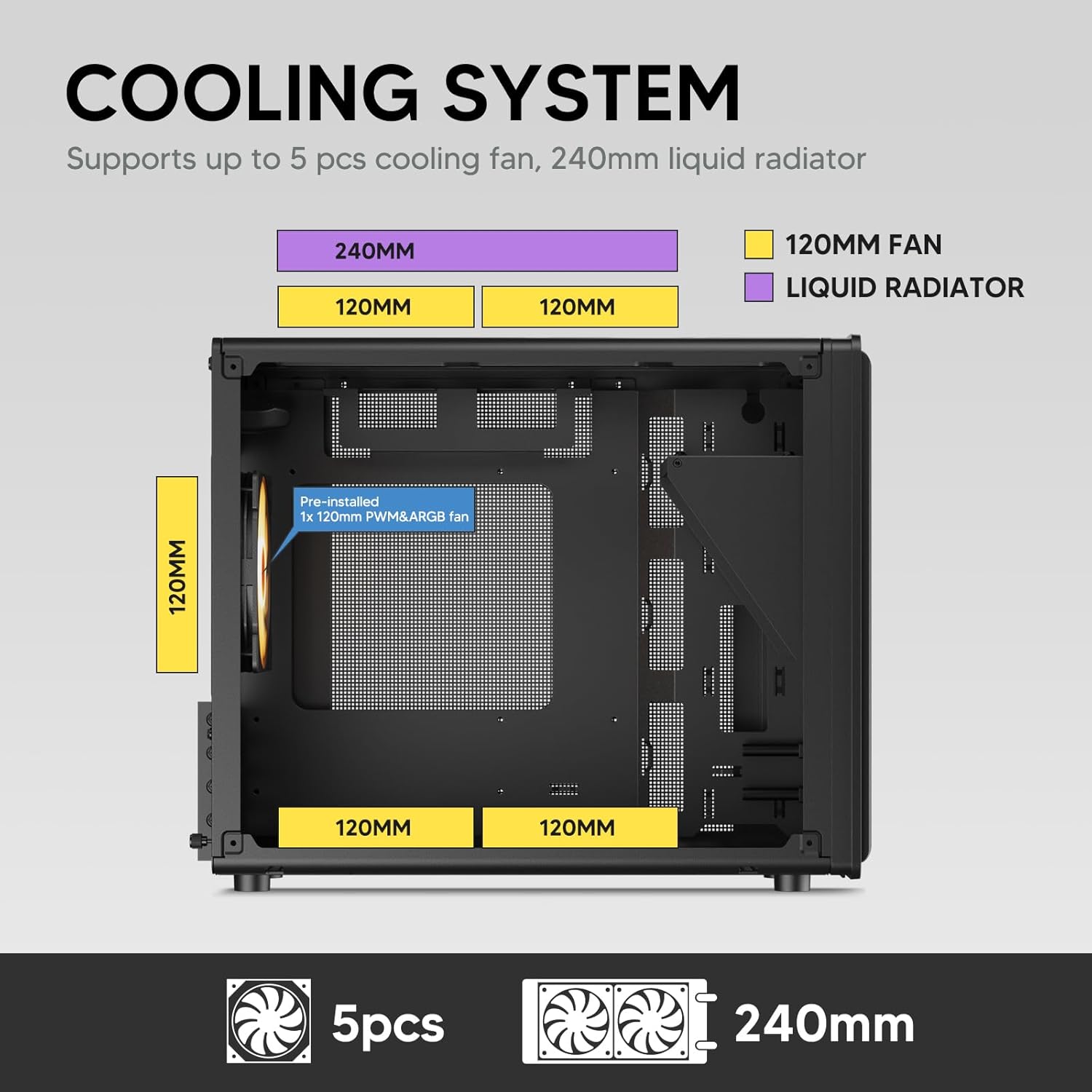
Image: A diagram illustrating the cooling system layout within the Vetroo M06 PC case, detailing the positions for up to five 120mm fans and a 240mm liquid radiator at the top.
6. ການເຊື່ອມຕໍ່ແຜງ I/O
- Connect the front panel cables (Power, Reset, USB 3.0, USB Type-C, HD Audio) to the corresponding headers on your motherboard. Refer to your motherboard manual for header locations.

Image: A close-up of the Vetroo M06 PC case's front I/O panel, clearly labeling the Power button, Reset button, USB 3.0 port, HD Audio jack, and USB Type-C port.
ຄໍາແນະນໍາການດໍາເນີນງານ
Once all components are installed and cables are connected, replace the side panels. Connect your peripherals (monitor, keyboard, mouse) and power cable to the PSU. Press the power button on the front panel to start your system.
ການຄຸ້ມຄອງກະແສລົມ
The Vetroo M06 case features an excellent airflow design with mesh panels to facilitate optimal cooling. Ensure fans are installed to create a balanced airflow, typically with intake fans at the front/bottom and exhaust fans at the rear/top.

Image: An exploded diagram of the Vetroo M06 PC case, illustrating the intended airflow patterns with blue arrows indicating cool air intake and red arrows showing warm air exhaust through its mesh panels.
ບໍາລຸງຮັກສາ
Regular maintenance helps prolong the life of your PC components and ensures optimal performance.
- ທໍາຄວາມສະອາດຂີ້ຝຸ່ນ: ທຳຄວາມສະອາດຕົວກອງຝຸ່ນ ແລະ ອົງປະກອບພາຍໃນເປັນໄລຍະໂດຍໃຊ້ລົມອັດ. ໃຫ້ແນ່ໃຈວ່າລະບົບຖືກປິດ ແລະ ຖອດປລັກອອກກ່ອນທຳຄວາມສະອາດ.
- ການຄຸ້ມຄອງສາຍໄຟ: Verify that internal cables are neatly routed and do not obstruct airflow.
- ການກວດສອບອົງປະກອບ: Ensure all screws are tight and components are securely seated.

Image: A close-up shot of the Vetroo M06 PC case, featuring a digital caliper measuring the thickness of the metal plate, which is specified as 0.8mm, highlighting the case's robust construction.
ການແກ້ໄຂບັນຫາ
ຖ້າເຈົ້າພົບບັນຫາ, ເບິ່ງຂັ້ນຕອນການແກ້ໄຂບັນຫາທົ່ວໄປຕໍ່ໄປນີ້:
- ລະບົບບໍ່ເປີດ:
- Check all power connections, including the PSU to wall outlet, PSU to motherboard (24-pin and CPU 8-pin), and front panel power switch cable to motherboard.
- ໃຫ້ແນ່ໃຈວ່າສະວິດ PSU ຢູ່ໃນຕໍາແຫນ່ງ 'ON'.
- ບໍ່ມີການສະແດງຜົນອອກ:
- Verify that your monitor is connected to the graphics card (not the motherboard's integrated graphics ports, unless you are using integrated graphics).
- ຣີເຊັດບັດກາຟິກ ແລະໂມດູນ RAM.
- ບັນຫາຄວາມຮ້ອນເກີນ:
- Ensure all case fans are spinning and oriented correctly for optimal airflow.
- ກວດສອບການຕິດຕັ້ງເຄື່ອງເຮັດຄວາມເຢັນ CPU ແລະ ການທາຄວາມຮ້ອນ.
- Clean any dust buildup from fans and filters.
- ພອດ USB ບໍ່ເຮັດວຽກ:
- Verify that the front panel USB 3.0 and USB Type-C cables are correctly connected to the motherboard headers.
ການຮັບປະກັນແລະການສະຫນັບສະຫນູນ
Vetroo products are designed for quality and reliability. For warranty information and technical support, please visit the official Vetroo webເວັບໄຊ ຫຼືຕິດຕໍ່ບໍລິການລູກຄ້າຂອງເຂົາເຈົ້າ. ຮັກສາຫຼັກຖານການຊື້ຂອງທ່ານສໍາລັບການຮ້ອງຂໍການຮັບປະກັນ.
Vetroo Official Webເວັບໄຊ: ຮ້ານ Vetroo ໃນ Amazon
For further assistance, please refer to the contact information provided with your product packaging or on the official Vetroo support channels.
Ask a question about this manual
Ask about setup, troubleshooting, compatibility, parts, safety, or missing instructions. Manuals+ will review the question and use this page’s manual context to help answer it.