
1. ຜະລິດຕະພັນເກີນview
The WESECUU Light Bulb Security Camera offers comprehensive home surveillance with easy installation. Designed for both indoor and outdoor use, this camera provides a 360° panoramic view, motion tracking, and AI detection for enhanced security.
- ການຕິດຕັ້ງບໍ່ສະດວກ: Screws into a standard light bulb socket, requiring no drilling or complex wiring.
- 360° ພາໂນຣາມາ View & Auto Motion Tracking: Provides full-area coverage and automatically follows detected movement.
- ການກວດຫາ AI ອັດສະລິຍະ: Distinguishes between people and other movements to reduce false alerts.
- ສຽງສອງທາງ: Features a built-in speaker and microphone for real-time communication.
- 24/7 Day & Night Monitoring: Ensures continuous surveillance in various lighting conditions.

2. ເນື້ອໃນຊຸດ
ກະລຸນາກວດສອບວ່າລາຍການທັງໝົດມີຢູ່ໃນຊຸດຂອງທ່ານ:
- WESECUU Light Bulb Security Camera
- ຄູ່ມືແນະ ນຳ (ເອກະສານນີ້)
3. ຄໍາແນະນໍາການຕິດຕັ້ງ
3.1 ການຕິດຕັ້ງທາງດ້ານຮ່າງກາຍ
The camera is designed for simple installation into a standard E27/E26 light bulb socket.
- Ensure the power to the light socket is turned off at the circuit breaker before installation.
- Carefully screw the WESECUU Light Bulb Security Camera into the light bulb socket until it is secure. Do not overtighten.
- Turn the power back on at the circuit breaker. The camera will power on and initiate its startup sequence.
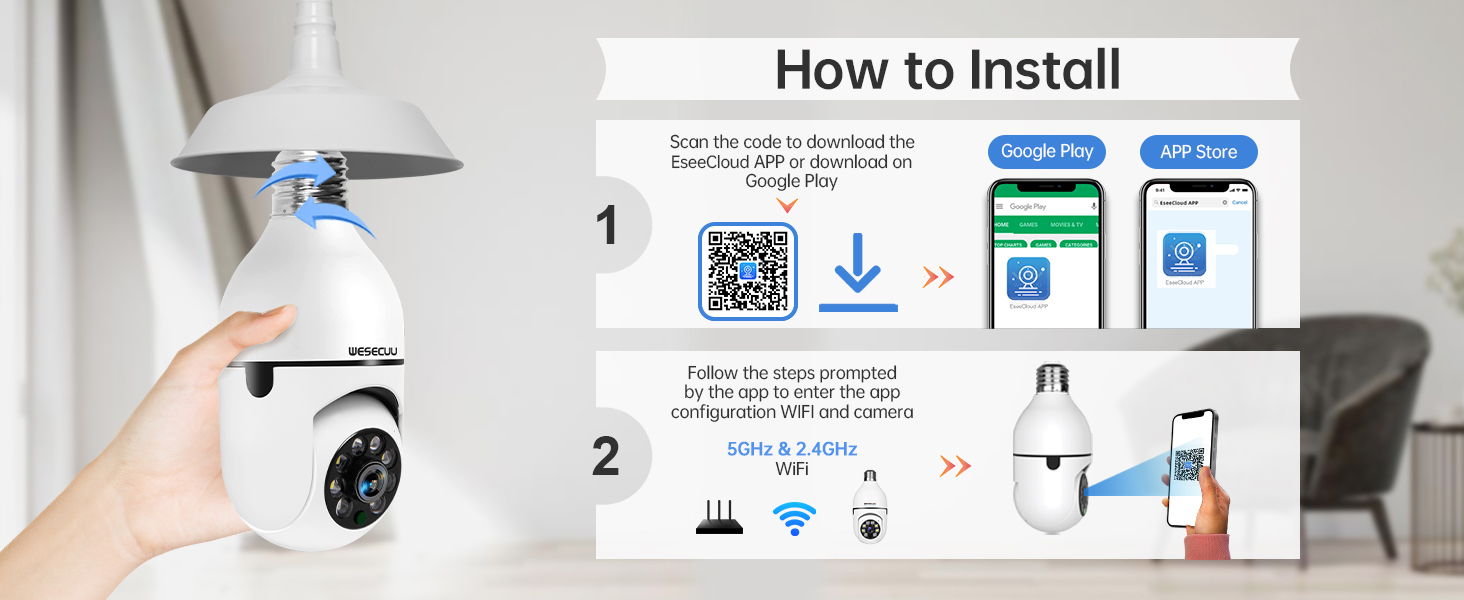
3.2 ການດາວໂຫຼດແອັບ ແລະ ການຈັບຄູ່ກ້ອງຖ່າຍຮູບ
To operate your camera, you need to download the EseeCloud APP and pair the device.
- Download the EseeCloud APP from the Google Play Store or Apple App Store. You can also scan the QR code provided in the installation image below or visit http://www.e-seenet.com/download/indexm.php?p=tjesee.
- Open the EseeCloud APP and create an account or log in.
- Follow the in-app instructions to add your new camera. Ensure your smartphone is connected to a 2.4GHz or 5GHz Wi-Fi network during the pairing process. The camera supports both 2.4GHz and 5GHz Wi-Fi.
- Once successfully paired, you can access the live feed and camera settings through the app.
4. ຄໍາແນະນໍາການດໍາເນີນງານ
4.1 ດໍາລົງຊີວິດ View ແລະ Playback
Access the EseeCloud APP to view ຖ່າຍທອດສົດຈາກກ້ອງຖ່າຍຮູບຂອງທ່ານ. ທ່ານຍັງສາມາດເບິ່ງຄືນໄດ້view ບັນທຶກ footage from the SD card (if installed) or cloud storage (if subscribed).

4.2 ການກວດຈັບ ແລະ ຕິດຕາມການເຄື່ອນໄຫວ
The camera features advanced motion detection and automatic tracking. When motion is detected, the camera will pan and tilt to follow the subject, ensuring continuous coverage. Alerts will be sent to your smartphone.

4.3 AI Detection Alerts
The integrated AI technology helps differentiate between human movement and other sources of motion, such as pets or passing vehicles, reducing irrelevant notifications.

4.4 ສຽງສອງທາງ
Utilize the two-way audio feature to communicate through the camera. This allows you to speak to visitors, deter intruders, or comfort pets remotely.

4.5 ວິໄສທັດກາງຄືນ
The camera provides both full-color night vision and infrared night vision modes for clear monitoring in low-light conditions.

4.6 ຕົວເລືອກການເກັບຮັກສາ
The camera supports local storage via an SD card (16-128GB, not included) and offers optional cloud storage plans for continuous recording and advanced features.

5. ບໍາລຸງຮັກສາ
To ensure optimal performance and longevity of your WESECUU Light Bulb Security Camera, follow these maintenance guidelines:
- ການອະນາໄມເລນ: Gently wipe the camera lens with a soft, dry microfiber cloth to remove dust or smudges. Avoid abrasive cleaners.
- ການສະຫນອງພະລັງງານ: Ensure the camera receives a stable power supply. Avoid frequent power interruptions.
- ການອັບເດດເຟີມແວ: Regularly check the EseeCloud APP for available firmware updates to ensure your camera has the latest features and security enhancements.
- ເງື່ອນໄຂສິ່ງແວດລ້ອມ: While designed for outdoor use, avoid direct exposure to extreme weather conditions if possible, and ensure the light socket is weather-protected.
6. ການແກ້ໄຂບັນຫາ
If you encounter issues with your WESECUU Light Bulb Security Camera, refer to the following common solutions:
- ກ້ອງຖ່າຍຮູບບໍ່ໄດ້ເຊື່ອມຕໍ່ກັບ Wi-Fi:
- ໃຫ້ແນ່ໃຈວ່າເຄືອຂ່າຍ Wi-Fi ຂອງທ່ານແມ່ນ 2.4GHz ຫຼື 5GHz ແລະມີຄວາມຫມັ້ນຄົງ.
- ກວດສອບວ່າລະຫັດຜ່ານ Wi-Fi ຖືກໃສ່ຢ່າງຖືກຕ້ອງໃນແອັບ.
- Move the camera closer to your Wi-Fi router during setup.
- ຣີສະຕາດ router ແລະກ້ອງຖ່າຍຮູບຂອງທ່ານ.
- No Image or Black Screen:
- Check if the camera is properly powered on and the light socket has power.
- Ensure the camera lens is not obstructed.
- Restart the camera by turning off and on the power to the socket.
- ກວດຈັບການເຄື່ອນໄຫວບໍ່ເຮັດວຽກ:
- Check motion detection settings in the EseeCloud APP.
- Ensure the detection sensitivity is set appropriately.
- Verify that notification permissions are enabled for the app on your smartphone.
- ຄຸນນະພາບຮູບພາບທີ່ບໍ່ດີ:
- ເຮັດຄວາມສະອາດເລນກ້ອງຖ່າຍຮູບ.
- Ensure adequate lighting for optimal image clarity, especially for color night vision.
- ກະລຸນາກວດສອບຄວາມໄວການເຊື່ອມຕໍ່ອິນເຕີເນັດຂອງທ່ານ, ເພາະວ່າການເຊື່ອມຕໍ່ທີ່ຊ້າສາມາດສົ່ງຜົນກະທົບຕໍ່ຄຸນນະພາບການຖ່າຍທອດສົດໄດ້.

Figure 10: Visual comparison demonstrating the superior clarity of WESECUU's 3MP resolution compared to other standard resolutions.
7. ຂໍ້ມູນຈໍາເພາະ
| ຄຸນສົມບັດ | ຂໍ້ມູນຈໍາເພາະ |
|---|---|
| ໝາຍເລກຕົວແບບ | TP-8052BW3 |
| ຍີ່ຫໍ້ | WESECUU |
| ການນຳໃຊ້ພາຍໃນ/ນອກ | ກາງແຈ້ງ |
| ເຕັກໂນໂລຊີການເຊື່ອມຕໍ່ | ໄຮ້ສາຍ (Wi-Fi) |
| ອະນຸສັນຍາການເຊື່ອມຕໍ່ | Wi-Fi (2.4GHz ແລະ 5GHz) |
| ແຫຼ່ງພະລັງງານ | ໄຟຟ້າສາຍ |
| ຄວາມລະອຽດການຖ່າຍວິດີໂອ | 4K |
| ປະເພດການຕິດຕັ້ງ | ເພດານ Mount |
| ຄຸນນະສົມບັດພິເສດ | ສາມາດປັບໄດ້ |
| ອຸປະກອນທີ່ເຂົ້າກັນໄດ້ | Amazon Alexa |
| ປະເພດການຄວບຄຸມ | Amazon Alexa |
| ຂະໜາດສິນຄ້າ (L x W x H) | 1 x 1 x 1 ນິ້ວ |
| ນ້ໍາຫນັກລາຍການ | 7.2 ອອນສ໌ (0.21 ກິໂລກຣາມ) |
8. ຂໍ້ມູນການຮັບປະກັນ
For detailed warranty information, please refer to the warranty card included with your product packaging or visit the official WESECUU webເວັບໄຊ. ຂໍ້ກໍານົດແລະເງື່ອນໄຂການຮັບປະກັນອາດຈະແຕກຕ່າງກັນໄປຕາມພາກພື້ນແລະວັນທີຊື້.
9. ການຊ່ວຍເຫຼືອລູກຄ້າ
If you require further assistance or have questions not covered in this manual, please contact WESECUU customer support:
- ສາຍດ່ວນລູກຄ້າ: +1-888-9716718
- ຊົ່ວໂມງເຮັດວຽກ: Pacific Standard Time 6:00 PM - 3:00 AM, Monday to Friday
- ສະຫນັບສະຫນູນອອນໄລນ໌: Visit the official WESECUU webເວັບໄຊທ໌ສຳລັບຄຳຖາມທີ່ຖືກຖາມເລື້ອຍໆ, ຊັບພະຍາກອນສະໜັບສະໜູນ ແລະ ແບບຟອມຕິດຕໍ່.