
1. ບົດແນະນຳ
Thank you for choosing the Zeuslap Z13KT 13.3-inch Portable Touchscreen Monitor. This device is designed to enhance your productivity and entertainment experience with its high-resolution 2K IPS display, 100% sRGB color gamut, and responsive touch functionality. This manual provides essential information for the safe and efficient use of your monitor, including setup, operation, maintenance, and troubleshooting.
2. ຂໍ້ມູນຄວາມປອດໄພ
- ອ່ານຄໍາແນະນໍາທັງຫມົດຢ່າງລະອຽດກ່ອນທີ່ຈະໃຊ້ຈໍພາບ.
- ຢ່າເຮັດໃຫ້ຈໍສະແດງຜົນຖືກຝົນ, ຄວາມຊຸ່ມຊື່ນ, ຫຼືອຸນຫະພູມທີ່ຮຸນແຮງ.
- ຫຼີກເວັ້ນການວາງຈໍພາບຢູ່ໃກ້ກັບແຫຼ່ງຄວາມຮ້ອນ ຫຼືຢູ່ໃນແສງແດດໂດຍກົງ.
- ໃຊ້ພຽງແຕ່ອະແດບເຕີໄຟຟ້າ ແລະ ສາຍໄຟທີ່ຜູ້ຜະລິດສະໜອງໃຫ້ ຫຼື ແນະນຳເທົ່ານັ້ນ.
- ຢ່າພະຍາຍາມຖອດ ຫຼືສ້ອມແປງຈໍສະແດງຜົນດ້ວຍຕົວເອງ. ອ້າງອີງການບໍລິການທັງໝົດໃຫ້ກັບບຸກຄະລາກອນທີ່ມີຄຸນວຸດທິ.
- Clean the monitor with a soft, dry cloth. Avoid using liquid cleaners or aerosols.
- ຮັກສາຈໍພາບຢູ່ຫ່າງຈາກສະຫນາມແມ່ເຫຼັກທີ່ເຂັ້ມແຂງ.
3. ເນື້ອໃນຊຸດ
ກະລຸນາກວດເບິ່ງເນື້ອໃນຂອງແພັກເກັດເມື່ອ unboxing. ຖ້າລາຍການໃດຂາດຫາຍໄປ ຫຼືເສຍຫາຍ, ໃຫ້ຕິດຕໍ່ຮ້ານຂາຍຍ່ອຍຂອງເຈົ້າ.
- Zeuslap Z13KT Portable Monitor
- USB-C to USB-C Cable (for power and video/touch)
- Mini HDMI to HDMI Cable (for video)
- ສາຍ USB-A ຫາ USB-C (ສໍາລັບພະລັງງານ)
- ອະແດບເຕີໄຟຟ້າ (ຖ້າລວມ)
- Protective Cover/Stand
- ຄູ່ມືຜູ້ໃຊ້ (ເອກະສານນີ້)
4. ຜະລິດຕະພັນເກີນview
Familiarize yourself with the monitor's components and ports.
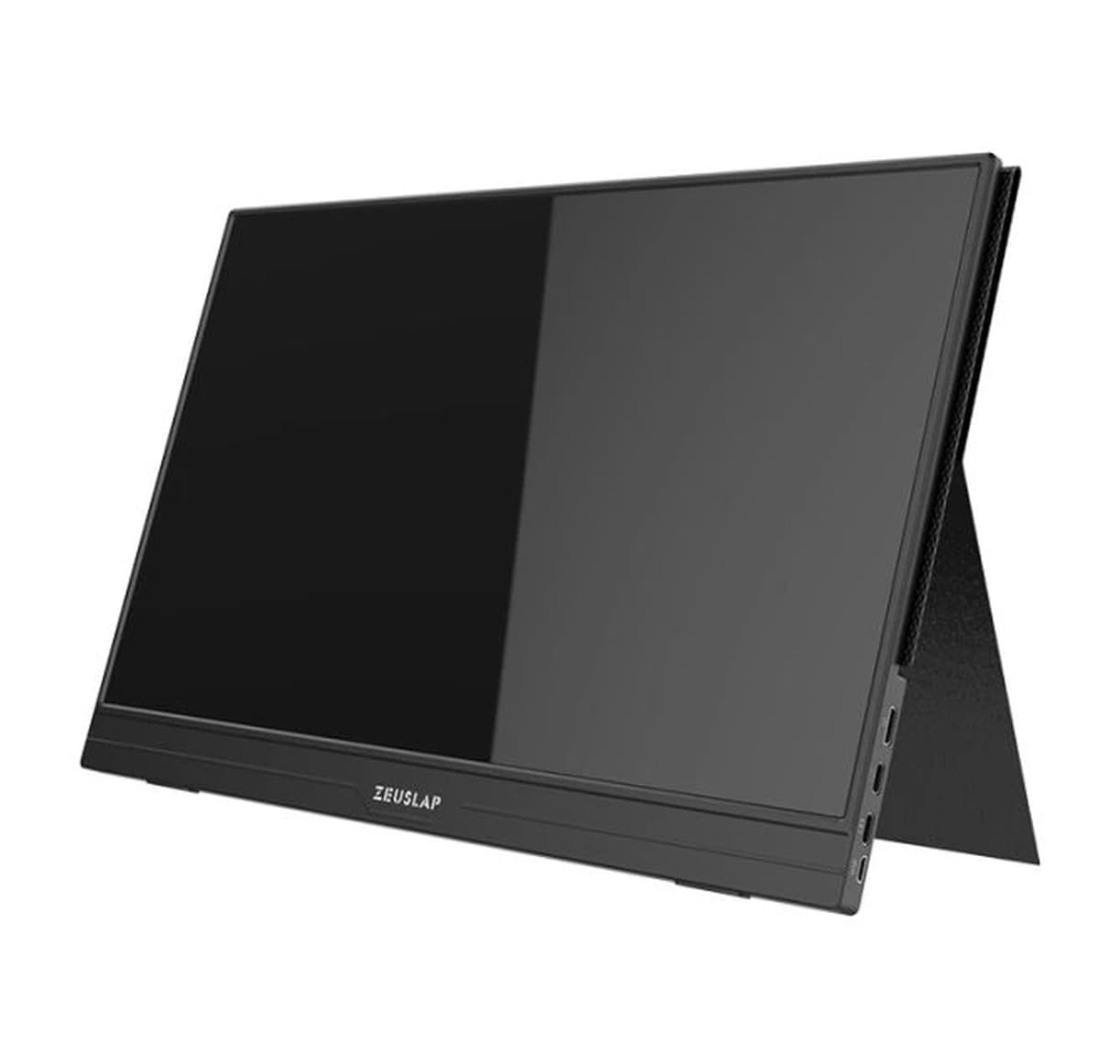
ຮູບທີ 4.1: ດ້ານໜ້າ view of the Zeuslap Z13KT portable monitor, showcasing ການອອກແບບກະທັດຮັດແລະຫນ້າຈໍຂອງມັນ.
4.1. Monitor Components
- 13.3-inch 2K IPS Touchscreen: Main display area with touch input capability.
- ປຸ່ມເປີດປິດ: Turns the monitor on/off and can be used to access the OSD menu.
- ປຸ່ມເມນູ/ການນຳທາງ: For navigating the On-Screen Display (OSD) menu.
- ລໍາໂພງ: ຜົນຜະລິດສຽງປະສົມປະສານ.
4.2. ພອດທີ່ມີຢູ່
- USB-C Port (Full-featured): For power, video signal, and touch data transmission from compatible devices (e.g., laptops, smartphones).
- USB-C Port (Power Only): For connecting to an external power adapter to supply power to the monitor.
- ຜອດ HDMI ຂະໜາດນ້ອຍ: For video signal input from devices like gaming consoles, cameras, or older laptops.
- Jack ສຽງ 3.5mm: ສໍາລັບການເຊື່ອມຕໍ່ຫູຟັງພາຍນອກຫຼືລໍາໂພງ.
5. ຕັ້ງຄ່າ
Follow these steps to connect your Zeuslap Z13KT monitor to your device.
5.1. Connecting to a Laptop/PC (USB-C with DisplayPort Alt Mode)
- Ensure your laptop's USB-C port supports DisplayPort Alternate Mode (DP Alt Mode) and power delivery.
- Connect one end of the provided USB-C to USB-C cable to the full-featured USB-C port on the monitor.
- Connect the other end of the USB-C to USB-C cable to your laptop's compatible USB-C port.
- The monitor should automatically detect the signal and power on. If not, press the monitor's power button.
- For touch functionality, ensure the USB-C connection is established correctly.
5.2. Connecting to a Laptop/PC (HDMI + USB for Power/Touch)
- ເຊື່ອມຕໍ່ປາຍໜຶ່ງຂອງສາຍ Mini HDMI ກັບ HDMI ກັບພອດ Mini HDMI ໃນຈໍພາບ.
- Connect the other end of the HDMI cable to your laptop's HDMI port.
- For power, connect the USB-A to USB-C cable from your laptop's USB-A port (or a power adapter) to the power-only USB-C port on the monitor.
- For touch functionality, if your laptop has a USB-A port, connect the USB-A end of the USB-A to USB-C cable to your laptop and the USB-C end to the full-featured USB-C port on the monitor. This will provide touch data.
- The monitor should power on and display the image.
5.3. Connecting to a Smartphone (USB-C with DisplayPort Alt Mode)
Note: Not all smartphones support video output via USB-C. Check your phone's specifications.
- Connect one end of the USB-C to USB-C cable to the full-featured USB-C port on the monitor.
- Connect the other end of the USB-C to USB-C cable to your compatible smartphone's USB-C port.
- The monitor will draw power from the phone. For extended use or if the phone cannot supply enough power, connect an external power adapter to the monitor's power-only USB-C port.
- The monitor should display your phone's screen, and touch functionality should be active.
6. ຄໍາແນະນໍາການດໍາເນີນງານ
6.1. ເປີດ/ປິດ
- ເພື່ອເປີດເຄື່ອງ: ກົດປຸ່ມເປີດປິດ.
- ປິດເຄື່ອງ: ກົດປຸ່ມເປີດປິດຄ້າງໄວ້ 3 ວິນາທີ.
6.2. ເມນູການສະແດງເທິງໜ້າຈໍ (OSD).
ເມນູ OSD ອະນຸຍາດໃຫ້ທ່ານປັບການຕັ້ງຄ່າຈໍພາບຕ່າງໆ.
- ການເຂົ້າເຖິງ OSD: Press the Menu button (or short press the Power button, depending on model variation).
- ການນໍາທາງ: Use the navigation buttons (or touch gestures if enabled) to move through menu options.
- ການຄັດເລືອກ: Press the Menu button (or tap) to select an option.
- ອອກ: Navigate to the "Exit" option or wait for the OSD to time out.
6.3. ການຕັ້ງຄ່າ OSD ທົ່ວໄປ
- ຄວາມສະຫວ່າງ/ຄວາມຄົມຊັດ: ປັບລະດັບຄວາມສະຫວ່າງ ແລະ ລະດັບຄວາມຄົມຊັດຂອງໜ້າຈໍ.
- ການຕັ້ງຄ່າສີ: ປັບປ່ຽນອຸນຫະພູມສີ, ສີເຫຼື້ອມ, ແລະຄວາມອີ່ມຕົວ.
- ແຫຼ່ງປ້ອນຂໍ້ມູນ: ເລືອກດ້ວຍຕົນເອງລະຫວ່າງອິນພຸດ USB-C ແລະ Mini HDMI.
- ອັດຕາສ່ວນ: Change the display aspect ratio (e.g., 16:9, 4:3).
- ປະລິມານ: Adjust the built-in speaker volume.
- ພາສາ: ເລືອກພາສາເມນູ OSD.
6.4. ການທໍາງານຂອງຫນ້າຈໍສໍາຜັດ
The monitor supports multi-touch gestures. Ensure your device (laptop/smartphone) is compatible and connected via a full-featured USB-C cable for touch input to function.
- ແຕະ: ເທົ່າກັບການຄລິກເມົ້າ.
- ປັດ: For scrolling or navigating.
- Pinch-to-Zoom: For zooming in or out on content.
7. ບໍາລຸງຮັກສາ
7.1. ເຮັດຄວາມສະອາດ Monitor
- ປິດເຄື່ອງທຸກຄັ້ງ ແລະຖອດສາຍຈໍອອກກ່ອນທຳຄວາມສະອາດ.
- Use a soft, lint-free cloth to gently wipe the screen and casing.
- ສໍາລັບຮອຍເປື້ອນທີ່ແຂງ, ເບົາບາງ dampໃສ່ຜ້າດ້ວຍນ້ໍາຫຼືການແກ້ໄຂການທໍາຄວາມສະອາດຫນ້າຈໍສະເພາະ. ຢ່າສີດຂອງແຫຼວໂດຍກົງໃສ່ຫນ້າຈໍ.
- ຫຼີກລ່ຽງການໃຊ້ນໍ້າຢາເຮັດຄວາມສະອາດທີ່ມີສານຂັດ, ເຫຼົ້າ ຫຼື ນໍ້າຢາທີ່ມີສ່ວນປະກອບຂອງແອມໂມເນຍ ເພາະມັນສາມາດທໍາລາຍພື້ນຜິວຂອງໜ້າຈໍໄດ້.
7.2. ການເກັບຮັກສາ
- When not in use, store the monitor in a cool, dry place.
- Use the provided protective cover to prevent scratches and dust accumulation.
- ຫຼີກເວັ້ນການວາງວັດຖຸໜັກຢູ່ເທິງຈໍພາບ.
8. ການແກ້ໄຂບັນຫາ
ຖ້າທ່ານພົບບັນຫາກັບຈໍພາບຂອງທ່ານ, ໃຫ້ອ້າງອີງເຖິງບັນຫາທົ່ວໄປຕໍ່ໄປນີ້ແລະວິທີແກ້ໄຂ.
| ບັນຫາ | ສາເຫດທີ່ເປັນໄປໄດ້ | ການແກ້ໄຂ |
|---|---|---|
| ບໍ່ມີຈໍສະແດງຜົນ/ບໍ່ມີສັນຍານ |
|
|
| ໜ້າຈໍສຳຜັດບໍ່ເຮັດວຽກ |
|
|
| Flickering or unstable display |
|
|
| ບໍ່ມີສຽງຈາກລຳໂພງຈໍພາບ |
|
|
9. ຂໍ້ມູນຈໍາເພາະ
| ຄຸນສົມບັດ | ລາຍລະອຽດ |
|---|---|
| ຕົວແບບ | ZL-Z13KT |
| ຂະໜາດໜ້າຈໍ | 13.3 ນິ້ວ |
| ຄວາມລະອຽດ | 2560 x 1600 (2K) |
| ອັດຕາການໂຫຼດຂໍ້ມູນຄືນໃໝ່ | 60Hz |
| ປະເພດແຜງ | IPS |
| ສີ Gamut | 100% sRGB |
| ຄວາມສະຫວ່າງ | 300 cd/m² |
| ໜ້າຈໍສຳຜັດ | ແມ່ນແລ້ວ |
| ການເຊື່ອມຕໍ່ | 2x USB-C (1x Full-featured, 1x Power), 1x Mini HDMI, 1x 3.5mm Audio Jack |
| ການປ້ອນຂໍ້ມູນພະລັງງານ | USB-C (5V-20V) |
10. ການຮັບປະກັນແລະການສະຫນັບສະຫນູນ
Specific warranty information for the Zeuslap Z13KT monitor is not available in the provided product data. Please refer to the warranty card included with your product or visit the official ZEUSLAP webເວັບໄຊສໍາລັບເງື່ອນໄຂການຮັບປະກັນລາຍລະອຽດ.
For technical support, product inquiries, or service requests, please contact your retailer or the manufacturer directly through their official support channels.