
ສິນຄ້າເກີນview
The ASTRO Gaming A20 Gen 2 Wireless Headset provides a high-quality audio experience for gaming across multiple platforms. Designed for comfort and performance, it features low-latency wireless connectivity and a convenient flip-to-mute microphone.
ຄຸນນະສົມບັດທີ່ສໍາຄັນ:
- Next-Gen Compatibility: Seamlessly works with PlayStation 5, PlayStation 4, Windows, and Mac OS.
- Lag-Free Wireless Audio: 2.4GHz USB wireless transmitter ensures low-latency, high-quality sound.
- ແບດເຕີຣີທີ່ຍາວນານ: Up to 15 hours of wireless gaming on a single charge.
- Flip-to-Mute Microphone: Flexible boom mic with an intuitive flip-to-mute function for instant control.
- ຄວາມສະດວກສະບາຍຕະຫຼອດມື້: Lightweight design with padded headband and ear cushions for extended wear.
ແມ່ນຫຍັງຢູ່ໃນກ່ອງ
- A20 ຊຸດຫູຟັງໄຮ້ສາຍ
- ເຄື່ອງສົ່ງ USB
- ສາຍສາກ USB-C ຫາ USB-A
ຄໍາແນະນໍາການຕິດຕັ້ງ
Follow these steps to set up your ASTRO Gaming A20 Gen 2 Wireless Headset:
- ສາກຊຸດຫູຟັງ: Connect the headset to a power source using the provided USB-C to USB-A charging cable. Ensure the headset is fully charged before first use for optimal battery life.
- Connect the USB Transmitter: Plug the USB transmitter into an available USB port on your PlayStation console (PS5 or PS4) or your Windows/Mac computer. The transmitter facilitates the 2.4GHz wireless connection.
- ເປີດ: Turn on your ASTRO Gaming A20 Gen 2 Wireless Headset. The headset should automatically pair with the USB transmitter. Refer to your device's audio settings to ensure the headset is selected as the input and output device.
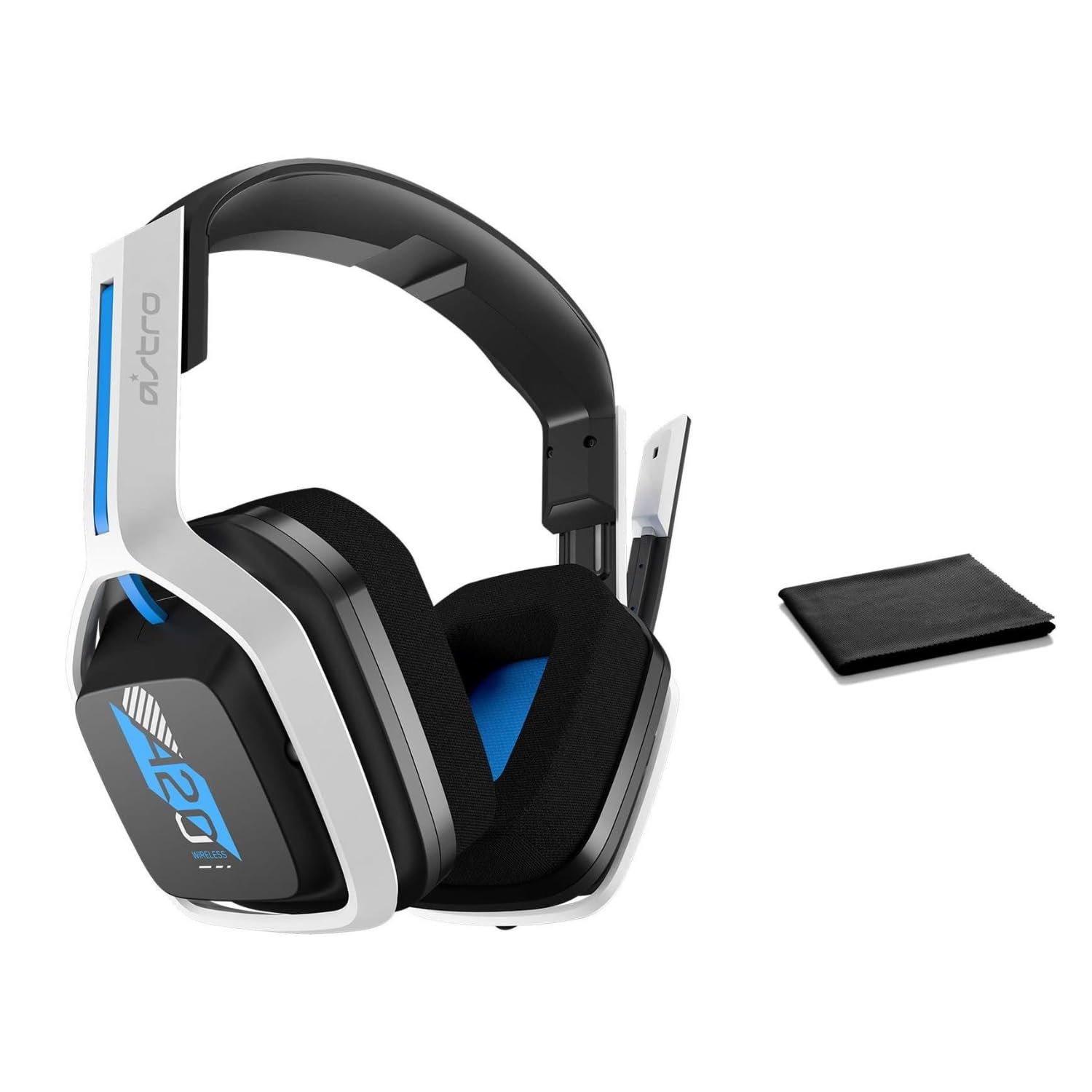
Image: The ASTRO Gaming A20 Gen 2 Wireless Headset, ready for use.
ຄໍາແນະນໍາການດໍາເນີນງານ
ຟັງຊັນໄມໂຄຣໂຟນ
The headset features a flexible boom microphone with a flip-to-mute function. To mute your microphone, simply flip the boom arm upwards. To unmute and activate the microphone, flip the boom arm back down to its original position.
ການຄວບຄຸມປະລິມານ
Adjust the audio volume using the dedicated volume control located on the headset. Rotate the dial or press the buttons (depending on the specific model variant) to increase or decrease the sound output.
ບໍາລຸງຮັກສາ
To ensure the longevity and optimal performance of your headset:
- ທໍາຄວາມສະອາດ: Use the included premium microfiber cloth to gently wipe down the headset and accessories. This helps keep your headset dust-free and smudge-free.
- ການເກັບຮັກສາ: ເກັບຮັກສາຊຸດຫູຟັງໄວ້ໃນບ່ອນທີ່ສະອາດ, ແຫ້ງຫ່າງຈາກອຸນຫະພູມສູງສຸດ ແລະ ແສງແດດໂດຍກົງເມື່ອບໍ່ໄດ້ໃຊ້.
- ການດູແລຫມໍ້ໄຟ: For best battery health, avoid fully discharging the headset frequently. Charge it regularly.
ການແກ້ໄຂບັນຫາ
If you encounter issues with your ASTRO Gaming A20 Gen 2 Wireless Headset, consider the following:
- ບໍ່ມີສຽງ/ໄມໂຄຣໂຟນບໍ່ເຮັດວຽກ: Ensure the USB transmitter is securely plugged into your device and the headset is powered on and paired. Check your device's audio settings to confirm the headset is selected as the default input/output. For the microphone, ensure it is not in the 'flipped-up' (muted) position.
- ບັນຫາການເຊື່ອມຕໍ່: Try unplugging and re-plugging the USB transmitter. If issues persist, try connecting to a different USB port.
- ແບັດເຕີຣີບໍ່ໄດ້ສາກ: Verify the charging cable is properly connected to both the headset and the power source. Try a different USB port or power adapter.
- ອັບເດດເຟີມແວ: Visit the official ASTRO Gaming support website for any available firmware updates for your headset, as these can resolve various performance issues.
ຂໍ້ມູນຈໍາເພາະ
| ຄຸນສົມບັດ | ລາຍລະອຽດ |
|---|---|
| ຊື່ຕົວແບບ | 939-001876 |
| ຍີ່ຫໍ້ | ເກມ ASTRO |
| ເຕັກໂນໂລຊີການເຊື່ອມຕໍ່ | ໄຮ້ສາຍ |
| ການສື່ສານໄຮ້ສາຍ | 2.4GHz ໄຮ້ສາຍ |
| ອຸປະກອນທີ່ເຂົ້າກັນໄດ້ | Mac OS, PlayStation 4, Playstation 5, Windows |
| ຊີວິດຫມໍ້ໄຟ | 15 ຊົ່ວໂມງ |
| ເວລາສາກໄຟ | 15 ຊົ່ວໂມງ |
| ໄມໂຄຣໂຟນ | ປີ້ນເພື່ອປິດສຽງ |
| ການຈັດວາງຫູ | ເກີນຫູ |
| ນ້ໍາຫນັກລາຍການ | 11.2 ອອນສ໌ (318 ກຣາມ) |
| ວັດສະດຸ | ພາດສະຕິກ |
| ອົງປະກອບລວມ | A20 Wireless Headset, USB transmitter, USB-C to USB-A charging cable |
ການຮັບປະກັນແລະການສະຫນັບສະຫນູນ
For detailed warranty information and technical support, please refer to the official ASTRO Gaming webເວັບໄຊ ຫຼືຕິດຕໍ່ບໍລິການລູກຄ້າຂອງເຂົາເຈົ້າ. ຮັກສາຫຼັກຖານການຊື້ຂອງທ່ານສໍາລັບການຮ້ອງຂໍການຮັບປະກັນ.


