
ARCCTV P2
ARCCTV 2K Security Camera Outdoor P2 User Manual
ຮູບແບບ: P2
1. ບົດແນະນຳ
This manual provides detailed instructions for the installation, operation, and maintenance of your ARCCTV 2K Security Camera Outdoor P2. Please read this manual thoroughly before using the product to ensure correct usage and optimal performance. Keep this manual for future reference.

ຮູບພາບ 1.1: ດ້ານຫນ້າ view of the ARCCTV 2K Security Camera Outdoor P2.
2. ສິ່ງທີ່ຢູ່ໃນກ່ອງ
ກວດສອບວ່າອົງປະກອບທັງໝົດມີຢູ່ໃນຊຸດ:
- ຮ່າງກາຍກ້ອງຖ່າຍຮູບ
- ອະແດບເຕີໄຟຟ້າ 5V1A
- ສະກູຕິດຕັ້ງ (ຊຸດ)
- Screw Positioning Sticker
- ສະຕິກເກີເຕືອນ
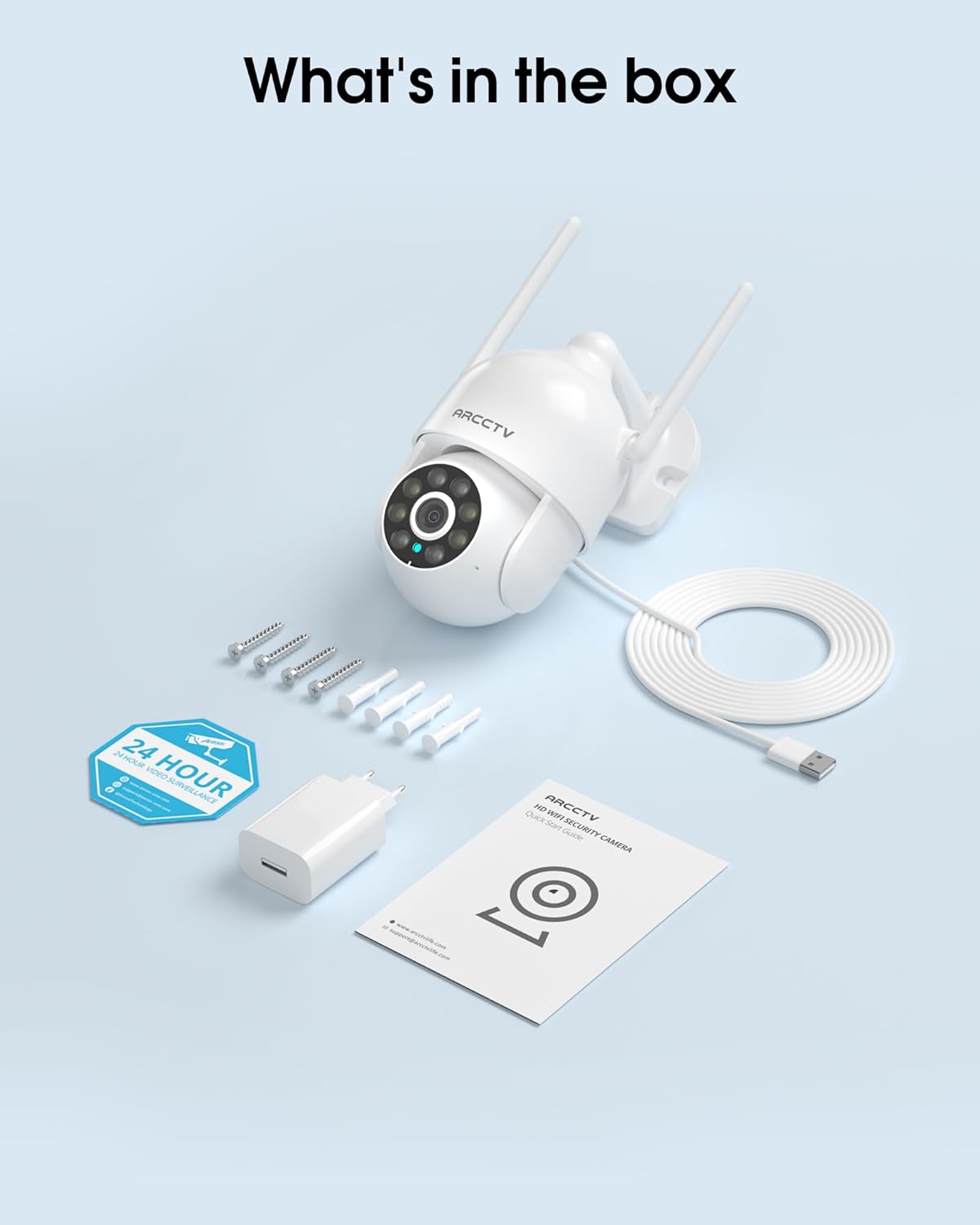
Image 2.1: All items included in the ARCCTV 2K Security Camera package.
3. ຄຸນລັກສະນະຂອງຜະລິດຕະພັນ
- ຄວາມລະອຽດ 2K Ultra HD: Provides clear 2304x1296p video.
- Full Color Night Vision: Built-in spotlight enables vivid color monitoring in low light.
- 360° Pan-Tilt-Zoom (PTZ): Remotely control 355° horizontal and 90° vertical rotation.
- ການຕິດຕາມການເຄື່ອນໄຫວອັດຕະໂນມັດ: Smart AI automatically follows and records detected movement.
- Dual-Band WiFi: Supports both 2.4G and 5G WiFi for stable connectivity.
- ສຽງສອງທາງ: ໄມໂຄຣໂຟນ ແລະ ລຳໂພງໃນຕົວສຳລັບການສື່ສານ.
- IP66 ກັນອາກາດ: Durable design for outdoor use in various weather conditions (-4°F ~ 122°F).
- ການເກັບຮັກສາແບບຍືດຫຍຸ່ນ: Supports local microSD card storage (up to 128GB, not included) and optional cloud storage.
- ການບັນທຶກ 24/7: Continuous recording capability with stable power supply.
4. ຕັ້ງຄ່າ
4.1 ການຕິດຕັ້ງ
- ເລືອກສະຖານທີ່: ເລືອກສະຖານທີ່ກາງແຈ້ງທີ່ມີຄວາມຊັດເຈນ view of the area you wish to monitor. Ensure it is within range of your Wi-Fi network and a power outlet.
- ຕິດກ້ອງ: Use the provided screw positioning sticker to mark drill holes. Drill holes, insert wall anchors, and secure the camera body to the wall using the mounting screws.
- ເຊື່ອມຕໍ່ພະລັງງານ: Plug the 5V1A power adapter into the camera and then into a power outlet. The camera will power on and begin its startup sequence.
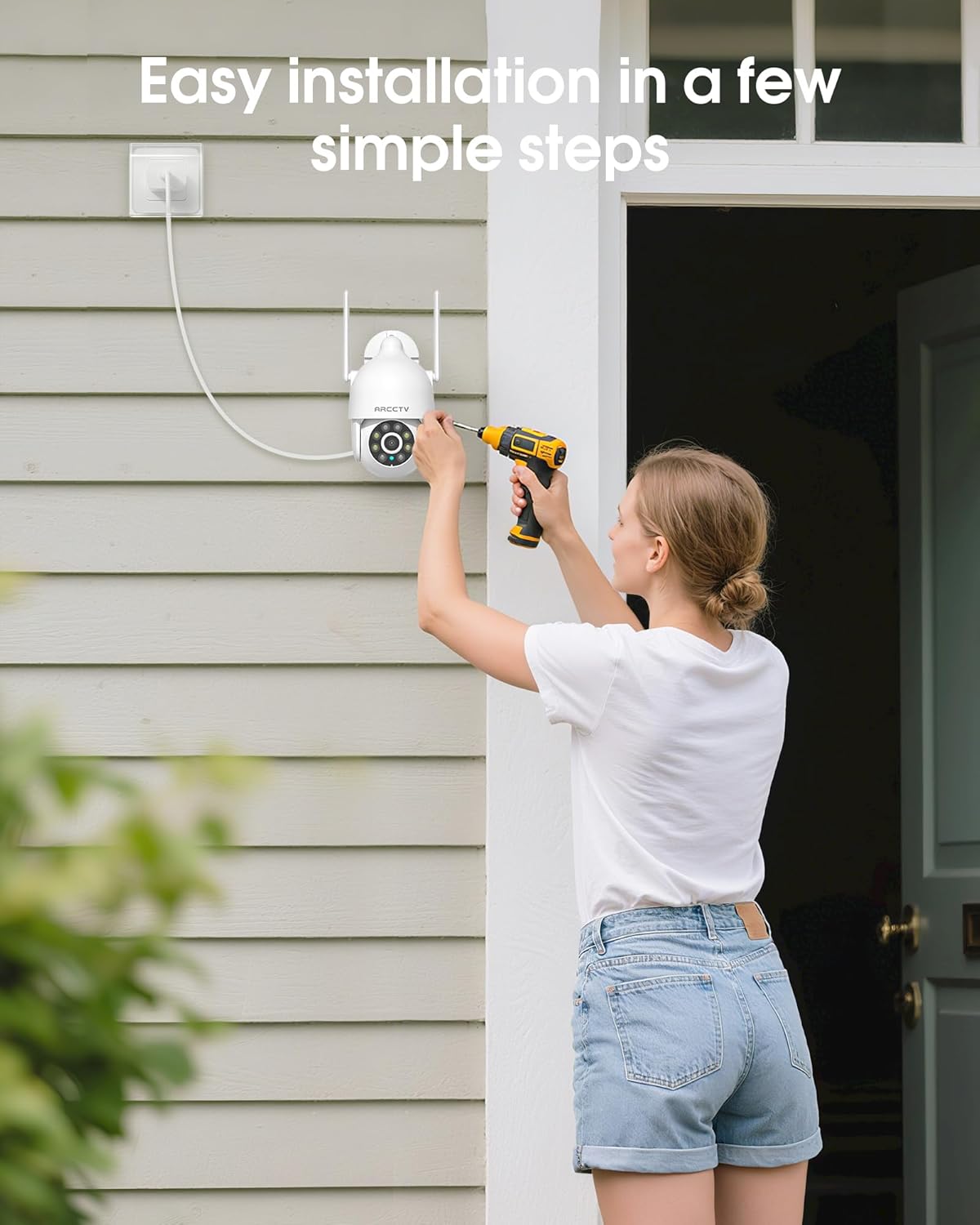
Image 4.1: Illustration of easy camera installation steps.
4.2 ການດາວໂຫຼດແອັບ ແລະ ການສ້າງບັນຊີ
- Download the official ARCCTV app from your smartphone's app store (iOS or Android).
- ເປີດ app ແລະປະຕິບັດຕາມຄໍາແນະນໍາໃນຫນ້າຈໍເພື່ອສ້າງບັນຊີໃຫມ່ຫຼືເຂົ້າສູ່ລະບົບຖ້າຫາກວ່າທ່ານມີແລ້ວ.
4.3 ການເຊື່ອມຕໍ່ Wi-Fi
- ໃນແອັບ, ແຕະທີ່ໄອຄອນ "ເພີ່ມອຸປະກອນ" ຫຼື "+".
- Select your camera model and follow the prompts to connect it to your Wi-Fi network. The camera supports both 2.4GHz and 5GHz bands for stable connectivity.
- Ensure your smartphone is connected to the same Wi-Fi network during the setup process.
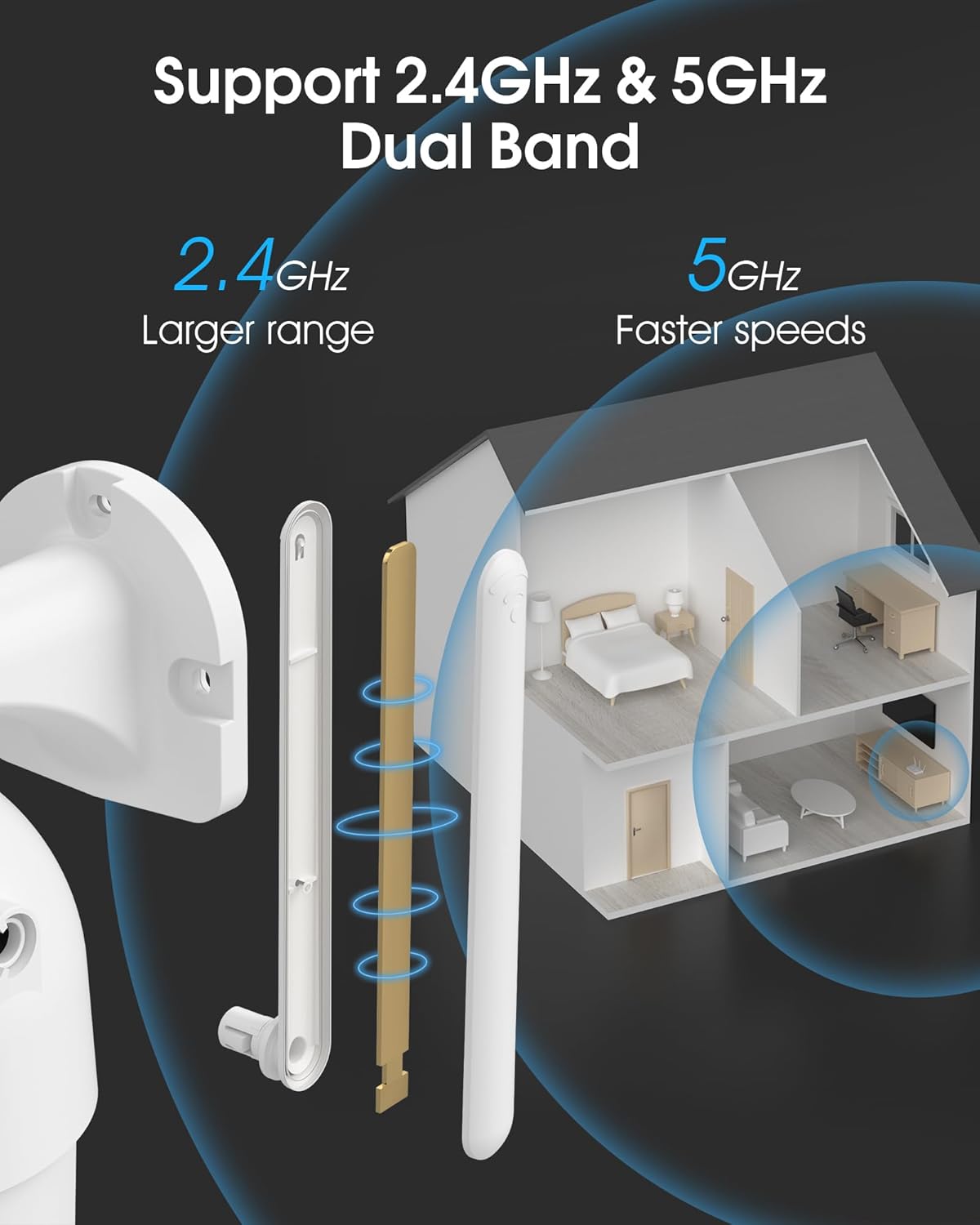
Image 4.2: The camera supports both 2.4GHz (larger range) and 5GHz (faster speeds) Wi-Fi bands.
4.4 ການຕິດຕັ້ງກາດ MicroSD (ທາງເລືອກ)
For local storage, install a microSD card (up to 128GB, not included) into the designated slot on the camera. Ensure the camera is powered off before inserting or removing the card.

Image 4.3: Location of the microSD card slot on the camera.
5. ປະຕິບັດການກ້ອງຖ່າຍຮູບ
5.1 ດໍາລົງຊີວິດ View
Open the ARCCTV app and select your camera to view the live feed. You can monitor your property in real-time.
5.2 ການຄວບຄຸມ Pan-Tilt-Zoom (PTZ).
ຢູ່ໃນການຖ່າຍທອດສົດ view screen, use the directional controls to rotate the camera horizontally (Pan: 355°) and vertically (Tilt: 90°) to adjust the viewing angle. You can also set preset points for quick navigation.
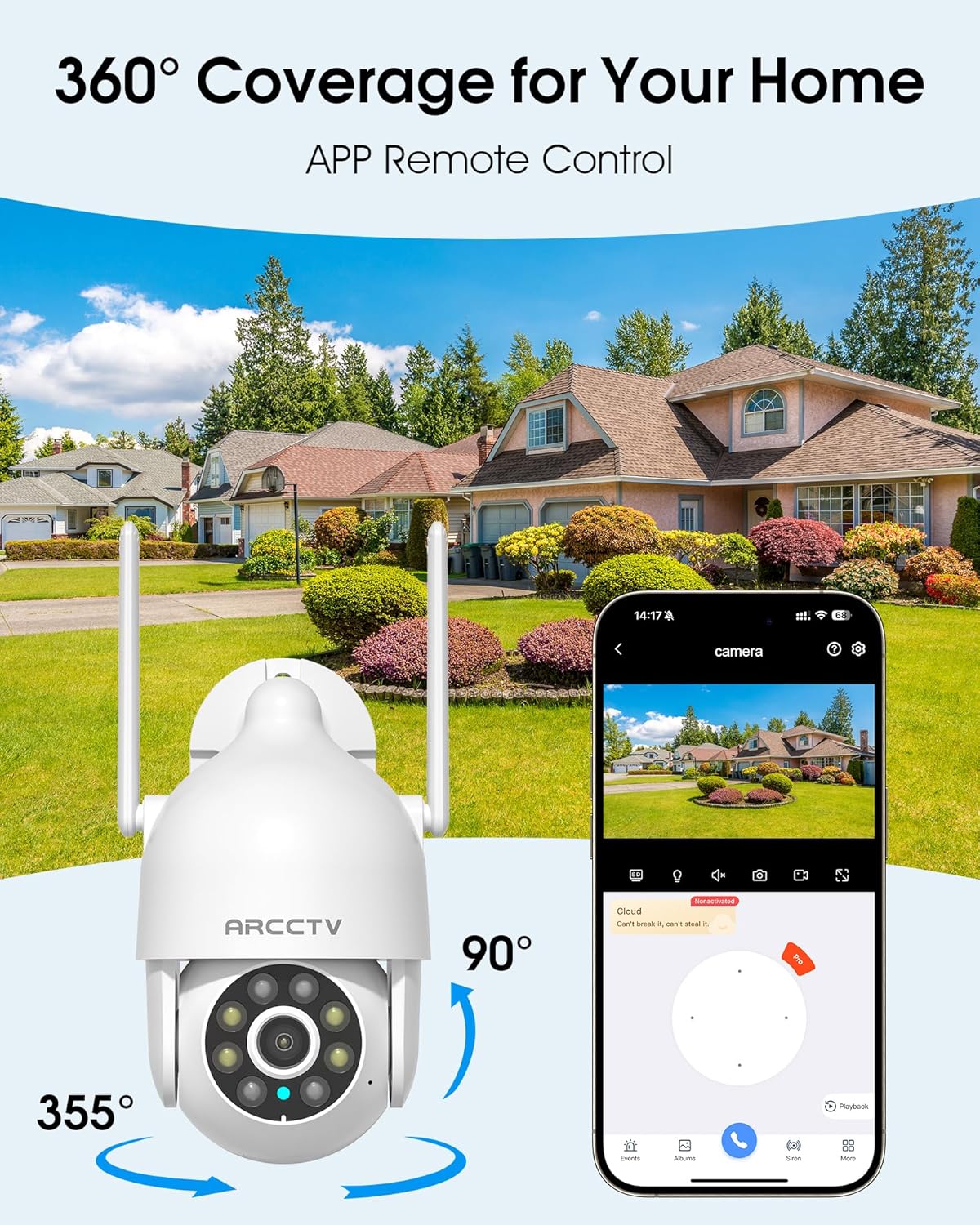
Image 5.1: The camera offers 360° coverage through remote pan and tilt controls.
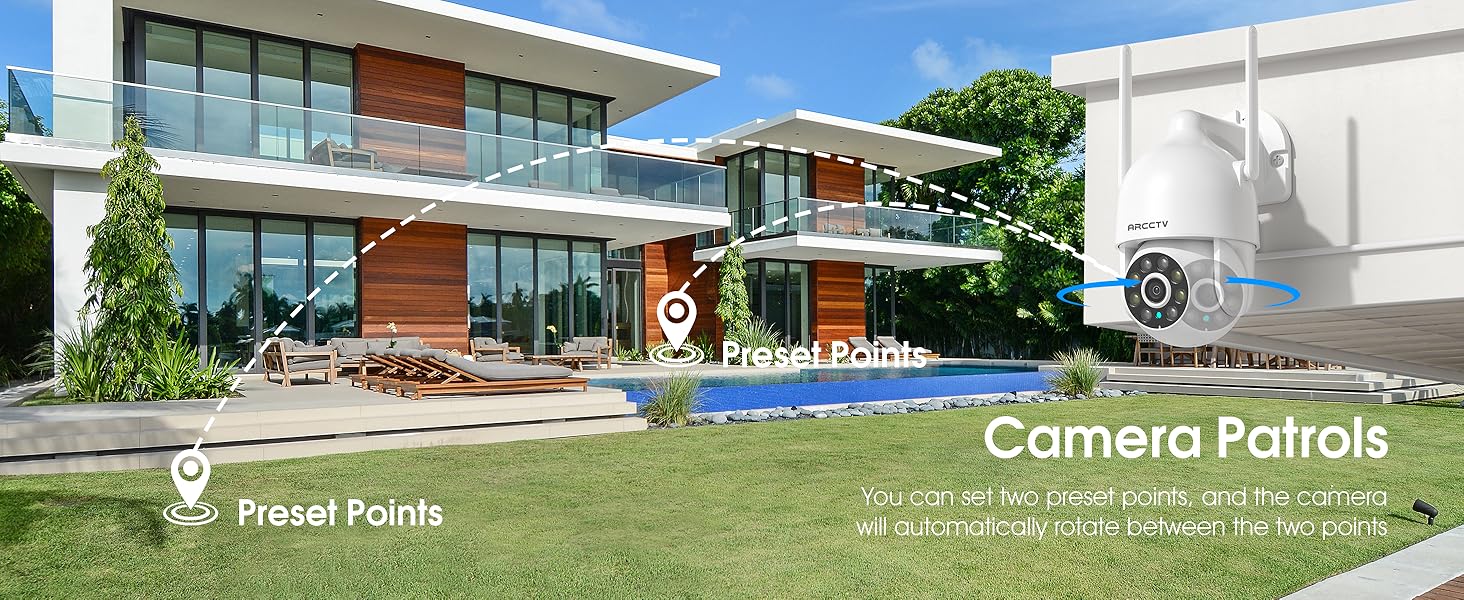
Image 5.2: Setting up camera patrol routes between preset points.
5.3 Motion Tracking and Alerts
The camera features smart AI motion tracking that automatically follows detected movement. You can customize alert zones and receive instant notifications on your smartphone when motion is detected.

Image 5.3: The camera's smart motion tracking feature in action.

Image 5.4: Instant alerts with customizable settings, including spotlight, siren, and two-way audio.
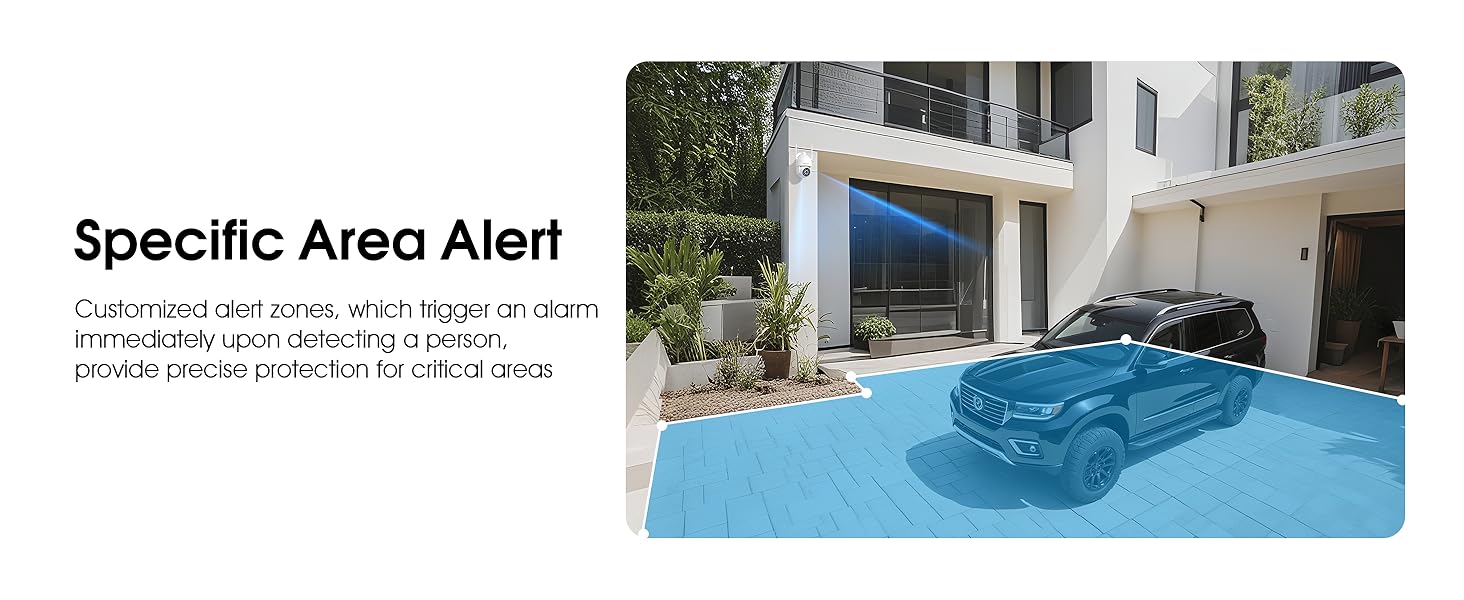
Image 5.5: Setting up specific area alerts for precise protection.
5.4 ໂໝດວິໄສທັດກາງຄືນ
The camera offers both full-color night vision (activated by the built-in spotlight) and infrared night vision for clear monitoring in various low-light conditions.

Image 5.6: Comparison of Color Night Vision and Infrared Night Vision.
5.5 ສຽງສອງທາງ
Use the two-way audio feature to communicate with visitors or deter unwanted guests directly through the camera's built-in microphone and speaker.
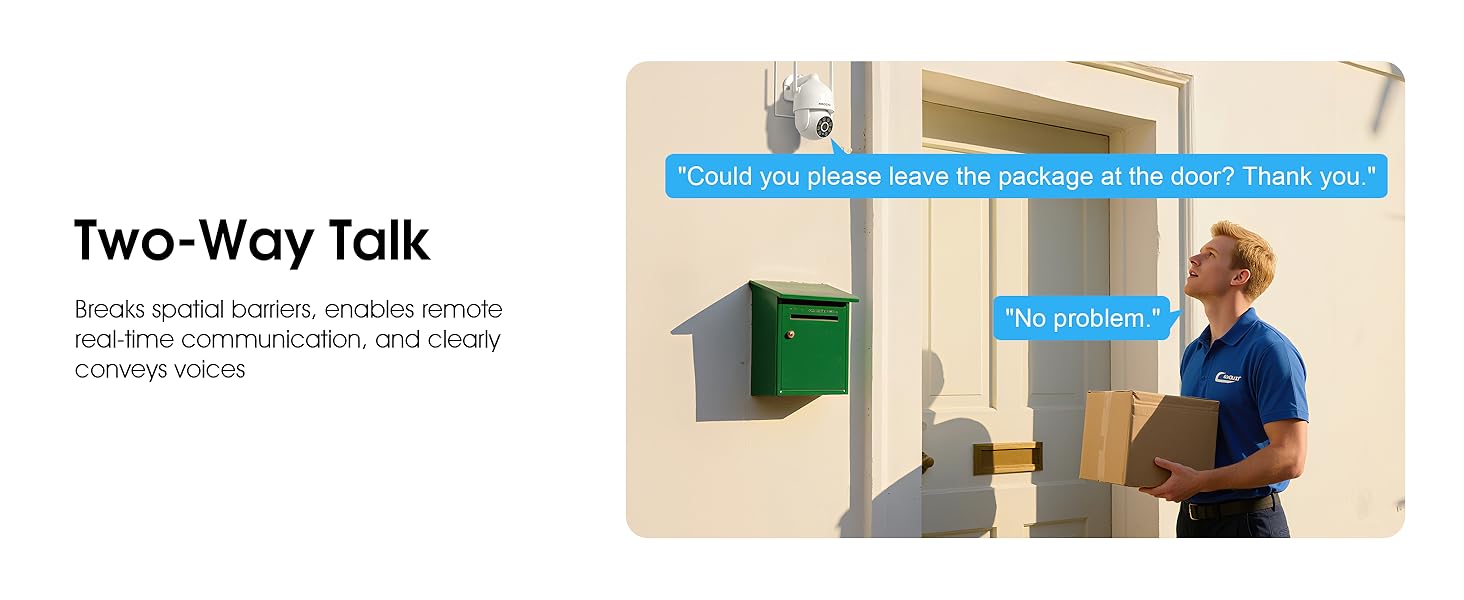
Image 5.7: Utilizing two-way talk for remote communication.
5.6 ການບັນທຶກແລະການຫຼິ້ນ
The camera supports 24/7 continuous recording. Footage can be saved to a local microSD card (up to 128GB) or to optional cloud storage. Access recorded videos through the app's playback function.

Image 5.8: The camera provides 24/7 recording capabilities.
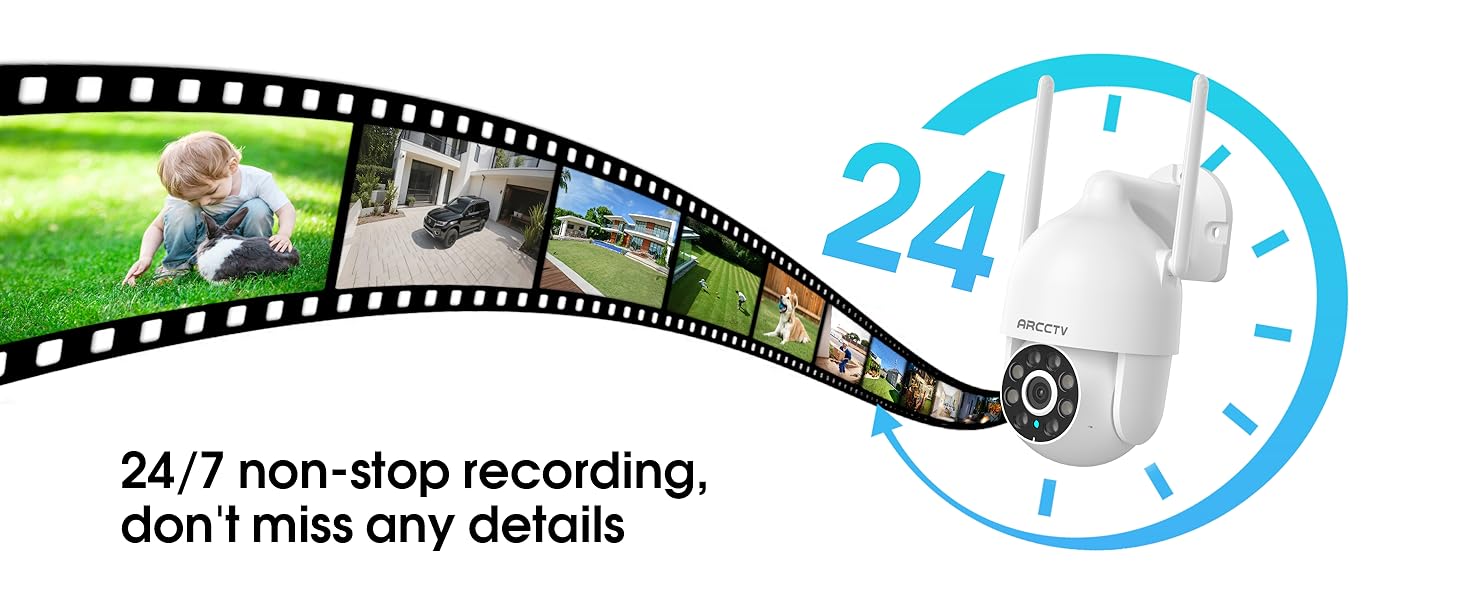
Image 5.9: Continuous 24/7 recording ensures no details are missed.
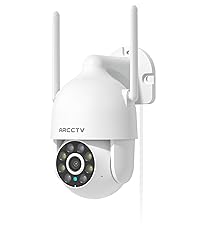
Image 5.10: Cloud storage encryption for secure and accessible recordings (subscription may apply).
5.7 ການແບ່ງປັນຄອບຄົວ
The app supports multi-member sharing, allowing family members to view the camera feed and collaborate on security monitoring.
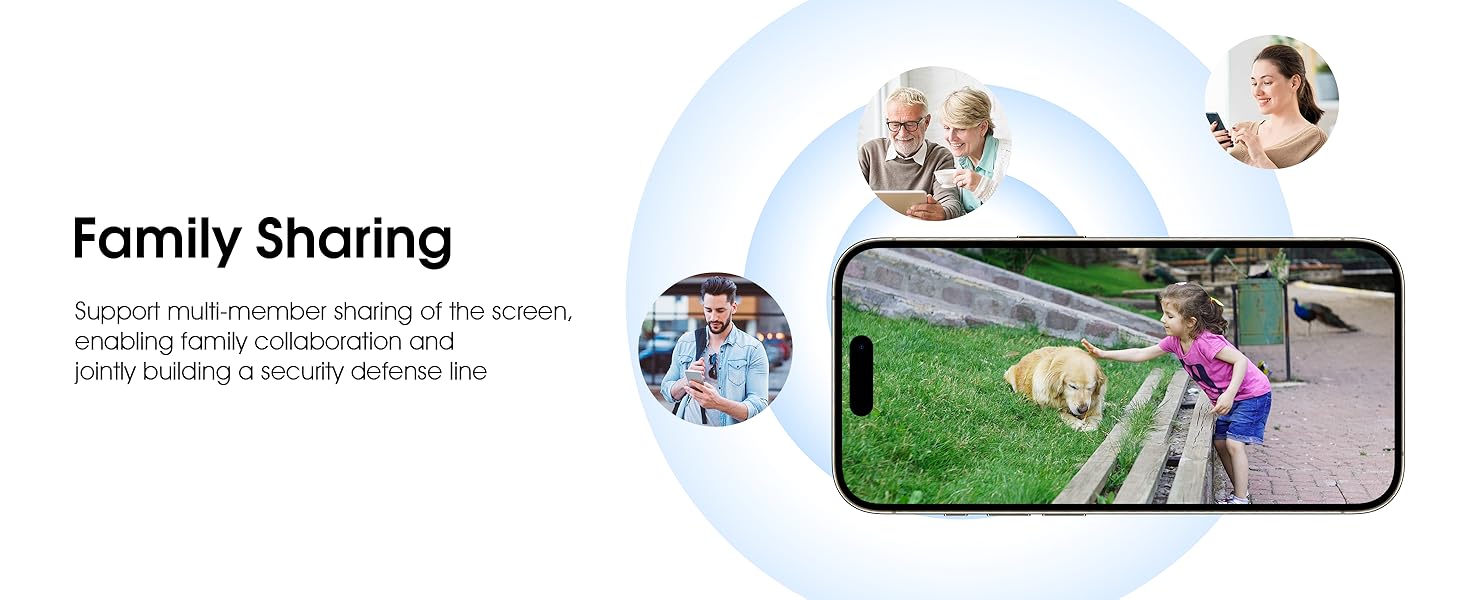
Image 5.11: The family sharing feature allows multiple users to access the camera feed.
5.8 ຄວາມເຂົ້າກັນໄດ້ຂອງ Alexa
The camera is compatible with Alexa, allowing you to check the monitoring screen using voice commands.
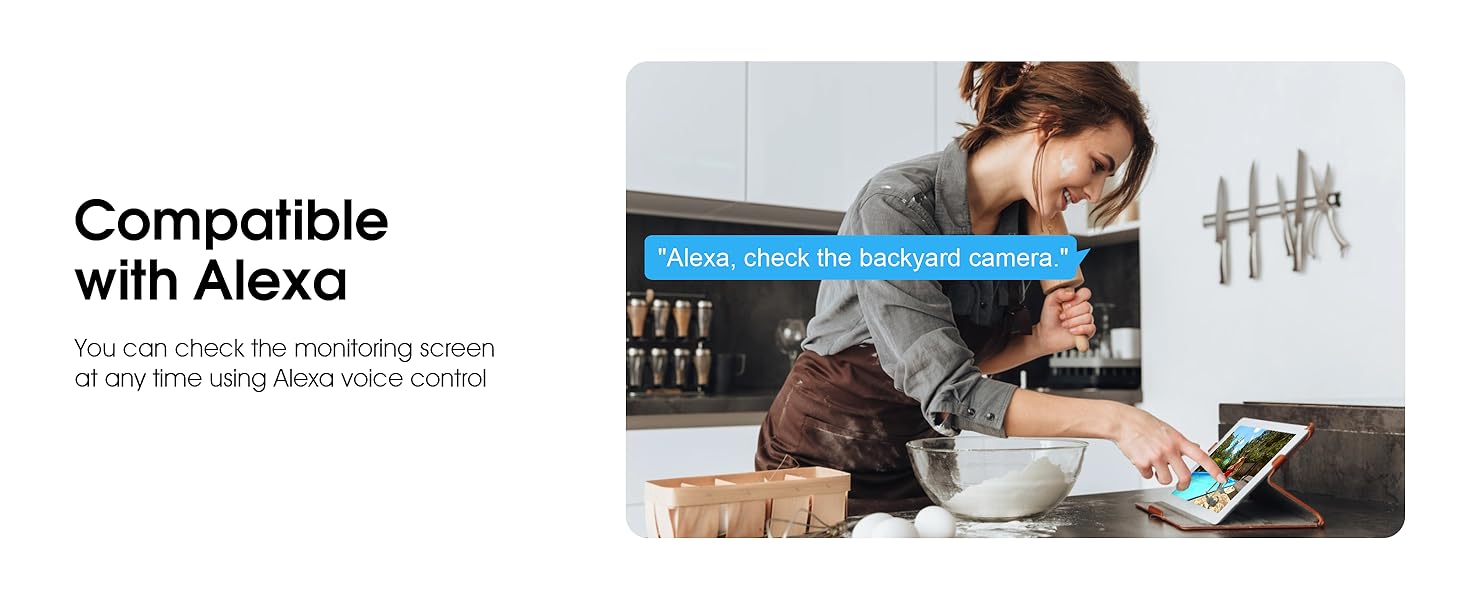
Image 5.12: Voice control via Alexa for convenient monitoring.
6. ບໍາລຸງຮັກສາ
6.1 ການທໍາຄວາມສະອາດກ້ອງຖ່າຍຮູບ
ເຮັດຄວາມສະອາດເລນກ້ອງຖ່າຍຮູບ ແລະ ທີ່ຢູ່ອາໃສເປັນໄລຍະໆດ້ວຍເຄື່ອງອ່ອນ, ງamp ຜ້າເພື່ອເອົາຂີ້ຝຸ່ນແລະສິ່ງເສດເຫຼືອ. ຢ່າໃຊ້ສານເຄມີທີ່ຮຸນແຮງຫຼືເຄື່ອງເຮັດຄວາມສະອາດຂັດ.
6.2 ການອັບເດດເຟີມແວ
Ensure your camera's firmware is up to date for optimal performance and security. Check for updates within the ARCCTV app and follow the instructions to install them.
6.3 ການຄຸ້ມຄອງການເກັບຮັກສາ
If using a microSD card, regularly check its status in the app. Format the card periodically to maintain performance. For cloud storage, manage your subscription and storage space through the app.
7. ການແກ້ໄຂບັນຫາ
- ກ້ອງຖ່າຍຮູບບໍ່ໄດ້ເຊື່ອມຕໍ່ກັບ Wi-Fi:
- Ensure your Wi-Fi network is 2.4GHz or 5GHz and has a strong signal at the camera's location.
- ກວດສອບວ່າລະຫັດຜ່ານ Wi-Fi ຖືກປ້ອນຢ່າງຖືກຕ້ອງ.
- ຣີສະຕາດ router ແລະກ້ອງຖ່າຍຮູບຂອງທ່ານ.
- ຄຸນນະພາບຮູບພາບທີ່ບໍ່ດີ:
- ເຮັດຄວາມສະອາດເລນກ້ອງຖ່າຍຮູບ.
- ຮັບປະກັນແສງສະຫວ່າງທີ່ພຽງພໍສຳລັບປະສິດທິພາບການເບິ່ງເຫັນໃນຕອນກາງຄືນທີ່ດີທີ່ສຸດ.
- ກວດເບິ່ງຄວາມໄວການເຊື່ອມຕໍ່ອິນເຕີເນັດຂອງທ່ານ.
- ກວດຈັບການເຄື່ອນໄຫວບໍ່ເຮັດວຽກ:
- ກວດສອບວ່າການກວດຈັບການເຄື່ອນໄຫວຖືກເປີດໃຊ້ງານໃນການຕັ້ງຄ່າແອັບແລ້ວ.
- ປັບການຕັ້ງຄ່າຄວາມອ່ອນໄຫວ.
- ຮັບປະກັນວ່າບໍ່ມີສິ່ງກີດຂວາງໃນພື້ນທີ່ຂອງກ້ອງຖ່າຍຮູບ view.
- No Recording to MicroSD Card:
- Ensure a microSD card is properly inserted and formatted in the app.
- Check if the card is full; consider formatting or replacing it.
- ຢືນຢັນການຕັ້ງຄ່າການບັນທຶກໃນແອັບ.
8. ຂໍ້ມູນຈໍາເພາະ
| ຄຸນສົມບັດ | ຂໍ້ມູນຈໍາເພາະ |
|---|---|
| ຊື່ຕົວແບບ | P2 |
| ການນຳໃຊ້ພາຍໃນ/ນອກ | ກາງແຈ້ງ |
| ຄວາມລະອຽດການຖ່າຍວິດີໂອ | 2K (2304x1296p) |
| ເຕັກໂນໂລຊີການເຊື່ອມຕໍ່ | ໄຮ້ສາຍ (Wi-Fi) |
| ເຕັກໂນໂລຊີການສື່ສານໄຮ້ສາຍ | Wi-Fi (2.4G/5G ຄູ່ແບນ) |
| Viewໃນມຸມ | 360 ອົງສາ (355° Pan, ອຽງ 90°) |
| ຂອບເຂດວິໄສທັດກາງຄືນ | 50 ຟຸດ |
| ລະດັບຄວາມຕ້ານທານນ້ໍາ | ກັນນໍ້າ IP66 |
| ແຫຼ່ງພະລັງງານ | ຕົວແປງໄຟ 5V1A |
| Flash Memory ຮອງຮັບຂະໜາດສູງສຸດ | 128 GB (ໄມໂຄຣ SD) |
| ຄວາມສາມາດໃນການບັນທຶກສຽງ ແລະ ພາບ | ວິດີໂອ ແລະສຽງ |
| ຄຸນນະສົມບັດພິເສດ | 2-Way Audio, Motion Tracking, Full Color Night Vision |
| ຂະໜາດລາຍການ L x W x H | 7.8 x 6.6 x 5.3 ນິ້ວ |
| ນ້ໍາຫນັກລາຍການ | 1.39 ປອນ |
9. ການຮັບປະກັນແລະການສະຫນັບສະຫນູນ
For warranty information and technical support, please refer to the official ARCCTV website or contact their customer service directly. Contact details are typically provided on the product packaging or within the mobile application.
Ask a question about this manual
Ask about setup, troubleshooting, compatibility, parts, safety, or missing instructions. Manuals+ will review the question and use this page’s manual context to help answer it.