
1. ເກີນview
The Roku Select Series HD TV provides a streamlined entertainment experience. This 32-inch 720p HD television integrates the Roku operating system for easy access to streaming content, live TV, and various applications. It features a voice remote for convenient control and includes technologies like Bluetooth Headphone Mode and Dolby Audio for enhanced sound.
ຄຸນນະສົມບັດທີ່ສໍາຄັນ
- Seamless Streaming: Fast Wi-Fi and quick app launches for immediate entertainment access.
- Extensive Content: Access to thousands of streaming apps, free movies, shows, and live TV channels.
- ໜ້າຈໍຫຼັກທີ່ສາມາດປັບແຕ່ງໄດ້: Organize apps and content for personalized viewing.
- ການອັບເດດຊອບແວອັດຕະໂນມັດ: Ensures access to the latest features and applications.
- ການເຊື່ອມໂຍງເຮືອນອັດສະລິຍະ: Compatible with Roku Voice, Siri, Alexa, and Google Assistant for voice control. Supports Apple AirPlay for content sharing.
- Clear HD Picture: 720p HD resolution with Roku Smart Picture technology for optimized visuals.
- ຣີໂໝດສຽງ: Search, play, and control streaming with voice commands.
- ສຽງທີ່ປັບປຸງໃຫ້ດີຂຶ້ນ: Designed for clear speech and louder sound with Dolby Audio technology.
- Bluetooth Headphone Mode: Private listening with wireless headphones.

Image: Roku 32-inch Select Series HD Smart TV with included remote control.
2. ສິ່ງທີ່ຢູ່ໃນກ່ອງ
ກວດສອບວ່າມີອົງປະກອບທັງຫມົດກ່ອນທີ່ຈະສືບຕໍ່ການຕັ້ງຄ່າ.
- Roku Select Series 32" HD TV
- Stands and screws
- Roku Voice Remote with batteries (2 AAA)
- ສາຍໄຟ
- ຄູ່ມືຜູ້ໃຊ້ (ເອກະສານນີ້)

Image: Contents of the Roku Select Series TV packaging.
3. ຕັ້ງຄ່າ
3.1 ການຫຸ້ມຫໍ່
ເອົາໂທລະທັດ ແລະອຸປະກອນເສີມທັງໝົດອອກຈາກເຄື່ອງຫຸ້ມຫໍ່ຢ່າງລະມັດລະວັງ. ຮັກສາການຫຸ້ມຫໍ່ສໍາລັບຄວາມຕ້ອງການການຂົນສົ່ງຫຼືການບໍລິການໃນອະນາຄົດ.
3.2 ການຕິດຕັ້ງ
- ວາງໜ້າຈໍໂທລະທັດລົງເທິງພື້ນຜິວທີ່ສະອາດ, ອ່ອນໆເພື່ອປ້ອງກັນຮອຍຂີດຂ່ວນ.
- ວາງຕົວຕັ້ງໂທລະທັດດ້ວຍຮູສະກູຢູ່ດ້ານລຸ່ມຂອງໂທລະພາບ.
- ຍຶດບ່ອນຢືນໃຫ້ປອດໄພໂດຍໃຊ້ສະກູທີ່ໃຫ້ໄວ້. ໃຫ້ແນ່ໃຈວ່າພວກມັນຖືກຮັດແຫນ້ນຢ່າງແຫນ້ນຫນາ.
3.3 ການເຊື່ອມຕໍ່ອຸປະກອນຕໍ່
Connect your devices to the appropriate ports on the back of the TV.
- HDMI: Connect up to three HDMI devices (e.g., cable box, gaming console, Blu-ray player) to the HDMI ports.
- USB: Use the USB port for media playback or connecting compatible accessories.
- Optical (S/PDIF): ສໍາລັບການເຊື່ອມຕໍ່ກັບລະບົບສຽງພາຍນອກ.
- ສາຍໄຟ: ເຊື່ອມຕໍ່ສາຍໄຟກັບໂທລະທັດ ແລະຈາກນັ້ນໄປຫາປລັກສຽບໃສ່ຝາ.
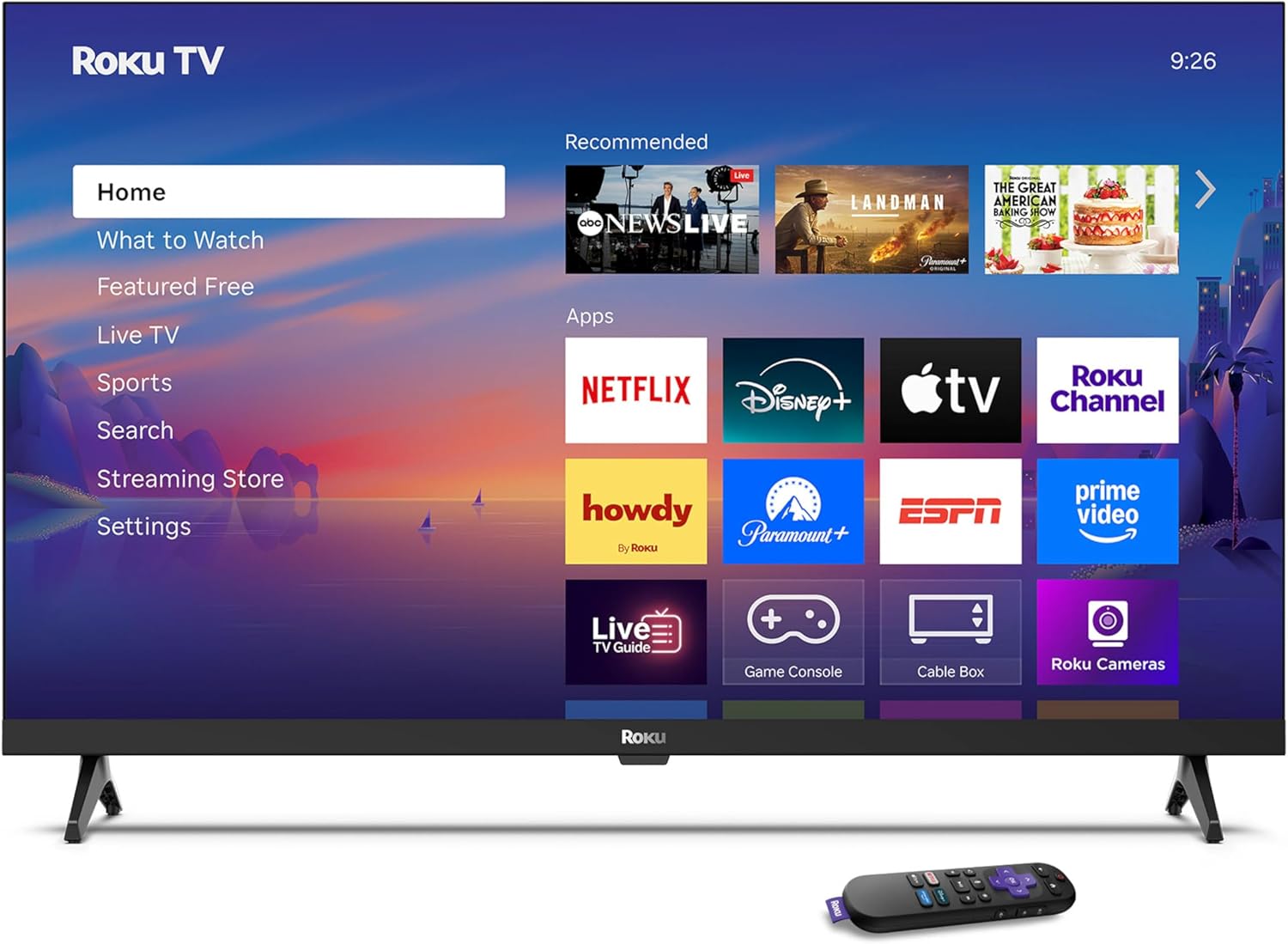
Image: Rear panel connections including HDMI, USB, and optical ports.
3.4 ການເປີດເຄື່ອງເບື້ອງຕົ້ນ ແລະ ການເຊື່ອມຕໍ່ເຄືອຂ່າຍ
- Plug in the TV and press the power button on the remote or TV.
- ປະຕິບັດຕາມຄໍາແນະນໍາໃນຫນ້າຈໍເພື່ອເລືອກພາສາຂອງທ່ານແລະເຊື່ອມຕໍ່ກັບເຄືອຂ່າຍ Wi-Fi ຂອງທ່ານ.
- Activate your Roku account or create a new one.
ວິດີໂອ: ຫຼາຍກວ່າview of the Roku TV operating system, demonstrating its user interface and features. This video is provided by Roku, Inc.
4. ຄໍາແນະນໍາການດໍາເນີນງານ
4.1 ການໃຊ້ຣີໂໝດສຽງ
The Roku Voice Remote allows for intuitive control of your TV and streaming content.
- ຊອກຫາດ້ວຍສຽງ: Press and hold the voice button and speak your command to search for content, launch apps, or control playback.
- ການນໍາທາງ: Use the directional pad to move through menus and select items.
- ທາງລັດແອັບ: ປຸ່ມສະເພາະໃຫ້ການເຂົ້າເຖິງບໍລິການສະຕຣີມມິງທີ່ໄດ້ຮັບຄວາມນິຍົມໄດ້ໄວ.

Image: Features of the Roku Voice Remote, highlighting voice control and shortcut buttons.
4.2 Navigating the Home Screen
The Roku Home Screen provides access to all your installed apps, inputs, and settings.
- ຫນ້າທໍາອິດ: ສົ່ງຄືນໃຫ້ທ່ານໄປທີ່ໜ້າຈໍຫຼັກ.
- ສິ່ງທີ່ຈະເບິ່ງ: Discover recommended content.
- ໂທລະທັດສົດ: Access free live television channels.
- ຮ້ານສະຕຣີມມິງ: Browse and add new streaming channels.
- ການຕັ້ງຄ່າ: Adjust TV and system preferences.

Image: The Roku TV home screen interface.
4.3 ການປັບການຕັ້ງຄ່າຮູບພາບ ແລະ ສຽງ
ປັບແຕ່ງຂອງທ່ານ viewing ແລະປະສົບການຟັງໂດຍຜ່ານເມນູການຕັ້ງຄ່າ.
- ໂໝດຮູບ: Select from predefined modes like Standard, Vivid, Sports, or Movie. Roku Smart Picture automatically optimizes settings.
- ແບບສຽງ: ເລືອກສຽງ profiles or enable features like Night Mode for reduced volume fluctuations.
- Bluetooth Headphone Mode: Pair your wireless headphones for private audio.

Image: Picture mode settings on the Roku TV.

Image: Bluetooth Headphone Mode in use.

Image: Dolby Audio technology for clear sound.
5. ບໍາລຸງຮັກສາ
5.1 ການທໍາຄວາມສະອາດຫນ້າຈໍ
To clean the TV screen, gently wipe it with a soft, dry, lint-free cloth. For stubborn marks, lightly dampເຊັດຜ້າດ້ວຍນ້ຳ ຫຼື ນ້ຳຢາທຳຄວາມສະອາດທີ່ໃຊ້ກັບໜ້າຈໍໄດ້. ຫຼີກລ່ຽງການໃຊ້ສານເຄມີທີ່ຮຸນແຮງ ຫຼື ວັດສະດຸທີ່ມີສີຂັດ.
5.2 ການປັບປຸງຊອບແວ
Your Roku TV automatically receives software updates when connected to the internet. These updates provide new features, performance improvements, and bug fixes. Ensure your TV remains connected to the internet for optimal performance.
6. ການແກ້ໄຂບັນຫາ
If you encounter issues with your Roku TV, refer to the following common solutions:
- ບໍ່ມີພະລັງງານ: ກວດໃຫ້ແນ່ໃຈວ່າໄດ້ສຽບສາຍໄຟຢ່າງປອດໄພໃສ່ທັງໂທລະພາບ ແລະປລັກສຽບໄຟທີ່ເຮັດວຽກໄດ້. ລອງຮ້ານອື່ນ.
- ບໍ່ມີຮູບພາບ/ສຽງ: Verify that the correct input source is selected. Check all cable connections (HDMI, audio). Restart the TV by unplugging it for 30 seconds and plugging it back in.
- ໄລຍະໄກບໍ່ເຮັດວຽກ: Replace the AAA batteries in the remote. Ensure there are no obstructions between the remote and the TV. For voice remote issues, re-pair the remote if necessary (refer to Roku support for specific steps).
- ບັນຫາການເຊື່ອມຕໍ່ເຄືອຂ່າຍ: Restart your Wi-Fi router and modem. Go to the TV's settings menu, then Network, and try reconnecting to your Wi-Fi network.
- ແອັບບໍ່ໂຫຼດ/ຂັດຂ້ອງ: Try restarting the app. If the issue persists, remove the app from the home screen, restart the TV, and then re-add the app from the Streaming Store.
7. ຂໍ້ມູນຈໍາເພາະ
| ຄຸນສົມບັດ | ລາຍລະອຽດ |
|---|---|
| ຂະໜາດໜ້າຈໍ | 32 ນິ້ວ |
| ເຕັກໂນໂລຊີການສະແດງ | LED |
| ຄວາມລະອຽດ | 720p |
| ອັດຕາການໂຫຼດຂໍ້ມູນຄືນໃໝ່ | 60 Hz |
| ຄຸນນະສົມບັດພິເສດ | Bluetooth Headphone Mode, Dolby Audio, Voice Remote |
| ເຕັກໂນໂລຊີການເຊື່ອມຕໍ່ | Bluetooth, WiFi |
| ພອດ HDMI ທັງໝົດ | 3 |
| ພອດ USB ທັງໝົດ | 1 |
| ການປ້ອນຂໍ້ມູນສຽງ | HDMI |
| ລະບົບປະຕິບັດການ | Roku OS |
| ປະເພດການຕິດຕັ້ງ | ຕິດຕັ້ງເທິງໂຕະ, ຕິດຕັ້ງຝາ |
| VESA Mount Standard | 200 x 200 ມມ |
| ຂະໜາດສິນຄ້າ (ກວ້າງ x ຍາວ x ສູງ) | 7"D x 28.3"W x 18.3"H |
| ນ້ໍາຫນັກລາຍການ | 7.5 ປອນ |
| ໝາຍເລກຕົວແບບ | 32R2D5 |
| UPC | 829610008974 |
8. ຂໍ້ມູນການຮັບປະກັນ
8.1 ການຮັບປະກັນຈໍາກັດ
Roku warrants the hardware against defects in materials and workmanship under normal use for a period of one (1) year from the date of purchase ("Warranty Period"). If Roku determines that the device’s hardware is defective during the Warranty Period, Roku’s sole obligation, and your exclusive remedy, will be to either repair or replace the unit with either a new or rebuilt device, at its option. This warranty applies if the product is used in accordance with the provided documentation.
8.2 ນະໂຍບາຍການສົ່ງຄືນ
You may return a device for any reason:
- Within thirty (30) days from the date of purchase from Roku.
- Within the applicable return period if purchased from an authorized reseller or distributor.
Additional details regarding product returns can be found on the Roku support site.
9. ສະຫນັບສະຫນູນ
For further assistance, troubleshooting guides, and frequently asked questions, please visit the official Roku support webເວັບໄຊ: