
VGN F1 Pro Max
VGN F1 Pro Max Wireless Gaming Mouse User Manual
Model: F1 Pro Max
ແນະນຳ
This manual provides detailed instructions for the setup, operation, maintenance, and troubleshooting of your VGN F1 Pro Max Wireless Gaming Mouse. Please read this manual thoroughly before using the product to ensure optimal performance and longevity.

Image: VGN F1 Pro Max Wireless Gaming Mouse, showcasing its ergonomic design and white finish.
ເນື້ອໃນຊຸດ
ກວດສອບວ່າລາຍການທັງຫມົດແມ່ນມີຢູ່ໃນຊຸດ:
- VGN F1 Pro Max Mouse
- USB Type-A Receiver
- Paracord style USB-C to USB-A Cable
- USB Extension Adapter
- ເທັບຈັບ ໜູ
- ຄູ່ມືຜູ້ໃຊ້ (ເອກະສານນີ້)

Image: Contents of the VGN F1 Pro Max Mouse package, including the mouse, cables, receiver, and grip tape.
ສິນຄ້າເກີນview
Familiarize yourself with the various components of your VGN F1 Pro Max mouse:

Image: Diagram illustrating the various buttons and features of the VGN F1 Pro Max mouse, including the LED indicator, scroll wheel, left/right/forward/backward buttons, DPI button, optical sensor, power switch, receiver storage slot, and feet.
- ປຸ່ມຊ້າຍ/ຂວາ: ຟັງຊັນການຄລິກເມົ້າມາດຕະຖານ.
- ລໍ້ເລື່ອນ: ສຳລັບການເລື່ອນ ແລະ ຟັງຊັນຄລິກກາງ.
- ປຸ່ມໄປໜ້າ/ກັບຫຼັງ: Side buttons for navigation, customizable via software.
- ປຸ່ມ DPI: Located on the underside, used to cycle through DPI settings.
- ສັບປ່ຽນພະລັງງານ: On/Off switch on the underside.
- ເຊັນເຊີແສງ: PAW 3395 sensor for tracking movement.
- Receiver Storage Slot: Compartment on the underside to store the USB receiver.
- ຜອດ USB-C: ສໍາລັບການສາກໄຟແລະການເຊື່ອມຕໍ່ສາຍ.
ຕັ້ງຄ່າ
1. ການສາກໄຟຂອງຫນູ
Before initial use, fully charge the mouse. Connect the USB-C end of the provided cable to the mouse and the USB-A end to a powered USB port on your computer or a USB charger. The LED indicator will show charging status.
- ແສງສີສົ້ມ: ກຳລັງສາກຢູ່.
- ແສງສີຂຽວ: Battery level normal (fully charged or sufficient charge).
- ໄຟແດງ: Battery low, recharge soon.
2. ການເຊື່ອມຕໍ່ແບບໄຮ້ສາຍ (2.4GHz)
- Locate the USB Type-A receiver. It may be stored in the slot on the underside of the mouse.
- Plug the USB receiver into an available USB-A port on your computer. For optimal signal, use the included USB Extension Adapter to position the receiver closer to the mouse.
- ເປີດເມົ້າໂດຍໃຊ້ສະວິດໄຟຢູ່ດ້ານລຸ່ມ.
- Your computer should automatically detect the mouse.
3. Connecting Wired
To use the mouse in wired mode, connect the USB-C end of the provided cable directly to the mouse and the USB-A end to your computer. The mouse will function immediately and charge simultaneously.
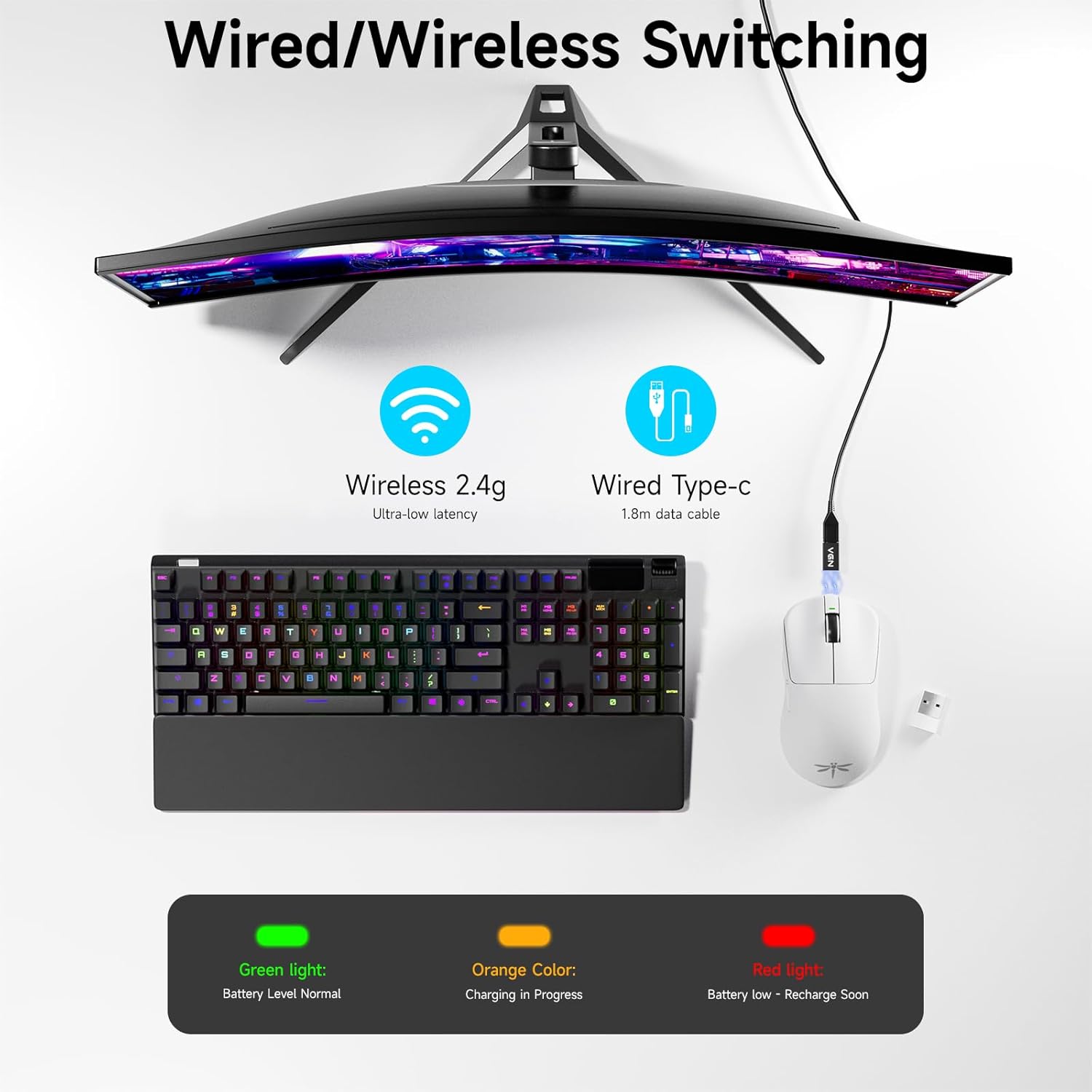
Image: Diagram showing the VGN F1 Pro Max mouse connected via 2.4GHz wireless with a dongle and via USB-C cable for wired mode, along with battery indicator lights.
4. Installing VGN HUB Driver (Optional for Customization)
For advanced customization of buttons, DPI settings, and polling rate, download and install the VGN HUB driver software from the official VGN website. This software allows you to remap buttons, create macros, and fine-tune performance settings.
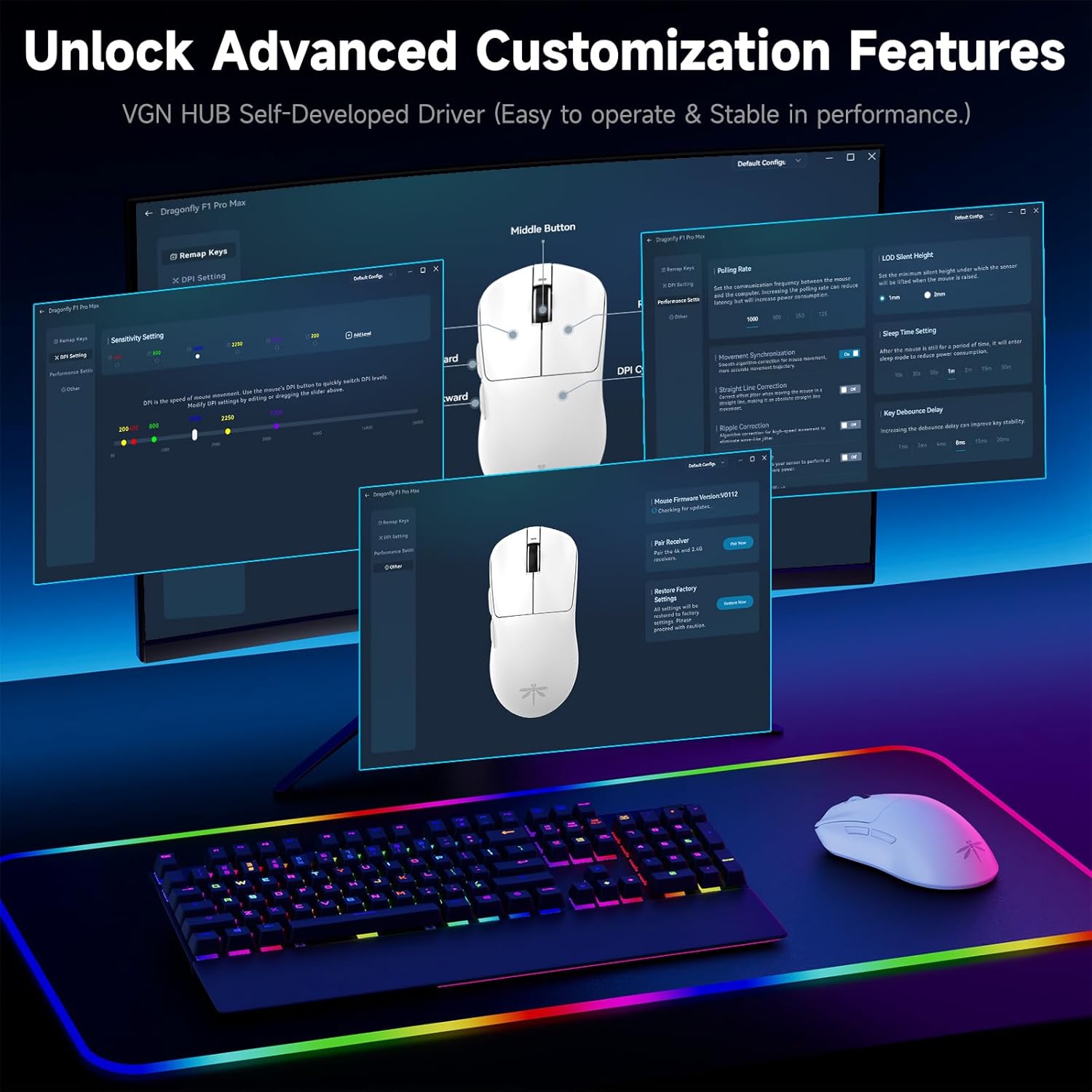
Image: Screenshot of the VGN HUB software interface, demonstrating options for button remapping, DPI settings, and performance adjustments.
5. Applying Mouse Grip Tape (Optional)
The package includes optional grip tape. You can apply this tape to the sides or buttons of the mouse for enhanced grip and comfort, according to your preference.
ຄໍາແນະນໍາການດໍາເນີນງານ
ເປີດ/ປິດ
Use the physical switch on the underside of the mouse to turn it on or off. Turning off the mouse when not in use conserves battery life.
ການປັບ DPI
The mouse features an adjustable DPI range from 50 to 26,000. Press the DPI button on the underside of the mouse to cycle through preset DPI levels. The LED indicator may change color or flash to indicate the current DPI setting. Fine-tuning and custom DPI steps can be configured using the VGN HUB software.

Image: Illustration of the VGN F1 Pro Max mouse highlighting its adjustable DPI range from 50 to 26,000.
ອັດຕາການລົງຄະແນນສຽງ
The mouse supports a polling rate of 1000Hz by default. An additional receiver (often included or available separately) may be required to achieve a 4000Hz polling rate. The polling rate can be adjusted via the VGN HUB software.
ປຸ່ມທີ່ຕັ້ງໂປຣແກຣມໄດ້
The VGN F1 Pro Max features 6 programmable buttons. These buttons can be customized using the VGN HUB software to assign specific functions, macros, or key bindings according to your preferences.
ຕົວຊີ້ວັດສະຖານະຫມໍ້ໄຟ
The LED indicator near the scroll wheel provides visual feedback on the battery status:
- ສີຂຽວ: ລະດັບຫມໍ້ໄຟປົກກະຕິ.
- ສີສົ້ມ: ກຳລັງສາກຢູ່.
- ສີແດງ: Low battery, requires recharging.
Automatic Sleep and Energy Saving
To conserve battery, the mouse will enter a light sleep mode after 1 minute of inactivity and a deep sleep mode after 5 minutes of inactivity. Moving the mouse or pressing any button will wake it up.
ບໍາລຸງຮັກສາ
ເຮັດຄວາມສະອາດຫນູ
Regularly clean your mouse to maintain performance and hygiene. Use a soft, dry, lint-free cloth to wipe the surface. For stubborn dirt, slightly dampen ຜ້າດ້ວຍນ້ໍາຫຼືການແກ້ໄຂການທໍາຄວາມສະອາດອ່ອນໆ. ຫຼີກເວັ້ນການນໍາໃຊ້ສານເຄມີທີ່ຮຸນແຮງຫຼືວັດສະດຸຂັດ.
ການບຳລຸງຮັກສາເຊັນເຊີ
Ensure the optical sensor on the underside of the mouse remains clean and free of dust or debris. Use a cotton swab or compressed air to gently clean the sensor area if tracking issues occur.
ການດູແລຫມໍ້ໄຟ
To prolong battery life, avoid fully discharging the mouse frequently. Recharge the mouse when the red LED indicator appears. Store the mouse in a cool, dry place when not in use for extended periods.

Image: Illustration emphasizing the VGN F1 Pro Max mouse's 200-hour battery life, indicating long usage between charges.
ການແກ້ໄຂບັນຫາ
ເມົາສ໌ບໍ່ຕອບສະໜອງ
- ກວດໃຫ້ແນ່ໃຈວ່າເມົາສ໌ເປີດຢູ່.
- Check battery level; recharge if necessary.
- For wireless connection, ensure the USB receiver is securely plugged into a working USB port and is within range. Try a different USB port.
- For wired connection, ensure the USB-C cable is securely connected to both the mouse and the computer. Try a different USB port or cable.
- ປິດເປີດຄອມພິວເຕີຂອງທ່ານຄືນໃໝ່.
Intermittent Connectivity or Lag
- Ensure the USB receiver is not obstructed and is close to the mouse. Use the USB Extension Adapter if needed.
- Avoid placing the receiver near other wireless devices or sources of electromagnetic interference (e.g., Wi-Fi routers, other wireless peripherals).
- ກວດໃຫ້ແນ່ໃຈວ່າເມົາສ໌ຖືກສາກເຕັມແລ້ວ.
DPI or Button Customization Issues
- Ensure the VGN HUB software is correctly installed and updated to the latest version.
- Verify that the mouse is connected to the computer when attempting to apply settings via the software.
- Save changes within the software after making adjustments.
ຂໍ້ມູນຈໍາເພາະ
| ຍີ່ຫໍ້ | VGN |
| ໝາຍເລກຕົວແບບ | F1 Pro Max |
| ເຕັກໂນໂລຊີການເຊື່ອມຕໍ່ | 2.4GHz Wireless, USB-C Wired |
| ເຕັກໂນໂລຍີກວດຈັບການເຄື່ອນໄຫວ | Optical (PAW 3395 Sensor) |
| ຊ່ວງ DPI | 50 - 26,000 DPI (ສາມາດປັບໄດ້) |
| ຄວາມໄວໃນການຕິດຕາມ IPS | 650 IPS |
| ອັດຕາການລົງຄະແນນສຽງ | 1000Hz (up to 4000Hz with additional receiver) |
| ປຸ່ມ | 6 ປຸ່ມໂປຣແກຣມ |
| ປະເພດສະຫຼັບ | Kailh Black Gold Mamba (100 Million Clicks) |
| ຊີວິດຫມໍ້ໄຟ | ສູງສຸດ 200 ຊົ່ວໂມງ |
| ນ້ໍາຫນັກລາຍການ | 55g (1.94 ອອນສ໌) |
| ຂະໜາດສິນຄ້າ | 4.8 x 2.5 x 0.1 ນິ້ວ |
| ຄວາມເຂົ້າກັນໄດ້ | Windows, Mac, Linux, Chrome OS, PS/Xbox/Steam Deck |

Image: Close-up of a Kailh Black Gold Mamba switch, highlighting the durable components used in the mouse buttons.
ການຮັບປະກັນແລະການສະຫນັບສະຫນູນ
VGN provides comprehensive support for its products:
- ການຮັບປະກັນ: A 12-month warranty covers inherent product issues from the date of purchase.
- ສະຫນັບສະຫນູນດ້ານວິຊາການ: Lifetime technical assistance is available for all VGN products.
- ບໍລິການລູກຄ້າ: A 24/7 online support team is available to assist with any damage, malfunctions, or missing parts. Please contact VGN customer service for assistance.
For further assistance, please visit the official VGN website ຫຼືຕິດຕໍ່ສະຫນັບສະຫນູນລູກຄ້າຂອງເຂົາເຈົ້າໂດຍກົງ.
Ask a question about this manual
Ask about setup, troubleshooting, compatibility, parts, safety, or missing instructions. Manuals+ will review the question and use this page’s manual context to help answer it.