
1. ບົດແນະນຳ
This user manual provides detailed instructions for the KTC M27P6 27-inch MiniLED Gaming Monitor. Please read this manual thoroughly before operating the device to ensure proper usage and optimal performance. Keep this manual for future reference.
The KTC M27P6 is a high-performance gaming monitor featuring a 27-inch MiniLED panel with 1152 local dimming zones, offering exceptional contrast and brightness up to HDR1400. It supports dual display modes: 4K resolution at 160Hz and Full HD resolution at 320Hz, providing versatility for various gaming and professional needs. Key features include a 1ms GtG response time, Adaptive Sync technology, and comprehensive connectivity options including USB-C with 65W power delivery and KVM functionality.

ຮູບພາບ: ຫຼາຍກວ່າview of KTC M27P6 monitor's key features including MiniLED, 1152 local dimming zones, dual mode 4K@160Hz/FHD@320Hz, USB-C, KVM, HDR1400, 145% sRGB, Fast IPS, and Adaptive-Sync.
2. ຂໍ້ມູນຄວາມປອດໄພ
- ວາງຈໍພາບຢູ່ເທິງພື້ນທີ່ຄົງທີ່, ຮາບພຽງຢູ່ສະເໝີເພື່ອປ້ອງກັນບໍ່ໃຫ້ມັນຕົກ.
- ຢ່າໃຫ້ຈໍພາບຖືກຝົນ ຫຼື ຄວາມຊຸ່ມຊື່ນ ເພື່ອຫຼີກລ່ຽງໄຟຟ້າຊັອດ ຫຼື ໄຟໄໝ້.
- ຮັກສາຈໍພາບໃຫ້ຫ່າງຈາກແສງແດດໂດຍກົງ, ແຫຼ່ງຄວາມຮ້ອນ ຫຼືອຸນຫະພູມທີ່ຮຸນແຮງ.
- ຮັບປະກັນການລະບາຍອາກາດທີ່ເຫມາະສົມຮອບຈໍ. ຫ້າມປິດຊ່ອງລະບາຍອາກາດ.
- ໃຊ້ພຽງແຕ່ອະແດບເຕີໄຟຟ້າ ແລະ ສາຍໄຟທີ່ຜູ້ຜະລິດສະໜອງໃຫ້ ຫຼື ແນະນຳເທົ່ານັ້ນ.
- Unplug the power cord from the outlet if the monitor will not be used for a long period.
- ຢ່າພະຍາຍາມສ້ອມແປງຈໍພາບດ້ວຍຕົວທ່ານເອງ. ໃຫ້ແນະນຳການບໍລິການທັງໝົດໄປຫາພະນັກງານບໍລິການທີ່ມີຄຸນວຸດທິ.
- ຫຼີກເວັ້ນການສໍາຜັດກັບຫນ້າຈໍຂອງແຫຼມ.
3. ເນື້ອໃນຊຸດ
ກວດສອບວ່າອົງປະກອບທັງໝົດມີຢູ່ໃນຊຸດຂອງທ່ານ. ຖ້າລາຍການໃດຂາດຫາຍໄປ ຫຼືເສຍຫາຍ, ໃຫ້ຕິດຕໍ່ຮ້ານຂາຍຍ່ອຍຂອງເຈົ້າ.
- KTC M27P6 27-inch MiniLED Gaming Monitor
- Monitor Stand (ຖານ ແລະແຂນ)
- Power Adapter
- ສາຍໄຟ
- ສາຍ HDMI
- ສາຍ DisplayPort
- ສາຍ USB-C
- USB-B to USB-A Cable (for KVM/USB Hub)
- ຄູ່ມືຜູ້ໃຊ້ (ເອກະສານນີ້)
- ບັດຮັບປະກັນ
4. ຕິດຕາມview
4.1 ແນວ ໜ້າ View
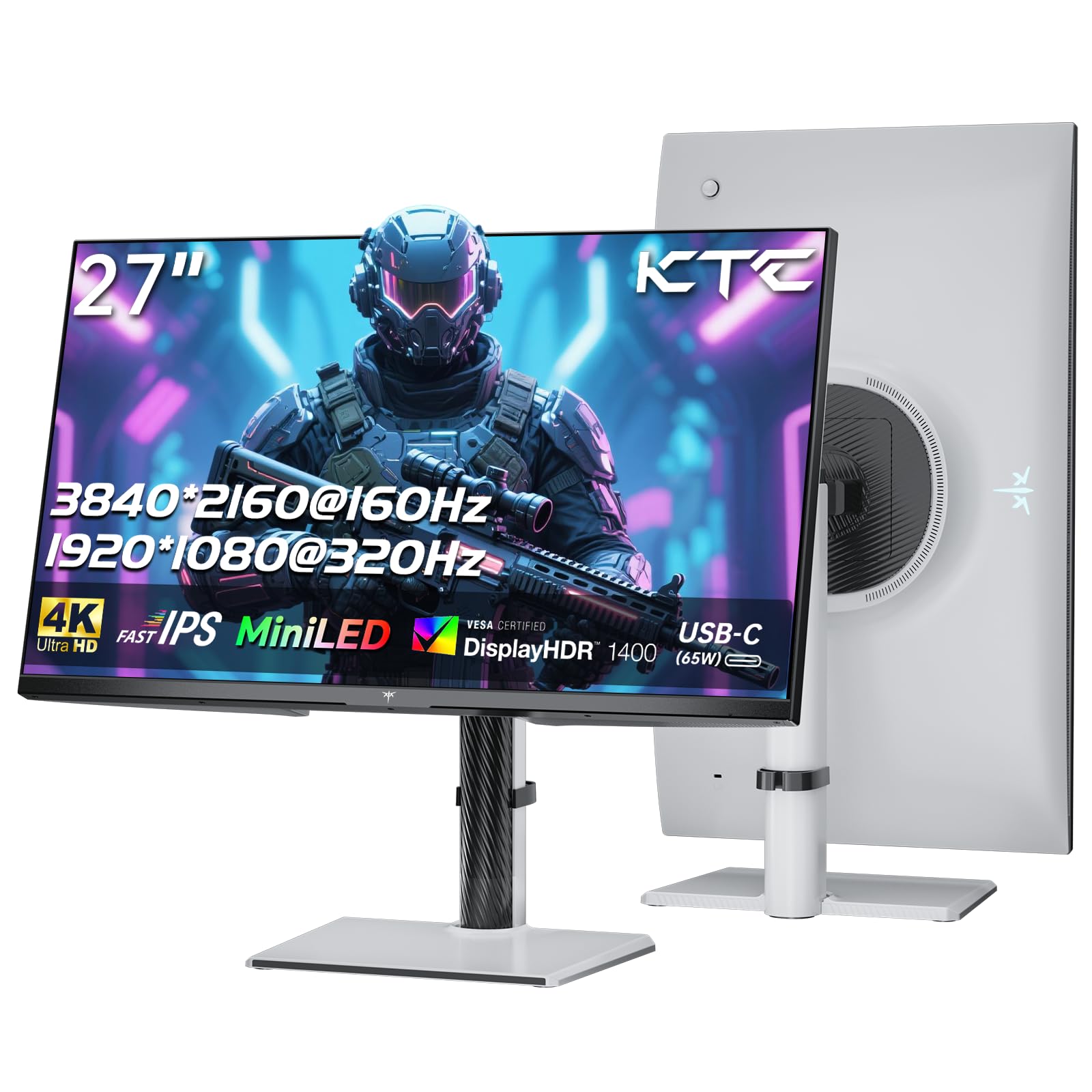
ຮູບພາບ: ທາງຫນ້າ view of the KTC M27P6 27-inch MiniLED Gaming Monitor.
The front of the monitor features the 27-inch MiniLED display panel. The KTC logo is typically located at the bottom center bezel.
4.2 ດ້ານຫຼັງ View ແລະພອດ

ຮູບພາບ: ດ້ານຫລັງ view of the KTC M27P6 monitor, highlighting the various input/output ports and the adjustable stand.
The rear of the monitor houses the input/output ports and the stand attachment point. The ports include:
- ການປ້ອນຂໍ້ມູນພະລັງງານ: ສໍາລັບການເຊື່ອມຕໍ່ອະແດບເຕີພະລັງງານ.
- ພອດ HDMI 2.1 (x2): For connecting to devices supporting HDMI 2.1 (4K@160Hz / FHD@320Hz).
- DisplayPort 1.4 Ports (x2): For connecting to devices supporting DisplayPort 1.4 (4K@160Hz / FHD@320Hz).
- ພອດ USB-C (x1): Full-function port supporting video input (4K@160Hz / FHD@320Hz) and 65W Power Delivery.
- USB-B Upstream Port (x1): For connecting the monitor's USB hub to your computer, enabling the downstream USB-A ports and KVM functionality.
- USB-A 3.0 Downstream Ports (x3): For connecting peripherals like keyboards, mice, or USB drives.
- 3.5mm ສຽງອອກ: ສໍາລັບການເຊື່ອມຕໍ່ຫູຟັງຫຼືລໍາໂພງພາຍນອກ.
ວິດີໂອ: ຫຼາຍກວ່າview of the KTC M27P6 monitor's features and design, including its connectivity options and adjustable stand.
5. ຕັ້ງຄ່າ
5.1 ການປະກອບຂາຕັ້ງ
- ລະມັດລະວັງຖອດຈໍແລະອົງປະກອບຢືນອອກຈາກການຫຸ້ມຫໍ່.
- Attach the stand arm to the monitor panel by aligning the mounting points and securing with screws (if applicable).
- Attach the stand base to the stand arm, ensuring it is firmly connected.
- ວາງຈໍສະແດງຜົນທີ່ປະກອບໃສ່ໃນພື້ນທີ່ຮາບພຽງທີ່ຫມັ້ນຄົງ.
The monitor also supports VESA mounting (100x100mm) for use with compatible wall mounts or monitor arms. Ensure the VESA mount is rated for the monitor's weight.

Image: Diagram illustrating the multi-angle adjustment capabilities of the KTC M27P6 monitor stand, including height, tilt, swivel, and pivot.
5.2 ສາຍເຊື່ອມຕໍ່
- ການເຊື່ອມຕໍ່ພະລັງງານ: ເຊື່ອມຕໍ່ອະແດັບເຕີໄຟກັບອິນພຸດໄຟຂອງຈໍພາບ, ຈາກນັ້ນສຽບສາຍໄຟໃສ່ປລັກສຽບໄຟ.
- ການເຊື່ອມຕໍ່ວິດີໂອ:
- For PC/Gaming Console: Connect one end of the HDMI or DisplayPort cable to your device's output and the other end to the corresponding port on the monitor.
- For USB-C Compatible Devices: Connect the USB-C cable from your device to the monitor's USB-C port for video, data, and power delivery.
- USB Hub/KVM Connection: To use the monitor's USB-A ports and KVM functionality, connect the USB-B to USB-A cable from the monitor's USB-B upstream port to a USB-A port on your computer.
- ການເຊື່ອມຕໍ່ສຽງ: If using external headphones or speakers, connect them to the 3.5mm audio out port on the monitor.
6. ຄໍາແນະນໍາການດໍາເນີນງານ
6.1 ເປີດ/ປິດ
Press the power button (usually located on the back or bottom of the monitor) to turn the monitor on or off. The power indicator light will illuminate when the monitor is on.
6.2 OSD Menu Navigation
The On-Screen Display (OSD) menu allows you to adjust various monitor settings. Use the joystick or buttons (refer to your monitor's physical layout) to navigate the OSD menu:
- Press Joystick/Button: Enter OSD menu or confirm selection.
- ຍ້າຍ Joystick ຂຶ້ນ/ລົງ: ທ່ອງໄປຫາຕົວເລືອກເມນູ.
- ຍ້າຍ Joystick ຊ້າຍ/ຂວາ: ປັບຄ່າ ຫຼືຍ້າຍໄປຫາເມນູຍ່ອຍ.
- ປຸ່ມອອກ: Exit the current menu or OSD.
6.3 Dual Mode Switching (4K@160Hz / FHD@320Hz)
The KTC M27P6 supports seamless switching between two display modes: 4K (3840x2160) at 160Hz and Full HD (1920x1080) at 320Hz. This allows you to optimize performance based on your content (e.g., high-resolution graphics for AAA games or ultra-high refresh rate for competitive FPS games).
To switch modes, access the OSD menu and navigate to the "Display" or "Gaming" settings. Select the desired resolution and refresh rate. Your connected device must also support these resolutions and refresh rates for optimal performance.

Image: Illustration of the KTC M27P6 monitor's seamless dual mode switching capability, showing a 4K@160Hz gaming scene and a FHD@320Hz gaming scene.
6.4 Adaptive Sync
The monitor supports Adaptive Sync (AMD FreeSync and NVIDIA G-Sync compatible) to eliminate screen tearing and stuttering, providing a smoother gaming experience. Ensure Adaptive Sync is enabled in the monitor's OSD settings and in your graphics card control panel.

Image: Visual representation of Adaptive Sync technology, showing how it prevents screen tearing by synchronizing the monitor's refresh rate with the GPU's frame rate.
6.5 ໜ້າທີ່ຂອງ KVM
The integrated KVM (Keyboard, Video, Mouse) switch allows you to control multiple computers or devices connected to the monitor using a single keyboard and mouse. To use KVM:
- Connect your primary computer to the monitor via DisplayPort/HDMI and the USB-B upstream cable.
- Connect your secondary device (e.g., laptop via USB-C) to the monitor.
- Connect your keyboard and mouse to the USB-A downstream ports on the monitor.
- Switch between connected devices using the KVM hotkey or OSD menu option.
6.6 Color Settings and HDR1400
The monitor features a MiniLED panel with 1152 local dimming zones and VESA DisplayHDR 1400 certification, providing high contrast and vibrant colors. You can adjust color settings (brightness, contrast, color temperature, gamma) through the OSD menu. For HDR content, ensure HDR is enabled in your operating system and the monitor's OSD. The monitor supports 10-bit color depth and a wide color gamut (145% sRGB / 99% DCI-P3).

Image: Visual comparison demonstrating the enhanced dynamic range and detail provided by HDR1400 on the KTC M27P6 monitor.
7. ບໍາລຸງຮັກສາ
- ທໍາຄວາມສະອາດຫນ້າຈໍ: ເຊັດໜ້າຈໍຢ່າງອ່ອນໂຍນດ້ວຍຜ້າອ່ອນໆ, ບໍ່ມີເຈັ້ຍ. ສໍາລັບຮອຍແຂງ, ງampen the cloth with a small amount of screen cleaner (non-ammonia based). Do not spray cleaner directly onto the screen.
- ທໍາຄວາມສະອາດ Casing: ໃຊ້ຜ້າອ່ອນໆເຊັດຈໍສະແດງຜົນ casing. ຫຼີກເວັ້ນການນໍາໃຊ້ເຄື່ອງເຮັດຄວາມສະອາດຂັດຫຼືສານລະລາຍ.
- ການລະບາຍອາກາດ: Ensure the ventilation openings on the monitor are clear of dust and debris to prevent overheating.
8. ການແກ້ໄຂບັນຫາ
| ບັນຫາ | ສາເຫດທີ່ເປັນໄປໄດ້ | ການແກ້ໄຂ |
|---|---|---|
| ບໍ່ມີຮູບພາບໃນ ໜ້າ ຈໍ | ສາຍໄຟຖືກຕັດການເຊື່ອມຕໍ່; ສາຍວິດີໂອຖືກຕັດການເຊື່ອມຕໍ່; ແຫຼ່ງປ້ອນຂໍ້ມູນບໍ່ຖືກຕ້ອງ. | ກວດສອບການເຊື່ອມຕໍ່ສາຍໄຟ ແລະ ສາຍວິດີໂອ. ເລືອກແຫຼ່ງສັນຍານເຂົ້າທີ່ຖືກຕ້ອງຜ່ານເມນູ OSD. |
| ຮູບພາບມົວຫຼືບິດເບືອນ | ການແກ້ໄຂບໍ່ຖືກຕ້ອງ; ສາຍວິດີໂອຂັດຂ້ອງ. | Set the display resolution to the native 3840x2160 or 1920x1080. Try a different video cable. |
| ໜ້າຈໍຈີກຂາດ ຫຼືສຽງສະດຸດໃນເກມ | ບໍ່ໄດ້ເປີດໃຊ້ Adaptive Sync; ມີບັນຫາກັບໄດຣເວີກາດກຣາບຟິກ. | Enable Adaptive Sync in monitor OSD and graphics card settings. Update graphics drivers. |
| ພອດ USB ບໍ່ເຮັດວຽກ | USB-B upstream cable not connected; Driver issues. | Ensure the USB-B upstream cable is connected from the monitor to your computer. Check computer's USB drivers. |
| ບໍ່ມີສຽງຈາກສຽງອອກ | Incorrect audio output selected; Volume too low. | Check audio output settings on your computer. Adjust monitor and device volume. |
9. ຂໍ້ມູນຈໍາເພາະ
| ຄຸນສົມບັດ | ລາຍລະອຽດ |
|---|---|
| ຍີ່ຫໍ້ | KTC |
| ຊື່ຕົວແບບ | M27P6 |
| ຂະໜາດໜ້າຈໍ | 27 Pollici (27 inches) |
| ປະເພດແຜງ | MiniLED, Fast IPS |
| Resolution (Native) | 3840 x 2160 (4K UHD) |
| Max Refresh Rate (4K) | 160 Hz |
| Max Refresh Rate (FHD) | 320 Hz |
| ເວລາຕອບສະຫນອງ | 1ms GtG |
| ເຂດ Dimming ທ້ອງຖິ່ນ | 1152 ເຂດ |
| ການຢັ້ງຢືນ HDR | VESA DisplayHDR 1400 |
| ຄວາມສະຫວ່າງ | 1400 cd / m (ສູງສຸດ) |
| ອັດຕາສ່ວນກົງກັນຂ້າມ | 1,000,000:1 (ໄດນາມິກ) |
| ສີ Gamut | 145% sRGB, 99% DCI-P3 |
| ຄວາມເລິກຂອງສີ | 10-ບິດ |
| Adaptive Sync | AMD FreeSync, NVIDIA G-Sync Compatible |
| Viewໃນມຸມ | 178 ອົງສາ |
| ການເຊື່ອມຕໍ່ | 2x HDMI 2.1, 2x DisplayPort 1.4, 1x USB-C (65W PD), 1x USB-B Upstream, 3x USB-A 3.0 Downstream, 1x 3.5mm Audio Out |
| KVM Support | ແມ່ນແລ້ວ |
| Stand Adjustments | ຄວາມສູງ, ອຽງ, ຫມຸນ, pivot |
| VESA ພູເຂົາ | 100 x 100 ມມ |
| ຂະໜາດ (DxWxH) | 21.1P x 61.7lx 54.7H ຊມ |
10. ການຮັບປະກັນແລະການສະຫນັບສະຫນູນ
KTC products are covered by a limited warranty. Please refer to the warranty card included in your package for specific terms and conditions. For technical support, troubleshooting assistance, or warranty claims, please contact KTC customer service or visit the official KTC webເວັບໄຊ.
You can find more information and contact details on the KTC official store page: KTC Store.