
ແນະນຳ
This manual provides comprehensive instructions for the setup, operation, maintenance, and troubleshooting of your CHUWI Hi10 X2 and X1 dedicated 2-in-1 keyboard. Please read this guide carefully to ensure proper use and to maximize the lifespan of your device.
ສິນຄ້າເກີນview
The CHUWI Hi10 X2 and X1 dedicated keyboard transforms your 10.1-inch tablet into a versatile 2-in-1 laptop, enhancing productivity with a physical keyboard and a high-precision trackpad.

ຮູບທີ 1: ລົງລຸ່ມ view of the CHUWI Hi10 X2/X1 dedicated keyboard, displaying the full QWERTY layout and integrated trackpad.

ຮູບທີ 2: ມຸມ view of the CHUWI Hi10 X2/X1 dedicated keyboard, showcasing its slim design and the magnetic connector bar at the top.
ຄໍາແນະນໍາການຕິດຕັ້ງ
Follow these steps to correctly attach your keyboard to the CHUWI Hi10 X2 or X1 tablet:
- Locate the Magnetic Connector: The keyboard features a magnetic connector bar on its back side, designed to align with your tablet's port.
- Connect to the Tablet: Align the magnetic connector bar with the corresponding port on your CHUWI Hi10 X2 or X1 tablet. The magnets will help secure the connection.
- ຕໍາແຫນ່ງສໍາລັບການນໍາໃຊ້: After the initial connection, gently bend the section between the magnetic connector and the main keyboard body towards the keyboard side. This action will elevate the tablet to an optimal viewing ແລະມຸມພິມ.
- ພ້ອມສໍາລັບການນໍາໃຊ້: Once positioned, your keyboard and tablet are ready for use.
ຮູບທີ 3: The magnetic connector bar is located on the back of the keyboard, visible at the hinge area when connected to the tablet.
ຮູບທີ 4: The keyboard magnetically attached to the tablet, showing the initial flat connection.
ຮູບທີ 5: The keyboard section bent to achieve the working angle, elevating the tablet.
ຮູບທີ 6: The keyboard and tablet are fully assembled and ready for typing.
ຄໍາແນະນໍາການດໍາເນີນງານ
ຟັງຊັນແປ້ນພິມ
The keyboard provides a standard QWERTY layout with additional function keys (F1-F12) that may offer shortcuts depending on your tablet's operating system. Refer to your tablet's manual for specific function key operations.
ການໃຊ້ແທຣັກແພດ
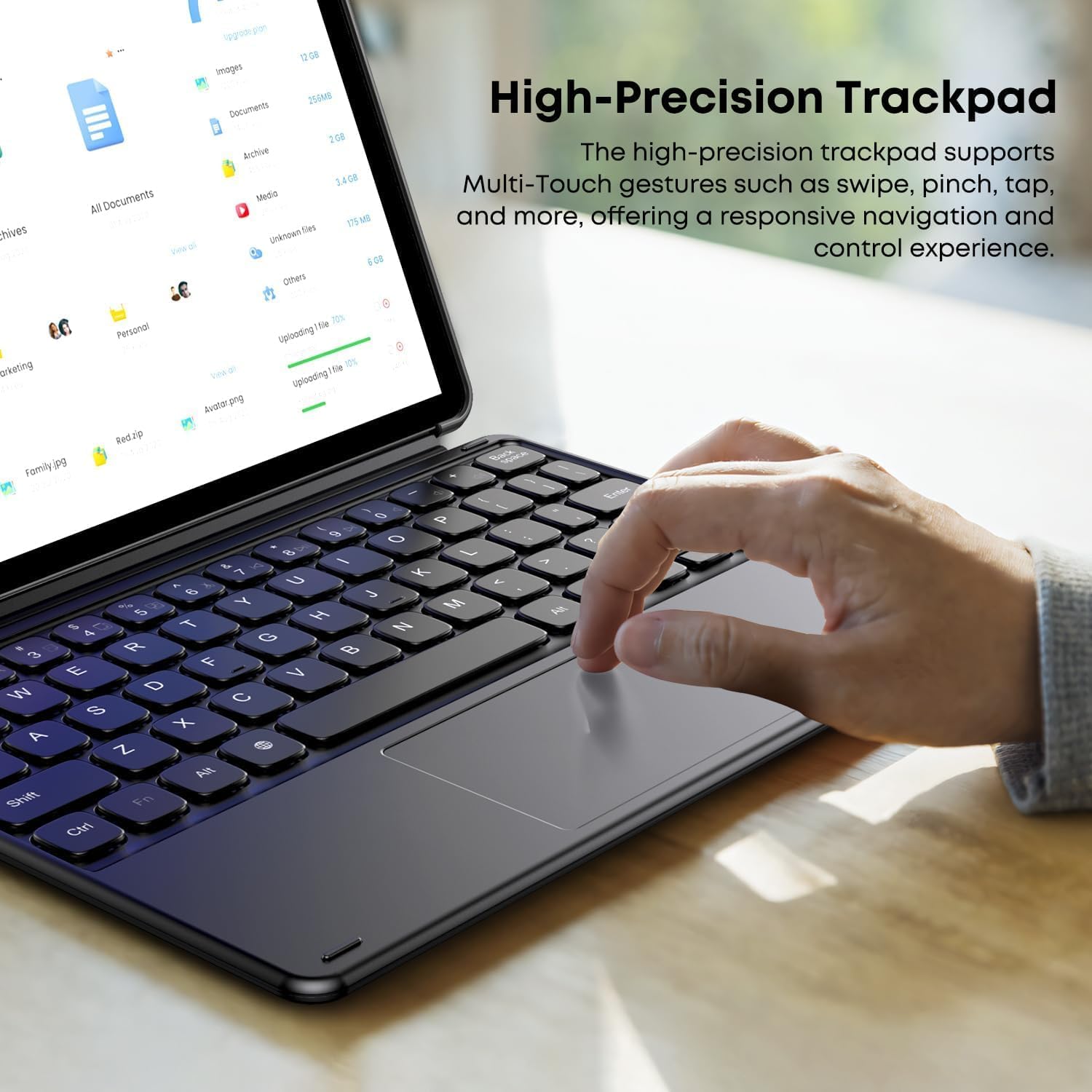
The integrated high-precision trackpad supports multi-touch gestures for intuitive navigation and control. Common gestures include:
- ແຕະ: ແຕະເທື່ອດຽວສຳລັບການຄລິກຊ້າຍ, ແຕະສອງນິ້ວສຳລັບການຄລິກຂວາ.
- ປັດ: Use two fingers to scroll up/down or left/right.
- ເມື່ອເຂົ້າຕາຈົນ: ໃຊ້ສອງນິ້ວເພື່ອຊູມເຂົ້າ ຫຼືອອກ.
- Multi-finger gestures: Specific gestures may vary by operating system (e.g., three-finger swipe for task view).

ຮູບທີ 7: High-precision trackpad supporting multi-touch gestures.
ບໍາລຸງຮັກສາ
ເພື່ອຮັບປະກັນອາຍຸການໃຊ້ງານທີ່ຍາວນານ ແລະ ປະສິດທິພາບທີ່ດີທີ່ສຸດຂອງແປ້ນພິມຂອງທ່ານ, ໃຫ້ປະຕິບັດຕາມຄຳແນະນຳການບຳລຸງຮັກສາເຫຼົ່ານີ້:
- ທໍາຄວາມສະອາດ: Use a soft, dry, lint-free cloth to wipe the keyboard and trackpad surfaces. For stubborn dirt, slightly dampເຊັດຜ້າດ້ວຍນ້ຳ ຫຼື ນ້ຳຢາທຳຄວາມສະອາດອ່ອນໆ, ຮັບປະກັນວ່າບໍ່ມີຂອງແຫຼວເຂົ້າໄປໃນອຸປະກອນ.
- ຫຼີກລ້ຽງການຂອງແຫຼວ: Do not expose the keyboard to excessive moisture or spill liquids on it.
- ການເກັບຮັກສາ: When not in use, store the keyboard in a clean, dry environment, away from extreme temperatures.
- ຈັດການດ້ວຍຄວາມລະມັດລະວັງ: Avoid dropping the keyboard or applying excessive force to the keys or trackpad.
ການແກ້ໄຂບັນຫາ
ແປ້ນພິມບໍ່ຕອບສະໜອງ
- ກວດສອບການເຊື່ອມຕໍ່: Ensure the magnetic connector is securely attached to your tablet and properly bent into the working position as described in the Setup section.
- ຣີສະຕາດແທັບເລັດ: Sometimes, a simple restart of your tablet can resolve connectivity issues.
- ລ້າງຕົວເຊື່ອມຕໍ່: Inspect the magnetic connectors on both the keyboard and tablet for any dust or debris. Gently clean with a dry, soft cloth.
Trackpad Issues
- ແຜ່ນແທຣັກສະອາດ: Ensure the trackpad surface is clean and free from obstructions.
- ການຕັ້ງຄ່າແທັບເລັດ: Check your tablet's settings for trackpad sensitivity or gesture options.
If you encounter persistent issues or are unsure about the connection method, please contact customer support for assistance.
ຂໍ້ມູນຈໍາເພາະ
| ຄຸນສົມບັດ | ລາຍລະອຽດ |
|---|---|
| ຍີ່ຫໍ້ | ຈູວີ |
| ໝາຍເລກຕົວແບບ | HI10 X1 |
| ຄຳອະທິບາຍແປ້ນພິມ | ປະສົມປະສານ |
| ຮູບແບບແປ້ນພິມ | QWERTY |
| Compatible Tablets | CHUWI Hi10 X2, CHUWI Hi10 X1 (10.1-inch) |
| ນ້ໍາຫນັກລາຍການ | 280 g |
| ຂະໜາດແພັກເກັດ | 24.9 x 19.8 x 1.9 cm |
ການຮັບປະກັນແລະການສະຫນັບສະຫນູນ
This product comes with a standard manufacturer's warranty. For detailed warranty information, please refer to the documentation included with your purchase or visit the official CHUWI webເວັບໄຊ.
For technical support, troubleshooting assistance, or inquiries regarding product functionality, please contact CHUWI customer service. If you have questions about the connection method, as mentioned in the product description, please reach out to the seller directly.
You can often find support contact information on the CHUWI official webເວັບໄຊທ໌ຫຼືຜ່ານເວທີການຊື້ຂອງທ່ານ.