
KINDEEP HB12
KINDEEP Wallet Tracker Card User Manual
ຮູບແບບ: HB12
Brand: KINDEEP
ແນະນຳ
The KINDEEP Wallet Tracker Card is a slim, rechargeable device designed to help you locate your personal items using the Apple Find My network. This manual provides detailed instructions on how to set up, operate, and maintain your tracker card to ensure optimal performance. It is compatible exclusively with iOS devices.
ຂໍ້ມູນຄວາມປອດໄພ
- ຢ່າພະຍາຍາມຖອດປະກອບ ຫຼືດັດແປງອຸປະກອນ.
- ຮັກສາອຸປະກອນໃຫ້ຫ່າງຈາກອຸນຫະພູມທີ່ຮຸນແຮງ ແລະແສງແດດໂດຍກົງ.
- ໃຫ້ແນ່ໃຈວ່າອຸປະກອນແຫ້ງກ່ອນທີ່ຈະສາກໄຟ.
- This device is IP68 waterproof, meaning it can withstand submersion up to 1.5 meters for 30 minutes. However, it is not intended for prolonged underwater use.
- Use only compatible Qi wireless chargers.
ເນື້ອໃນຊຸດ
- 1 x KINDEEP Wallet Tracker Card
- 1 x ຄູ່ມືຜູ້ໃຊ້ (ເອກະສານນີ້)
ສິນຄ້າເກີນview
The KINDEEP Wallet Tracker Card is designed to be ultra-slim, similar in size to a credit card, allowing it to fit seamlessly into wallets, purses, or bags. It features a single power/pairing button and an indicator light.

ຮູບທີ 1: KINDEEP Wallet Tracker Card and its use with the Apple Find My app.
This image shows the slim KINDEEP Wallet Tracker Card positioned above a brown leather wallet, alongside an iPhone displaying the Apple Find My application. The app screen shows a map with the tracker's location, options to "Play Sound" and get "Directions," illustrating the primary function of the device.
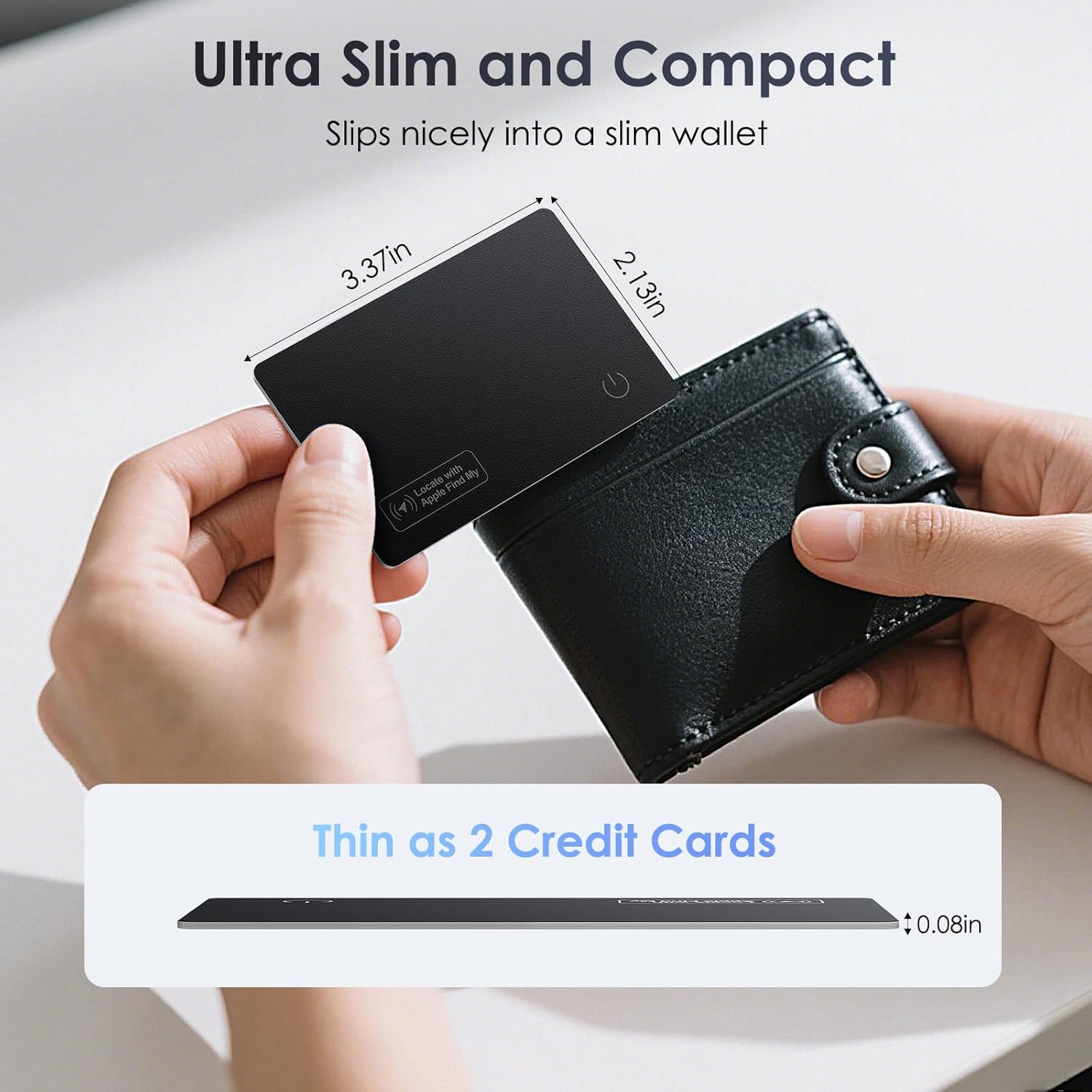
ຮູບທີ 2: Ultra-slim design of the KINDEEP Wallet Tracker Card.
This image highlights the compact dimensions of the KINDEEP Wallet Tracker Card, showing it next to a black wallet. Annotations indicate its length (3.37in), width (2.13in), and thickness (0.08in), emphasizing that it is as thin as two credit cards, making it ideal for slim wallets.
Setup: Pairing with Apple Find My
Follow these steps to connect your KINDEEP Wallet Tracker Card to your Apple device using the Find My app. Note: This device is for iOS only and is not compatible with Android.
- ສາກອຸປະກອນ: Ensure your tracker card is sufficiently charged before pairing. See the "Charging" section for details.
- ເປີດໃຊ້ Bluetooth: On your iOS device, go to Settings and ensure Bluetooth is turned on.
- ເປີດ Find My App: Launch the Apple Find My application on your iPhone or iPad.
- ເພີ່ມລາຍການໃໝ່:
- In the Find My app, tap the "ລາຍການ" ແຖບຢູ່ດ້ານລຸ່ມຂອງຫນ້າຈໍ.
- ແຕະທີ່ "+" ໄອຄອນຢູ່ມຸມຂວາເທິງ.
- ເລືອກ "ເພີ່ມລາຍການອື່ນໆ" or "Other Supported Item" ຈາກທາງເລືອກ.
- ເປີດໃຊ້ໂໝດການຈັບຄູ່: Press and hold the power button on the KINDEEP Wallet Tracker Card until it beeps, indicating it is in pairing mode.
- ເຊື່ອມຕໍ່: Your iOS device should detect the "Smart Card" (or similar name). Tap "ເຊື່ອມຕໍ່" and follow the on-screen prompts to name your tracker and complete the setup.

ຮູບທີ 3: Visual guide for the pairing process.
This image illustrates the four key steps for connecting the tracker card: 1) Pressing the power button on the card, 2) Turning on Bluetooth and opening the Find My app on an iPhone, 3) Tapping "Add Item" and selecting "Other Supported Item" in the app, and 4) Connecting to the "Smart Card" once detected.
ຄໍາແນະນໍາການດໍາເນີນງານ
Locating Your Item (Play Sound)
When your tracker card is within Bluetooth range of your iOS device, you can make it emit a sound to help you find it.
- ເປີດ ຊອກຫາຂອງຂ້ອຍ app ໃນອຸປະກອນ iOS ຂອງທ່ານ.
- Select the KINDEEP Wallet Tracker Card from your list of items.
- ແຕະ "ຫຼິ້ນສຽງ". The tracker card will emit a loud sound (up to 100dB) to help you pinpoint its location.

ຮູບທີ 4: Using the "Play Sound" feature.
This image shows an iPhone displaying the Find My app, with the "Play Sound" option highlighted. Next to it, the KINDEEP Wallet Tracker Card is depicted with sound waves emanating from it, illustrating its ability to emit a loud alert (up to 100dB) to assist in locating the item.
Left Behind Alerts
Receive notifications on your iOS device if you leave your tracker card (and the item it's attached to) behind at an unfamiliar location.
- ໃນ ຊອກຫາຂອງຂ້ອຍ app, select your tracker card.
- ເລື່ອນລົງແລະແຕະ "Notify When Left Behind".
- Toggle the feature on. You can also set specific locations where you don't want to be notified (e.g., your home).

ຮູບທີ 5: Left Behind Alert notification.
This image displays an iPhone screen showing a "TIME SENSITIVE" notification that reads, "'Wallet' left behind. This item is no longer detected near you. It was last seen near gregory meola*****". This illustrates the "Left Behind Alert" feature, which notifies users when they move away from their tracked item.
ໂຫມດລືມ
If your tracker card is lost, you can enable Lost Mode to display a message and contact information to anyone who finds it, and receive a notification when it's located by another Apple device on the Find My network.
- ໃນ ຊອກຫາຂອງຂ້ອຍ app, select your tracker card.
- ເລື່ອນລົງໄປ "ໂໝດສູນເສຍ" ແລະແຕະ "ເປີດໃຊ້ງານ".
- Follow the prompts to enter a phone number or email address where you can be contacted. You can also write a custom message.
- Confirm to activate Lost Mode.
ກຳລັງສາກໄຟ
The KINDEEP Wallet Tracker Card supports wireless charging. A full charge provides up to 5 months of standby time, though actual usage may vary.
- Place the tracker card on any Qi-compatible wireless charging pad (charger not included).
- Ensure the charging symbol on the tracker card aligns with the charging area of the wireless pad for proper connection.
- An indicator light on the card will show its charging status (e.g., red for charging, blue for full).

ຮູບທີ 6: Wireless charging of the tracker card.
This image demonstrates the wireless charging capability of the KINDEEP Wallet Tracker Card. The card is placed on a wireless charging stand, with visual cues indicating correct and incorrect placement. Red and blue dots illustrate the charging (red) and fully charged (blue) states, respectively.
ບໍາລຸງຮັກສາ
- ທໍາຄວາມສະອາດ: Wipe the tracker card with a soft, damp ຜ້າ. ຢ່າໃຊ້ສານເຄມີທີ່ຮຸນແຮງຫຼືເຄື່ອງເຮັດຄວາມສະອາດຂັດ.
- ການເກັບຮັກສາ: ເກັບຮັກສາອຸປະກອນໄວ້ໃນບ່ອນທີ່ເຢັນ, ແຫ້ງ, ເມື່ອບໍ່ໄດ້ໃຊ້ເປັນເວລາດົນນານ.
- ການເປີດເຜີຍນ້ໍາ: While IP68 waterproof, it is recommended to dry the device thoroughly if it gets wet, especially before charging.
ການແກ້ໄຂບັນຫາ
| ບັນຫາ | ສາເຫດທີ່ເປັນໄປໄດ້ | ການແກ້ໄຂ |
|---|---|---|
| Tracker not pairing with Find My. | Bluetooth is off; tracker battery is low; incorrect pairing steps; not an iOS device. | Ensure Bluetooth is on. Charge the tracker. Re-attempt pairing following the "Setup" steps precisely. Confirm you are using an iOS device. |
| "Play Sound" not working. | Tracker is out of Bluetooth range; tracker battery is low. | Move closer to the tracker. Ensure the tracker is charged. |
| Tracker not charging wirelessly. | Misalignment on charging pad; charging pad not powered; faulty charging pad. | Adjust the tracker's position on the charging pad to ensure proper alignment. Check if the charging pad is connected to power. Try a different Qi-compatible wireless charger. |
| Left Behind Alerts not received. | Feature not enabled; exclusion zones set; app permissions. | Verify "Notify When Left Behind" is enabled in the Find My app. Check if your current location is set as an exclusion zone. Ensure Find My has necessary location permissions. |
ຂໍ້ມູນຈໍາເພາະ
| ຄຸນສົມບັດ | ລາຍລະອຽດ |
|---|---|
| ໝາຍເລກຕົວແບບ | HB12 |
| ຂະໜາດ (ຍ x ກວ້າງ x ສູງ) | 3.37 x 2.21 x 0.07 ນິ້ວ (8.56 x 5.61 x 0.18 cm) |
| ນ້ໍາຫນັກລາຍການ | 0.48 ອອນສ໌ (13.6 ກຣາມ) |
| ປະເພດຫມໍ້ໄຟ | ແບັດເຕີຣີ Lithium Ion 1 ອັນ (ລວມ) |
| ອາຍຸແບັດເຕີຣີ (ສະແຕນບາຍ) | ສູງສຸດ 5 ເດືອນໃນການສາກເຕັມຄັ້ງດຽວ |
| ກຳລັງສາກໄຟ | Wireless (Qi-compatible) |
| ການປະເມີນກັນນ້ໍາ | IP68 |
| ຄວາມເຂົ້າກັນໄດ້ | iOS Only (Works with Apple Find My) |
| ວັດສະດຸ | PVC |
| ຄວາມດັງ | Up to 100dB alert sound |
ການຮັບປະກັນແລະການສະຫນັບສະຫນູນ
KINDEEP products are manufactured with high-quality standards. For warranty information or technical support, please refer to the contact details provided with your purchase or visit the official KINDEEP webເວັບໄຊ. ກະລຸນາຮັກສາຫຼັກຖານການຊື້ຂອງທ່ານສໍາລັບການຮຽກຮ້ອງການຮັບປະກັນ.
Ask a question about this manual
Ask about setup, troubleshooting, compatibility, parts, safety, or missing instructions. Manuals+ will review the question and use this page’s manual context to help answer it.