
KOORUI S2721XO 27-Inch QD-OLED Gaming Monitor User Manual
ຮຸ່ນ: S2721XO
1. ບົດແນະນຳ
This manual provides instructions for the setup, operation, maintenance, and troubleshooting of your KOORUI S2721XO 27-inch QD-OLED Gaming Monitor. Please read this manual thoroughly before using the product to ensure proper function and safety.
The KOORUI S2721XO monitor features a 27-inch QD-OLED panel with QHD (2560x1440) resolution, a 240Hz refresh rate, and a 0.03ms (GtG) response time. It supports HDR True Black 400 and AdaptiveSync technology for a smooth visual experience. Connectivity options include HDMI 2.1 and DisplayPort 1.4.
2. ຂໍ້ມູນຄວາມປອດໄພ
- ໃຫ້ແນ່ໃຈວ່າຈໍພາບຖືກວາງຢູ່ເທິງພື້ນຜິວທີ່ຫມັ້ນຄົງ, ຮາບພຽງເພື່ອປ້ອງກັນການຕົກຈາກອຸບັດຕິເຫດ.
- ຢ່າເຮັດໃຫ້ຈໍສະແດງຜົນຖືກຝົນຫຼືຄວາມຊຸ່ມຊື່ນເພື່ອຫຼີກເວັ້ນການຖືກໄຟຟ້າຊອດ.
- ຮັກສາຊ່ອງລະບາຍອາກາດໃຫ້ຊັດເຈນເພື່ອປ້ອງກັນຄວາມຮ້ອນເກີນ.
- ໃຊ້ພຽງແຕ່ອະແດັບເຕີພະລັງງານທີ່ໃຫ້ມາກັບຈໍພາບເທົ່ານັ້ນ.
- ຫຼີກເວັ້ນການສໍາຜັດກັບຫນ້າຈໍຂອງແຫຼມ.
- ໃຫ້ຖອດສາຍໄຟອອກຈາກປລັກກ່ອນການທຳຄວາມສະອາດ ຫຼື ຖ້າຈໍພາບຈະບໍ່ໄດ້ໃຊ້ເປັນເວລາດົນນານ.
3. ຕັ້ງຄ່າ
3.1 ເນື້ອໃນຊຸດ
ກວດສອບວ່າອົງປະກອບທັງໝົດມີຢູ່ໃນຊຸດ:
- KOORUI S2721XO Monitor
- Monitor Stand (ຖານ ແລະ ຄໍ)
- ສາຍໄຟ
- ສາຍ DisplayPort (1.8m)
- ຄູ່ມືຜູ້ໃຊ້ (ເອກະສານນີ້)
3.2 ການປະກອບຂາຕັ້ງ
- ແນບຄໍຂາຕັ້ງໃສ່ກັບແຜງຈໍພາບ. ໃຫ້ແນ່ໃຈວ່າມັນຄລິກໃສ່ຢ່າງປອດໄພ.
- Attach the stand base to the stand neck. Tighten any screws as necessary.
Alternatively, the monitor supports VESA 100x100mm mounting for compatible wall mounts or monitor arms.
ຮູບ 3.2.1: ດ້ານຫລັງ view of the monitor with VESA mount and stand attachment.

ຮູບ 3.2.2: ດ້ານຫລັງ view ຂອງຈໍພາບທີ່ມີຂາຕັ້ງປະກອບ.
3.3 ການເຊື່ອມຕໍ່ກັບອຸປະກອນ
ຈໍພາບໃຫ້ຕົວເລືອກການປ້ອນຂໍ້ມູນຫຼາຍຢ່າງ:
- HDMI2.1: Connect to a PC or gaming console using an HDMI 2.1 cable. The monitor has two HDMI 2.1 ports.
- DisplayPort 1.4: Connect to a PC using a DisplayPort 1.4 cable. A DisplayPort cable is included.
- ສຽງອອກ: ເຊື່ອມຕໍ່ລຳໂພງ ຫຼືຫູຟັງພາຍນອກກັບຊ່ອງສຽບສຽງ 3.5 ມມ.

Figure 3.3.1: Monitor input ports.
After connecting the video cable, connect the power cable to the monitor and then to a power outlet.
4. ການດໍາເນີນງານ
4.1 ເປີດ/ປິດ
Press the power button (usually located on the back or bottom of the monitor) to turn the monitor on or off. The power indicator light will illuminate when the monitor is on.
4.2 ເມນູການສະແດງເທິງໜ້າຈໍ (OSD).
The monitor features a joystick controller for navigating the OSD menu. This allows for easy adjustment of various settings.
- ກົດ joystick ໄດ້: ເປີດເມນູ OSD.
- ຍ້າຍ joystick ຂຶ້ນ/ລົງ: ນຳທາງຜ່ານຕົວເລືອກເມນູ.
- ຍ້າຍ joystick ຊ້າຍ/ຂວາ: ປັບຄ່າ ຫຼື ເຂົ້າສູ່ເມນູຍ່ອຍ.
- ກົດອີກຄັ້ງ: Confirms selection or exits a sub-menu.
4.3 ການຕັ້ງຄ່າການສະແດງ
Adjust the following settings via the OSD menu for optimal performance:
- ຄວາມລະອຽດ: Set to 2560x1440 (QHD) for the native display resolution.
- ອັດຕາການໂຫຼດຂໍ້ມູນຄືນໃໝ່: Select 240Hz for the smoothest motion.
- AdaptiveSync: Enable AdaptiveSync (FreeSync compatible) to eliminate screen tearing and stuttering during gaming.
- HDR True Black 400: Activate HDR for enhanced contrast and color depth in compatible content.
- ສີ Gamut: Adjust color settings, including DCI-P3 99% and sRGB 100% modes, for accurate color reproduction.
- ຄວາມສະຫວ່າງ/ຄວາມຄົມຊັດ: Fine-tune display brightness (average 280 nits) and contrast levels.
- Image Retention Refresh: This feature helps prevent burn-in on the OLED panel. It is recommended to keep this enabled.
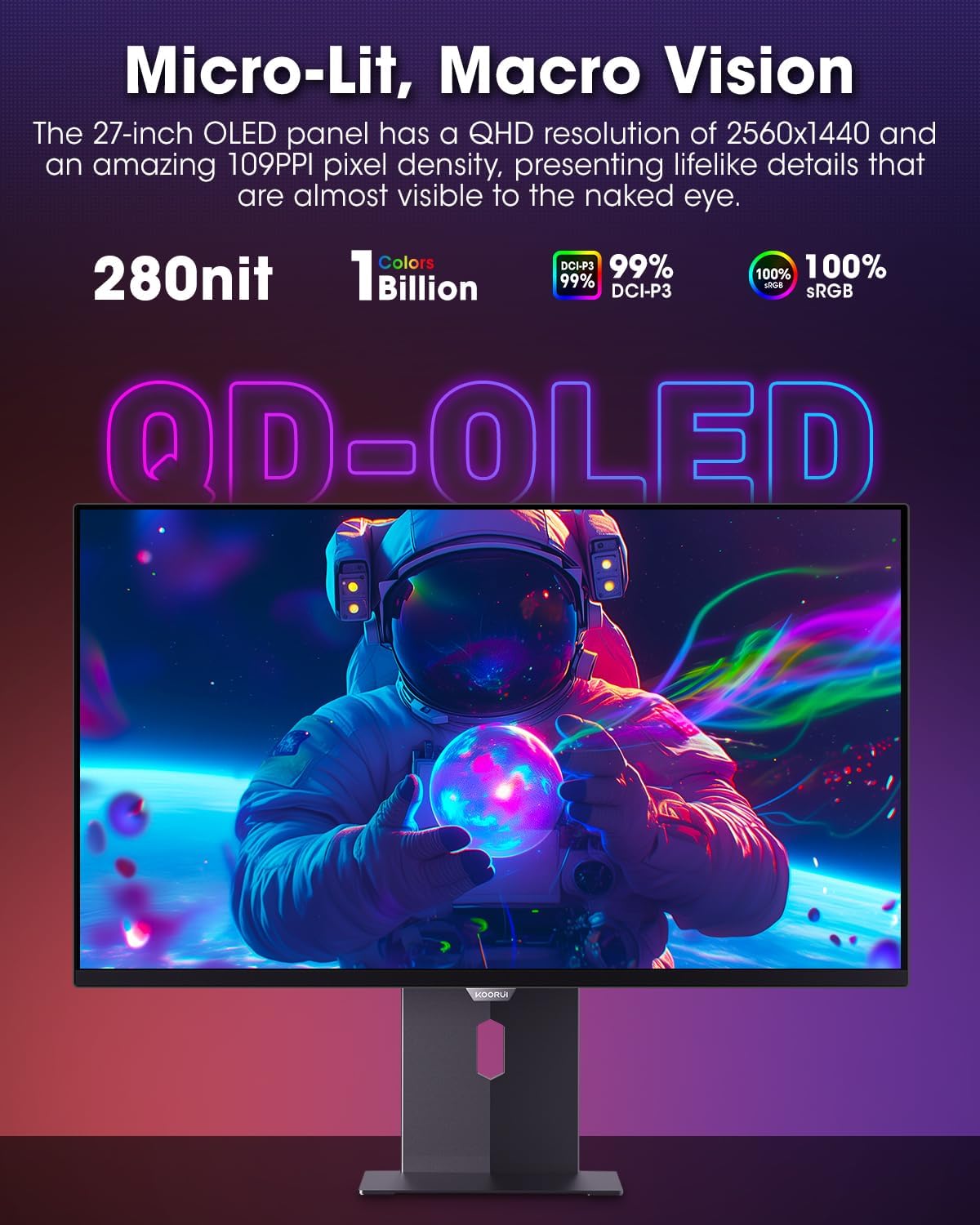
Figure 4.3.1: The QD-OLED panel delivers vivid colors and deep blacks.

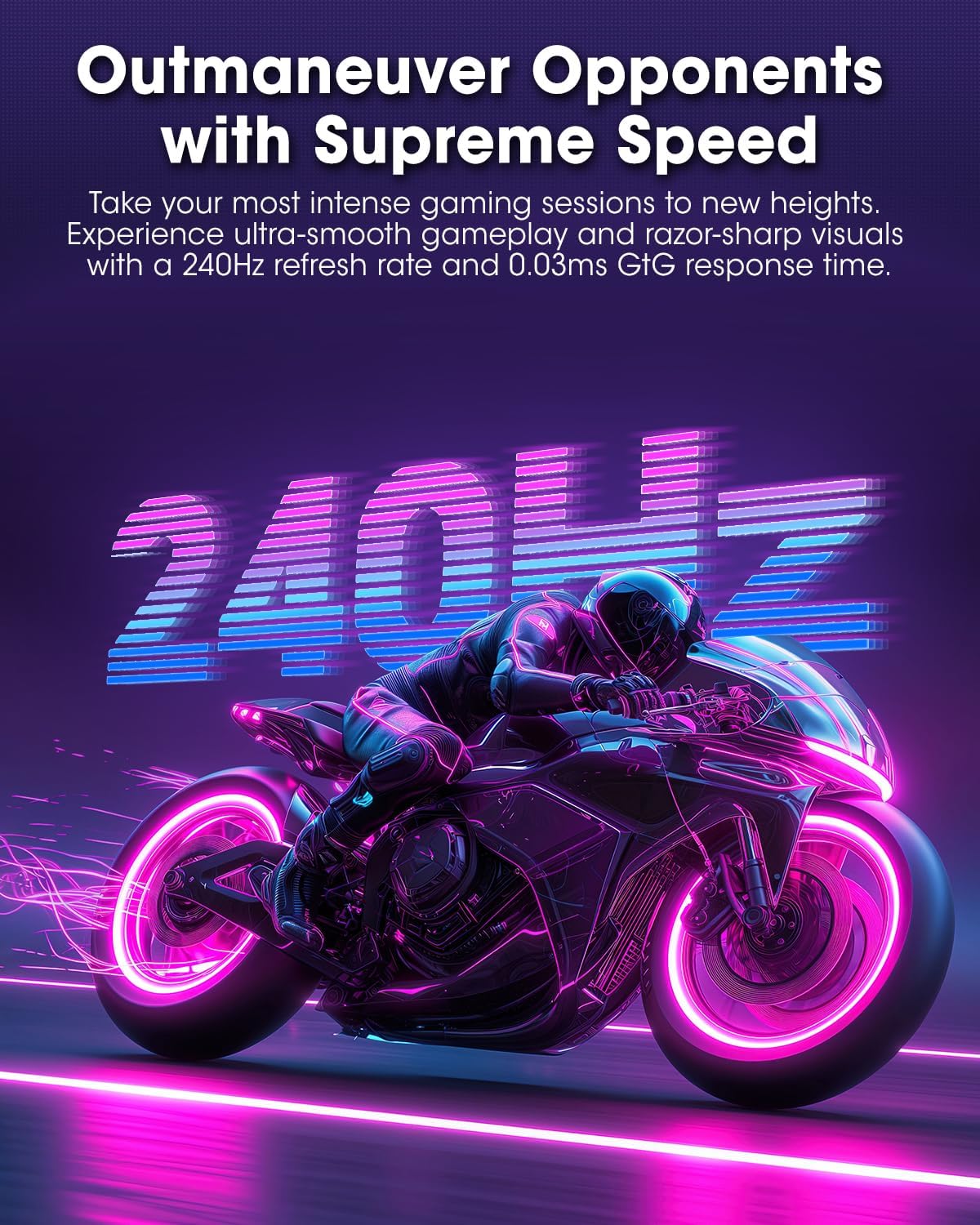
Figure 4.3.2: High refresh rate and low response time for smooth gaming.
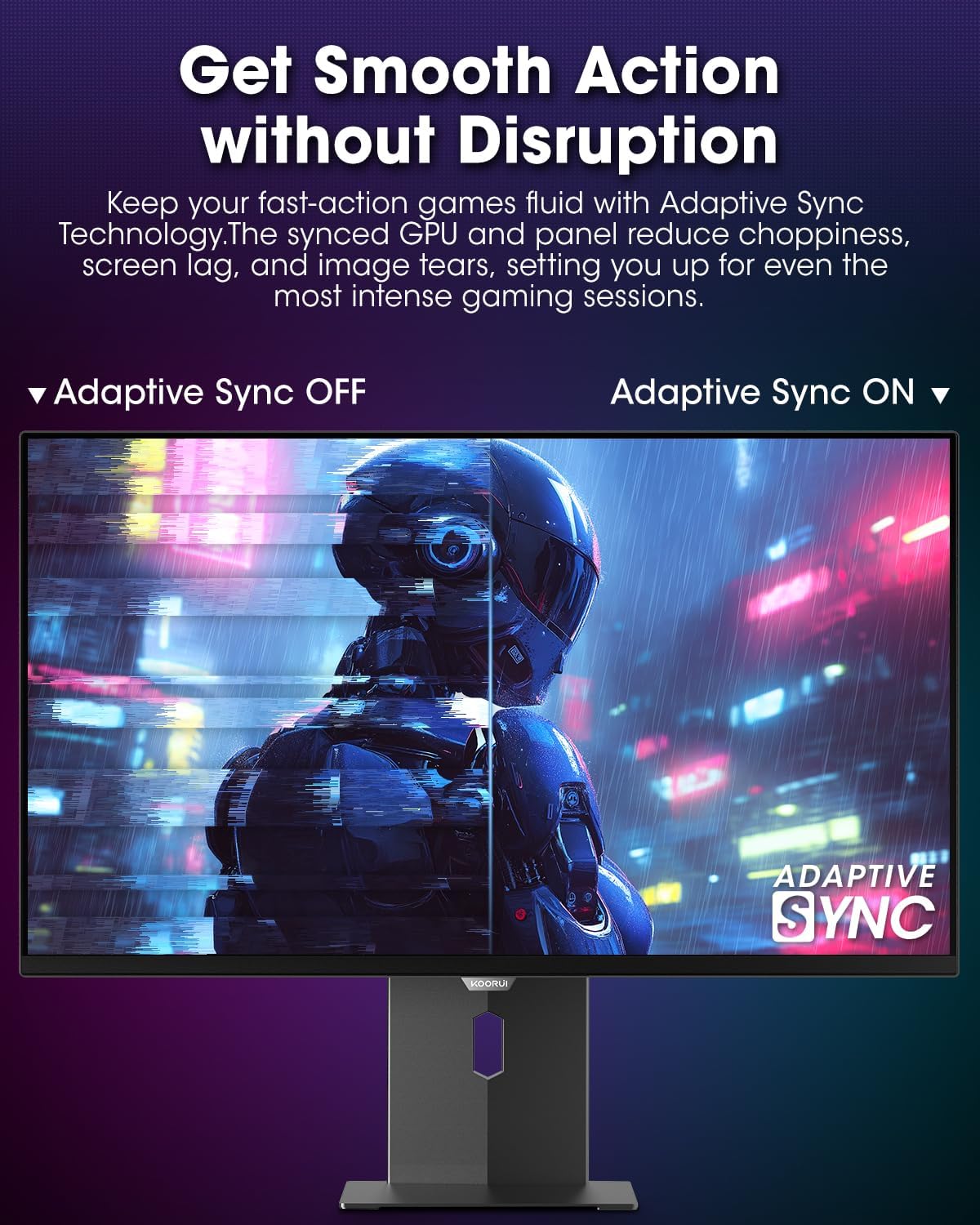
Figure 4.3.3: AdaptiveSync technology prevents screen tearing.
4.4 ການປັບຕົວ Ergonomic
The monitor stand allows for various adjustments to enhance viewຄວາມສະດວກສະບາຍ:
- ການປັບຄວາມສູງ: ຍົກ ຫຼື ຫຼຸດຈໍພາບລົງໃນລະດັບສາຍຕາ.
- ອຽງ: ປັບມຸມໜ້າຈໍໄປຂ້າງໜ້າ ຫຼືຖອຍຫຼັງ.
- ໝູນ: ໝຸນຈໍພາບຕາມແນວນອນ.
- pivot: Rotate the monitor vertically (portrait mode).

Figure 4.4.1: Monitor tilt adjustment.

Figure 4.4.2: Monitor pivot adjustment to portrait mode.
5. ບໍາລຸງຮັກສາ
- ທໍາຄວາມສະອາດຫນ້າຈໍ: ໃຊ້ຜ້າແພອ່ອນໆ ທີ່ບໍ່ມີເສັ້ນດ່າງ ງampສໍາເລັດດ້ວຍນ້ໍາຫຼືເຄື່ອງເຮັດຄວາມສະອາດຫນ້າຈໍ. ຢ່າສີດນໍ້າສະອາດໃສ່ໜ້າຈໍໂດຍກົງ.
- ທໍາຄວາມສະອາດ Casing: ເຊັດຈໍສະແດງຜົນ casing with a soft, dry cloth. Avoid abrasive cleaners.
- ການລະບາຍອາກາດ: Ensure the monitor's ventilation holes are not blocked to prevent overheating.
- ປິດພະລັງງານ: Always turn off and unplug the monitor before cleaning.
6. ການແກ້ໄຂບັນຫາ
| ບັນຫາ | ສາເຫດທີ່ເປັນໄປໄດ້ | ການແກ້ໄຂ |
|---|---|---|
| ບໍ່ມີຮູບພາບໃນ ໜ້າ ຈໍ | ສາຍໄຟຖືກຕັດ; ສາຍວິດີໂອຖືກຕັດ; ເລືອກແຫຼ່ງປ້ອນຂໍ້ມູນບໍ່ຖືກຕ້ອງ. | ກວດສອບການເຊື່ອມຕໍ່ສາຍໄຟ ແລະ ສາຍວິດີໂອ; ເລືອກແຫຼ່ງປ້ອນຂໍ້ມູນທີ່ຖືກຕ້ອງຜ່ານເມນູ OSD. |
| ຮູບພາບກະພິບ ຫຼື ຂາດ | AdaptiveSync not enabled; Graphics card driver issues. | Enable AdaptiveSync in OSD menu; Update graphics card drivers. |
| ສີປາກົດບໍ່ຖືກຕ້ອງ | Color settings misconfigured; Faulty video cable. | Reset color settings in OSD menu; Try a different video cable. |
| ຈໍສະແດງຜົນບໍ່ເປີດ | ສາຍໄຟບໍ່ໄດ້ເຊື່ອມຕໍ່; ປລັກສຽບໄຟບໍ່ເຮັດວຽກ. | ໃຫ້ແນ່ໃຈວ່າສາຍໄຟຖືກເຊື່ອມຕໍ່ຢ່າງປອດໄພ; ທົດສອບປລັກສຽບໄຟກັບອຸປະກອນອື່ນ. |
7. ຂໍ້ມູນຈໍາເພາະ
| ຄຸນສົມບັດ | ລາຍລະອຽດ |
|---|---|
| ຍີ່ຫໍ້ | KOORUI |
| ໝາຍເລກຕົວແບບ | S2721XO |
| ຂະໜາດໜ້າຈໍ | 27 ນິ້ວ |
| ປະເພດການສະແດງ | QD-OLED |
| ຄວາມລະອຽດ | ຄວາມລະອຽດ QHD 1440p (2560 x 1440 ພິກເຊວ) |
| ອັດຕາການໂຫຼດຂໍ້ມູນຄືນໃໝ່ | 240 Hz |
| ເວລາຕອບສະຫນອງ | 0.03 Milliseconds (GtG) |
| ອັດຕາສ່ວນກົງກັນຂ້າມ | 20,000,000:1 |
| ຄວາມສະຫວ່າງ | 350 candela_per_square_meter (average 280 nits) |
| ສີ Gamut | 99% DCI-P3 |
| ຮອງຮັບ HDR | HDR True Black 400 |
| Adaptive Sync | FreeSync ເຂົ້າກັນໄດ້ |
| ການເຊື່ອມຕໍ່ | 2x HDMI 2.1, 1x DisplayPort 1.4, 1x ສຽງອອກ |
| ການ Ergonomics | Tilt, Height, Swivel, Pivot Adjustment |
| VESA ພູເຂົາ | 100x100ມມ |
| ຂະໜາດສິນຄ້າ | 21.58 x 61 x 51.2 ຊມ; 8.96 ກິໂລ |

ຮູບ 7.1: ຂະໜາດຈໍພາບ.
8. ການຮັບປະກັນແລະການສະຫນັບສະຫນູນ
8.1 ຂໍ້ມູນການຮັບປະກັນ
The KOORUI S2721XO monitor comes with a ຮັບປະກັນ 1 ປີຈໍາກັດ. Please retain your proof of purchase for warranty claims. For detailed warranty terms and conditions, refer to the official KOORUI webເວັບໄຊທ໌ຫຼືຕິດຕໍ່ສະຫນັບສະຫນູນລູກຄ້າ.
8.2 ສະຫນັບສະຫນູນລູກຄ້າ
For technical assistance, troubleshooting, or warranty inquiries, please contact KOORUI customer support. Refer to the contact information provided on the official KOORUI webເວັບໄຊ ຫຼືເອກະສານການຊື້ຂອງທ່ານ.
You can also find additional support resources and FAQs on the KOORUI brand store on Amazon: KOORUI Amazon Store
9. ວິດີໂອຜະລິດຕະພັນ
KOORUI 4K OLED Gaming Monitor 240Hz (Seller Video)
ວິດີໂອນີ້ໃຫ້ຫຼາຍກວ່າview of the KOORUI OLED Gaming Monitor, highlighting its key features such as high refresh rate and OLED display technology. While the title mentions "4K", the video content is generally applicable to high-performance OLED gaming monitors from KOORUI, including the S2721XO model's features like 240Hz refresh rate and fast response time.