
SEMIER SM-136
SEMIER SM-136 Cassette Player & Digital Converter User Manual
ຮຸ່ນ: SM-136
ແນະນຳ
ຂອບໃຈສໍາລັບການຊື້asing the SEMIER SM-136 Cassette Player & Digital Converter. This versatile device allows you to play and record audio cassettes, play music from an SD card, and convert your cherished cassette tapes into digital MP3 files, either directly to an SD card or to your computer using the included software. Please read this manual carefully to ensure proper operation and to maximize your enjoyment of this product.
ແມ່ນຫຍັງຢູ່ໃນກ່ອງ
- Cassette Recorder Converter x 1
- ບັດ SD 16GB 1 ອັນ
- USB Reader x 1
- Software CD-ROM x 1
- ຄູ່ມືຜູ້ໃຊ້ x 1
- Type-C Charging and Data Cable x 1

ຮູບພາບ: ສິນຄ້າທັງໝົດທີ່ລວມຢູ່ໃນຊຸດຜະລິດຕະພັນ.
ຕັ້ງຄ່າ
ການເປີດອຸປະກອນ
The SEMIER SM-136 can be powered by two methods:
- ສາຍ USB-C: Connect the included USB-C cable to the device's USB-C port and the other end to a USB power adapter (not included) or a computer's USB port.
- ແບດເຕີຣີ້ AA: Open the battery compartment on the back of the device and insert four (4) AA batteries (not included), ensuring correct polarity.
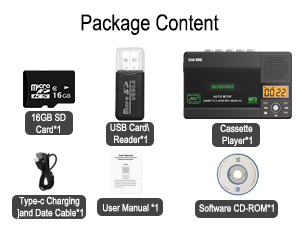
Image: Illustration of inserting AA batteries into the device.
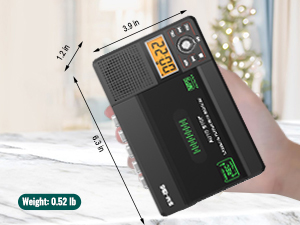
Image: Connecting the USB-C power cable to the device.
Inserting a Cassette Tape
Gently open the cassette compartment door. Insert your cassette tape with the open edge facing upwards and the tape side facing the device. Close the door firmly until it clicks.

Image: Proper insertion of a cassette tape into the player.
ກຳລັງໃສ່ SD Card
Locate the SD card slot on the side of the device. Insert the included 16GB SD card (or another compatible SD card, up to 32GB) into the slot until it clicks into place. Ensure the card is inserted in the correct orientation.

Image: Proper insertion of an SD card into the device's dedicated slot.
ຄໍາແນະນໍາການດໍາເນີນງານ
ການຫຼີ້ນເທບຄາເຊັດ
- Ensure a cassette tape is inserted.
- Slide the "TAPE/OFF/Micro SD" switch to the "TAPE" position.
- ກົດ ຫຼິ້ນ ປຸ່ມ (►) ເພື່ອເລີ່ມຕົ້ນການຫຼິ້ນ.
- ປັບລະດັບສຽງໂດຍໃຊ້ VOL ລູກບິດ.
- ເພື່ອຢຸດການຫຼີ້ນ, ກົດປຸ່ມ ຢຸດ ປຸ່ມ (■).
- ໃຊ້ FWD (►►) ແລະ REW (.) buttons for fast-forward and rewind.
Playing Music from SD Card
- Ensure an SD card with MP3 files ຖືກໃສ່.
- Slide the "TAPE/OFF/Micro SD" switch to the "Micro SD" position. The LCD display will show "SD" and the current track time.
- ກົດ ຫຼິ້ນ/ຢຸດຊົ່ວຄາວ ປຸ່ມ (►⏺) ເພື່ອເລີ່ມຕົ້ນຫຼືຢຸດການຫຼິ້ນ.
- ໃຊ້ PREV (.) ແລະ ຕໍ່ໄປ (►►) ປຸ່ມເພື່ອນຳທາງລະຫວ່າງແທຣັກຕ່າງໆ.
- ກົດ ລັດຖະສະພາ ເພື່ອຫຼິ້ນຊ້ຳເພງປັດຈຸບັນ ຫຼື ເພງທັງໝົດ.
- ກົດ DEL button to delete the current track.
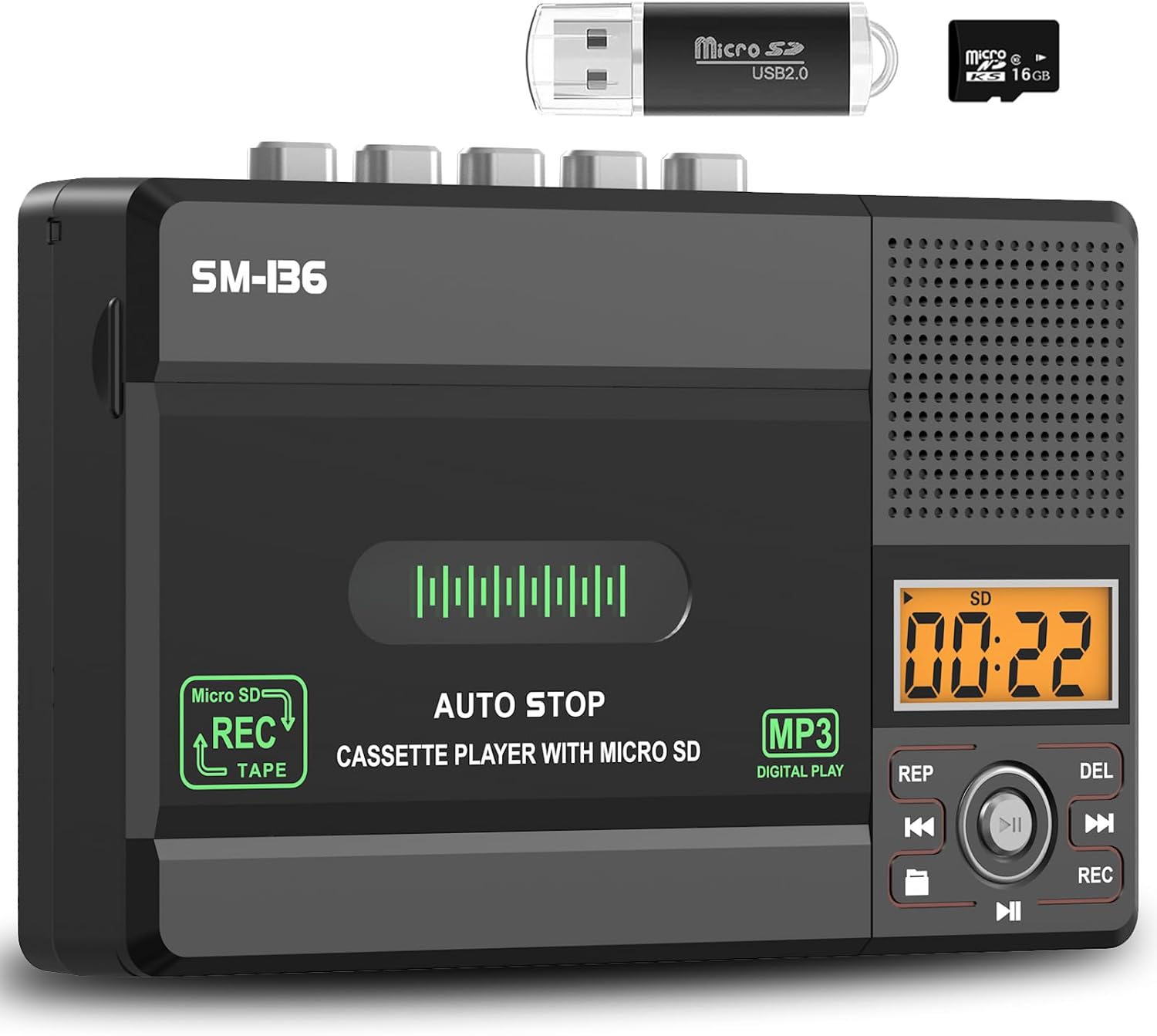
ຮູບພາບ: ຫຼາຍກວ່າview of the device's control panel and LCD screen.
Recording to Cassette Tape (from built-in microphone)
- ໃສ່ tape cassette ເປົ່າຫຼືບັນທຶກໄດ້.
- Slide the "TAPE/OFF/Micro SD" switch to the "TAPE" position.
- ກົດ REC button (red button) to begin recording from the built-in microphone.
- ເພື່ອຢຸດການບັນທຶກ, ກົດປຸ່ມ ຢຸດ ປຸ່ມ (■).

Image: Demonstrates recording audio to a cassette tape using the built-in microphone.
Converting Cassette to MP3 (to SD Card)
This method allows direct conversion without a computer.
- Insert the cassette tape you wish to convert.
- Insert the 16GB SD card (or another compatible SD card) into the SD card slot.
- Slide the "TAPE/OFF/Micro SD" switch to the "TAPE" position.
- ກົດ ຫຼິ້ນ ປຸ່ມ (►) on the cassette player.
- While the tape is playing, press and hold the REC button (red button) on the digital control panel until the LCD display shows "REC". This will start recording the cassette audio directly to the SD card as an MP3 file.
- ເພື່ອຢຸດການບັນທຶກ, ກົດປຸ່ມ REC ກົດປຸ່ມອີກເທື່ອຫນຶ່ງ, ຫຼືກົດປຸ່ມ ຢຸດ ປຸ່ມ (■) on the cassette player.
- The converted MP3 files will be saved on the SD card. You can then play them back on the device by switching to "Micro SD" mode or transfer them to a computer using the included USB reader.

Image: Visual steps for direct cassette to SD card MP3 conversion.
Converting Cassette to MP3 (to Computer via Audacity)
This method requires a computer and the included Audacity software.
- Install Audacity: Insert the included Software CD-ROM into your computer's CD drive and follow the installation instructions for Audacity. Alternatively, you can download the latest version of Audacity from its official webເວັບໄຊ.
- ເຊື່ອມຕໍ່ອຸປະກອນ: Connect the SEMIER SM-136 to your computer using the included USB-C data cable.
- Prepare Audacity: Open Audacity. Ensure the correct input device (usually "USB Audio CODEC" or similar) is selected in Audacity's audio settings.
- ເລີ່ມການບັນທຶກ: Insert the cassette tape you wish to convert into the player. Press the ຫຼິ້ນ ປຸ່ມ (►) on the cassette player. Then, click the ບັນທຶກ button in Audacity to begin capturing the audio.
- Monitor and Stop: Monitor the audio levels in Audacity. Once the tape has finished playing, click the ຢຸດ button in Audacity and the ຢຸດ ປຸ່ມ (■) on the cassette player.
- Export MP3: In Audacity, you can edit the recorded audio (e.g., trim silence, remove noise). Once satisfied, go to File > Export > Export as MP3 to save your digital audio file.

Image: Illustrates connecting the device to a computer and using Audacity for digital conversion.
ບໍາລຸງຮັກສາ
- ທໍາຄວາມສະອາດ: ໃຊ້ຜ້າປຽກແຫ້ງເພື່ອເຮັດຄວາມສະອາດດ້ານນອກຂອງອຸປະກອນ. ຢ່າໃຊ້ເຄື່ອງເຮັດຄວາມສະອາດຂອງແຫຼວຫຼືວັດສະດຸຂັດ.
- ການອະນາໄມຫົວເທບ: ອະນາໄມຫົວເທບເປັນໄລຍະໆ ແລະຕີລູກກິ້ງດ້ວຍຜ້າຝ້າຍເບົາໆ dampປະກອບດ້ວຍເຫຼົ້າ isopropyl ເພື່ອຮັບປະກັນຄຸນນະພາບສຽງທີ່ດີທີ່ສຸດແລະປ້ອງກັນຄວາມເສຍຫາຍຂອງ tape.
- ການເກັບຮັກສາ: ເກັບຮັກສາອຸປະກອນໄວ້ໃນບ່ອນທີ່ເຢັນ, ແຫ້ງ, ຫ່າງຈາກແສງແດດໂດຍກົງ ແລະອຸນຫະພູມທີ່ຮ້າຍກາດ.
- ການກຳຈັດແບັດເຕີຣີ: If the device will not be used for an extended period, remove the AA batteries to prevent leakage.
ການແກ້ໄຂບັນຫາ
| ບັນຫາ | ສາເຫດທີ່ເປັນໄປໄດ້ | ການແກ້ໄຂ |
|---|---|---|
| ອຸປະກອນບໍ່ເປີດ. | No power source; batteries dead or incorrectly inserted; USB-C cable not connected properly. | Check battery polarity and charge; ensure USB-C cable is securely connected to a working power source. |
| No sound during cassette playback. | Volume too low; "TAPE/OFF/Micro SD" switch in wrong position; tape head dirty. | Increase volume; ensure switch is on "TAPE"; clean tape head. |
| Poor sound quality during playback/recording. | Dirty tape heads; worn-out tape; low battery power. | Clean tape heads; try a different tape; replace batteries or use USB-C power. |
| SD card not recognized or "No SD" message. | SD card incorrectly inserted; unsupported SD card format/size; faulty SD card. | Reinsert SD card; ensure it's formatted to FAT32 and is 32GB or less; try a different SD card. |
| ບໍ່ສາມາດບັນທຶກໃສ່ SD ກາດໄດ້. | SD card full; SD card write-protected; incorrect recording procedure. | ລຶບ files from SD card; check SD card's physical write-protect switch; follow "Converting Cassette to MP3 (to SD Card)" steps carefully. |
| Audacity not detecting device for conversion. | USB-C cable issue; incorrect audio input selected in Audacity; driver issue. | Try a different USB port/cable; ensure "USB Audio CODEC" is selected in Audacity; restart computer and device. |
ຂໍ້ມູນຈໍາເພາະ
- ຕົວແບບ: SM-136
- ຟັງຊັນ: Cassette Player, Cassette Recorder (via Mic), SD Card MP3 Player, Cassette to MP3 Converter (to SD Card / PC)
- ແຫຼ່ງພະລັງງານ: DC 5V (USB-C) or 4 x AA Batteries
- ລຳໂພງ Output: 2W
- ຫູຟັງ Jack: ຂະ ໜາດ 3.5mm Stereo
- ຮອງຮັບ SD Card: ສູງສຸດ 32GB, ຮູບແບບ FAT32
- ຂະໜາດ: 6.3 x 3.9 x 1.2 ນິ້ວ (16 x 9.9 x 3 cm)
- ນ້ຳໜັກ: 0.52 lbs (0.24 ກິໂລ)

Image: Detailed dimensions and weight of the product.
ການຮັບປະກັນແລະການສະຫນັບສະຫນູນ
SEMIER products are designed for reliability and performance. This product comes with a standard manufacturer's warranty. For detailed warranty information, technical support, or customer service inquiries, please refer to the contact information provided on the product packaging or visit the official SEMIER website. Our dedicated customer support team is available to assist you with any questions or concerns.
ນອກນັ້ນທ່ານຍັງສາມາດໄປຢ້ຽມຢາມໄດ້ SEMIER Store on Amazon ສໍາລັບຂໍ້ມູນເພີ່ມເຕີມແລະຊັບພະຍາກອນສະຫນັບສະຫນູນ.
Ask a question about this manual
Ask about setup, troubleshooting, compatibility, parts, safety, or missing instructions. Manuals+ will review the question and use this page’s manual context to help answer it.