
KTC A27Q7
KTC 27-inch MegPad A27Q7 Portable Smart Touchscreen Monitor User Manual
Comprehensive guide for setup, operation, and maintenance of your KTC MegPad A27Q7.
1. ບົດແນະນຳ
The KTC 27-inch MegPad A27Q7 is a versatile portable touchscreen monitor designed for a wide range of uses, from entertainment to productivity. Featuring an EDLA-certified Android 14 operating system, a powerful Octa-core Qualcomm SM6115 chip, 8GB RAM, and 128GB internal storage, it offers a smooth and responsive user experience. Its full swivel rotation, long-lasting battery, and built-in camera make it an adaptable device for various environments.

Figure 1: The KTC MegPad A27Q7 in a home setting, showcasing its portability and sleek design.
2. ເນື້ອໃນຊຸດ
Upon unboxing your KTC MegPad A27Q7, ensure all components are present and undamaged. The package typically includes:
- KTC 27-inch Smart Mobile Screen (MegPad A27Q7)
- Base with silent universal wheels
- Telescopic rod/stand assembly
- ການຄວບຄຸມໄລຍະໄກ
- 2 x ຫມໍ້ໄຟ AAA (ສໍາລັບການຄວບຄຸມໄລຍະໄກ)
- ອະແດບເຕີພະລັງງານແລະສາຍ
- ໝວດ ຫົວ screwdriver Phillips
- Mounting screws (for base assembly)
- ຄູ່ມືຜູ້ໃຊ້ (ຄູ່ມືນີ້)

Figure 2: All included components of the KTC MegPad A27Q7, neatly arranged for inspection.
3. ການຕິດຕັ້ງແລະການປະກອບ
Follow these steps to assemble your KTC MegPad A27Q7. It is recommended to perform assembly on a soft, flat surface to prevent scratches.
- ການກະກຽມພື້ນຖານ: Place the Styrofoam packaging flat on the floor. Position the circular base of the stand onto the designated slot in the Styrofoam.
- Attach the Telescopic Rod: Carefully align the bottom of the telescopic rod with the connection point on the base. Push down firmly until it clicks into place, ensuring a secure connection.
- ຮັບປະກັນພື້ນຖານ: Using the provided Phillips head screwdriver and screws, fasten the base to the telescopic rod from underneath. Ensure all screws are tightened securely.
- Mount the Screen: Slide the screen onto the top of the telescopic rod. Pay attention to the arrows or guides on the screen's back plate and the rod to ensure correct orientation. The screen should slide down and lock into place.
- ເຊື່ອມຕໍ່ສາຍໄຟ: Locate the USB-C port on the back of the screen. Connect the power cable to this port.
- ຕິດຕັ້ງຫມໍ້ໄຟໄລຍະໄກ: Open the battery compartment on the back of the remote control and insert the two AAA batteries, observing polarity.
- ການເປີດເຄື່ອງເບື້ອງຕົ້ນ: Plug the power adapter into a wall outlet. Press and hold the power button on the back of the screen for 3 seconds to power on the device.
- ຄູ່ການຄວບຄຸມໄລຍະໄກ: Follow the on-screen instructions to pair your remote control with the MegPad. This usually involves pressing specific buttons on the remote simultaneously until an indicator light blinks.
Video 1: A detailed guide on unboxing and assembling the KTC MegPad A27Q7, demonstrating each step for a smooth setup process.

ຮູບ 3: ດ້ານຫລັງ view of the MegPad screen, highlighting the mounting interface and connectivity options.
4. ຄໍາແນະນໍາການດໍາເນີນງານ
4.1 ເປີດ/ປິດ
To power on, press and hold the power button on the back of the screen for 3 seconds. To power off, press and hold the power button again, then select "Power Off" from the on-screen menu.
4.2 Touchscreen and Remote Control
The MegPad features a responsive 10-point Incell touchscreen for direct interaction. Alternatively, use the included remote control for navigation, volume adjustment, and accessing various functions. The remote also includes a "flying mouse" feature for precise cursor control.
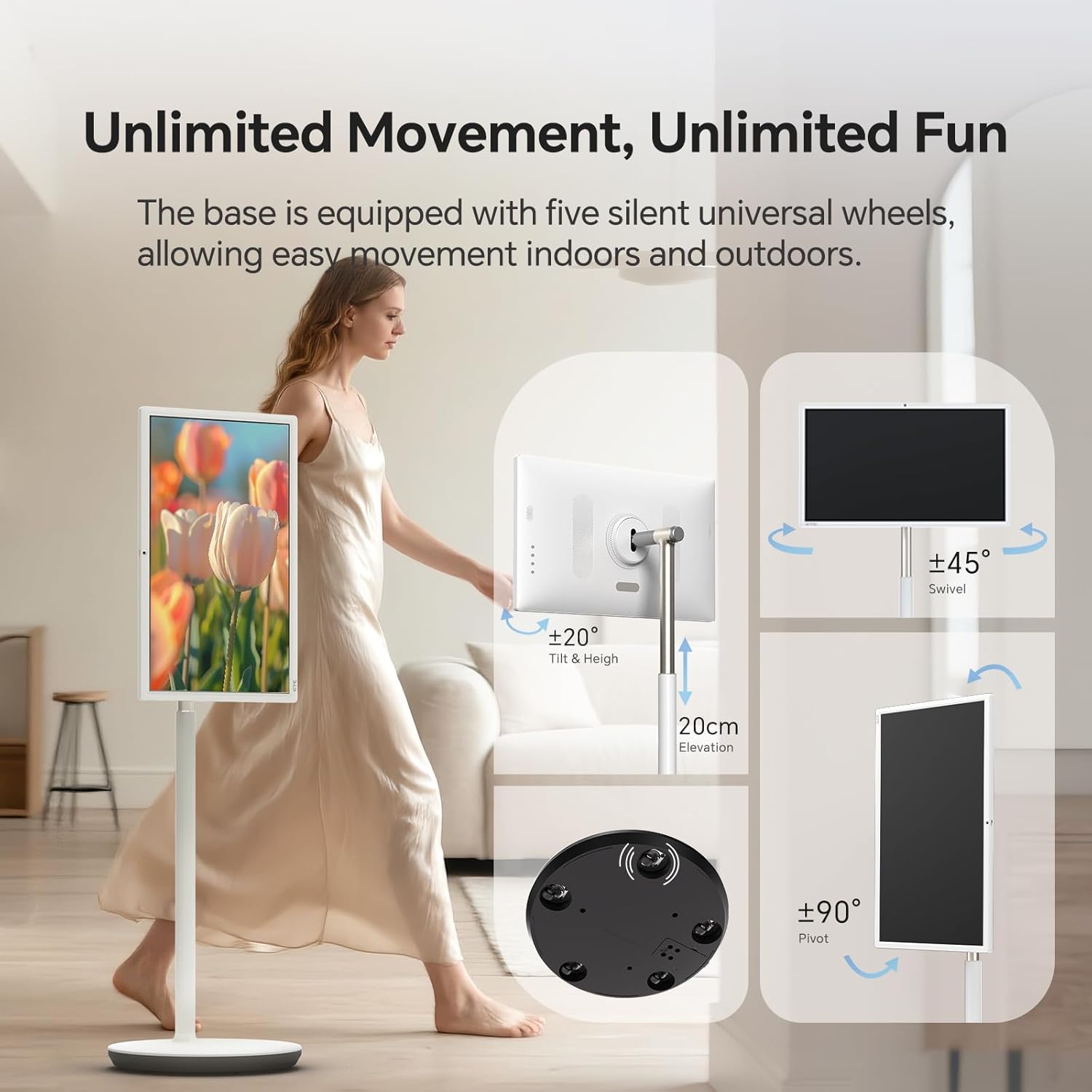
Figure 4: User interacting with the 10-point touchscreen for intuitive control.

Figure 5: The remote control provides convenient operation from a distance.
4.3 ລະບົບປະຕິບັດການ ແລະ ແອັບພລິເຄຊັນ Android
The MegPad runs on EDLA-certified Android 14 OS, powered by a Qualcomm SM6115 Octa-core CPU with 8GB RAM and 128GB storage. This allows you to download and install a wide array of applications directly from the Google Play Store, including streaming services, social media, and productivity tools.

Figure 6: The Android 14 OS interface with access to Google Play Store applications.
4.4 ການປັບໜ້າຈໍ
The screen offers full adjustability, allowing you to rotate, tilt, and lift it to achieve the optimal viewing angle. The base is equipped with five silent universal wheels for easy movement across different locations.

Figure 7: Multi-angle adjustment features for customized viewing.
4.5 Connectivity and Screen Mirroring
The MegPad supports Wifi5 wireless connection for internet access and content sharing. It also features a Type-C interface for easy device pairing and full-function output. Screen mirroring is supported via Apple AirPlay, Miracast, and Android DLNA, allowing you to cast content from your mobile phone, tablet, or laptop.

Figure 8: Wireless screen casting in action, displaying content from a phone to the MegPad.
4.6 Built-in Camera and Audio
An integrated camera and 4x5W speakers enable clear video calls and business meetings. The monitor also incorporates low blue light technology to reduce eye fatigue during extended use.

Figure 9: The built-in camera facilitates video conferencing and online interactions.
4.7 Battery Life and Mobility
The 9500mAh built-in battery provides 4-6 hours of continuous use, offering flexibility to enjoy content without a constant power connection. The rolling design with silent universal wheels allows for easy movement between rooms or even outdoors.

Figure 10: Enjoy extended usage with the long-lasting battery, perfect for various settings.
5. ບໍາລຸງຮັກສາ
To ensure the longevity and optimal performance of your KTC MegPad A27Q7, follow these maintenance guidelines:
- ທໍາຄວາມສະອາດຫນ້າຈໍ: ໃຊ້ຜ້າແພທີ່ອ່ອນນຸ້ມ, ບໍ່ມີເສັ້ນດ່າງທີ່ອອກແບບມາສະເພາະສຳລັບເຄື່ອງອີເລັກໂທຣນິກ. ສໍາລັບຮອຍເປື້ອນທີ່ແຂງ, ເບົາບາງ dampໃສ່ຜ້າດ້ວຍນ້ໍາຫຼືການແກ້ໄຂການທໍາຄວາມສະອາດທີ່ປອດໄພຫນ້າຈໍ. ຫຼີກເວັ້ນການສານເຄມີທີ່ຮຸນແຮງຫຼືວັດສະດຸຂັດ.
- Cleaning the Stand and Base: Wipe down the stand and base with a soft, damp cloth. Ensure no liquid enters any openings.
- ການດູແລຫມໍ້ໄຟ: To maximize battery life, avoid fully discharging the battery frequently. Charge the device when the battery level is low. If storing the device for an extended period, charge it to about 50-60% and store in a cool, dry place.
- ການເກັບຮັກສາ: When not in use, store the MegPad in a clean, dry environment away from direct sunlight and extreme temperatures.
6. ການແກ້ໄຂບັນຫາ
If you encounter issues with your KTC MegPad A27Q7, refer to the following common troubleshooting steps:
- ອຸປະກອນບໍ່ເປີດ:
- ໃຫ້ແນ່ໃຈວ່າອະແດັບເຕີໄຟເຊື່ອມຕໍ່ຢ່າງປອດໄພກັບທັງອຸປະກອນ ແລະປລັກສຽບໄຟທີ່ເຮັດວຽກ.
- ກວດສອບວ່າປລັກສຽບໄຟເຮັດວຽກໄດ້ໂດຍການສຽບໃສ່ອຸປະກອນອື່ນ.
- Charge the device for at least 30 minutes before attempting to power it on again.
- If the device is stuck in a boot loop (repeatedly showing the logo and turning off), try performing a hard reset by pressing and holding the power and volume buttons simultaneously for several seconds until the device restarts.
- ໜ້າຈໍສໍາຜັດບໍ່ຕອບສະໜອງ:
- ປິດເປີດອຸປະກອນຄືນໃໝ່.
- ໃຫ້ແນ່ໃຈວ່າຫນ້າຈໍສະອາດແລະບໍ່ມີສິ່ງເສດເຫຼືອຫຼືຄວາມຊຸ່ມຊື່ນ.
- ການຄວບຄຸມໄລຍະໄກບໍ່ເຮັດວຽກ:
- ກວດສອບ ແລະ ປ່ຽນແບັດເຕີຣີ AAA ໃນຣີໂໝດຄວບຄຸມ.
- ໃຫ້ແນ່ໃຈວ່າບໍ່ມີສິ່ງກີດຂວາງລະຫວ່າງຣີໂໝດ ແລະອຸປະກອນ.
- Re-pair the remote control with the MegPad by following the on-screen instructions during initial setup or in the device settings.
- ບໍ່ມີການເຊື່ອມຕໍ່ Wi-Fi:
- ກວດໃຫ້ແນ່ໃຈວ່າເຣົາເຕີ Wi-Fi ຂອງທ່ານເປີດຢູ່ ແລະເຮັດວຽກຢ່າງຖືກຕ້ອງ.
- ກວດເບິ່ງວ່າອຸປະກອນອື່ນສາມາດເຊື່ອມຕໍ່ກັບເຄືອຂ່າຍ Wi-Fi ດຽວກັນຫຼືບໍ່.
- Restart the MegPad and your Wi-Fi router.
- Go to "Settings" > "Network & Internet" and ensure Wi-Fi is enabled and you are connected to the correct network.
Video 2: Demonstration of a boot loop issue, where the device repeatedly shows the logo and turns off, along with a user's attempt at troubleshooting.
7. ຂໍ້ມູນຈໍາເພາະ
| ຄຸນສົມບັດ | ລາຍລະອຽດ |
|---|---|
| ຍີ່ຫໍ້ | KTC |
| ຊື່ຕົວແບບ | A27Q7 |
| ຂະໜາດໜ້າຈໍ | 27 ນິ້ວ |
| ຄວາມລະອຽດ | 1920x1080 FHD 1080p |
| ປະເພດການສະແດງ | ຈໍ LCD |
| ອັດຕາການໂຫຼດຂໍ້ມູນຄືນໃໝ່ | 60Hz |
| ອັດຕາສ່ວນກົງກັນຂ້າມ | 4000:1 |
| ລະບົບປະຕິບັດການ | EDLA-Certified Android 14 |
| CPU | Octa-core Qualcomm SM6115 |
| RAM | 8GB |
| ການເກັບຮັກສາພາຍໃນ | 128GB |
| ຄວາມອາດສາມາດຫມໍ້ໄຟ | 9500mAh (4-6 hours use) |
| ການເຊື່ອມຕໍ່ | Wifi5, Bluetooth, USB Type-C |
| ລໍາໂພງ | 4x5W Built-in Speakers |
| ກ້ອງຖ່າຍຮູບ | ໃນຕົວ |
| ຄຸນນະສົມບັດພິເສດ | 10-point Touch, Low Blue Light, Full Swivel Rotation, Universal Wheels |
| ນ້ໍາຫນັກລາຍການ | 40.32 ປອນ |
| ຂະໜາດລາຍການ (D x W x H) | 38"D x 9"W x 20"H |
8. ການຮັບປະກັນແລະການສະຫນັບສະຫນູນ
The KTC MegPad A27Q7 comes with a ການຮັບປະກັນຜູ້ຜະລິດ 1 ປີ. For any issues during installation or use, please contact KTC-Official through the Amazon platform for consultation. Our professional engineers are available to provide solutions as soon as possible.
For further assistance, please refer to the contact information provided in your purchase documentation or visit the official KTC webເວັບໄຊ.
ເອກະສານທີ່ກ່ຽວຂ້ອງ - A27Q7
 |
KTC MegPad A27Q7 User Guide User guide for the KTC MegPad A27Q7, detailing safety warnings, product installation, functions, basic operations, technical specifications, and remote control. |
 |
KTE MegPad A27Q7 User Guide Comprehensive user guide for the KTE MegPad A27Q7 smart display, covering installation, setup, features, technical specifications, and warranty information. |
 |
ຄູ່ມືຜູ້ໃຊ້ KTC MegPad A32Q7 ໜ້າຈໍມືຖື 4K ຂະໜາດ 32 ນິ້ວ ພ້ອມຂາຕັ້ງ User guide for the KTC MegPad A32Q7, a 32-inch 4K mobile screen with stand. Covers safety, packing, installation, adjustments, functions, interface, operations, connectivity, screen mirroring, remote control, technical specifications, and warranty. |
 |
KTC MegPad 32" 4K Mobile Screen with Stand User Manual Comprehensive user manual for the KTC MegPad 32" 4K Mobile Screen with Stand, covering precautions, installation, functions, and technical specifications. |
 |
KTC G27P6 27-inch 2K 240Hz OLED Monitor User Guide User guide for the KTC G27P6 27-inch OLED monitor, featuring 2K resolution and 240Hz refresh rate. Includes safety precautions, installation, operation, troubleshooting, technical specifications, and power management details. |
 |
ຄູ່ມືຜູ້ໃຊ້ ແລະ ສະເປັກຂອງຈໍ LCD KTC H27T8 ຂະໜາດ 27 ນິ້ວ Comprehensive user guide for the KTC H27T8 27-inch LCD Monitor, detailing product introduction, installation, technical specifications, safety precautions, power management, troubleshooting, and warranty information. Features high-performance intelligent multiple frequency scanning and active-matrix LED-backlit LCD technology. |
Ask a question about this manual
Ask about setup, troubleshooting, compatibility, parts, safety, or missing instructions. Manuals+ will review the question and use this page’s manual context to help answer it.