
1. ບົດແນະນຳ
This manual provides comprehensive instructions for the assembly, operation, and maintenance of your MININGEEK S400 Pro 10.8L Portable Mini-ITX Computer Case. Please read this guide thoroughly before beginning installation to ensure proper setup and optimal performance.
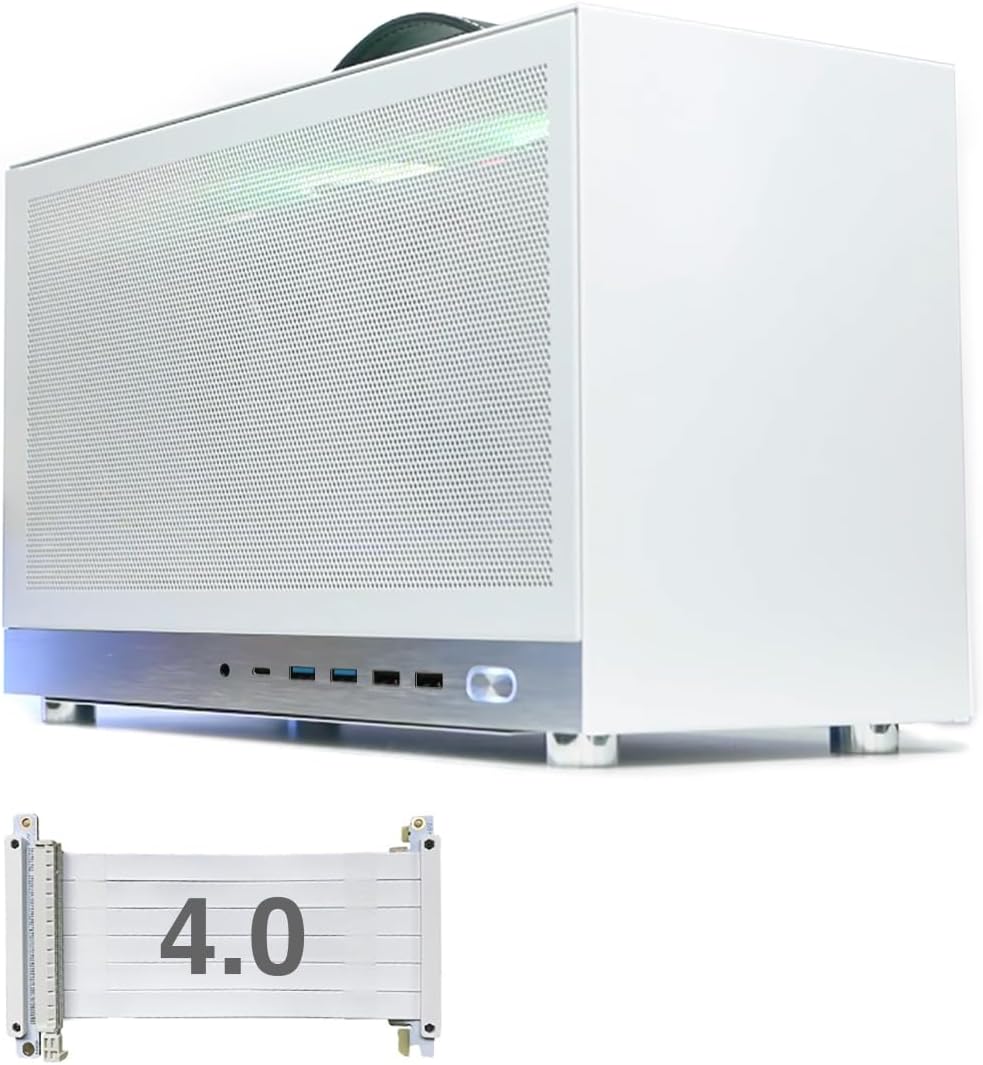
Figure 1: MININGEEK S400 Pro Mini-ITX Computer Case with included PCIe 4.0 riser cable.
2. ຂໍ້ມູນຄວາມປອດໄພ
Always disconnect power before performing any installation or maintenance. Handle components with care to prevent electrostatic discharge. Wear anti-static gloves if available. Refer to individual component manuals for specific safety guidelines.
3. ເນື້ອໃນຊຸດ
- MININGEEK S400 Pro Mini-ITX Computer Case
- PCIe 4.0 Riser Cable
- Detachable Carrying Handle
- Accessory Kit (screws, zip ties, etc.)
4. ຂໍ້ມູນຈໍາເພາະ
| ຄຸນສົມບັດ | ຂໍ້ມູນຈໍາເພາະ |
|---|---|
| ຊື່ຕົວແບບ | S400 Pro |
| ຂະໜາດ (LxWxH) | 340 x 155 x 205 ມມ (13.39 x 6.07 x 8.1 ນິ້ວ) |
| ປະລິມານ | 10.8L |
| ຄວາມເຂົ້າກັນໄດ້ຂອງເມນບອດ | Mini-ITX |
| ສະຫນັບສະຫນູນ GPU | Triple slot graphics cards up to 337mm long |
| PCIe Riser Cable | PCIe 4.0 included |
| ຈຳກັດຄວາມສູງຂອງ CPU Cooler | 65ມມ |
| ປະເພດ PSU | SFX/SFX-L (recommended) |
| ສະຫນັບສະຫນູນພັດລົມ | Bottom: 1x 120x25mm or 3.5" HDD; Top: 2x 120x15mm |
| ທ່າເຮືອທາງ ໜ້າ I / O | 2x USB 3.0, 2x USB 2.0, 1x Type-C, 1x Audio Jack |
| ວັດສະດຸ | ເຫຼັກກ້າ ແລະອາລູມີນຽມ |
| ນ້ໍາຫນັກລາຍການ | 5.18 ປອນ |

Figure 2: Case dimensions (Length: 340mm, Width: 155mm, Height: 205mm).
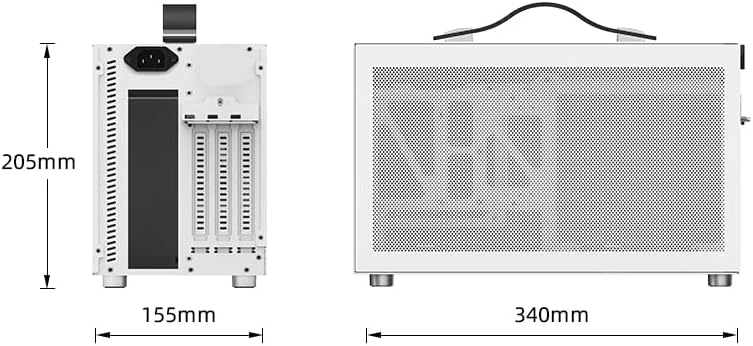
Figure 3: Internal layout showing component compatibility for SFX/SFX-L PSU, 2.5" SSD, ITX Board, CPU Cooler (max 65mm), and fan positions.
5. ການຕິດຕັ້ງແລະການຕິດຕັ້ງ
Follow these steps for proper assembly of your computer components within the S400 Pro case.
5.1. ການຖອດປະກອບເຄສ
- Remove the side panels by unscrewing the retaining screws.
- Carefully detach the side panels.
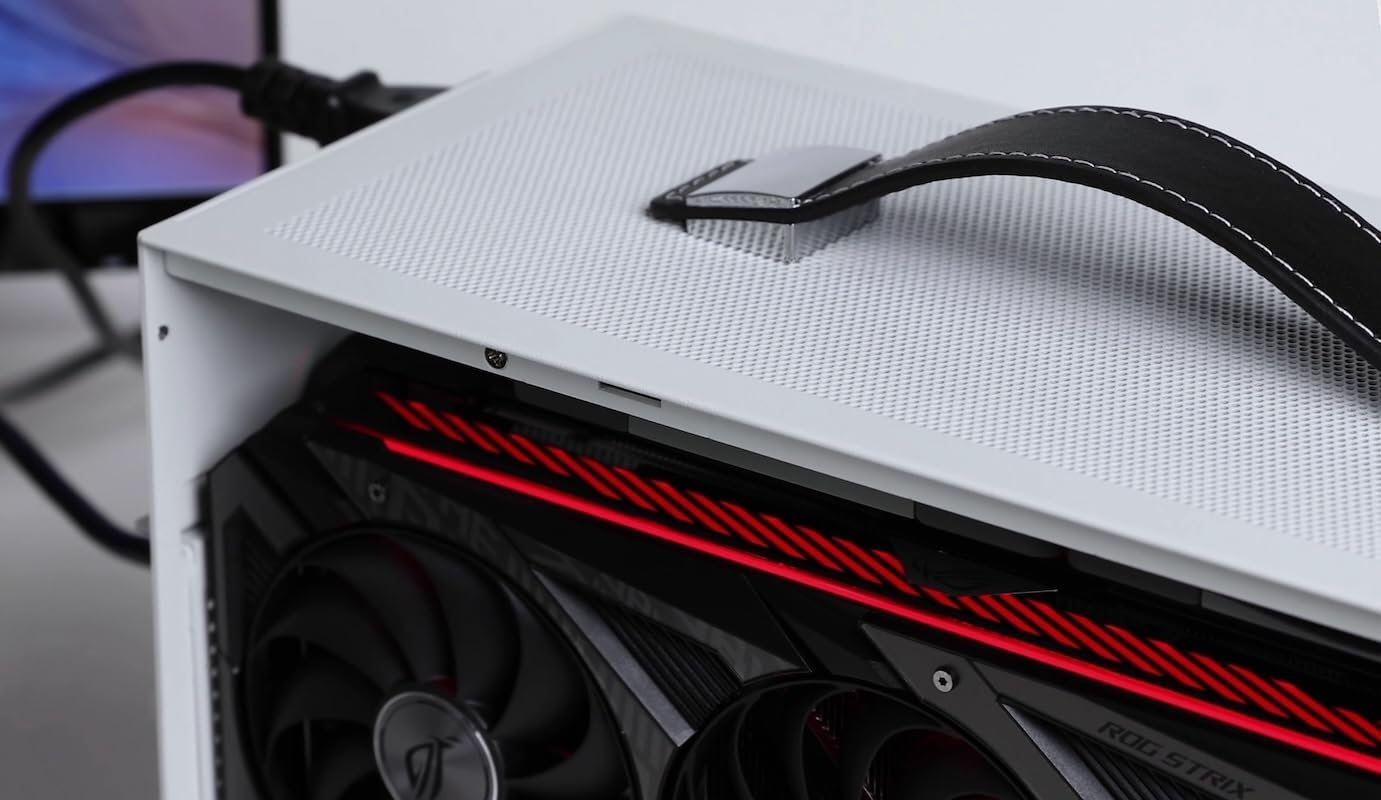
Figure 4: Removing the side panel to access the interior.
5.2. Motherboard, CPU, RAM, and SSD Installation
Install your CPU, RAM, and M.2 SSD onto the Mini-ITX motherboard before placing it into the case. Refer to your motherboard's manual for specific instructions.
Video 1: S300 - Mini-ITX Case Assembly Tutorial. This video demonstrates the assembly process for a similar Mini-ITX case, including CPU, RAM, and SSD installation on the motherboard.
5.3. ການຕິດຕັ້ງ PSU
Install the SFX/SFX-L power supply into its designated bracket. Ensure the PSU fan is oriented correctly (typically facing outwards or towards an intake area) to avoid thermal issues. Connect the necessary modular cables to the PSU before securing it in the case.
5.4. ການຕິດຕັ້ງ GPU
The S400 Pro supports triple-slot GPUs up to 337mm in length. Use the included PCIe 4.0 riser cable to connect your graphics card to the motherboard.
- Connect the PCIe riser cable to the motherboard's PCIe slot.
- Secure the GPU to the case's GPU bracket.
- Connect the other end of the PCIe riser cable to the GPU.
- Connect the GPU power cables from the PSU.

ຮູບທີ 5: ພາຍໃນ view showing a triple-slot GPU installed.

ຮູບທີ 6: ລາຍລະອຽດ view of GPU installation within the case.
5.5. ການຕິດຕັ້ງພັດລົມ
Install fans as per the specifications for optimal airflow. The case supports one 120x25mm fan or a 3.5" HDD at the bottom, and two 120x15mm fans at the top.

Figure 7: Installation of a 120mm fan at the bottom of the case.
5.6. ການຄຸ້ມຄອງສາຍໄຟ
Utilize zip ties and the case's internal routing options to manage cables effectively. Proper cable management improves airflow and aesthetics.
Video 2: KXRORS - Mini-ITX PC Gaming Case Assembly. This video provides a visual guide for assembling components and managing cables in a similar Mini-ITX case.
5.7. ປະກອບຄືນໃໝ່
Once all components are installed and cables are managed, reattach the side panels and secure them with the screws.

ຮູບ 8: ຂ້າງ view of the assembled MININGEEK S400 Pro case with the detachable carrying handle.

ຮູບ 9: ກັບຄືນໄປບ່ອນ view of the assembled MININGEEK S400 Pro case.

Figure 10: Close-up of the front I/O ports, including USB 3.0, USB 2.0, Type-C, and audio jack.
6. ຄໍາແນະນໍາການດໍາເນີນງານ
Connect your monitor, keyboard, mouse, and power cable to the assembled computer. Press the power button on the front panel to start your system. Refer to your operating system's documentation for further usage instructions.
7. ບໍາລຸງຮັກສາ
To ensure longevity and optimal performance, regularly clean the dust filters and interior of the case. Use compressed air to remove dust from fans and heatsinks. Ensure all cables are securely connected.
8. ການແກ້ໄຂບັນຫາ
- ລະບົບບໍ່ໄດ້ເປີດ: Check all power connections, including the PSU to the wall outlet, PSU to motherboard, and front panel power switch header.
- ບໍ່ມີການສະແດງຜົນ: Ensure the monitor is connected to the graphics card (not the motherboard's integrated graphics ports, unless no dedicated GPU is installed). Verify GPU power connections and PCIe riser cable connection.
- ຄວາມຮ້ອນເກີນ: Confirm CPU cooler is properly installed with thermal paste. Check fan orientations and ensure sufficient airflow. Verify PSU fan orientation.
- ການເຊື່ອມຕໍ່ວ່າງ: If experiencing intermittent issues, re-seat RAM, GPU, and all power/data cables.
9. ການຮັບປະກັນແລະການສະຫນັບສະຫນູນ
For warranty information and technical support, please refer to the MININGEEK official webເວັບໄຊ ຫຼືຕິດຕໍ່ຮ້ານຂາຍຍ່ອຍຂອງທ່ານ. ຮັກສາຫຼັກຖານການຊື້ຂອງທ່ານສໍາລັບການຮ້ອງຂໍການຮັບປະກັນ.


