
ແນະນຳ
This manual provides essential information for the setup, operation, maintenance, and troubleshooting of your Onn 22 inch 1080P 100 Hz FHD LED Monitor. Please read this guide thoroughly before using the product to ensure optimal performance and safety.
The Onn 22 inch FHD LED Monitor is designed for a variety of applications, offering a vivid 1920x1080 resolution, a 100Hz refresh rate, and a 6.5ms response time for efficient performance. Its slim profile and T-shaped base are ideal for saving desk space.
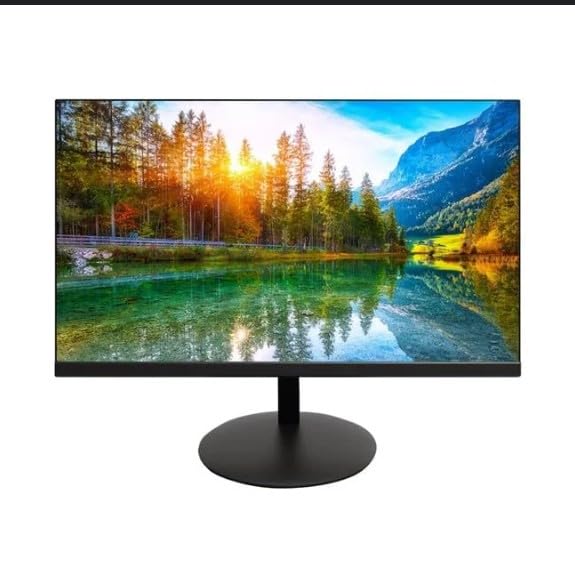
The image shows the Onn 22 inch FHD LED Monitor, highlighting its 100Hz refresh rate and 1080p resolution. The monitor features a slim design and a T-shaped base.
ຄໍາແນະນໍາການຕິດຕັ້ງ
- ການຫຸ້ມຫໍ່: Carefully remove the monitor and all accessories from the packaging. Ensure all components are present: monitor, T-shaped base, HDMI cable, and power adapter.
- ການປະກອບຂາຢືນ: Attach the T-shaped base to the monitor. The design is screw-less for easy assembly. Ensure it is securely fastened.
- ການເຊື່ອມຕໍ່ກັບອຸປະກອນໃດຫນຶ່ງ:
The monitor supports both HDMI and VGA inputs. Connect the provided HDMI cable from your computer's HDMI output to the HDMI IN port on the monitor. Alternatively, use a VGA cable for VGA input.

This image displays the rear panel of the Onn monitor, illustrating the available input ports: HDMI IN, VGA IN, and the DC 12V power input. These ports are essential for connecting the monitor to a computer or other devices.
- ການເຊື່ອມຕໍ່ພະລັງງານ: Connect the power adapter to the DC 12V input port on the monitor, then plug the adapter into a power outlet.
- ການປັບຕົວຕິດຕາມ: The monitor is capable of swivel, tilt, rotation, and height adjustment. Adjust the screen to your preferred viewing ມຸມສໍາລັບການສະດວກສະບາຍ ergonomic.
- ການຕິດຕັ້ງຈໍພາບຄູ່: This monitor is suitable for a fully functioning dual monitor setup. Connect a second monitor using the appropriate cables and configure your operating system's display settings.
ຄໍາແນະນໍາການດໍາເນີນງານ
- ເປີດ/ປິດ: Press the power button, usually located on the bottom or back of the monitor, to turn it on or off.
- ການຄັດເລືອກການປ້ອນຂໍ້ມູນ: If the monitor does not automatically detect the input source, use the On-Screen Display (OSD) menu buttons to manually select between HDMI and VGA inputs.
- ການນຳທາງເມນູ OSD: Use the physical buttons on the monitor (typically on the back or bottom edge) to navigate the OSD menu. This allows you to adjust settings such as brightness, contrast, color temperature, and input source.
- ຄວາມລະອຽດ ແລະອັດຕາການໂຫຼດຂໍ້ມູນຄືນໃໝ່: The monitor supports a native resolution of 1920x1080 at a 100Hz refresh rate. Ensure your computer's display settings are configured to these specifications for the best visual experience.
- Adaptive Sync: The monitor features Adaptive Sync for gaming, which helps to reduce screen tearing and stuttering. Ensure this feature is enabled in your graphics card settings if supported.
ບໍາລຸງຮັກສາ
- ທໍາຄວາມສະອາດຫນ້າຈໍ: ເຊັດໜ້າຈໍຢ່າງອ່ອນໂຍນດ້ວຍຜ້າອ່ອນໆ, ບໍ່ມີເຈັ້ຍ. ສໍາລັບຮອຍແຂງ, ເບົາບາງ dampen the cloth with water or a non-abrasive, monitor-specific cleaning solution. Avoid spraying liquids directly onto the screen.
- ທໍາຄວາມສະອາດ Casing: ໃຊ້ຜ້າປຽກແຫ້ງເພື່ອເຮັດຄວາມສະອາດຈໍສະແດງຜົນ casing. Do not use strong detergents or solvents, as they may damage the finish.
- ການລະບາຍອາກາດ: ໃຫ້ແນ່ໃຈວ່າຊ່ອງລະບາຍອາກາດຂອງຈໍສະແດງຜົນບໍ່ໄດ້ຖືກບລັອກເພື່ອປ້ອງກັນຄວາມຮ້ອນເກີນໄປ.
- ການເກັບຮັກສາ: ເມື່ອບໍ່ໄດ້ໃຊ້ເປັນເວລາດົນ, ໃຫ້ເກັບຮັກສາຈໍພາບໄວ້ໃນບ່ອນທີ່ເຢັນ, ແຫ້ງ, ຫ່າງຈາກແສງແດດໂດຍກົງ ແລະ ອຸນຫະພູມທີ່ຮ້າຍກາດ.
ການແກ້ໄຂບັນຫາ
- ບໍ່ມີພະລັງງານ:
- ກວດເບິ່ງວ່າສາຍໄຟຖືກເຊື່ອມຕໍ່ຢ່າງປອດໄພກັບທັງຈໍພາບ ແລະປລັກສຽບໄຟຫຼືບໍ່.
- ກວດສອບວ່າປ່ຽງໄຟແມ່ນເຮັດວຽກຖືກຕ້ອງ.
- ບໍ່ມີສັນຍານ:
- Ensure the video cable (HDMI or VGA) is firmly connected to both the monitor and the computer.
- ເລືອກແຫຼ່ງປ້ອນຂໍ້ມູນທີ່ຖືກຕ້ອງໂດຍໃຊ້ເມນູ OSD ຂອງຈໍພາບ.
- ກວດເບິ່ງວ່າຄອມພິວເຕີຂອງທ່ານເປີດຢູ່ຫຼືບໍ່ຢູ່ໃນໂໝດນອນ.
- ໜ້າຈໍກະພິບ ຫຼື ຄຸນນະພາບຮູບພາບບໍ່ດີ:
- ກວດເບິ່ງສາຍວິດີໂອສໍາລັບຄວາມເສຍຫາຍຫຼືການເຊື່ອມຕໍ່ວ່າງ.
- Adjust the resolution and refresh rate settings on your computer to match the monitor's specifications (1920x1080, 100Hz).
- ຕັ້ງຄ່າຈໍພາບຄືນໃໝ່ໄປເປັນຄ່າເລີ່ມຕົ້ນຈາກໂຮງງານຜ່ານເມນູ OSD.
- ປຸ່ມບໍ່ຕອບສະໜອງ:
- Unplug the monitor from the power outlet, wait for 30 seconds, and then plug it back in.
If problems persist, please refer to the support information provided in the "Support and Warranty" section.
ຂໍ້ມູນຈໍາເພາະ
| ຍີ່ຫໍ້ | Onn |
| ໝາຍເລກຕົວແບບ | 100140681 |
| ຊື່ຕົວແບບ | OTTO |
| ຂະໜາດໜ້າຈໍ | 21.5 ນິ້ວ |
| ປະເພດການສະແດງ | LED, LCD |
| ຄວາມລະອຽດ | 1920 x 1080 (FHD 1080p) |
| ອັດຕາການໂຫຼດຂໍ້ມູນຄືນໃໝ່ | 100 Hz |
| ເວລາຕອບສະຫນອງ | 6.5 ມິນລິວິນາທີ |
| ການໂຕ້ຕອບຮາດແວ | hdmi, vga |
| ຄຸນນະສົມບັດພິເສດ | ການປັບຄວາມສູງ |
| Viewໃນມຸມ | 160 ອົງສາ |
| ອັດຕາສ່ວນ | 16:9 |
| ຂະໜາດສິນຄ້າ | 49.2 x 20 x 37.2 ຊມ; 3.24 ກິໂລ |
ສະຫນັບສະຫນູນແລະການຮັບປະກັນ
For technical support, product inquiries, or warranty information, please visit the official Onn support webເວັບໄຊ ຫຼືຕິດຕໍ່ບໍລິການລູກຄ້າຂອງເຂົາເຈົ້າ.
- ສະຫນັບສະຫນູນຢ່າງເປັນທາງການ Webເວັບໄຊ: onnsupport.ca
- ການຮັບປະກັນ: Specific warranty details may vary by region and purchase date. Please refer to the documentation included with your product or visit the support webເວັບໄຊສໍາລັບຂໍ້ມູນການຮັບປະກັນໃນປະຈຸບັນຫຼາຍທີ່ສຸດ.