
ແນະນຳ
This manual provides essential information for the proper setup, operation, maintenance, and troubleshooting of your KTC H27T27 27-inch WQHD IPS Flat Monitor. Please read this manual thoroughly before using the product to ensure optimal performance and safety.
The KTC H27T27 monitor features a 27-inch WQHD (2560x1440) IPS panel with a 100Hz refresh rate, designed to deliver clear and detailed images with smooth motion. It includes FreeSync technology for enhanced visual fluidity during dynamic content. The IPS panel ensures vivid colors and wide viewມຸມ.

Figure 1: KTC H27T27 27-inch WQHD IPS Flat Monitor Front View
ຕັ້ງຄ່າ
1. ການຫຸ້ມຫໍ່
ເອົາສ່ວນປະກອບທັງໝົດອອກຈາກການຫຸ້ມຫໍ່ຢ່າງລະມັດລະວັງ. ຮັບປະກັນວ່າທຸກລາຍການທີ່ລະບຸໄວ້ໃນລາຍການຫຸ້ມຫໍ່ແມ່ນມີຢູ່ ແລະ ບໍ່ເສຍຫາຍ. ເກັບຮັກສາການຫຸ້ມຫໍ່ເດີມໄວ້ສຳລັບການຂົນສົ່ງ ຫຼື ການບໍລິການໃນອະນາຄົດ.
2. ສະພາຢືນ
- ວາງຈໍພາບໜ້າລົງເທິງພື້ນຜິວທີ່ສະອາດ ແລະ ອ່ອນນຸ້ມເພື່ອປ້ອງກັນຮອຍຂີດຂ່ວນ.
- ແນບຖານຂາຕັ້ງໃສ່ຄໍຂາຕັ້ງໂດຍໃຊ້ສະກູທີ່ໃຫ້ໄວ້.
- ຈັດຕຳແໜ່ງຂາຕັ້ງທີ່ປະກອບເຂົ້າກັນໃຫ້ກົງກັບຊ່ອງຕິດຕັ້ງຢູ່ດ້ານຫຼັງຂອງຈໍພາບ ແລະ ຮັດມັນໃຫ້ແໜ້ນ.
3. ການຕິດຕັ້ງ VESA (ທາງເລືອກ)
The monitor supports VESA 100x100mm mounting. If using a VESA mount, remove the stand and attach the VESA compatible bracket to the monitor's rear panel using appropriate screws.
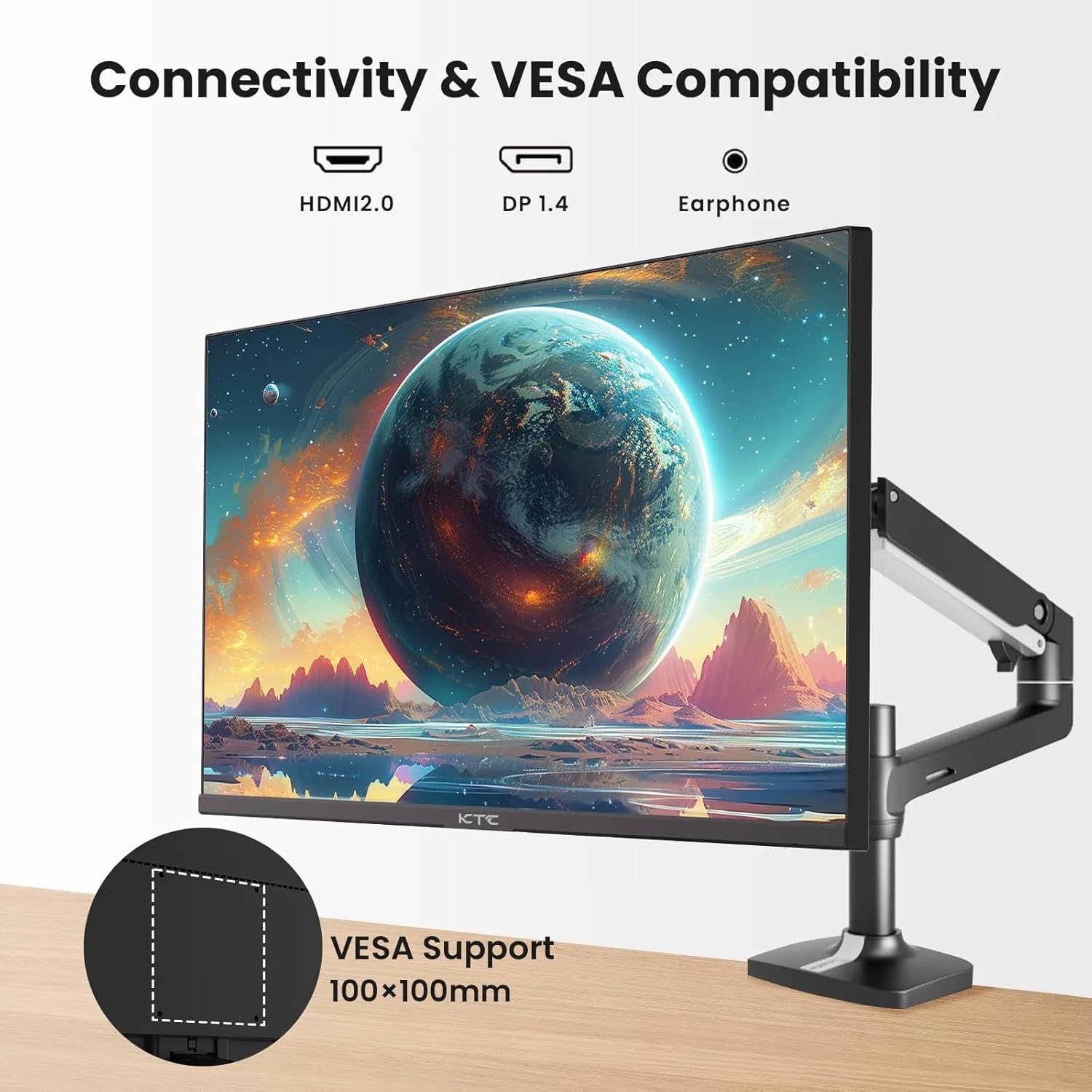
Figure 2: VESA Compatibility and Connectivity Ports
4. ສາຍເຊື່ອມຕໍ່
Connect the necessary cables to the monitor and your computer or other devices. Ensure all connections are secure.
- ສາຍໄຟ: ເຊື່ອມຕໍ່ອະແດບເຕີໄຟກັບຜອດອິນພຸດ DC ຂອງຈໍພາບ, ຈາກນັ້ນສຽບສາຍໄຟໃສ່ປລັກສຽບໄຟ.
- ສາຍວິດີໂອ: Connect either an HDMI cable (HDMI 2.0) or a DisplayPort cable (DP 1.4) from your computer's graphics card to the corresponding input port on the monitor.
- ສຽງອອກ: If desired, connect headphones or external speakers to the 3.5mm audio output jack.

ຮູບທີ 3: ຕິດຕາມພອດຂາເຂົ້າ
5. ການເປີດເຄື່ອງເບື້ອງຕົ້ນ
Press the power button on the monitor. The power indicator light will illuminate. If no image appears, ensure your computer is powered on and the correct input source is selected on the monitor.
ປະຕິບັດການ
1. ເປີດ/ປິດ
Press the power button located on the monitor to turn it on or off. The power indicator will show the monitor's status.
2. ເມນູການສະແດງເທິງໜ້າຈໍ (OSD).
ເມນູ OSD ຊ່ວຍໃຫ້ທ່ານສາມາດປັບການຕັ້ງຄ່າຈໍພາບຕ່າງໆ. ໃຊ້ປຸ່ມຄວບຄຸມ (ໂດຍປົກກະຕິແລ້ວຈະຕັ້ງຢູ່ດ້ານຫຼັງ ຫຼື ດ້ານລຸ່ມຂອງຈໍພາບ) ເພື່ອນຳທາງເມນູ.
- ກົດປຸ່ມເພື່ອເປີດໃຊ້ເມນູ OSD.
- ໃຊ້ປຸ່ມນຳທາງເພື່ອເລື່ອນຜ່ານຕົວເລືອກເມນູ.
- Press a selection button to enter a sub-menu or confirm a setting.
- Press an exit button to close the OSD menu.
3. ປັບການຕັ້ງຄ່າ
ການຕັ້ງຄ່າທີ່ສາມາດປັບໄດ້ທົ່ວໄປປະກອບມີ:
- ຄວາມສະຫວ່າງ/ຄວາມຄົມຊັດ: ປັບຄວາມສະຫວ່າງໂດຍລວມ ແລະຄວາມແຕກຕ່າງລະຫວ່າງພື້ນທີ່ແສງສະຫວ່າງ ແລະບ່ອນມືດ.
- ການຕັ້ງຄ່າສີ: ດັດແປງອຸນຫະພູມສີ, ແກມມາ ແລະ ຄ່າ RGB ແຕ່ລະອັນ.
- ແຫຼ່ງປ້ອນຂໍ້ມູນ: ເລືອກດ້ວຍຕົນເອງລະຫວ່າງວັດສະດຸປ້ອນ HDMI 1, HDMI 2, ຫຼື DisplayPort.
- ໂໝດຮູບ: Select predefined display modes (e.g., Standard, Game, Movie).
4. ອັດຕາການໂຫຼດຂໍ້ມູນຄືນໃໝ່
The KTC H27T27 supports a 100Hz refresh rate, providing smoother motion compared to standard 60Hz displays. Ensure your graphics card and operating system are configured to output at 100Hz for the best experience.

Figure 4: 100Hz Refresh Rate Benefit
5. ເທັກໂນໂລຢີ FreeSync
This monitor is compatible with AMD FreeSync technology, which synchronizes the monitor's refresh rate with your graphics card's frame rate. This helps eliminate screen tearing and stuttering for a smoother gaming and video experience. Ensure FreeSync is enabled in both the monitor's OSD menu and your graphics card's control panel.
Figure 5: FreeSync Technology in Action
ບໍາລຸງຮັກສາ
1. ການທໍາຄວາມສະອາດຫນ້າຈໍ
- ປິດໜ້າຈໍ ແລະຖອດສາຍໄຟອອກ.
- ເຊັດໜ້າຈໍຢ່າງອ່ອນໂຍນດ້ວຍຜ້າອ່ອນໆ, ບໍ່ມີເຈັ້ຍ.
- ສໍາລັບຮອຍແຂງ, ເບົາບາງ dampໃສ່ຜ້າດ້ວຍນ້ໍາຫຼືເຄື່ອງເຮັດຄວາມສະອາດຫນ້າຈໍພິເສດ (ຢ່າສີດໃສ່ຫນ້າຈໍໂດຍກົງ).
- ຫຼີກເວັ້ນການໃຊ້ເຄື່ອງເຮັດຄວາມສະອາດຂັດ, ເຫຼົ້າ, ຫຼືການແກ້ໄຂທີ່ມີອາໂມເນຍ, ເພາະວ່າສິ່ງເຫຼົ່ານີ້ສາມາດທໍາລາຍຫນ້າຈໍໄດ້.
2. ການດູແລທົ່ວໄປ
- ຮັກສາຈໍພາບໃຫ້ຫ່າງຈາກແສງແດດໂດຍກົງ, ຄວາມຮ້ອນທີ່ເກີນ, ແລະ ຄວາມຊຸ່ມຊື່ນ.
- ຮັບປະກັນການລະບາຍອາກາດຢ່າງພຽງພໍຮອບຈໍເພື່ອປ້ອງກັນຄວາມຮ້ອນເກີນ.
- ຫຼີກເວັ້ນການວາງວັດຖຸໜັກໃສ່ຈໍພາບ ຫຼືສາຍຂອງມັນ.
ການແກ້ໄຂບັນຫາ
ຖ້າເຈົ້າພົບບັນຫາກັບຈໍພາບຂອງເຈົ້າ, ໃຫ້ອ້າງອີງເຖິງບັນຫາ ແລະວິທີແກ້ໄຂບັນຫາທົ່ວໄປຕໍ່ໄປນີ້:
- ບໍ່ມີພະລັງງານ:
- Ensure the power cable is securely connected to both the monitor and the power outlet.
- ກວດສອບວ່າປ່ຽງໄຟແມ່ນເຮັດວຽກໄດ້. - ບໍ່ມີສັນຍານ:
- Check that the video cable (HDMI or DisplayPort) is securely connected to both the monitor and your computer.
- Ensure your computer is powered on and not in sleep mode.
- Select the correct input source via the monitor's OSD menu. - ຮູບພາບທີ່ກະພິບ ຫຼືບິດເບືອນ:
- Check the video cable for damage or loose connections.
- Adjust the refresh rate settings on your computer.
- Disable or enable FreeSync in the OSD menu and graphics card settings to test. - ສີບໍ່ຖືກຕ້ອງ:
- Reset color settings to factory defaults in the OSD menu.
- Adjust color temperature or individual RGB values.
ຖ້າບັນຫາຍັງຄົງຢູ່ຫຼັງຈາກພະຍາຍາມແກ້ໄຂເຫຼົ່ານີ້, ກະລຸນາຕິດຕໍ່ຝ່າຍຊ່ວຍເຫຼືອລູກຄ້າ.
ຂໍ້ມູນຈໍາເພາະ
| ຄຸນສົມບັດ | ຂໍ້ມູນຈໍາເພາະ |
|---|---|
| ຍີ່ຫໍ້ | KTC |
| ໝາຍເລກຕົວແບບ | H27T27 |
| ຂະໜາດໜ້າຈໍ | 27 ນິ້ວ |
| ຄວາມລະອຽດ | 2560 x 1440 (WQHD) |
| ອັດຕາການໂຫຼດຂໍ້ມູນຄືນໃໝ່ | 100 Hz |
| ປະເພດການສະແດງ | IPS |
| ເວລາຕອບສະຫນອງ | 7 ມິນລິວິນາທີ |
| Adaptive Sync | FreeSync |
| ການເຊື່ອມຕໍ່ | 2x HDMI 2.0, 1x DisplayPort 1.4, 1x ຊ່ອງສຽບສຽງອອກ 3.5 ມມ |
| ອັດຕາສ່ວນ | 1.78:1 |
| ຫນ້າຈໍ | Matte |
| ຂະໜາດລາຍການ (D x W x H) | 1.85"D x 24.25"W x 14.33"H |
| ນ້ໍາຫນັກລາຍການ | 4 ກິໂລກຣາມ |
ການຮັບປະກັນແລະການສະຫນັບສະຫນູນ
ຂໍ້ມູນການຮັບປະກັນ
This KTC monitor is covered by a manufacturer's warranty. Please refer to the warranty card included in your product packaging for specific terms, conditions, and duration of coverage. Keep your purchase receipt as proof of purchase for warranty claims.
ການຊ່ວຍເຫຼືອລູກຄ້າ
For technical assistance, warranty service, or any product-related inquiries, please contact KTC customer support. Contact details can typically be found on the official KTC webສະຖານທີ່ຫຼືຢູ່ໃນບັດຮັບປະກັນ.
When contacting support, please have your monitor's model number (H27T27) and serial number ready.


