
1. ຜະລິດຕະພັນເກີນview
The KOORUI G2722P is a 27-inch QHD (2560x1440) gaming monitor designed for an immersive visual experience. It features a Fast IPS panel with a 200Hz refresh rate and a 1ms response time, ensuring smooth and responsive gameplay. The monitor supports HDR 400 for enhanced contrast and color depth, and Adaptive Sync technology to minimize screen tearing and stuttering. Its ergonomic stand allows for height, tilt, and pivot adjustments, and it is VESA 75x75mm compatible for flexible mounting options.

The KOORUI G2722P monitor integrated into a typical gaming environment.
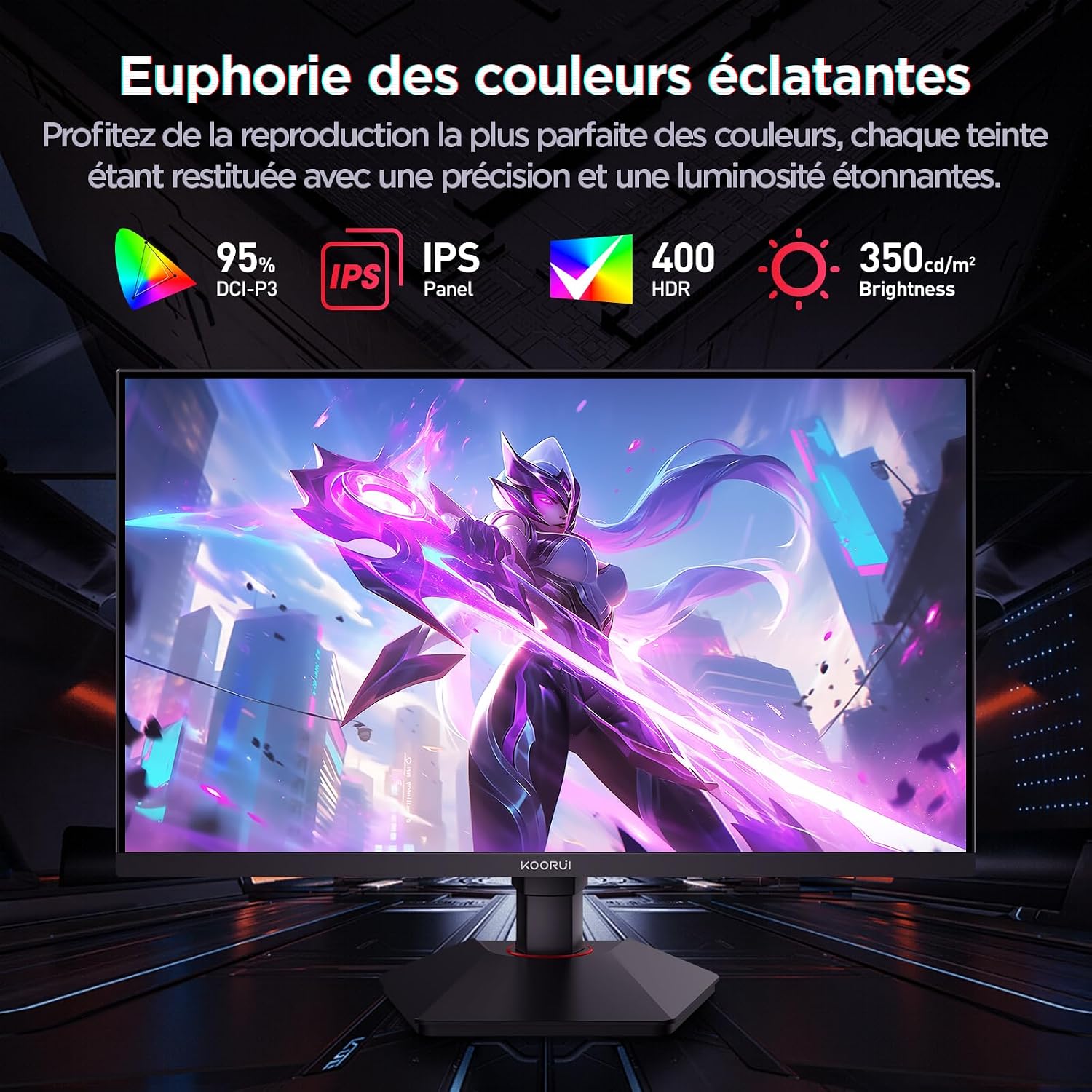
This image highlights the monitor's color capabilities, including 95% DCI-P3 color gamut, IPS panel technology, HDR 400 support, and 350 cd/m² brightness.
2. ຂໍ້ມູນຄວາມປອດໄພ
- ອ່ານຄໍາແນະນໍາທັງຫມົດຢ່າງລະອຽດກ່ອນທີ່ຈະໃຊ້ຈໍພາບ.
- ຫ້າມບໍ່ໃຫ້ຈໍພາບຖືກຝົນ ຫຼື ຄວາມຊຸ່ມຊື້ນ ເພື່ອປ້ອງກັນອັນຕະລາຍຈາກໄຟໄໝ້ ຫຼື ການຊ໊ອກ.
- ຫ້າມເປີດຈໍພາບ casing. ບໍ່ມີສ່ວນທີ່ຜູ້ໃຊ້ບໍລິການພາຍໃນ. ອ້າງອີງການບໍລິການທັງໝົດໃຫ້ກັບບຸກຄະລາກອນທີ່ມີຄຸນວຸດທິ.
- ວາງຈໍພາບຢູ່ເທິງພື້ນຜິວຮາບພຽງທີ່ໝັ້ນຄົງເພື່ອປ້ອງກັນບໍ່ໃຫ້ມັນຕົກ.
- ຮັກສາຈໍພາບໃຫ້ຫ່າງຈາກແສງແດດໂດຍກົງ, ແຫຼ່ງຄວາມຮ້ອນ, ແລະອຸນຫະພູມທີ່ຮຸນແຮງ.
- ຮັບປະກັນການລະບາຍອາກາດທີ່ເຫມາະສົມຮອບຈໍ. ຫ້າມປິດຊ່ອງລະບາຍອາກາດ.
- ໃຊ້ພຽງແຕ່ອະແດບເຕີໄຟຟ້າ ແລະ ສາຍໄຟທີ່ຜູ້ຜະລິດສະໜອງໃຫ້ ຫຼື ແນະນຳເທົ່ານັ້ນ.
- ຖອດປລັກຈໍພາບອອກຈາກປລັກສຽບໄຟໃນເວລາມີພາຍຸຟ້າຜ່າ ຫຼືເມື່ອບໍ່ໄດ້ໃຊ້ເປັນເວລາດົນນານ.
3. ເນື້ອໃນຊຸດ
ກວດສອບວ່າລາຍການທັງຫມົດແມ່ນມີຢູ່ໃນຊຸດ:
- ຈໍພາບ KOORUI G2722P
- Monitor Stand (ຖານ ແລະ ຄໍ)
- Power Adapter ແລະສາຍໄຟ
- ສາຍ DisplayPort (DP).
- ຄູ່ມືຜູ້ໃຊ້ (ເອກະສານນີ້)
- screws ສໍາລັບການປະກອບຢືນ
4. ຕິດຕາມກວດກາສະພາ
4.1 ການຕິດຕັ້ງ
- ວາງຈໍພາບຢ່າງລະມັດລະວັງໃສ່ຜ້າທີ່ສະອາດ, ອ່ອນໆເພື່ອປ້ອງກັນຮອຍຂີດຂ່ວນ.
- Attach the stand neck to the back of the monitor until it clicks into place or is secured with screws (refer to specific instructions in the included quick start guide).
- ແນບຖານຂາຕັ້ງໃສ່ຄໍຂາຕັ້ງ ແລະຍຶດມັນດ້ວຍສະກູທີ່ໃຫ້ໄວ້.
- Carefully lift the monitor and place it on a stable desk.
4.2 ການຕິດຕັ້ງ VESA
The monitor supports VESA 75x75mm mounting. To use a VESA mount:
- Remove the stand if it is already attached.
- Attach your VESA-compatible mount (sold separately) to the 75x75mm screw holes on the back of the monitor using appropriate screws.
- ໃຫ້ແນ່ໃຈວ່າຕົວຍຶດຖືກຍຶດໄວ້ຢ່າງປອດໄພກ່ອນທີ່ຈະເຊື່ອມຕໍ່asing ຈໍພາບ.

This image demonstrates the monitor's ergonomic adjustments (height, tilt, pivot) and provides a visual reference for stand attachment points.
5. ການເຊື່ອມຕໍ່ Monitor
ເຊື່ອມຕໍ່ຈໍພາບກັບຄອມພິວເຕີຂອງທ່ານ ຫຼືອຸປະກອນອື່ນໆໂດຍໃຊ້ພອດທີ່ມີຢູ່.
- ການເຊື່ອມຕໍ່ພະລັງງານ: Connect the power cable to the power adapter, then connect the adapter to the monitor's power input and a wall outlet.
- ການເຊື່ອມຕໍ່ວິດີໂອ:
- For optimal performance (QHD @ 200Hz), use the provided DisplayPort (DP 1.4) cable to connect the monitor to your graphics card.
- Alternatively, use an HDMI 2.0 cable to connect to an HDMI port on your device.
- ສຽງອອກ: Connect external speakers or headphones to the 3.5mm audio output jack on the monitor if you wish to use the monitor's audio passthrough.

This image displays the rear of the monitor, highlighting the available connectivity options: two HDMI 2.0 ports, one DisplayPort 1.4, an audio output jack, and the VESA 75x75mm mounting pattern.
6. ການດໍາເນີນງານຂອງ Monitor
6.1 ເປີດ/ປິດ
- ກົດປຸ່ມເປີດປິດຢູ່ໃນຈໍສະແດງຜົນເພື່ອເປີດຫຼືປິດມັນ.
- ໄຟສະແດງພະລັງງານຈະສະຫວ່າງຂຶ້ນເມື່ອຈໍພາບເປີດຢູ່.
6.2 ເມນູການສະແດງເທິງໜ້າຈໍ (OSD).
The OSD menu allows you to adjust various monitor settings. Typically, buttons are located on the back or bottom right of the monitor.
- ກົດປຸ່ມຫນຶ່ງຂອງ OSD ເພື່ອເປີດໃຊ້ເມນູ.
- Use the navigation buttons (usually directional or a joystick) to browse through menu options.
- ກົດປຸ່ມເລືອກເພື່ອເຂົ້າສູ່ເມນູຍ່ອຍ ຫຼື ຢືນຢັນການຕັ້ງຄ່າ.
- ກົດປຸ່ມອອກເພື່ອປິດເມນູ OSD.
7. ການຕັ້ງຄ່າການສະແດງ
7.1 ຄວາມລະອຽດ ແລະ ອັດຕາການໂຫຼດໜ້າຈໍຄືນໃໝ່
The monitor supports a native resolution of 2560x1440 (QHD) and a maximum refresh rate of 200Hz. Ensure your graphics card and operating system are configured to use these settings for the best experience.

This image illustrates the difference in motion clarity between a 75Hz and a 200Hz refresh rate, emphasizing the 1ms response time for reduced blur and ghosting.
7.2 Adaptive Sync (FreeSync)
This monitor supports Adaptive Sync technology (compatible with AMD FreeSync) to synchronize the monitor's refresh rate with your graphics card's frame rate, eliminating screen tearing and reducing stuttering.
- Enable Adaptive Sync in the monitor's OSD menu.
- Ensure Adaptive Sync (or FreeSync) is enabled in your graphics card control panel.

This image visually compares the display with Adaptive Sync enabled versus disabled, demonstrating how Adaptive Sync eliminates screen tearing for a smoother visual experience.
7.3 HDR 400
The monitor supports HDR 400, providing a wider dynamic range for brighter whites and deeper blacks, resulting in more vibrant and realistic images.
- Enable HDR in your operating system's display settings and in the monitor's OSD menu if available.
7.4 ການຕັ້ງຄ່າສີ
The Fast IPS panel offers excellent color reproduction and wide viewມຸມ.
- Adjust color temperature, gamma, and saturation through the OSD menu to suit your preferences.
- The monitor features a 178-degree wide viewing angle, ensuring consistent color and image quality from various perspectives.
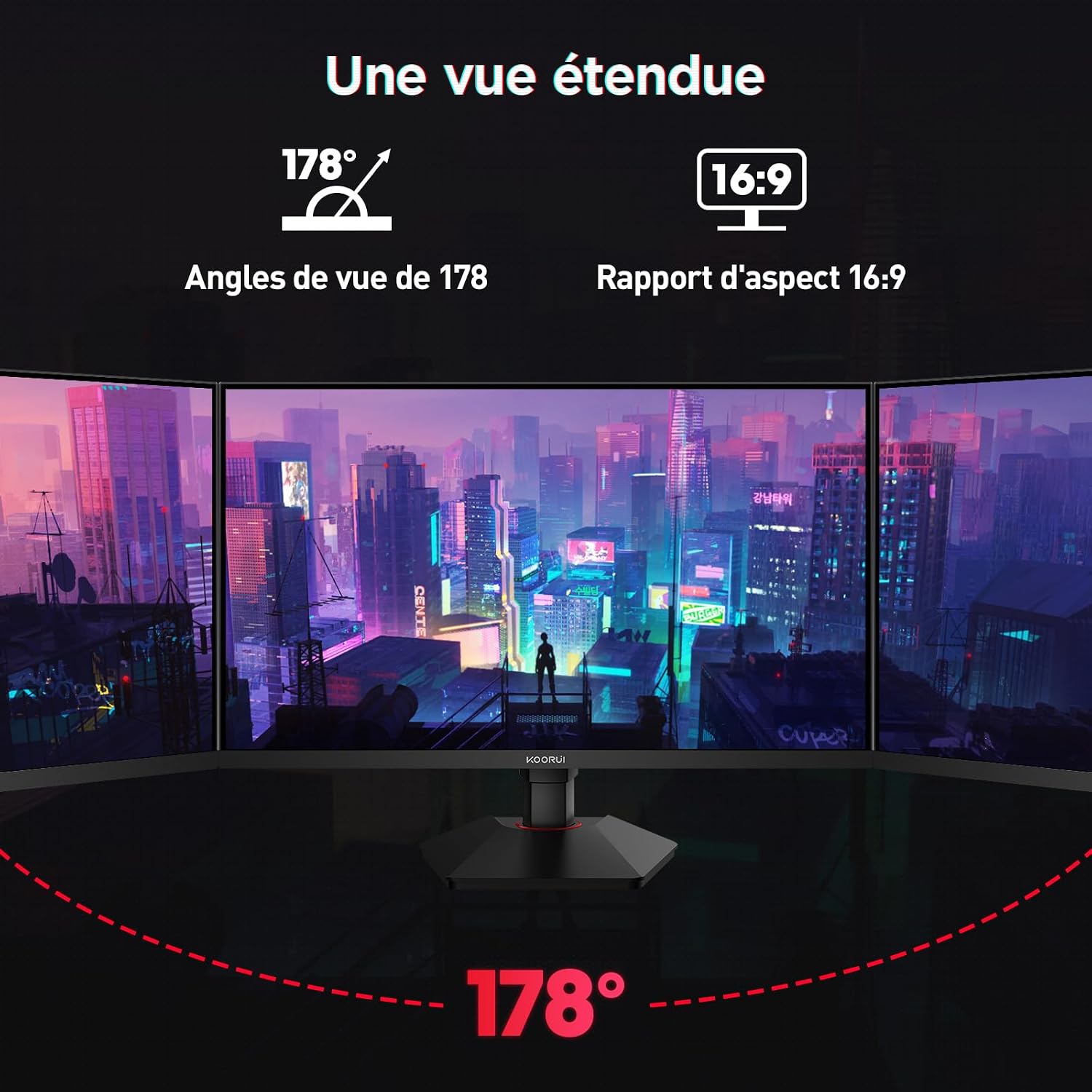
This image demonstrates the monitor's wide 178-degree viewing angle, illustrating how the display maintains clarity and color consistency even when viewed from extreme angles, ideal for multi-monitor setups.
8. ການປັບຕົວ Ergonomic
ຂາຕັ້ງຈໍພາບອະນຸຍາດໃຫ້ມີການປັບຕົວຕ່າງໆເພື່ອເພີ່ມປະສິດທິພາບຂອງທ່ານ viewຄວາມສະດວກສະບາຍ:
- ການປັບຄວາມສູງ: Adjust the monitor height by up to 100mm by gently pushing or pulling the monitor up or down.
- ການປັບຕົວອຽງ: Tilt the screen from -5° (forward) to +20° (backward) to find your preferred viewມຸມ ing.
- ການໝຸນ (ການໝູນ): Rotate the screen 90° to switch between landscape and portrait orientations.
This image illustrates the full range of ergonomic adjustments available: 100mm height adjustment, -5° to +20° tilt, and 90° pivot rotation for optimal viewສະດວກສະບາຍ.
9. ຄຸນນະສົມບັດການດູແລຕາ
The KOORUI G2722P monitor incorporates features designed to reduce eye strain during prolonged use:
- ເທັກໂນໂລຍີ Flicker-Free: Reduces screen flickering, which can cause eye fatigue.
- ການກັ່ນຕອງແສງສະຫວ່າງສີຟ້າຕ່ໍາ: Minimizes harmful blue light emissions to protect your eyes. This feature can usually be adjusted or enabled/disabled in the OSD menu.
10. ບໍາລຸງຮັກສາ
ການບໍາລຸງຮັກສາທີ່ເຫມາະສົມຮັບປະກັນອາຍຸຍືນແລະການປະຕິບັດທີ່ດີທີ່ສຸດຂອງຈໍພາບຂອງທ່ານ.
- ທໍາຄວາມສະອາດຫນ້າຈໍ: ເຊັດໜ້າຈໍຢ່າງອ່ອນໂຍນດ້ວຍຜ້າອ່ອນໆ, ບໍ່ມີເຈັ້ຍ. ສໍາລັບຮອຍທີ່ແຂງກະດ້າງ, ໃຫ້ໃຊ້ການແກ້ໄຂການເຮັດຄວາມສະອາດສະເພາະຂອງຈໍສະແດງຜົນທີ່ໃຊ້ກັບຜ້າ, ບໍ່ແມ່ນໂດຍກົງກັບຫນ້າຈໍ.
- ທໍາຄວາມສະອາດ Casing: ໃຊ້ຜ້າປຽກແຫ້ງເພື່ອເຮັດຄວາມສະອາດຈໍສະແດງຜົນ casing. ຫຼີກເວັ້ນການນໍາໃຊ້ເຄື່ອງເຮັດຄວາມສະອາດຂັດຫຼືສານລະລາຍ.
- ການຈັດການ: Avoid touching the screen directly with your fingers or sharp objects. Do not place heavy objects on the monitor.
11. ການແກ້ໄຂບັນຫາ
ຖ້າເຈົ້າພົບບັນຫາກັບຈໍພາບຂອງເຈົ້າ, ໃຫ້ອ້າງອີງເຖິງບັນຫາ ແລະວິທີແກ້ໄຂບັນຫາທົ່ວໄປຕໍ່ໄປນີ້:
| ບັນຫາ | ການແກ້ໄຂທີ່ເປັນໄປໄດ້ |
|---|---|
| ບໍ່ມີຮູບພາບໃນ ໜ້າ ຈໍ |
|
| ຮູບພາບກະພິບ ຫຼື ຂາດ |
|
| No sound from audio output |
|
| Monitor not reaching 200Hz |
|
12. ຂໍ້ມູນຈໍາເພາະ
Key technical specifications for the KOORUI G2722P monitor:
| ຄຸນສົມບັດ | ຂໍ້ມູນຈໍາເພາະ |
|---|---|
| ຂະໜາດໜ້າຈໍ | 27 ນິ້ວ |
| ປະເພດແຜງ | IPS ໄວ |
| ຄວາມລະອຽດ | QHD (2560 x 1440) |
| ອັດຕາການໂຫຼດຂໍ້ມູນຄືນໃໝ່ | 200Hz |
| ເວລາຕອບສະຫນອງ | 1ms |
| ຮອງຮັບ HDR | HDR 400 |
| Adaptive Sync | FreeSync |
| ອັດຕາສ່ວນກົງກັນຂ້າມ | 1000:1 (ຄົງທີ່) |
| ຄວາມສະຫວ່າງ | 350 cd/m² |
| Viewໃນມຸມ | 178° (H/V) |
| ສີ Gamut | 95% DCI-P3 |
| ວິດີໂອປ້ອນຂໍ້ມູນ | 2x HDMI 2.0, 1x DisplayPort 1.4 |
| ສຽງອອກ | 1x 3.5mm Audio Out |
| ຄວາມເຂົ້າກັນໄດ້ຂອງ VESA | 75x75ມມ |
| ການບໍລິໂພກພະລັງງານ | 19 Watts (Typical) |
| ການ Ergonomics | Height, Tilt, Pivot Adjustment |

This diagram provides the physical dimensions of the monitor, including width, height, and depth.
ສຳລັບຂໍ້ມູນພະລັງງານລະອຽດ, ກະລຸນາອ້າງອີງເຖິງຖານຂໍ້ມູນ EPREL: https://eprel.ec.europa.eu/qr/2216313
13. ການຮັບປະກັນແລະການສະຫນັບສະຫນູນ
ຈໍພາບ KOORUI G2722P ມາພ້ອມກັບ a ການຮັບປະກັນຂອງຜູ້ຜະລິດ 2 ປີ. ການຮັບປະກັນນີ້ກວມເອົາຂໍ້ບົກພ່ອງຂອງວັດສະດຸແລະການເຮັດວຽກພາຍໃຕ້ການນໍາໃຊ້ປົກກະຕິ.
For technical support, warranty claims, or further assistance, please contact KOORUI customer service through their official webເວັບໄຊທ໌ຫຼືຮ້ານຂາຍຍ່ອຍບ່ອນທີ່ຜະລິດຕະພັນໄດ້ຖືກຊື້.