
1. ບົດແນະນຳ
Thank you for choosing the KOORUI N07 27-inch 4K UHD Monitor. This monitor is designed to provide a superior visual experience with its 3840x2160 resolution, IPS panel, 60Hz refresh rate, HDR10 support, and Adaptive Sync technology. This manual provides essential information for setting up, operating, and maintaining your monitor to ensure optimal performance and longevity. Please read this manual thoroughly before using the product.
2. ຂໍ້ມູນຄວາມປອດໄພ
- ວາງຈໍພາບຢູ່ເທິງພື້ນທີ່ຄົງທີ່, ຮາບພຽງ.
- ຫ້າມກີດຂວາງການເປີດລະບາຍອາກາດ.
- ໃຊ້ພຽງແຕ່ອະແດບເຕີໄຟຟ້າທີ່ຜູ້ຜະລິດສະຫນອງໃຫ້.
- ຮັກສາຈໍພາບໃຫ້ຫ່າງຈາກນ້ໍາແລະຄວາມຊຸ່ມຊື່ນຫຼາຍເກີນໄປ.
- Avoid exposing the monitor to direct sunlight or high temperatures.
- ຖອດສາຍໄຟອອກໃນຊ່ວງທີ່ມີພະຍຸຟ້າຜ່າ ຫຼື ເມື່ອບໍ່ໄດ້ໃຊ້ເປັນເວລາດົນ.
3. ເນື້ອໃນຊຸດ
ກະລຸນາກວດເບິ່ງເນື້ອໃນຂອງແພັກເກດເມື່ອເປີດ. ຖ້າລາຍການໃດຂາດຫາຍໄປ ຫຼືເສຍຫາຍ, ໃຫ້ຕິດຕໍ່ຮ້ານຂາຍຍ່ອຍຂອງເຈົ້າ.
- KOORUI N07 27-inch 4K UHD Monitor
- Monitor Stand (ຖານ ແລະ ຄໍ)
- Power Adapter ແລະສາຍໄຟ
- ສາຍ HDMI
- ສາຍ DisplayPort
- ຄູ່ມືຜູ້ໃຊ້
4. Monitor Assembly and Setup
4.1 ການຕິດຕັ້ງ
- ວາງຈໍພາບຢ່າງລະມັດລະວັງໃສ່ຜ້າທີ່ສະອາດ, ອ່ອນໆເພື່ອປ້ອງກັນຮອຍຂີດຂ່ວນ.
- ຕິດຄໍຂາຕັ້ງເຂົ້າກັບດ້ານຫຼັງຂອງຈໍພາບ, ໂດຍການຈັດຈຸດຕິດຕັ້ງໃຫ້ຕົງກັນ.
- ຮັດຄໍຂອງຂາຕັ້ງດ້ວຍສະກູທີ່ໃຫ້ມາ.
- ແນບຖານຂາຕັ້ງໃສ່ຄໍຂາຕັ້ງ ແລະ ຮັດສະກູຫົວໂປ້ມືໃຫ້ແໜ້ນ.

ຮູບ 4.1: ດ້ານຫລັງ view of the monitor showing VESA mount and tilt adjustment.
4.2 ສາຍເຊື່ອມຕໍ່
The KOORUI N07 monitor offers versatile connectivity options. Ensure your computer is turned off before making any connections.
- ການເຊື່ອມຕໍ່ພະລັງງານ: ເຊື່ອມຕໍ່ອະແດບເຕີໄຟກັບຜອດອິນພຸດ DC ຂອງຈໍພາບ, ຈາກນັ້ນສຽບສາຍໄຟໃສ່ປລັກສຽບໄຟ.
- ການເຊື່ອມຕໍ່ວິດີໂອ: Connect one end of the HDMI or DisplayPort cable to the corresponding port on your computer's graphics card and the other end to an HDMI (HDMI1 or HDMI2) or DisplayPort (DP) input on the monitor.
- ສຽງອອກ: If desired, connect external speakers or headphones to the 3.5mm audio output port on the monitor.

Figure 4.2: Connectivity options for the KOORUI N07 monitor.
4.3 ການເປີດເຄື່ອງ
After connecting all necessary cables, press the power button on the monitor to turn it on. The monitor will automatically detect the active input source.
5. ຄໍາແນະນໍາການດໍາເນີນງານ
5.1 ເມນູການສະແດງເທິງໜ້າຈໍ (OSD).
The OSD menu allows you to adjust various monitor settings. Use the buttons located on the bottom right of the monitor to navigate and select options.
- ປຸ່ມເປີດປິດ: ເປີດ/ປິດຈໍສະແດງຜົນ.
- ປຸ່ມເມນູ: ເປີດເມນູ OSD.
- ປຸ່ມນຳທາງ: ໃຊ້ເພື່ອຍ້າຍຜ່ານຕົວເລືອກເມນູ ແລະປັບຄ່າ.
- ປຸ່ມອອກ: ອອກຈາກເມນູ OSD.
5.2 ປຸ່ມ OSD Settings
- ການຕັ້ງຄ່າຮູບ: ປັບຄວາມສະຫວ່າງ, ກົງກັນຂ້າມ, ຄວາມຄົມຊັດ, ແລະອຸນຫະພູມສີ.
- ໂໝດສີ: Select from various preset modes like Standard, Movie, Game, and Eye Care.
- ແຫຼ່ງປ້ອນຂໍ້ມູນ: Manually select between HDMI1, HDMI2, or DisplayPort inputs.
- Adaptive Sync: ເປີດ ຫຼື ປິດ Adaptive Sync ເພື່ອການຫຼິ້ນເກມທີ່ຄ່ອງແຄ້ວຂຶ້ນ.
- HDR10: Activate HDR10 for enhanced dynamic range with compatible content.
6. ຄຸນສົມບັດຫຼາຍກວ່າview
6.1 4K UHD Resolution (3840x2160)
Experience incredible detail and clarity with a resolution four times higher than Full HD. This monitor provides 8.3 million pixels for a sharper and more colorful image.

Figure 6.1: 4K UHD resolution detail comparison.
6.2 IPS Panel Technology
The IPS panel offers a wide 178° viewing angle and vibrant color reproduction (90% DCI-P3, 99% sRGB), ensuring consistent image quality from almost any perspective. This is ideal for graphic designers, gamers, and movie enthusiasts.

Figure 6.2: IPS panel with 99% sRGB color accuracy.
6.3 ຮອງຮັບ HDR10
Enjoy content with enhanced dynamic range. HDR10 provides brighter whites, deeper blacks, and more vivid colors, bringing your favorite movies and games to life with greater realism.

Figure 6.3: HDR10 technology for improved image quality.
6.4 ເທັກໂນໂລຍີການຊິງຄ໌ແບບປັບຕົວ
Adaptive Sync eliminates screen tearing and stuttering, providing a smoother and more fluid visual experience, especially during fast-paced gaming or video playback.

Figure 6.4: Adaptive Sync in action, preventing screen tearing.
6.5 ເຕັກໂນໂລຊີການດູແລຕາ
The monitor features a Blue Light Filter and Flicker-Free technology to reduce eye strain during prolonged use. The Eye Care mode optimizes settings to minimize blue light emission, promoting visual comfort.
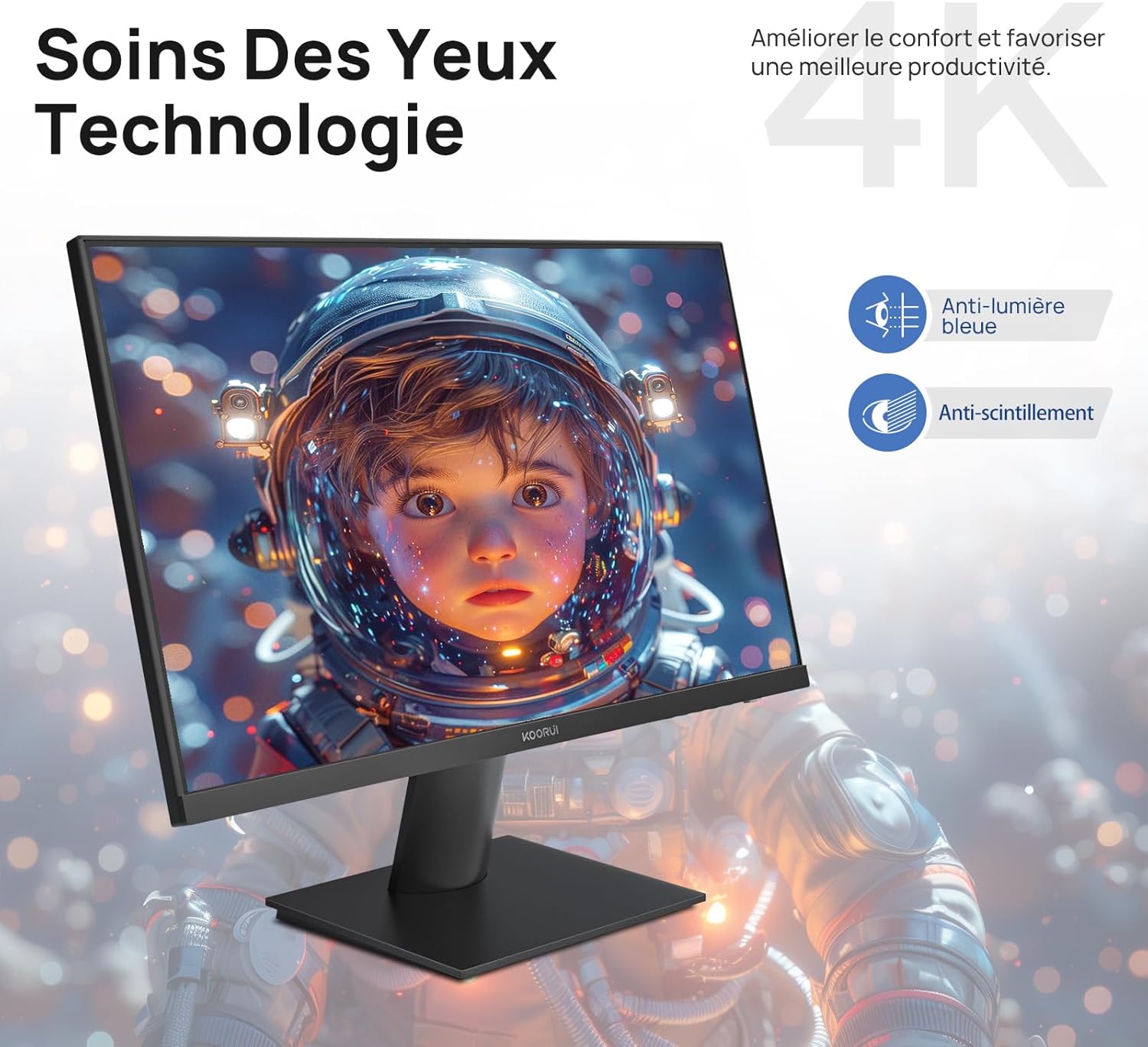
Figure 6.5: Eye Care technology for reduced eye strain.
6.6 ການອອກແບບ Ergonomic
The monitor stand allows for tilt adjustment from -5° to 20°, enabling you to find the most comfortable viewing angle for your posture.
6.7 ຄວາມເຂົ້າກັນໄດ້ຂອງ VESA Mount
The KOORUI N07 supports 100x100mm VESA mounting, allowing you to easily attach it to a wall mount or an articulated monitor arm for a flexible and clutter-free workspace.

Figure 6.6: VESA mount compatibility for flexible setup.
7. ວິດີໂອຜະລິດຕະພັນຫຼາຍກວ່າview
ວິດີໂອທີ 7.1: ຈົບແລ້ວview of the KOORUI N07 27-inch 4K UHD monitor, highlighting its key features such as 4K resolution, DCI-P3 color gamut, HDR10 support, versatile usage for creation, viewing, and gaming, adjustable tilt, and VESA mounting capabilities.
8. ການແກ້ໄຂບັນຫາ
ຖ້າຫາກທ່ານພົບບັນຫາກັບການຕິດຕາມກວດກາຂອງທ່ານ, ກະລຸນາເບິ່ງບັນຫາທົ່ວໄປດັ່ງຕໍ່ໄປນີ້ແລະການແກ້ໄຂ:
| ບັນຫາ | ການແກ້ໄຂທີ່ເປັນໄປໄດ້ |
|---|---|
| ບໍ່ມີຮູບພາບໃນ ໜ້າ ຈໍ | Ensure power cable is securely connected. Check video cable connection (HDMI/DP) to both monitor and computer. Verify correct input source is selected in OSD. |
| ຮູບພາບມົວຫຼືບິດເບືອນ | Check display resolution settings on your computer. Ensure it is set to 3840x2160. Adjust sharpness in the OSD menu. |
| ສີປາກົດບໍ່ຖືກຕ້ອງ | Adjust color temperature and color settings in the OSD menu. Try resetting picture settings to factory defaults. |
| ໜ້າຈໍກະພິບ | Ensure the video cable is securely connected. Disable Adaptive Sync if enabled, or update your graphics card drivers. |
9. ຂໍ້ມູນຈໍາເພາະ
| ຄຸນສົມບັດ | ລາຍລະອຽດ |
|---|---|
| ຍີ່ຫໍ້ | KOORUI |
| ໝາຍເລກຕົວແບບ | N07 |
| ຂະໜາດໜ້າຈໍ | 27 ນິ້ວ |
| ຄວາມລະອຽດ | 4K UHD (3840 x 2160 ພິກເຊລ) |
| ປະເພດແຜງ | IPS |
| ອັດຕາການໂຫຼດຂໍ້ມູນຄືນໃໝ່ | 60 Hz |
| ເວລາຕອບສະຫນອງ | 4 ມິນລິວິນາທີ |
| ອັດຕາສ່ວນ | 16:9 |
| ອັດຕາສ່ວນກົງກັນຂ້າມ | 1000:1 |
| ຄວາມສະຫວ່າງ | 300 cd/m² |
| Viewໃນມຸມ | 178 ອົງສາ |
| ການເຊື່ອມຕໍ່ | 2x HDMI 2.0, 1x DisplayPort 1.4, 1x ສຽງອອກ |
| ຄວາມເຂົ້າກັນໄດ້ຂອງ VESA | 100x100ມມ |
| ຄຸນນະສົມບັດພິເສດ | Blue Light Filter, Tilt Adjustment, Frameless, Flicker-Free, Adaptive Sync, HDR10 |
| ຂະ ໜາດ (D x W x H) | 20.5P x 61lx 45H ຊມ |
| ນ້ຳໜັກ | 3 ກິໂລກຣາມ |
10. ບໍາລຸງຮັກສາ
To ensure the longevity and optimal performance of your KOORUI N07 monitor, follow these maintenance guidelines:
- ທໍາຄວາມສະອາດຫນ້າຈໍ: ເຊັດໜ້າຈໍຢ່າງອ່ອນໂຍນດ້ວຍຜ້າອ່ອນໆ, ບໍ່ມີເຈັ້ຍ. ສໍາລັບຮອຍແຂງ, ງampen the cloth slightly with water or a specialized screen cleaner. Never spray liquid directly onto the screen.
- ທໍາຄວາມສະອາດ Casing: ໃຊ້ຜ້າປຽກແຫ້ງເພື່ອເຮັດຄວາມສະອາດຈໍສະແດງຜົນ casing. ຫຼີກລ້ຽງການເຮັດຄວາມສະອາດຂັດຫຼືສານລະລາຍ.
- ການລະບາຍອາກາດ: ໃຫ້ແນ່ໃຈວ່າຊ່ອງລະບາຍອາກາດຢູ່ໃນຈໍສະແດງຜົນບໍ່ໄດ້ຖືກບລັອກເພື່ອປ້ອງກັນຄວາມຮ້ອນເກີນໄປ.
- ປິດພະລັງງານ: Turn off the monitor when not in use for extended periods.
11. ການຮັບປະກັນແລະການສະຫນັບສະຫນູນ
The KOORUI N07 monitor comes with a ການຮັບປະກັນຂອງຜູ້ຜະລິດ 2 ປີ. This warranty covers defects in materials and workmanship under normal use. For warranty claims or technical support, please contact KOORUI customer service or your retailer with your proof of purchase.
For additional support, troubleshooting guides, and driver downloads, please visit the official KOORUI webເວັບໄຊ.