
ແນະນຳ
This manual provides detailed instructions for the setup, operation, maintenance, and troubleshooting of your KOORUI S2721XO 27-inch QD-OLED Gaming Monitor. Please read this manual thoroughly before using the product to ensure proper functionality and to prevent damage.

Image: KOORUI S2721XO 27-inch QD-OLED Gaming Monitor showcasing its main features like 240Hz refresh rate, 0.03ms response time, QHD resolution, QD-OLED panel, VESA compatibility, 99% DCI-P3 color gamut, Eye Care, and Adaptive Sync.
ເນື້ອໃນຊຸດ
ກວດສອບວ່າອົງປະກອບທັງໝົດມີຢູ່ໃນຊຸດ:
- KOORUI S2721XO 27-inch QD-OLED Gaming Monitor
- Monitor Stand (ຖານ ແລະ ຄໍ)
- ສາຍໄຟ
- ສາຍ HDMI
- ສາຍ DisplayPort
- ຄູ່ມືຜູ້ໃຊ້ (ເອກະສານນີ້)
- ບັດຮັບປະກັນ (ຖ້າມີ)
ຄໍາແນະນໍາການຕິດຕັ້ງ
1. ການປະກອບຂາຕັ້ງ
- ລະມັດລະວັງຖອດຈໍແລະອົງປະກອບຢືນອອກຈາກການຫຸ້ມຫໍ່.
- ຕິດຄໍຂາຕັ້ງເຂົ້າກັບແຜງຈໍພາບ. ຮັບປະກັນວ່າມັນເຂົ້າທີ່ຢ່າງແໜ້ນໜາ ຫຼື ຖືກມັດດ້ວຍສະກູຕາມທີ່ລະບຸໄວ້ໃນຄູ່ມືເລີ່ມຕົ້ນດ່ວນ.
- ແນບຖານຂາຕັ້ງໃສ່ຄໍຂາຕັ້ງ, ຍຶດມັນດ້ວຍສະກູທີ່ໃຫ້ໄວ້.
- ວາງຈໍສະແດງຜົນທີ່ປະກອບໃສ່ໃນພື້ນທີ່ຮາບພຽງທີ່ຫມັ້ນຄົງ.
Alternatively, the monitor supports VESA 75mm x 75mm mounting for wall mounts or monitor arms. Ensure the VESA mount is rated for the monitor's weight (3 kg).

Image: Illustrations showing the monitor's ergonomic adjustments including height adjustment (110mm), tilt (-20° to 20°), 90° pivot for vertical viewing, and swivel (-5° to 20°).
2. ສາຍເຊື່ອມຕໍ່
Identify the ports on the back of your monitor and connect the necessary cables.

ຮູບພາບ: ດ້ານຫລັງ view of the KOORUI S2721XO monitor showing the connectivity ports: 1. Power cable input, 2. HDMI 2.1, 3. HDMI 2.1, 4. DisplayPort 1.4, 5. Audio output interface. Also shows VESA 100x100mm mounting points.
- ສາຍໄຟ: ເຊື່ອມຕໍ່ປາຍສາຍໄຟດ້ານໜຶ່ງເຂົ້າກັບຊ່ອງສຽບພະລັງງານຂອງຈໍພາບ ແລະ ປາຍອີກດ້ານໜຶ່ງເຂົ້າກັບປລັກໄຟ.
- Video Input:
- For HDMI connection, use the provided HDMI cable to connect your computer's HDMI output to one of the monitor's HDMI 2.1 ports.
- For DisplayPort connection, use the provided DisplayPort cable to connect your computer's DisplayPort output to the monitor's DisplayPort 1.4 port.
- ສຽງອອກ: If desired, connect external speakers or headphones to the audio output jack.
3. ການເປີດເຄື່ອງເບື້ອງຕົ້ນ
- ກົດປຸ່ມເປີດປິດຢູ່ໃນຈໍສະແດງຜົນ.
- ເປີດຄອມພິວເຕີຂອງທ່ານ. ຈໍພາບຄວນກວດຫາສັນຍານເຂົ້າໂດຍອັດຕະໂນມັດ. ຖ້າບໍ່, ທ່ານອາດຈະຕ້ອງເລືອກແຫຼ່ງເຂົ້າດ້ວຍຕົນເອງໂດຍໃຊ້ເມນູ OSD.
ຄໍາແນະນໍາການດໍາເນີນງານ
ເມນູການສະແດງຢູ່ໜ້າຈໍ (OSD).
The OSD menu allows you to adjust various monitor settings. Typically, a joystick or a set of buttons located on the back or bottom of the monitor is used to navigate the OSD.
- Press the OSD button/joystick to open the menu.
- Use the navigation controls to move through options.
- ກົດປຸ່ມເລືອກເພື່ອຢືນຢັນການເລືອກ.
- ກົດປຸ່ມອອກເພື່ອປິດເມນູ OSD.
ການຕັ້ງຄ່າຮູບ
- ຄວາມສະຫວ່າງ/ຄວາມຄົມຊັດ: ປັບການຕັ້ງຄ່າເຫຼົ່ານີ້ໃຫ້ເໝາະສົມກັບຂອງທ່ານ viewສະພາບແວດລ້ອມ.
- ອຸນຫະພູມສີ: ເລືອກຈາກໂໝດທີ່ຕັ້ງໄວ້ລ່ວງໜ້າ (ເຊັ່ນ: ອຸ່ນ, ເຢັນ, ຜູ້ໃຊ້) ຫຼື ປັບແຕ່ງຄ່າ RGB.
- HDR (ຊ່ວງໄດນາມິກສູງ): The monitor supports HDR 400. Enable HDR in your operating system and monitor settings for enhanced contrast and color detail.
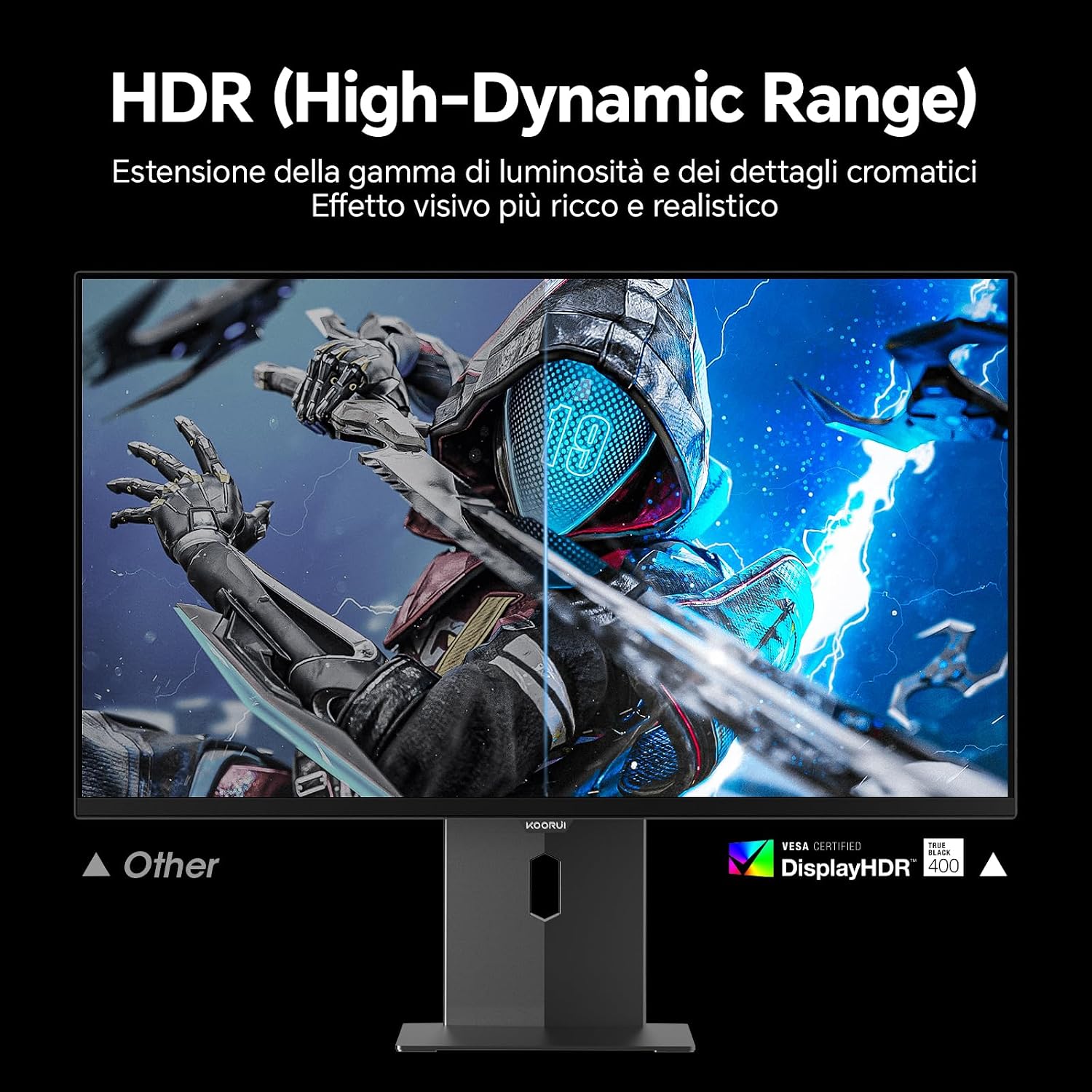
Image: Comparison of a standard display versus the KOORUI S2721XO monitor with HDR (High-Dynamic Range) enabled, showing richer visual effects and realistic details.
ຄຸນນະສົມບັດຂອງເກມ
- ອັດຕາການໂຫຼດຂໍ້ມູນຄືນໃໝ່: The monitor supports up to 240Hz. Ensure your graphics card and system settings are configured to utilize this refresh rate for smooth gameplay.
- ເວລາຕອບສະໜອງ: With a 0.03ms response time, motion blur is significantly reduced.
- Adaptive Sync: This technology synchronizes the monitor's refresh rate with your GPU's frame rate, eliminating screen tearing and stuttering. Enable Adaptive Sync in the OSD menu and your graphics card control panel.
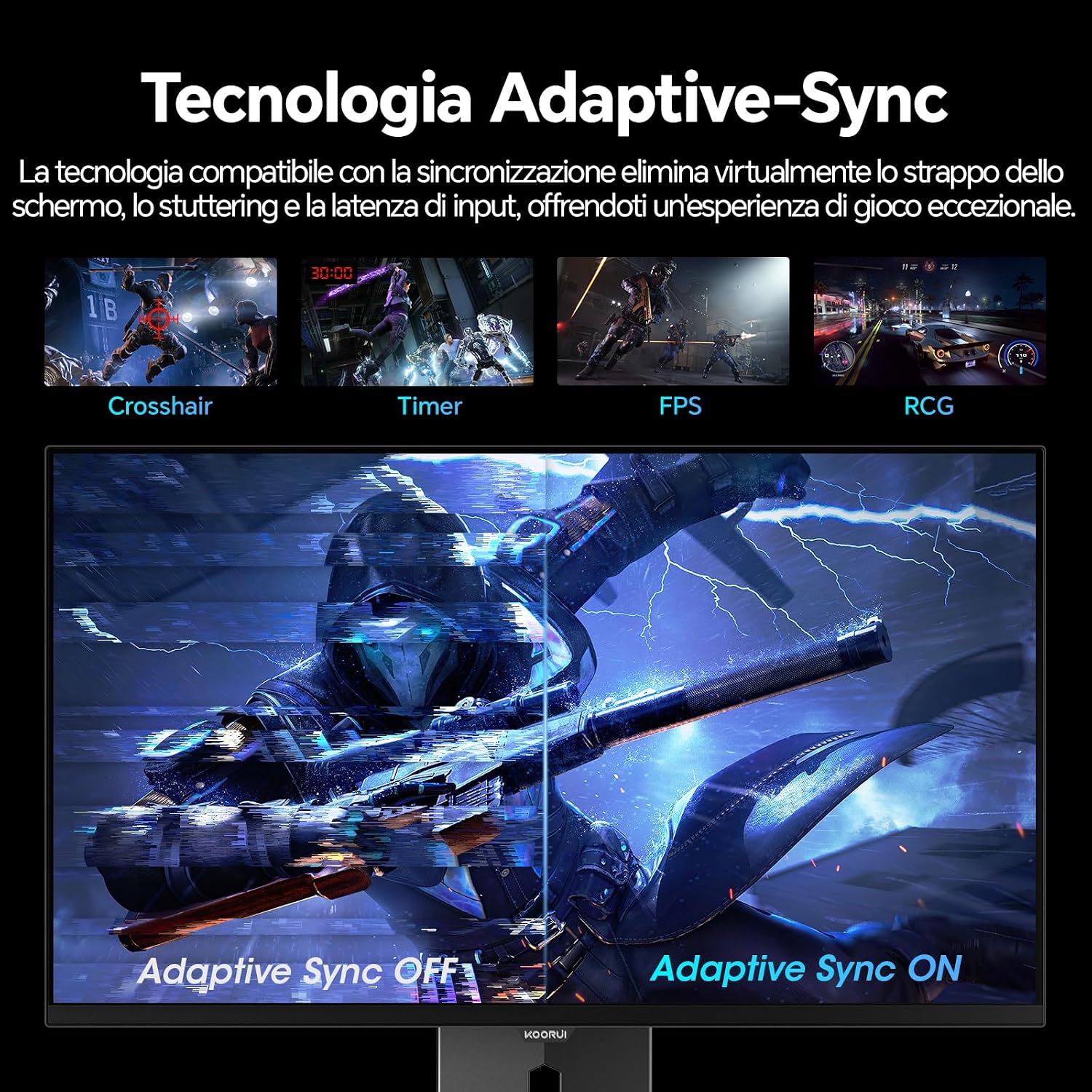
Image: A visual demonstration of Adaptive Sync technology, showing the difference between Adaptive Sync OFF (with screen tearing and stuttering) and Adaptive Sync ON (with smooth, tear-free visuals).

Image: A visual comparison illustrating the ultra-high refresh rate of 240Hz and 0.03ms response time, contrasting it with a 100Hz 5ms display to show the improved fluidity and reduced ghosting.
ໂໝດການດູແລຕາ
The monitor includes features designed to reduce eye strain during extended use. Access the Eye Care settings in the OSD menu to enable modes that reduce blue light emission or adjust flicker-free settings.
ບໍາລຸງຮັກສາ
ອະນາໄມຈໍສະແດງຜົນ
- ປິດໜ້າຈໍທຸກຄັ້ງ ແລະຖອດສາຍໄຟອອກກ່ອນທຳຄວາມສະອາດ.
- ໃຊ້ຜ້າແພທີ່ອ່ອນໆ ທີ່ບໍ່ມີເສັ້ນດ່າງ dampສໍາເລັດດ້ວຍນ້ໍາຫຼືເຄື່ອງເຮັດຄວາມສະອາດຫນ້າຈໍພິເສດ.
- ຢ່າສີດນໍ້າສະອາດໃສ່ໜ້າຈໍໂດຍກົງ.
- ຫຼີກເວັ້ນການໃຊ້ເຄື່ອງເຮັດຄວາມສະອາດຂັດ, ຂີ້ເຜີ້ງ, ຫຼືສານລະລາຍເພາະວ່າພວກມັນສາມາດທໍາລາຍຫນ້າຈໍໄດ້.
- ເຊັດຈໍສະແດງຜົນ casing ດ້ວຍຜ້າອ່ອນ, ແຫ້ງ.
ການເກັບຮັກສາ
When storing the monitor for an extended period, ensure it is powered off, unplugged, and stored in a cool, dry place away from direct sunlight and extreme temperatures. Use original packaging if available for best protection.
ການແກ້ໄຂບັນຫາ
| ບັນຫາ | ສາເຫດທີ່ເປັນໄປໄດ້ | ການແກ້ໄຂ |
|---|---|---|
| ບໍ່ມີພະລັງງານ | ບໍ່ໄດ້ເຊື່ອມຕໍ່ສາຍໄຟ; ປລັກໄຟບໍ່ເຮັດວຽກ; ປຸ່ມເປີດປິດຈໍພາບປິດຢູ່. | Ensure power cable is securely connected. Test power outlet with another device. Press the monitor's power button. |
| ບໍ່ມີສັນຍານ | Video cable not connected; Incorrect input source selected; Computer not powered on. | Check video cable connections (HDMI/DisplayPort). Select the correct input source via the OSD menu. Ensure your computer is powered on and outputting a signal. |
| ໜ້າຈໍກະພິບ | Incorrect refresh rate; Faulty cable; Graphics card driver issues. | Adjust refresh rate in display settings. Try a different video cable. Update graphics card drivers. |
| ຄຸນນະພາບຮູບພາບບໍ່ດີ | Incorrect resolution; Picture settings misconfigured; Dirty screen. | Set display resolution to 2560x1440. Adjust brightness, contrast, and color settings in the OSD. Clean the screen as per maintenance instructions. |
ຂໍ້ມູນຈໍາເພາະ
| ຍີ່ຫໍ້ | KOORUI |
| ໝາຍເລກຕົວແບບ | S2721XO |
| ຂະໜາດໜ້າຈໍ | 27 ນິ້ວ |
| ປະເພດແຜງ | QD-OLED |
| ຄວາມລະອຽດ | ຄວາມລະອຽດ QHD ກວ້າງ 1440p (2560 x 1440) |
| ອັດຕາສ່ວນ | 16:9 |
| ອັດຕາການໂຫຼດຂໍ້ມູນຄືນໃໝ່ | 240 Hz |
| ເວລາຕອບສະຫນອງ | 0.03 ມລ |
| ອັດຕາສ່ວນກົງກັນຂ້າມ | 1,500,000:1 |
| ຄວາມສະຫວ່າງ | 280 cd/m² |
| Viewໃນມຸມ | 178 ອົງສາ |
| ຄ່າ Gamut ສີ | 99% DCI-P3 (100% sRGB) |
| ການເຊື່ອມຕໍ່ | 2x HDMI 2.1, 1x DisplayPort 1.4, ສຽງອອກ |
| Adaptive Sync | FreeSync compatible |
| ຄຸນນະສົມບັດພິເສດ | HDR 400, Eye Care, Height Adjustment, Tilt Adjustment, Swivel Adjustment, Pivot Adjustment |
| ຄວາມເຂົ້າກັນໄດ້ຂອງ VESA | 75mm x 75mm |
| ຂະໜາດ (ກວ້າງ x ສູງ x ຍາວ) | 610.11 ມມ x 521.84 ມ. x 215.82 ມ. (24.02 x 20.54 ນິ້ວ x 8.50 ນິ້ວ) |
| ນ້ຳໜັກ | 3 ກິໂລກຣາມ |
ຂໍ້ມູນການຮັບປະກັນ
The KOORUI S2721XO monitor comes with a ຮັບປະກັນ 2 ປີ from the date of purchase. This warranty covers manufacturing defects and malfunctions under normal use. Please retain your proof of purchase for warranty claims. For detailed terms and conditions, refer to the warranty card included in your package or visit the official KOORUI webເວັບໄຊ.
ສະຫນັບສະຫນູນແລະຕິດຕໍ່
For further assistance, technical support, or customer service inquiries, please visit the official KOORUI website or contact their customer support team. You can also refer to the official PDF instructions for use: