
ແນະນຳ
This manual provides essential information for the safe and efficient operation of your SCULPFUN S9 PRO 10W Laser Engraver. The S9 PRO features 10W laser beam shaping technology, offering a 0.06mm ultra-fine laser focus for strong cutting penetration and precision. It is capable of cutting materials such as 15mm thick wood and 10mm acrylic, and engraving ceramics and stainless steel. Please read this manual thoroughly before use to ensure proper setup, operation, and maintenance.

ຂໍ້ມູນຄວາມປອດໄພ
Operating a laser engraver involves potential hazards. Adhere to all safety guidelines to prevent injury or damage.
- ການປົກປ້ອງຕາ: Always wear appropriate laser safety glasses when operating the machine. The integrated laser filter on the S9 PRO blocks 98% of ultraviolet light, allowing observation without additional safety glasses for bystanders, but direct laser exposure should always be avoided.
- ສັບປ່ຽນພະລັງງານ: The machine is equipped with a secure power switch. Always turn off the machine when not in use or during maintenance.
- ການຈັດວາງທີ່ປອດໄພ: Utilize the fastening holes on the four feet and frame structure to secure the machine and data cables, preventing accidental movement.
- ການປົກປ້ອງພື້ນຜິວ: Use the provided A4-sized steel pad to protect your work surface from laser damage.
- ການລະບາຍອາກາດ: Ensure adequate ventilation in your workspace to dissipate fumes produced during engraving and cutting.
- ວັດສະດຸທີ່ຕິດໄຟໄດ້: Do not engrave or cut highly flammable materials without proper precautions.
- ເດັກນ້ອຍແລະສັດລ້ຽງ: Keep children and pets away from the operating area. The laser point can attract attention, but direct exposure is dangerous.

ເນື້ອໃນຊຸດ
ກວດສອບວ່າອົງປະກອບທັງຫມົດແມ່ນມີຢູ່ໃນການຍົກເລີກການຫຸ້ມຫໍ່:
- 1 x SCULPFUN S9 Pro 10 W Laser Engraver
- A4-sized steel pad
- ອະແດັບເຕີພະລັງງານ
- ສາຍ USB
- ເຄື່ອງມືປະກອບ
- ຄູ່ມືຜູ້ໃຊ້ (ເອກະສານນີ້)
ຄູ່ມືການຕິດຕັ້ງ
1. ສະພາ
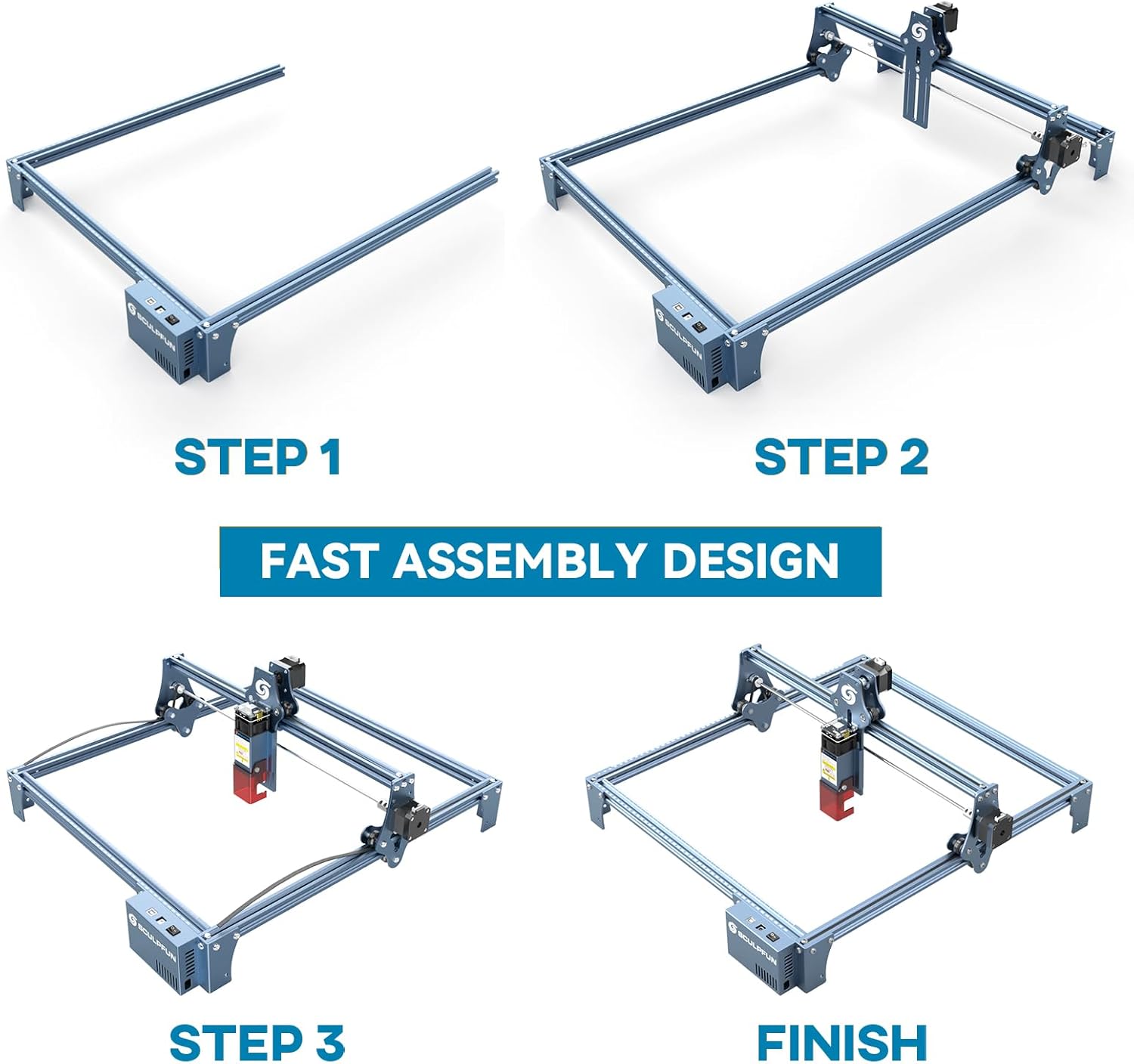
The SCULPFUN S9 PRO features a fast assembly design, allowing for installation typically within 10 to 20 minutes. Follow the steps below:
- ຂັ້ນຕອນທີ 1: Assemble the main frame components.
- ຂັ້ນຕອນທີ 2: Attach the X-axis and laser module to the frame.
- ຂັ້ນຕອນທີ 3: ເຊື່ອມຕໍ່ສາຍທີ່ຈໍາເປັນທັງຫມົດ.
- ສໍາເລັດຮູບ: Ensure all connections are secure and the frame is stable.
The full-metal structure enhances robustness and engraving accuracy. The X and Y axes include precise scale lines, forming a rectangular measuring ruler for quick object sizing.


2. ການປັບຈຸດສຸມ
The S9 PRO features a quick fixed-focus design. The laser combines a fixed-focus lens with a sliding design for easy adjustment.
- Place the laser module over your material.
- Move the laser module up or down until the focus is achieved.
- Tighten the screws to secure the laser module in place.

ຄໍາແນະນໍາການດໍາເນີນງານ
1. ຄວາມເຂົ້າກັນໄດ້ຂອງຊອບແວ
The SCULPFUN S9 PRO is compatible with various advanced engraving software:
- LaserGRBL (Windows)
- LightBurn (Windows, macOS, Linux)
- Benbox
- GrblController
- LiteFire
It supports engraving in PWM mode and various file formats including JPG, PNG, DXF, SVG, AI, G-code, NC, and BMP.

2. Material Capabilities
The 10W laser module provides strong cutting and engraving capabilities across a wide range of materials:
- ການຕັດ: Up to 15mm thick wood, 10mm black acrylic.
- ການແກະສະຫຼັກ: Wood, leather, ceramics, stainless steel, aluminum oxide, PCB board, paper, cardboard, dark stone, and more.


3. General Operation Workflow
- ການອອກແບບ: Create or import your design using compatible software (e.g., LightBurn, LaserGRBL).
- ການຈັດວາງວັດສະດຸ: Place your material on the work surface, ensuring it is flat and secure. Use the integrated rulers for precise positioning.
- ການປັບຈຸດສຸມ: Adjust the laser focus as described in the Setup section.
- ການຕັ້ງຄ່າຊອບແວ: Configure laser power, speed, and passes in your chosen software according to the material and desired effect. Refer to software documentation for detailed settings.
- ເລີ່ມປະຕິບັດການ: Initiate the engraving or cutting process from the software. Monitor the machine during operation.
- ສໍາເລັດ: Once the process is complete, turn off the machine and carefully remove your finished piece.
ບໍາລຸງຮັກສາ
Regular maintenance ensures optimal performance and extends the lifespan of your SCULPFUN S9 PRO.
- ທຳຄວາມສະອາດເລນເລເຊີ: Periodically clean the laser lens with a soft, lint-free cloth and lens cleaning solution to maintain laser precision.
- Clean the Work Area: Remove debris and dust from the engraving area after each use to prevent interference with machine movement.
- Inspect Belts and Rails: Check the drive belts for tension and wear. Keep the guide rails clean and lubricated if necessary to ensure smooth movement of the laser module.
- ການອັບເດດເຟີມແວ: Check the official SCULPFUN website for any available firmware updates to ensure your machine has the latest features and improvements.
ການແກ້ໄຂບັນຫາ
ພາກສ່ວນນີ້ແກ້ໄຂບັນຫາທົ່ວໄປທີ່ທ່ານອາດຈະພົບ.
- ເລເຊີບໍ່ຍິງ:
- Check if the power cable is securely connected and the power switch is on.
- Verify that the USB cable is connected to your computer and the machine.
- Ensure the software is correctly configured and sending commands.
- Check the laser module connection.
- ຄຸນນະພາບການແກະສະຫລັກ / ຕັດບໍ່ດີ:
- Re-check the laser focus. An incorrect focus is a common cause of poor quality.
- Adjust laser power and speed settings in your software. Different materials require different settings.
- Ensure the material is flat and securely placed.
- Clean the laser lens if it appears dirty.
- Machine Not Moving Correctly:
- Check for any obstructions on the rails or belts.
- Ensure belts are properly tensioned and not slipping.
- ກວດສອບວ່າສາຍທັງໝົດໄດ້ເຊື່ອມຕໍ່ກັນຢ່າງແໜ້ນໜາແລ້ວ.
- Restart the software and the machine.
- ບັນຫາການເຊື່ອມຕໍ່ຊອບແວ:
- ໃຫ້ແນ່ໃຈວ່າໄດ້ເລືອກພອດ COM ທີ່ຖືກຕ້ອງໃນຊອບແວຂອງທ່ານ.
- Try restarting your computer and the engraver.
- Reinstall the software or drivers if necessary.
For persistent issues, refer to the SCULPFUN support webເວັບໄຊ ຫຼືຕິດຕໍ່ບໍລິການລູກຄ້າ.
ຂໍ້ມູນຈໍາເພາະ
| ຍີ່ຫໍ້ | SCULPFUN |
| ໝາຍເລກຕົວແບບ | S9PRO10W-ELE |
| ພະລັງງານເລເຊີ | 10W (Diode Laser) |
| Laser Focus | 0.06mm (Ultrafine) |
| ຄວາມຖືກຕ້ອງຂອງການແກະສະຫລັກ | 0.01ມມ |
| ພື້ນທີ່ແກະສະຫຼັກ | 400 x 410 ມມ |
| ແຫຼ່ງພະລັງງານ | AC |
| ຂະໜາດແພັກເກັດ | 61.79 x 38.4 x 13.4 cm |
| ນ້ໍາຫນັກຊຸດ | 4.95 ກິໂລ |
| ອົງປະກອບລວມ | 1 x SCULPFUN S9 Pro 10 W laser engraver |
| ຄວາມເຂົ້າກັນໄດ້ຂອງຊອບແວ | LaserGRBL, LightBurn, Benbox, GrblController, LiteFire |
| ຮອງຮັບ OS | Windows, macOS, Linux |
| ສະຫນັບສະຫນູນ File ຮູບແບບ | JPG, PNG, DXF, SVG, AI, G-code, NC, BMP |
ການຮັບປະກັນແລະການສະຫນັບສະຫນູນ
For warranty information, technical support, or service inquiries, please contact SCULPFUN customer support through their official webເວັບໄຊທ໌ ຫຼື ຮ້ານຄ້າປີກທີ່ຊື້ຜະລິດຕະພັນ. ເກັບໃບຮັບເງິນຂອງທ່ານໄວ້ເປັນຫຼັກຖານການຊື້.
ຜູ້ຜະລິດ: SCULPFUN
ວັນທີທີ່ມີໃຫ້ທໍາອິດ: ວັນທີ 29 ພະຈິກ 2024