
ແນະນຳ
This manual provides detailed instructions for the JZK Voice Remote Control, designed as a replacement or secondary remote for NVIDIA Shield TV Pro models from 2015, 2017, and 2019. This remote features voice search capabilities and an ergonomic design for comfortable use. Please read this manual thoroughly before operating your device.
ເນື້ອໃນຊຸດ
ກວດສອບວ່າລາຍການທັງຫມົດແມ່ນມີຢູ່ໃນຊຸດຂອງທ່ານ:
- 1 x JZK Voice Remote Control
- 1 x ຄູ່ມືຜູ້ໃຊ້ (ເອກະສານນີ້)
Note: 2x AAA batteries are required and are not included in the package.

Image: Contents of the JZK remote control package, including the remote and a small user guide.
ຕັ້ງຄ່າ
1. ການຕິດຕັ້ງຫມໍ້ໄຟ
- ຊອກຫາຊ່ອງໃສ່ຫມໍ້ໄຟຢູ່ດ້ານຫຼັງຂອງການຄວບຄຸມໄລຍະໄກ.
- ເລື່ອນຝາປິດແບັດເຕີຣີລົງລຸ່ມເພື່ອເປີດມັນ.
- ໃສ່ໝໍ້ໄຟ AAA ສອງ (2) ໜ່ວຍ, ຮັບປະກັນຄວາມຂົ້ວທີ່ຖືກຕ້ອງ (+ ແລະ -) ຕາມທີ່ລະບຸໄວ້ພາຍໃນຊ່ອງ.
- ເລື່ອນຝາປິດແບັດເຕີຣີຄືນໃສ່ບ່ອນເກົ່າຈົນກວ່າມັນຈະກົດຢ່າງປອດໄພ.

Image: The remote control with its battery cover removed, illustrating where to insert two AAA batteries.
2. ການຈັບຄູ່ການຄວບຄຸມໄລຍະໄກ
The remote control uses an infrared connection. For initial setup or re-pairing, follow these steps:
- Ensure your NVIDIA Shield TV is powered on and within 1 foot (approx. 30 cm) of the remote control.
- On your NVIDIA Shield TV, navigate to Settings > Device Preferences > Remotes & Accessories.
- ກົດຄ້າງໄວ້ ກັບຄືນໄປບ່ອນ ປຸ່ມ ແລະ ບ້ານ button simultaneously on the JZK remote control until the remote's indicator light begins to flash.
- The NVIDIA Shield TV should detect the new remote. Select it from the list of available devices to complete the pairing process.
- Once paired, the remote's light will stop flashing, and you can begin using it.
If pairing fails, ensure the batteries are correctly installed and charged, and try the process again. You may also need to restart your NVIDIA Shield TV.
ຄໍາແນະນໍາການດໍາເນີນງານ
ເຮັດຄວາມຄຸ້ນເຄີຍກັບປຸ່ມຕ່າງໆ ແລະໜ້າທີ່ຂອງພວກມັນ:

Image: Detailed button layout of the JZK remote control with labels for each function.
| ບໍ່. | ປຸ່ມ | ຟັງຊັນ |
|---|---|---|
| 1 | ໄມໂຄຣໂຟນໃນຕົວ | Used for Voice Search commands. |
| 2 | ພະລັງງານ | Turns the NVIDIA Shield TV on or off. |
| 3 | ການຕັ້ງຄ່າ | Accesses the NVIDIA Shield TV settings menu. (Customizable in Settings > Devices & Accessories > Customize Settings button) |
| 4 | ວົງການນໍາທາງ | Navigates menus: Up, Down, Right, Left. |
| 5 | Select (OK) | Confirms selections or opens items. |
| 6 | ກັບຄືນໄປບ່ອນ | ກັບຄືນໄປຫາໜ້າຈໍ ຫຼືເມນູກ່ອນໜ້າ. |
| 7 | ບ້ານ | ກັບໄປໜ້າຈໍຫຼັກ. |
| 8 | Fast-Forward | Skips forward in media playback. |
| 9 | ຫຼິ້ນ/ຢຸດຊົ່ວຄາວ | ຫຼິ້ນ ຫຼື ຢຸດການຫຼິ້ນສື່ຊົ່ວຄາວ. |
| 10 | ຖອຍຫຼັງ | Skips backward in media playback. |
| 11 | ຊອກຫາດ້ວຍສຽງ | Activates voice command input. Press and hold, then speak your command. |
| 12 | ເພີ່ມປະລິມານ | ເພີ່ມປະລິມານ. |
| 13 | ຫຼຸດປະລິມານລົງ | ຫຼຸດສຽງລົງ. |
| 14 | ເປີດ Netflix | Directly launches the Netflix application. |
Using Voice Search
The voice search feature allows for quick navigation and content discovery. To use it:
- ກົດຄ້າງໄວ້ ຊອກຫາດ້ວຍສຽງ ປຸ່ມ (11).
- Speak your command clearly into the built-in microphone (1). For example, say "Open YouTube," "Find action movies," or "Adjust volume."
- ປ່ອຍຕົວ ຊອກຫາດ້ວຍສຽງ ປຸ່ມເມື່ອທ່ານເວົ້າສຳເລັດແລ້ວ.
ບໍາລຸງຮັກສາ
ທໍາຄວາມສະອາດໄລຍະໄກ
ເພື່ອເຮັດຄວາມສະອາດເຄື່ອງຄວບຄຸມໄລຍະໄກ, ໃຫ້ໃຊ້ຜ້າປຽກແຫ້ງ. ສໍາລັບຝຸ່ນ stubborn, ເລັກນ້ອຍ dampen the cloth with water or a mild, non-abrasive cleaner. Avoid using harsh chemicals or solvents, as these can damage the remote's surface or internal components.
ການປ່ຽນແບັດ
When the remote's performance degrades or it becomes unresponsive, it's time to replace the batteries. Follow the battery installation steps outlined in the ຕັ້ງຄ່າ section. Always replace both AAA batteries at the same time with new ones.
ການແກ້ໄຂບັນຫາ
If you encounter issues with your JZK Voice Remote Control, refer to the following common problems and solutions:
| ບັນຫາ | ສາເຫດທີ່ເປັນໄປໄດ້ | ການແກ້ໄຂ |
|---|---|---|
| ຣີໂໝດບໍ່ຕອບສະໜອງ. | Low or dead batteries. Incorrect battery installation. Remote not paired. Obstruction between remote and Shield TV. | Replace batteries. Check battery polarity. Re-pair the remote (see Setup section). Ensure clear line of sight to Shield TV. |
| Voice Search not working. | Microphone blocked. Remote not properly paired for voice functions. Software glitch. | Ensure microphone is clear. Re-pair the remote. Restart NVIDIA Shield TV. |
| Buttons are sticky or not registering presses. | ຝຸ່ນຫຼືສິ່ງເສດເຫຼືອພາຍໃຕ້ປຸ່ມ. | Clean the remote (see Maintenance section). |
| Remote disconnects frequently. | Interference. Low batteries. | Ensure no strong interference sources nearby. Replace batteries. Re-pair the remote. |
ຂໍ້ມູນຈໍາເພາະ
| ຄຸນສົມບັດ | ລາຍລະອຽດ |
|---|---|
| ຍີ່ຫໍ້ | JZK |
| ຄວາມເຂົ້າກັນໄດ້ຂອງຕົວແບບ | NVIDIA Shield TV Pro (2015, 2017, 2019 models), NVIDIA Shield TV Cube (2019) |
| ປະເພດການເຊື່ອມຕໍ່ | ອິນຟາເລດ (IR) |
| ແຫຼ່ງພະລັງງານ | ແບດເຕີຣີ້ Alkaline 2 x AAA (ບໍ່ລວມ) |
| ຄຸນນະສົມບັດພິເສດ | Voice Search, Ergonomic Design, Dedicated Netflix Button |
| ວັດສະດຸ | ABS ທົນທານ |
| ສີ | ດຳ/ຂາວ |
| ຂະໜາດ (L x W x H) | ປະມານ. 16.8 x 6 x 2.6 cm (6.6 x 2.4 x 1.0 ນິ້ວ) |
| ນ້ຳໜັກ | ປະມານ. 60 ກຣາມ (2.1 ອອນສ໌) |

Image: Dimensions of the JZK remote control, indicating its length, width, and thickness.
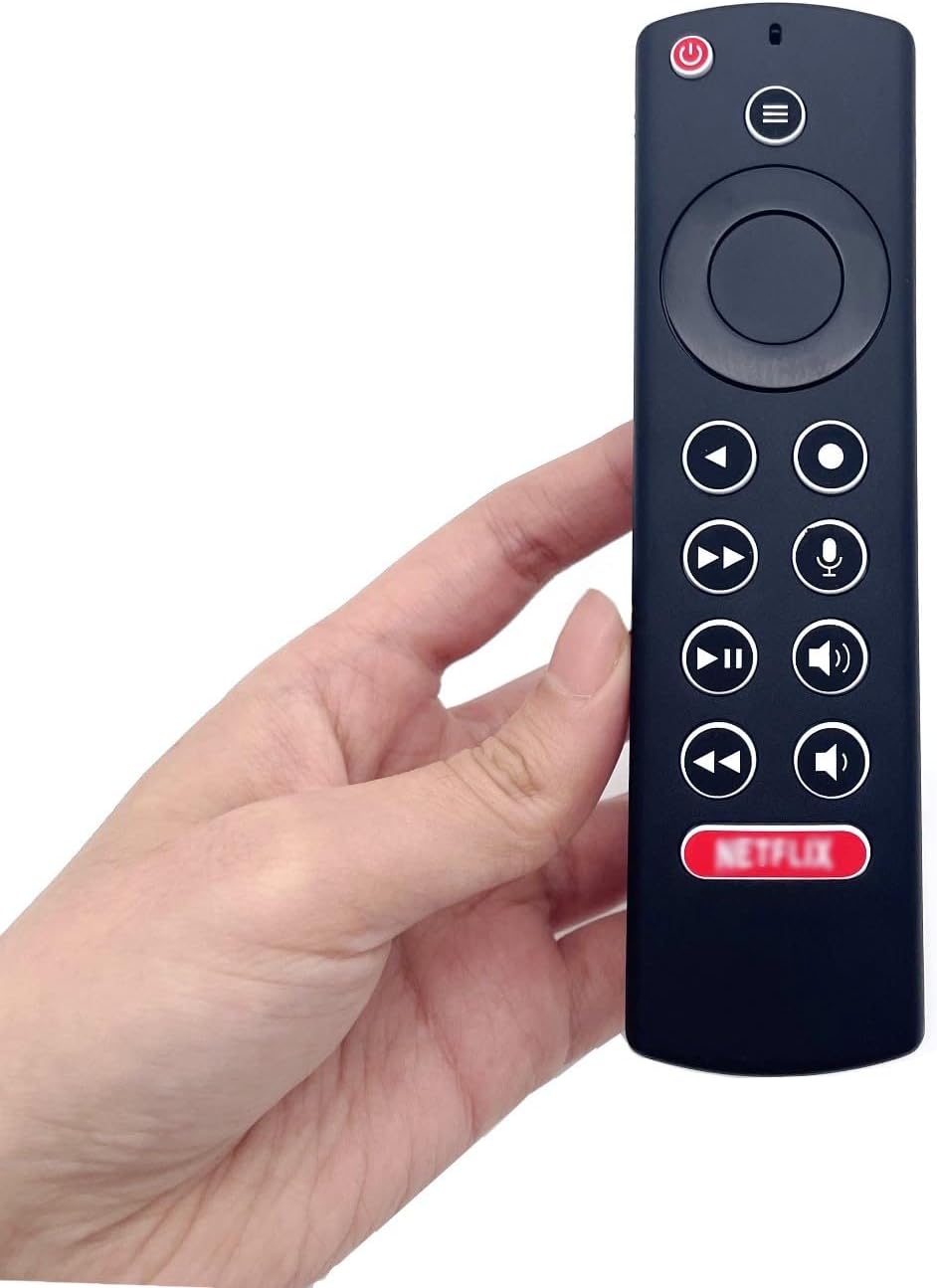
Image: The JZK remote control held in a hand, highlighting its comfortable and ergonomic design.
ຂໍ້ມູນການຮັບປະກັນ
Specific warranty details for this JZK product are not provided in the product description. Please refer to the retailer's return policy or contact JZK customer support for information regarding warranty coverage and terms.
ສະຫນັບສະຫນູນ
For further assistance, troubleshooting, or inquiries about your JZK Voice Remote Control, please contact the retailer where you purchased the product or refer to the official JZK webເວັບໄຊທ໌ສຳລັບຕົວເລືອກການສະໜັບສະໜູນລູກຄ້າ.