
1. ບົດແນະນຳ
The ASUS ZenScreen MB27ACF is a 27-inch 1440P transportable monitor designed to enhance multitasking and productivity. Featuring a QHD (2560 x 1440) IPS panel with a smooth 100Hz refresh rate, it offers a sleek 5.4mm profile and weighs less than 3kg, ensuring effortless portability. This monitor provides versatile stand options, including an integrated carrying handle/kickstand and a height-adjustable C-clamp, allowing for flexible configuration in various environments.

Figure 1: The ASUS ZenScreen MB27ACF monitor showcasing its sleek design and integrated kickstand.
2. ຄຸນນະສົມບັດທີ່ສໍາຄັນ
- 27-inch QHD IPS Display: Large, frameless panel with 2560 x 1440 resolution and wide 178° viewing angles for stunning visuals.
- ອັດຕາການສົດຊື່ນ 100Hz: Provides a smooth viewing experience, reducing motion blur.
- USB-C with 70W Power Delivery: Single-cable solution for video, audio, and power, simplifying connectivity.
- Integrated 2.1-channel Audio: Features a subwoofer for exceptionally well-balanced sound.
- Versatile Stand Options: Includes an integrated carrying handle/kickstand, height-adjustable C-clamp with Z-axis adjustment, and partition hook kit for flexible placement.
- ເຕັກໂນໂລຊີການດູແລຕາ: Incorporates Blue Light Filter and Flicker-Free technology to reduce eye strain during extended use.
- ການອອກແບບແບບພົກພາ: Sleek 5.4mm profile and lightweight construction (less than 3kg) for easy transport.
- ເປັນມິດກັບສິ່ງແວດລ້ອມ: ENERGY STAR-certified energy efficiency and packaged in FSC certified paper.
3. ສິ່ງທີ່ຢູ່ໃນກ່ອງ
ກວດສອບວ່າລາຍການທັງຫມົດແມ່ນມີຢູ່ໃນຊຸດ:
- ASUS ZenScreen MB27ACF Monitor
- C-Clamp ແຂນ
- ສາຍ USB-C
- ສາຍ HDMI
- Screwdriver ຮູບ L
- ສາຍໄຟ & ອະແດັບເຕີ
- Partition hook x2

Figure 2: All components included with the ASUS ZenScreen MB27ACF monitor, neatly arranged in the packaging.
4. ຕັ້ງຄ່າ
4.1. ການຕັ້ງຄ່າທາງດ້ານຮ່າງກາຍ
The ZenScreen MB27ACF offers multiple ways to set up your display:
- ຂາຕັ້ງແບບປະສົມປະສານ: The monitor features an Ergo Fold-out kickstand that doubles as a carrying handle. It supports the monitor at angles from 12–60° on any flat surface.
- C-Clamp ແຂນ: For more flexible positioning, use the included Ergo C-clamp arm. This arm allows for -5° to 20° tilt, -90° to 90° swivel, -90° to 90° pivot, and extension/retraction adjustments up to 144mm, with a height adjustment range of 0–180mm.
- Partition Hook Kit: The monitor also includes a partition hook kit for hanging the display, offering additional placement options.
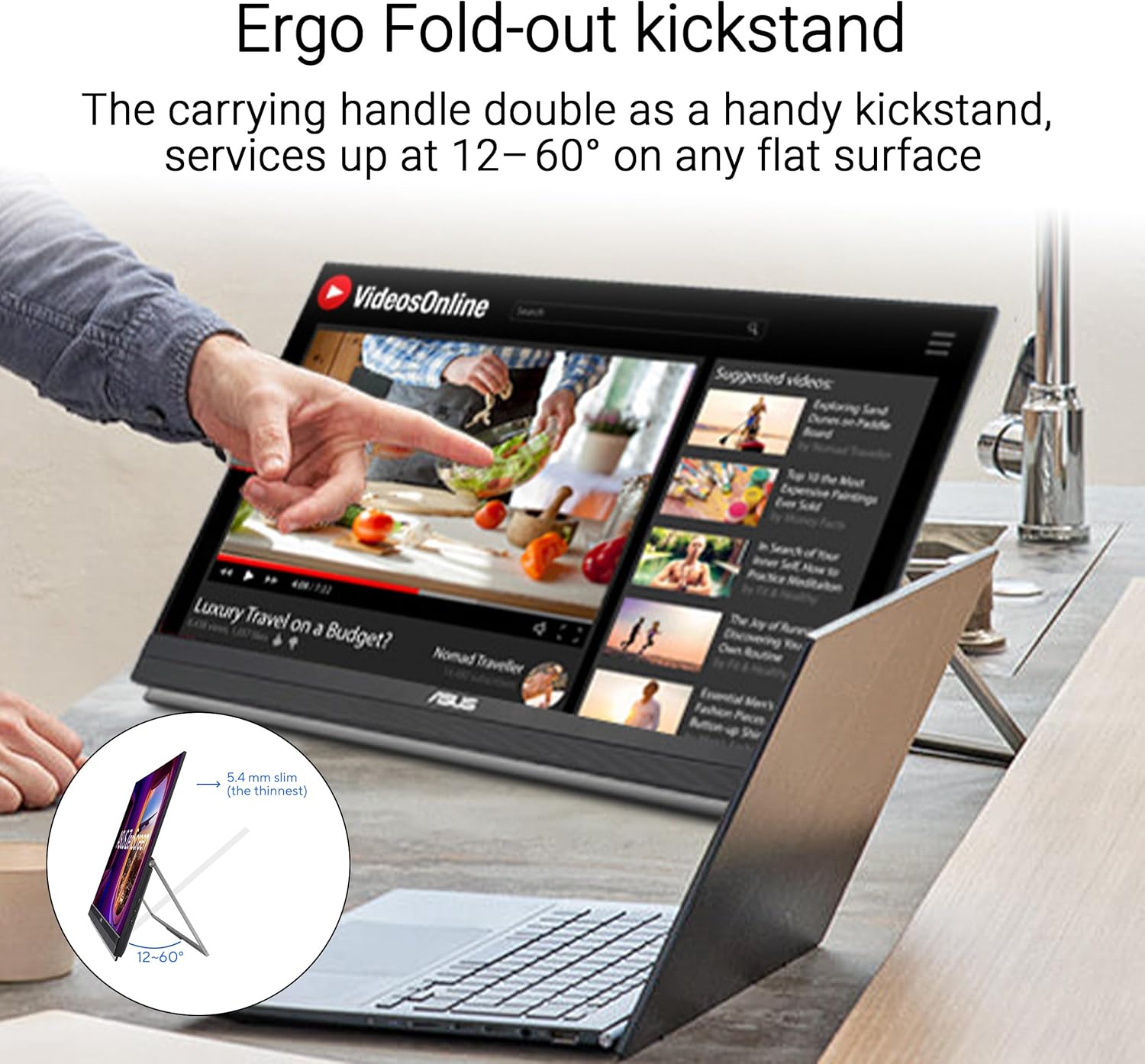
Figure 3: The monitor positioned on its integrated Ergo Fold-out kickstand, suitable for desktop use.
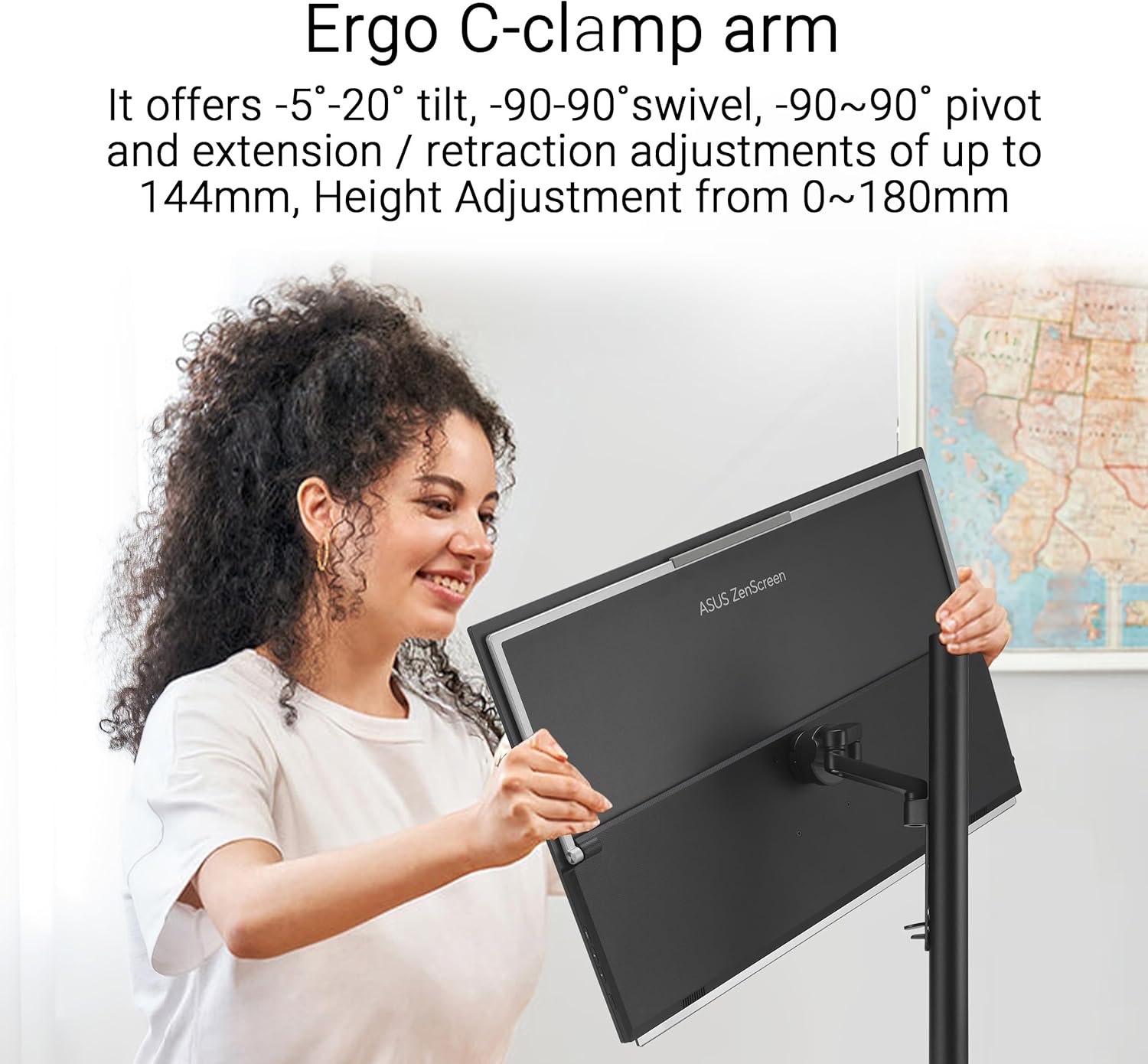
Figure 4: A user adjusting the monitor mounted on the versatile C-clamp arm, demonstrating its range of motion.
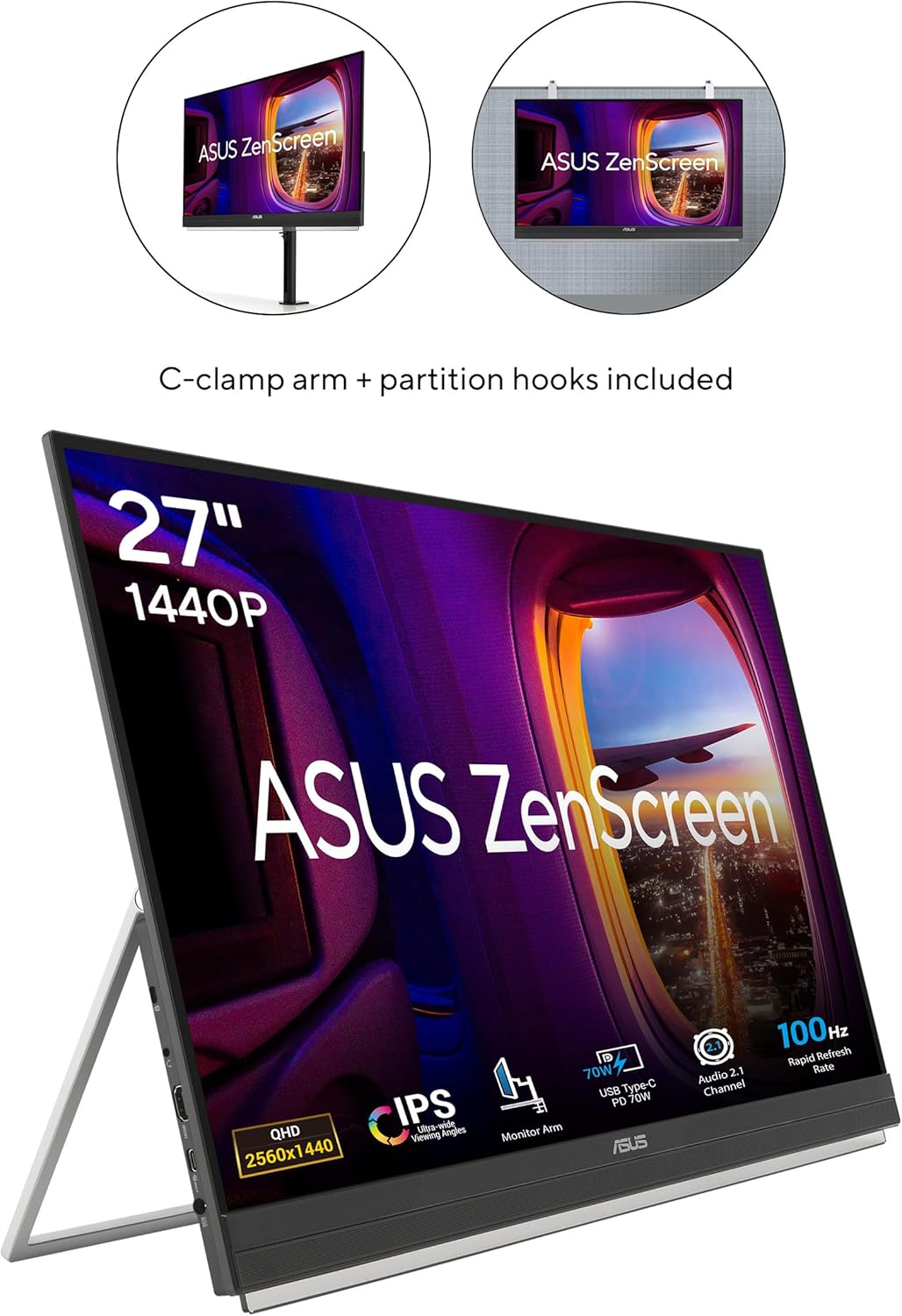
Figure 5: The monitor displayed with both the C-clamp arm and partition hooks, illustrating diverse mounting possibilities.
4.2. ການເຊື່ອມຕໍ່
The ZenScreen MB27ACF offers hassle-free connections:
- USB-C (with 70W Power Delivery): Connect your laptop or compatible device using a single USB-C cable for video, audio, and power. Ensure your device supports DisplayPort Alternate Mode (DP Alt Mode) for full functionality.
- HDMI: Use the HDMI port for video input from various devices.
- ຫູຟັງຫູຟັງ: ເຊື່ອມຕໍ່ຫູຟັງ ຫຼື ລຳໂພງພາຍນອກສຳລັບສຽງອອກ.
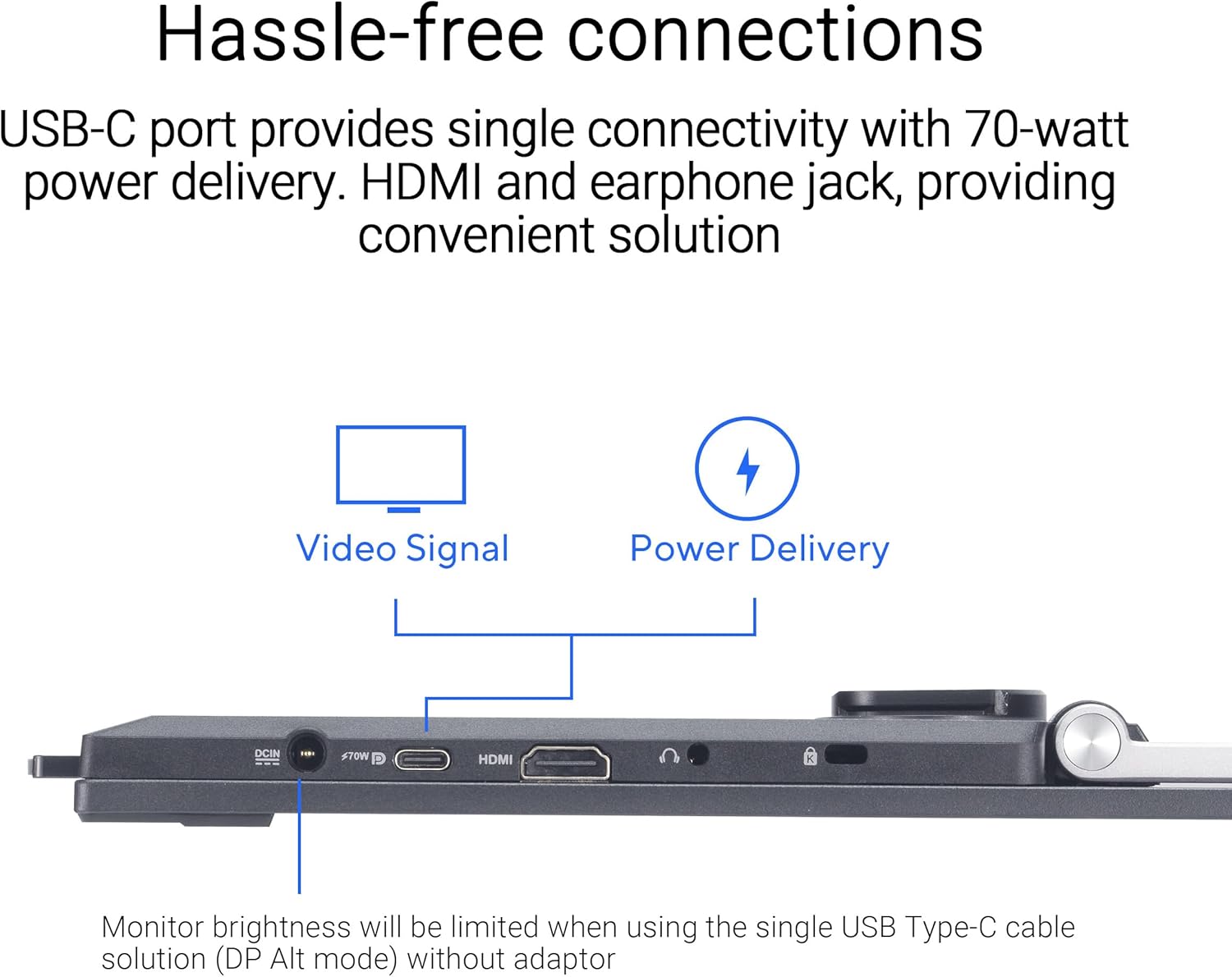
ຮູບທີ 6: ຮູບທີ່ໃກ້ຊິດ view of the monitor's ports, including USB-C, HDMI, and earphone jack, highlighting the single-cable solution for video and power delivery.
Video 1: Official ASUS guide on how to connect the ZenScreen Portable Monitor to a laptop using a single USB-C cable.
5. ການດໍາເນີນງານຂອງ Monitor
5.1. Power On/Off and Menu Navigation
The monitor features intuitive buttons for power control and accessing the On-Screen Display (OSD) menu. Use the buttons located on the bottom bezel to navigate settings such as brightness, contrast, color modes, and input selection.
5.2. Display Modes and Orientation
The ZenScreen MB27ACF supports both horizontal (landscape) and vertical (portrait) orientations, automatically adjusting the display when rotated, especially when used with the C-clamp arm. This is ideal for tasks like coding, document review, or graphic design.
5.3. ຄຸນນະສົມບັດການດູແລຕາ
ເພື່ອຮັບປະກັນຄວາມສະດວກສະບາຍ viewing during prolonged use, the monitor includes ASUS Eye Care technology:
- ການກັ່ນຕອງແສງສີຟ້າ: Reduces harmful blue light emissions, which can cause eye strain and fatigue. Multiple filter levels are available through the OSD menu.
- ເທັກໂນໂລຍີ Flicker-Free: ກຳຈັດການກະພິບຂອງໜ້າຈໍ, ເຮັດໃຫ້ສະດວກສະບາຍຂຶ້ນ viewປະສົບການ.
Video 2: An official ASUS video demonstrating the benefits of ASUS Eye Care technology, including Blue Light Filter and Flicker-Free features.
5.4. ສຽງ
The monitor is equipped with powerful 2.1-channel audio, including a subwoofer, delivering rich and balanced sound for both work and entertainment.
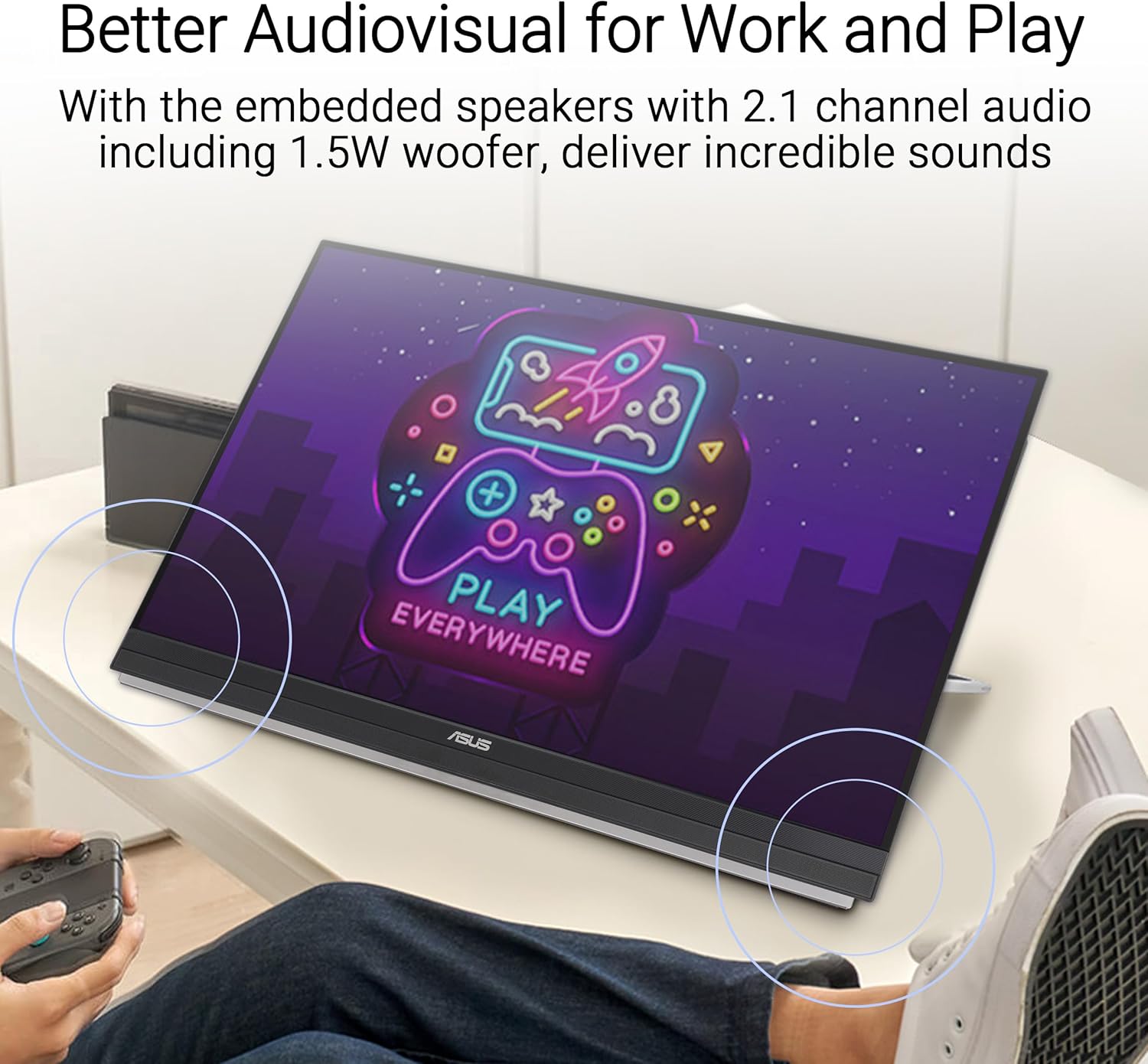
Figure 7: The monitor displaying content with visual indicators for its 2.1-channel audio system, emphasizing its sound capabilities.
6. ບໍາລຸງຮັກສາ
6.1. ເຮັດຄວາມສະອາດ Monitor
- ປິດຈໍສະແດງຜົນທຸກເທື່ອ ແລະຖອດມັນອອກຈາກປລັກສຽບໄຟກ່ອນທຳຄວາມສະອາດ.
- ໃຊ້ຜ້າແພອ່ອນໆ ທີ່ບໍ່ມີເສັ້ນດ່າງ ງampຜະສົມດ້ວຍນ້ໍາຫຼືເຄື່ອງເຮັດຄວາມສະອາດຫນ້າຈໍອ່ອນໆທີ່ບໍ່ມີການຂັດ.
- ຫຼີກລ່ຽງການໃຊ້ນໍ້າຢາເຮັດຄວາມສະອາດທີ່ມີສ່ວນປະກອບຂອງເຫຼົ້າ, ແອມໂມເນຍ ຫຼື ວັດສະດຸຂັດ ເພາະສິ່ງເຫຼົ່ານີ້ສາມາດທຳລາຍໜ້າໜ້າຈໍໄດ້.
- Gently wipe the screen and exterior surfaces. Do not spray liquid directly onto the screen.
6.2. ການເກັບຮັກສາແລະການຈັດການ
- When transporting the monitor, use the provided carrying handle or ensure it is securely packed in a protective case to prevent damage.
- ຫຼີກເວັ້ນການວາງວັດຖຸໜັກໃສ່ຈໍພາບ ຫຼືໃຊ້ແຮງດັນຫຼາຍເກີນໄປໃສ່ໜ້າຈໍ.
- ເກັບຮັກສາຈໍພາບໄວ້ໃນບ່ອນທີ່ເຢັນ, ແຫ້ງ, ຫ່າງຈາກແສງແດດໂດຍກົງ ແລະອຸນຫະພູມທີ່ຮຸນແຮງ.
7. ການແກ້ໄຂບັນຫາ
7.1. No Signal/Black Screen
- Ensure the USB-C or HDMI cable is securely connected to both the monitor and your device.
- Verify that your laptop's USB-C port supports DisplayPort Alternate Mode (DP Alt Mode) if using a single USB-C connection.
- Check if your laptop's display settings are configured to extend or duplicate the display to the external monitor.
- Try connecting the monitor to a different device or using a different cable to rule out cable or source issues.
7.2. ບັນຫາພະລັງງານ
- If the monitor is not powering on, ensure the power adapter is correctly connected to both the monitor and a working power outlet.
- When using USB-C for power, confirm your device can supply sufficient power (70W PD). If not, use the dedicated power adapter.
7.3. Display Quality Issues
- If the image is blurry or distorted, check the display resolution settings on your connected device and ensure they match the monitor's native QHD (2560 x 1440) resolution.
- Adjust brightness, contrast, and color settings via the OSD menu to optimize image quality.
8. ຂໍ້ມູນຈໍາເພາະ
| ຄຸນສົມບັດ | ຂໍ້ມູນຈໍາເພາະ |
|---|---|
| ຍີ່ຫໍ້ | ASUS |
| ໝາຍເລກຕົວແບບ | MB27ACF |
| ຂະໜາດໜ້າຈໍ | 27 ນິ້ວ |
| ຄວາມລະອຽດ | ຄວາມລະອຽດ QHD 1440p (2560 x 1440 ພິກເຊວ) |
| ປະເພດການສະແດງ | ຈໍສະແດງຜົນ LCD (IPS) |
| ອັດຕາການໂຫຼດຂໍ້ມູນຄືນໃໝ່ | 100 Hz |
| ເວລາຕອບສະຫນອງ | 5 ມິນລິວິນາທີ |
| ອັດຕາສ່ວນ | 16:9 |
| ຫນ້າຈໍ | Matte |
| ຄວາມສະຫວ່າງ | 1027.8 ລມ |
| ອັດຕາສ່ວນກົງກັນຂ້າມ | 1,500:1 (ຄົງທີ່) |
| Viewໃນມຸມ | 178 ອົງສາ |
| ການເຊື່ອມຕໍ່ | HDMI, USB, USB Type-C (70W PD) |
| ສຽງ | 2.1-channel with Subwoofer, Earphone Jack |
| ຄຸນນະສົມບັດພິເສດ | Blue Light Filter, Eye Care, Flicker-Free, Portable |
| ຂະໜາດລາຍການ (D x W x H) | 11.9"D x 24.1"W x 29.8"H |
| ນ້ໍາຫນັກລາຍການ | 10.6 ປອນ |
| ປະເພດການຕິດຕັ້ງ | 75 x 75 (VESA compatible) |
9. ການຮັບປະກັນແລະການສະຫນັບສະຫນູນ
9.1. ຂໍ້ມູນການຮັບປະກັນ
The ASUS ZenScreen MB27ACF monitor comes with a ການຮັບປະກັນຂອງຜູ້ຜະລິດ 3 ປີ. Please retain your proof of purchase for warranty claims. For detailed terms and conditions, refer to the warranty card included in your product packaging or visit the official ASUS support webເວັບໄຊ.
9.2. ການຊ່ວຍເຫຼືອລູກຄ້າ
For technical assistance, product inquiries, or service requests, please contact ASUS Customer Support through their official website or the contact information provided in your product documentation. Online resources, including FAQs and driver downloads, are also available.