
1. ຕັ້ງຄ່າ
1.1. ເນື້ອໃນຊຸດ
ໃຫ້ແນ່ໃຈວ່າອົງປະກອບທັງໝົດມີຢູ່ໃນຊຸດ:
- AUSDOM 108-Key Wireless Keyboard
- AUSDOM Wireless Mouse
- ຕົວຮັບສັນຍານ USB (ເກັບໄວ້ໃນເມົ້າ)
- ສາຍສາກ USB-C
- ຄູ່ມືຜູ້ໃຊ້
1.2. ການເຊື່ອມຕໍ່ Combo
- ຊອກຫາຕົວຮັບ USB: The 2.4GHz USB receiver is conveniently stored in a compartment on the underside of the wireless mouse. Gently slide open the battery cover to access it.
- ໃສ່ຕົວຮັບ: Plug the USB receiver into an available USB port on your computer (PC, laptop, or tablet). The system will automatically detect and install the necessary drivers.
- ເປີດໃຊ້ອຸປະກອນ: Ensure both the keyboard and mouse are switched to the 'ON' position. The power switch for the keyboard is located on its top edge, and for the mouse, it is on the underside.

1.3. Charging the Combo
Both the keyboard and mouse are equipped with built-in rechargeable Lithium Polymer batteries. Use the provided USB-C cable to charge them.
- Connect the USB-C end of the cable to the charging port on the keyboard (located on the top edge) or the mouse (located on the front).
- Connect the USB-A end of the cable to a powered USB port on your computer or a USB wall adapter.
- A full charge takes approximately 2 hours and provides up to 300 hours of standby time.

2. ຄໍາແນະນໍາການດໍາເນີນງານ
2.1. ຄຸນສົມບັດຂອງແປ້ນພິມ
The AUSDOM KAM200X keyboard features a full-size 108-key layout, including a dedicated numeric keypad and various function keys for enhanced productivity.
- Mechanical-Feel Keys: Experience tactile feedback similar to mechanical keyboards, combined with quiet scissor-switch mechanisms and a short 3.8mm key travel for comfortable and precise typing.
- Multimedia and Shortcut Keys: Utilize dedicated media controls (volume, play/pause) and app-switching shortcuts for streamlined workflow. Refer to the user manual for a complete list of function key combinations.
- OS Switching: Easily switch between Windows and macOS layouts using specific function key combinations (e.g., Fn + P for Windows, Fn + O for Mac).


2.2. ຄຸນສົມບັດຂອງເມົ້າສ໌
The ergonomic wireless mouse is designed for comfortable use and precise control.
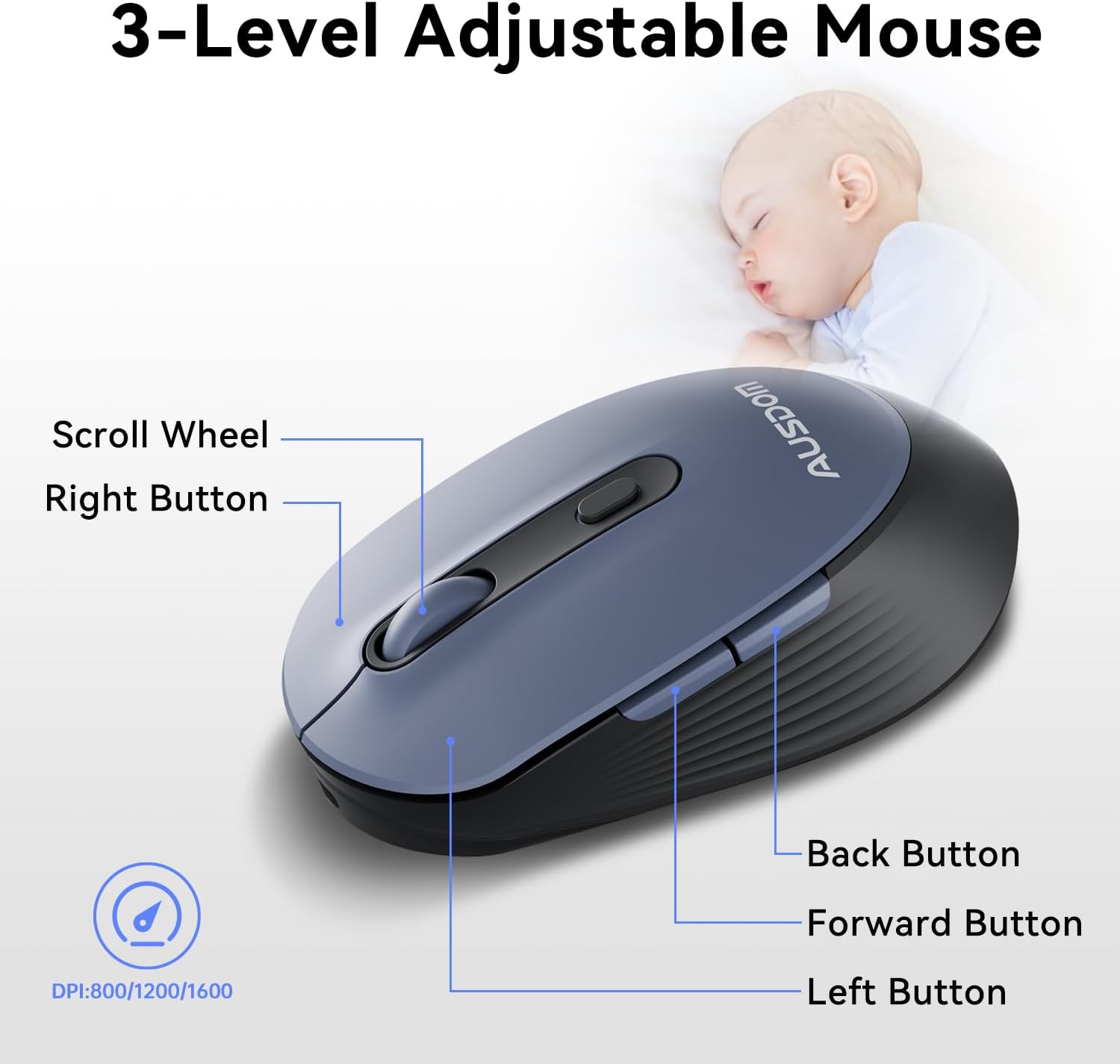
- DPI ທີ່ສາມາດປັບໄດ້: Cycle through 3 DPI levels (800, 1200, 1600) using the dedicated DPI button to adjust cursor sensitivity for different tasks.
- ປຸ່ມສົ່ງຕໍ່/ກັບຄືນ: ໃຊ້ປຸ່ມດ້ານຂ້າງເພື່ອການນຳທາງໄວໃນ web browsers and applications.
- ການຄລິກທີ່ງຽບໆ: The mouse features silent click buttons to minimize noise in quiet environments.
2.3. ຄວາມເຂົ້າກັນໄດ້ຢ່າງກວ້າງຂວາງ
The AUSDOM wireless combo is compatible with a broad range of operating systems and devices, ensuring seamless integration into your existing setup.
- ລະບົບປະຕິບັດການ: Compatible with Windows XP/ME/Vista/7/8/10/11 and macOS.
- ອຸປະກອນ: Works instantly with desktops, laptops, and other computers without requiring additional software or drivers.

3. ບໍາລຸງຮັກສາ
3.1. ທໍາຄວາມສະອາດ
To ensure the longevity and optimal performance of your AUSDOM combo, regular cleaning is recommended.
- ໃຊ້ຜ້າອ່ອນ, ແຫ້ງ, ແລະ ບໍ່ມີຂົນເພື່ອເຊັດພື້ນຜິວຂອງແປ້ນພິມ ແລະ ເມົ້າສ໌.
- ສໍາລັບຝຸ່ນ stubborn, ເລັກນ້ອຍ dampen the cloth with water or a mild cleaning solution, ensuring no liquid enters the device openings.
- ຫຼີກລ້ຽງການໃຊ້ສານເຄມີທີ່ຮຸນແຮງ, ເຄື່ອງຂັດຂັດ, ຫຼືສານລະລາຍ.
3.2. ການເກັບຮັກສາ
When not in use for extended periods, store the keyboard and mouse in a cool, dry place away from direct sunlight and extreme temperatures. The USB receiver can be stored inside the mouse to prevent loss.
4. ການແກ້ໄຂບັນຫາ
4.1. ບັນຫາການເຊື່ອມຕໍ່
- Check Receiver: Ensure the USB receiver is firmly plugged into a working USB port on your computer.
- ເປີດ: Verify that both the keyboard and mouse are switched to the 'ON' position.
- ລະດັບຫມໍ້ໄຟ: Confirm that both devices have sufficient battery charge. Recharge if necessary.
- ລອງ Port ທີ່ແຕກຕ່າງກັນ: ສຽບເຄື່ອງຮັບສັນຍານ USB ເຂົ້າກັບພອດ USB ອື່ນໃນຄອມພິວເຕີຂອງທ່ານ.
4.2. Lag or Unresponsiveness
- ຫຼຸດຜ່ອນການແຊກແຊງ: ຍ້າຍແປ້ນພິມ ແລະ ເມົາສ໌ໃຫ້ໃກ້ກັບຕົວຮັບສັນຍານ USB. ຫຼີກລ່ຽງການວາງວັດຖຸໂລຫະຂະໜາດໃຫຍ່ລະຫວ່າງອຸປະກອນ ແລະ ຕົວຮັບສັນຍານ.
- Check for Other Devices: Other 2.4GHz wireless devices might cause interference. Try to minimize their use or move them further away.
- ເຕີມເງິນ: ກວດໃຫ້ແນ່ໃຈວ່າອຸປະກອນທັງສອງສາກເຕັມແລ້ວ.
4.3. Keyboard Specific Issues
- ປຸ່ມບໍ່ຕອບສະໜອງ: Gently clean around the affected keys to remove any debris.
- Incorrect Key Output: Check your computer's operating system settings to ensure the correct keyboard layout is selected.
4.4. Mouse Specific Issues
- Erratic Cursor: Clean the optical sensor on the underside of the mouse. Ensure you are using the mouse on a suitable, non-reflective surface.
- ປັບ DPI: Press the DPI button on the top of the mouse to cycle through the 800/1200/1600 DPI settings.
5. ຂໍ້ມູນຈໍາເພາະຂອງຜະລິດຕະພັນ
| ຄຸນສົມບັດ | ຂໍ້ມູນຈໍາເພາະ |
|---|---|
| ຍີ່ຫໍ້ | AUSDOM |
| ໝາຍເລກຕົວແບບ | KAM200X |
| ຂະໜາດສິນຄ້າ | 17.44 x 5.31 x 0.79 ນິ້ວ |
| ນ້ໍາຫນັກລາຍການ | 1.8 ປອນ |
| ໝໍ້ໄຟ | 2 ແບດເຕີຣີ Lithium Polymer ທີ່ຕ້ອງການ (ລວມ) |
| ເຕັກໂນໂລຊີການເຊື່ອມຕໍ່ | 2.4Ghz Wireless |
| ຄຸນນະສົມບັດພິເສດ | Lightweight, Rechargeable, Scissor Switch, Wireless |
| ອຸປະກອນທີ່ເຂົ້າກັນໄດ້ | ແລັບທັອບ, ຄອມພິວເຕີສ່ວນຕົວ, ແທັບເລັດ |
6. ຂໍ້ມູນການຮັບປະກັນ
For detailed warranty information regarding your AUSDOM KAM200X Wireless Keyboard and Mouse Combo, please refer to the official documentation included in your product packaging or visit the manufacturer's official webເວັບໄຊ. ຂໍ້ກໍານົດແລະເງື່ອນໄຂການຮັບປະກັນອາດຈະແຕກຕ່າງກັນໄປຕາມພາກພື້ນແລະຜະລິດຕະພັນ.
7. ການຊ່ວຍເຫຼືອລູກຄ້າ
If you encounter any issues or have questions about your AUSDOM KAM200X Wireless Keyboard and Mouse Combo, please contact AUSDOM customer support through their official channels. You can often find support contact information, FAQs, and additional resources on the AUSDOM Store Page ຫຼືທາງການຂອງເຂົາເຈົ້າ webເວັບໄຊ.