
ແນະນຳ
This manual provides essential information for the proper setup, operation, and maintenance of your Anmite Portable Monitor. Please read this guide thoroughly before using the product to ensure optimal performance and longevity.
ເນື້ອໃນຊຸດ
- Anmite Portable Monitor x 1
- Mini-HDMI to HDMI cable x 1
- ສາຍ Type-C ຫາ Type-C x 1
- Type-C to USB-A cable x 1
- ຄູ່ມືຜູ້ໃຊ້ x 1
ຂໍ້ມູນຈໍາເພາະ
| ນ້ຳໜັກສຸດທິ | 0.7 ກິໂລ (1.54 ປອນ) |
| ຂະໜາດ | 360 x 225 x 5-10 ມມ (14.17 x 8.86 x 0.2-0.39 ນິ້ວ) |
| ຂະໜາດໜ້າຈໍ | 16 ນິ້ວ |
| ປະເພດແຜງ | IPS |
| ອັດຕາສ່ວນ | 16:10 |
| ຄວາມລະອຽດ | 2560 x 1600 (2.5K QHD) |
| ສະແດງສີ | 16.7M |
| ອຸນຫະພູມສີ | 6800K |
| ມຸມສາຍຕາ | H:178° V:178° |
| ພື້ນທີ່ສາຍຕາ | 344.16 x 194.59 ມມ |
| ອັດຕາສ່ວນກົງກັນຂ້າມ | 1000:1 |
| ຄວາມສະຫວ່າງ | 280cd/m² |
| ສີ Gamut | 100% sRGB |
| ອັດຕາການໂຫຼດຂໍ້ມູນຄືນໃໝ່ | 144Hz |
| ອິນເຕີເຟດຂາເຂົ້າ | Mini-HDMI, Type-C (Full Function) x 2 |
| Output Interface | ການໂຕ້ຕອບສຽງ 3.5mm |
| ລໍາໂພງ | Built-in speakers (1W*2) |
| ການບໍລິໂພກພະລັງງານ | ປະມານ. 12 ວັດ |
ສິນຄ້າເກີນview
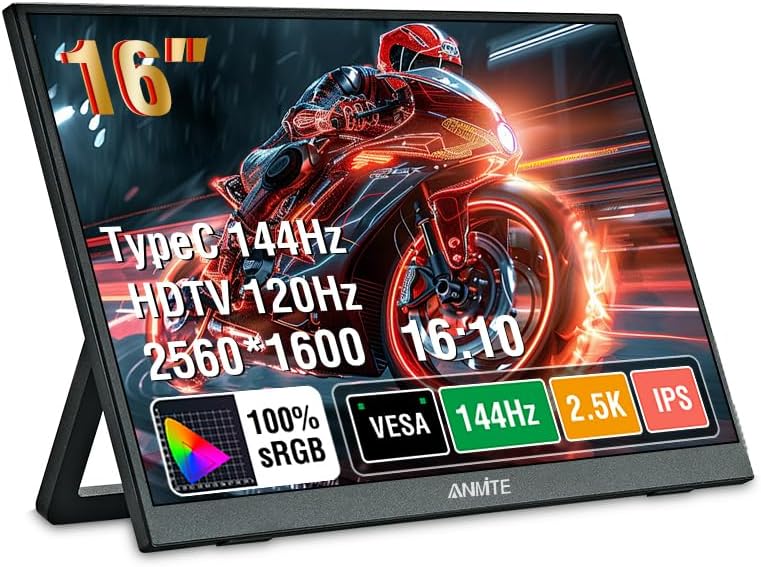
Image: Anmite Portable Monitor showcasing its display capabilities with vibrant gaming graphics.
The Anmite Portable Monitor is a compact and versatile display designed for various uses, including extending your laptop screen, gaming, or mobile entertainment. Its slim metal enclosure and lightweight design make it highly portable.
ຄຸນສົມບັດທາງກາຍະພາບ ແລະ ພອດ
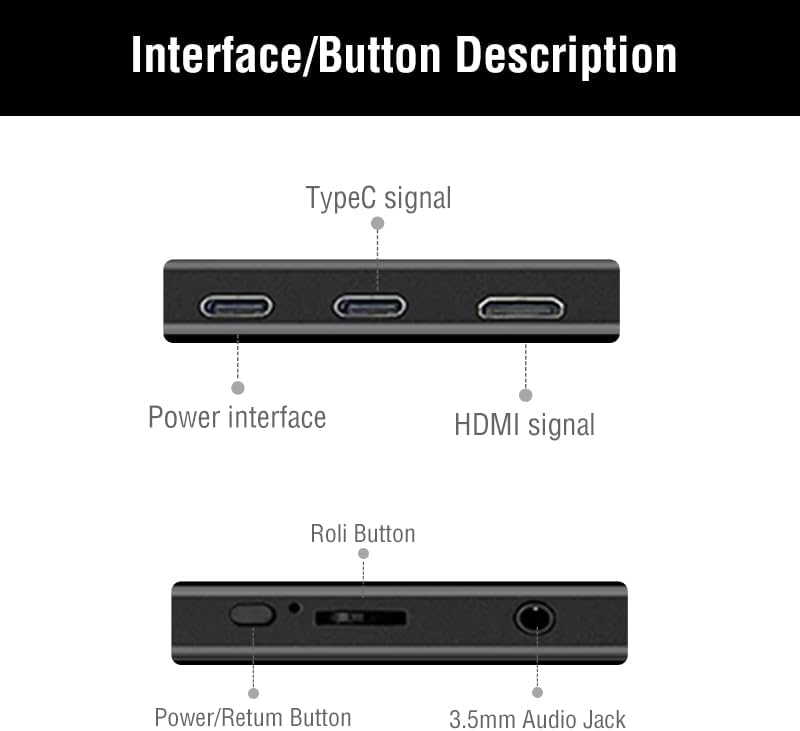
Image: Detailed diagram illustrating the monitor's interface ports and control buttons.
- ການໂຕ້ຕອບການປ້ອນຂໍ້ມູນ: Two full-function Type-C (USB-C) ports and one Mini-HDMI port for video signal transmission.
- Output Interface: A 3.5mm audio jack for connecting headphones or external speakers.
- ປຸ່ມຄວບຄຸມ: A toggle button for menu navigation, volume control, and power on/off.
- ລຳໂພງໃນຕົວ: Dual 1W speakers provide audio output.
- ຝາປິດແມ່ເຫຼັກ: The included magnetic cover protects the screen and doubles as an adjustable stand.
- ຄວາມເຂົ້າກັນໄດ້ຂອງ VESA Mount: Features wall mounting holes (7.5cm x 7.5cm spacing) on the rear for alternative installation.
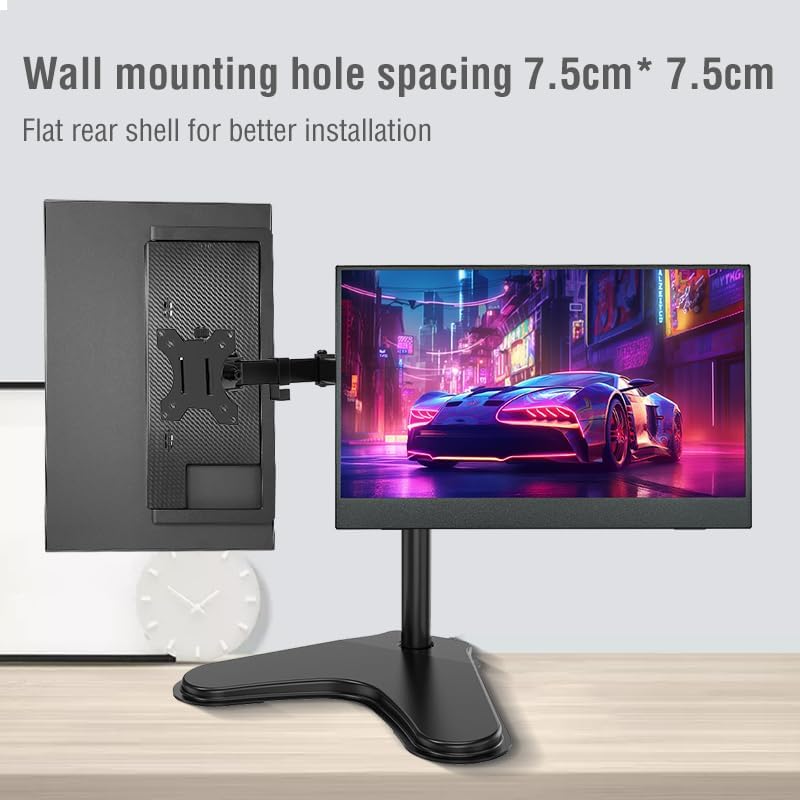
ຮູບພາບ: ດ້ານຫລັງ view of the monitor highlighting the 7.5cm x 7.5cm VESA wall mounting holes for secure installation.
ຄູ່ມືການຕິດຕັ້ງ
Follow these steps to connect and set up your Anmite Portable Monitor.
1. ການເຊື່ອມຕໍ່ພະລັງງານ
- Connect the provided Type-C to USB-A cable to one of the monitor's Type-C ports and a compatible power adapter (not included) or a USB-A port on your host device for power.
- Alternatively, if your host device supports power delivery via Type-C, a single full-function Type-C cable can provide both power and video.

Image: The portable monitor demonstrating multiple power supply methods, including connection to a power bank and a laptop via USB-C.
2. Video Connection
ເລືອກຫນຶ່ງໃນວິທີການເຊື່ອມຕໍ່ຕໍ່ໄປນີ້:
- Type-C (Full Function): Use the provided Type-C to Type-C cable to connect the monitor to a device with a full-featured USB-C port (supports video output and power delivery). This is the simplest connection for compatible devices.
- ມິນິ-HDMI: Use the provided Mini-HDMI to HDMI cable to connect the monitor to a device with an HDMI output. Ensure the monitor is also powered via a separate Type-C to USB-A cable or a power adapter.
Note: Ensure your device's Type-C interface is full-featured for video output. If it is only for charging, it will not transmit video signals.
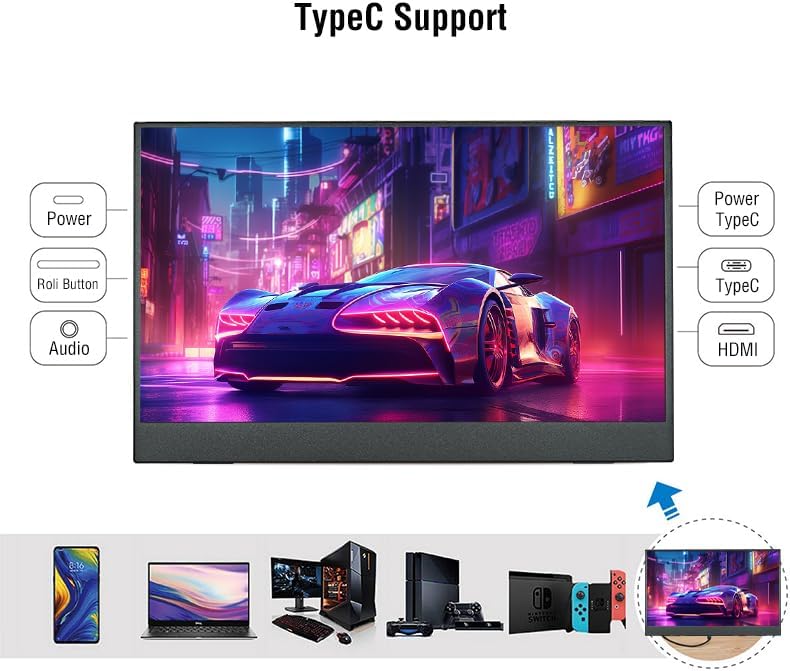
Image: The monitor displaying its compatibility with multiple devices, including smartphones, laptops, and gaming consoles, through Type-C and HDMI connections.
3. Display Settings (Windows/macOS)
After connecting, your operating system should detect the new display. You may need to adjust display settings:
- Extend Display: To use the portable monitor as a secondary screen, allowing you to drag windows between displays.
- Duplicate Display: To mirror your primary screen's content onto the portable monitor.
- ຄວາມລະອຽດ: Set the resolution to 2560x1600 for optimal clarity.
- ອັດຕາການໂຫຼດຂໍ້ມູນຄືນໃໝ່: Adjust to 144Hz for smoother visuals, especially for gaming.
ຄໍາແນະນໍາການດໍາເນີນງານ
1. Using the Magnetic Cover/Stand
The included magnetic cover can be folded to create a stand, allowing you to position the monitor at various viewing angles. Simply fold the cover into a triangular shape and place the monitor into the grooves for stability.
2. ເມນູການສະແດງເທິງໜ້າຈໍ (OSD).
Use the toggle button on the side of the monitor to access and navigate the OSD menu. This menu allows you to adjust various display settings:
- ຄວາມສະຫວ່າງ/ຄວາມຄົມຊັດ: ປັບລະດັບຄວາມສະຫວ່າງ ແລະ ລະດັບຄວາມຄົມຊັດຂອງໜ້າຈໍ.
- ການຕັ້ງຄ່າສີ: ປັບປ່ຽນອຸນຫະພູມສີ, ສີເຫຼື້ອມ, ແລະຄວາມອີ່ມຕົວ.
- ສຽງ: ຄວບຄຸມລະດັບສຽງສຳລັບລຳໂພງໃນຕົວ ຫຼື ຫູຟັງທີ່ເຊື່ອມຕໍ່.
- ແຫຼ່ງປ້ອນຂໍ້ມູນ: Manually select between Type-C and Mini-HDMI inputs.
- ການຕັ້ງຄ່າອື່ນ: Access advanced display options.
3. ສະຖານະການນຳໃຊ້

Image: The monitor adapts to different environments, including casual viewing, gaming, watching films, and professional office tasks.
- Extended Office: Enhance productivity by using the monitor as a second screen for your laptop, allowing for more workspace.
- ເກມ: Connect to gaming consoles (Xbox, PS4, Nintendo Switch) or gaming PCs for a high-refresh-rate, portable gaming experience.
- ບັນເທິງມືຖື: Connect to smartphones (with full-function Type-C) for watching videos or browsing content on a larger display.
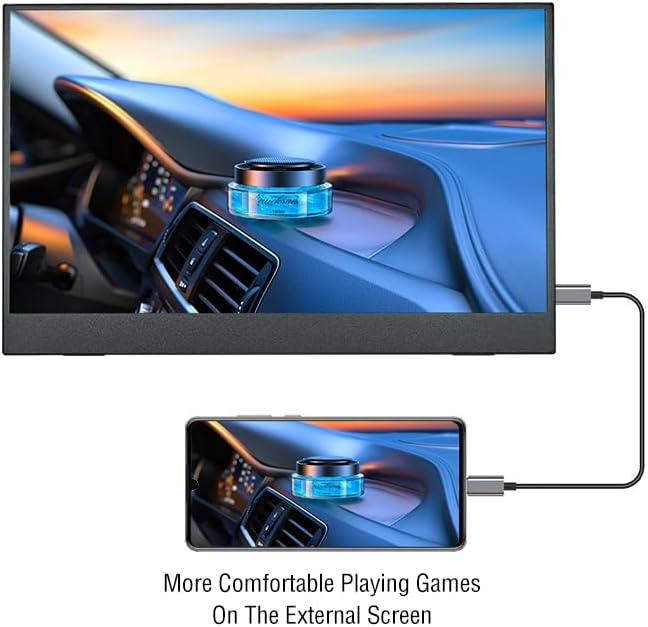
Image: A smartphone connected to the portable monitor, providing a larger display for an enhanced mobile gaming experience.
ບໍາລຸງຮັກສາ
- ທໍາຄວາມສະອາດ: ໃຊ້ຜ້າອ່ອນໆທີ່ບໍ່ມີຂົນເພື່ອທຳຄວາມສະອາດໜ້າຈໍ. ສຳລັບຮອຍທີ່ຝັງແໜ້ນ, ໃຫ້ເຊັດອອກເບົາໆ.ampໃສ່ຜ້າດ້ວຍນ້ໍາຫຼືການແກ້ໄຂເຮັດຄວາມສະອາດຫນ້າຈໍ. ຫຼີກເວັ້ນການສານເຄມີທີ່ຮຸນແຮງ.
- ການເກັບຮັກສາ: When not in use, store the monitor in its magnetic cover to protect the screen from scratches and dust.
- ການຈັດການ: Handle the monitor with care to prevent drops or impacts, which could damage the screen or internal components.
ການແກ້ໄຂບັນຫາ
- ບໍ່ມີສັນຍານ:
- ກວດໃຫ້ແນ່ໃຈວ່າສາຍທັງໝົດຖືກເຊື່ອມຕໍ່ຢ່າງປອດໄພ.
- Verify the monitor is receiving power.
- Check if your device's Type-C port supports video output.
- Try selecting the input source manually via the OSD menu.
- ບໍ່ມີສຽງ:
- ກວດສອບການຕັ້ງຄ່າລະດັບສຽງທັງໃນຈໍພາບ (ຜ່ານ OSD) ແລະອຸປະກອນທີ່ເຊື່ອມຕໍ່ຂອງທ່ານ.
- Ensure no headphones are plugged into the 3.5mm audio jack if you intend to use the built-in speakers.
- ຈໍສະແດງຜົນ Flickering:
- ໃຫ້ແນ່ໃຈວ່າຈໍພາບໄດ້ຮັບພະລັງງານພຽງພໍ.
- ລອງໃຊ້ສາຍ ຫຼືພອດອື່ນ.
- ປັບອັດຕາການໂຫຼດໜ້າຈໍຄືນໃໝ່ໃນການຕັ້ງຄ່າການສະແດງຜົນຂອງອຸປະກອນຂອງທ່ານ.
ການຮັບປະກັນແລະການສະຫນັບສະຫນູນ
For warranty information and technical support, please refer to the included User Guide or visit the official Anmite webເວັບໄຊ. ຮັກສາໃບຮັບເງິນການຊື້ຂອງທ່ານສໍາລັບການຮ້ອງຂໍການຮັບປະກັນ.