
1. ຜະລິດຕະພັນເກີນview
The Anmite 18.5 Inch 120Hz Portable Monitor is designed to extend your visual workspace, offering a high-definition display for laptops, gaming consoles, and mobile devices. Its lightweight and slim design ensures portability, while the IPS panel provides wide viewໃນມຸມແລະສີສັນສົດໃສ.

ຮູບພາບ 1.1: ດ້ານຫນ້າ view of the Anmite 18.5 Inch Portable Monitor, highlighting its key features like 1920x1080 resolution, 120Hz refresh rate, 100% sRGB, 3ms response time, and IPS panel.
2. ເນື້ອໃນຊຸດ
ກະລຸນາກວດສອບວ່າລາຍການທັງໝົດມີຢູ່ໃນຊຸດຂອງທ່ານ:
- Anmite Portable Monitor x 1
- Mini-HDMI to HDMI cable x 1
- ສາຍ Type-C ຫາ Type-C x 1
- Type-C to USB-A cable x 1
- ຄູ່ມືຜູ້ໃຊ້ x 1
3. Monitor Features and Ports
Familiarize yourself with the monitor's physical features and connection ports.
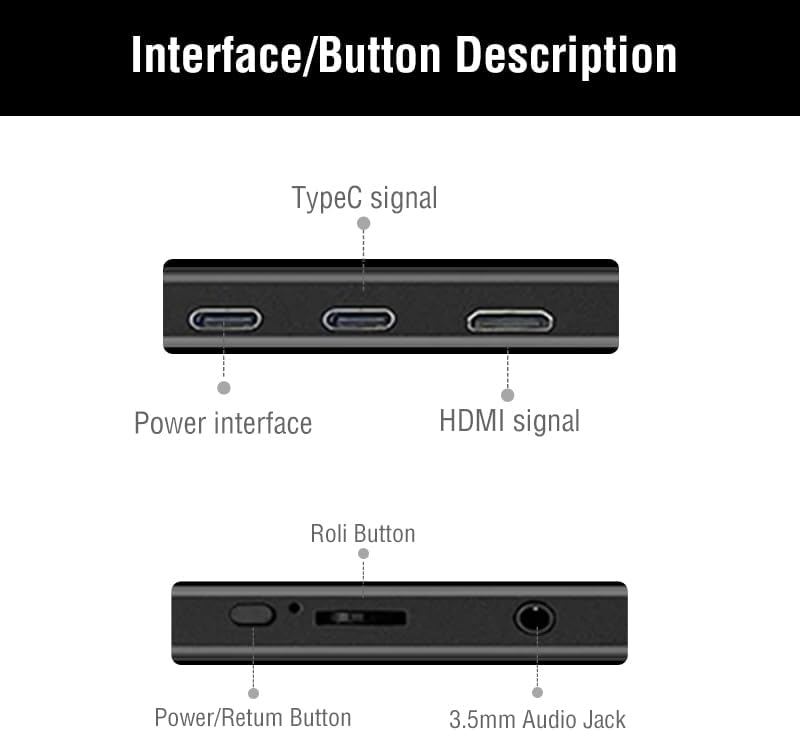
Image 3.1: Detailed diagram showing the monitor's ports and control buttons. This includes Type-C signal input, Power interface, HDMI signal input, a 'Roli Button' for menu navigation, and a 3.5mm Audio Jack.
3.1. ພອດ ແລະປຸ່ມຕ່າງໆ
- ປະເພດ-C (ຟັງຊັນເຕັມ): For video, audio, and power transmission from compatible devices.
- Type-C (Power): For power input to the monitor.
- ມິນິ-HDMI: For video and audio input from devices.
- ສຽງ Jack 3.5 ມມ: For connecting external headphones or speakers.
- Roli Button: Used for navigating the On-Screen Display (OSD) menu and adjusting settings.
- ປຸ່ມເປີດ/ສົ່ງຄືນ: Used to power the monitor on/off and as a return function in the OSD menu.

ຮູບພາບ 3.2: ດ້ານຫລັງ view ຂອງຈໍພາບ, ສະແດງasing the integrated metal support stand and VESA mounting points.
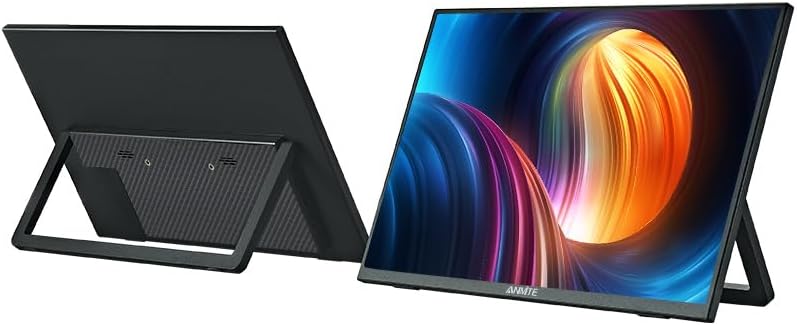
Image 3.3: Front and back perspective views of the monitor, illustrating its slim profile and the adjustable stand.
4. ຄໍາແນະນໍາການຕິດຕັ້ງ
4.1. ການເປີດໜ້າຈໍ
The monitor requires power to operate. Connect the provided Type-C to USB-A cable to the monitor's dedicated power Type-C port and a compatible USB power adapter (not included) or a powered USB port on your device.
4.2. ການເຊື່ອມຕໍ່ກັບອຸປະກອນ
The Anmite portable monitor supports various devices via Type-C (full function) and HDMI connections.
4.2.1. Connecting to a Laptop/PC (Type-C)
- Ensure your laptop/PC has a full-featured Type-C (USB-C) port that supports video output (DisplayPort Alternate Mode) and power delivery.
- Connect one end of the Type-C to Type-C cable to the monitor's full-function Type-C port.
- Connect the other end of the Type-C to Type-C cable to your laptop/PC's full-featured Type-C port.
- The monitor should automatically detect the signal and display your laptop/PC screen. If not, you may need to adjust display settings on your laptop/PC.
4.2.2. Connecting to a Laptop/PC (HDMI)
- Connect one end of the Mini-HDMI to HDMI cable to the monitor's Mini-HDMI port.
- Connect the other end of the Mini-HDMI to HDMI cable to your laptop/PC's HDMI port.
- Connect the monitor to a power source using the Type-C to USB-A cable and a power adapter.
- The monitor should automatically detect the signal. If not, adjust display settings on your laptop/PC.
4.2.3. Connecting to a Smartphone (Type-C)
- Ensure your smartphone has a full-featured Type-C (USB-C) port that supports video output (DisplayPort Alternate Mode) and power delivery.
- Connect one end of the Type-C to Type-C cable to the monitor's full-function Type-C port.
- Connect the other end of the Type-C to Type-C cable to your smartphone's full-featured Type-C port.
- The monitor should mirror or extend your phone's display.

Image 4.1: The portable monitor connected to a smartphone via a Type-C cable, demonstrating its use as an external display for mobile devices.
4.2.4. Connecting to Gaming Consoles (HDMI)
- Connect one end of the Mini-HDMI to HDMI cable to the monitor's Mini-HDMI port.
- Connect the other end of the Mini-HDMI to HDMI cable to your gaming console's HDMI port.
- Connect the monitor to a power source using the Type-C to USB-A cable and a power adapter.
- Power on your gaming console and the monitor. The display should appear automatically.
4.3. ການໃຊ້ຂາຕັ້ງແບບປະສົມປະສານ
The monitor features an integrated metal stand for easy setup. Simply unfold the stand from the back of the monitor to position it at your desired viewing angle. The stand also allows for both landscape and portrait orientations.
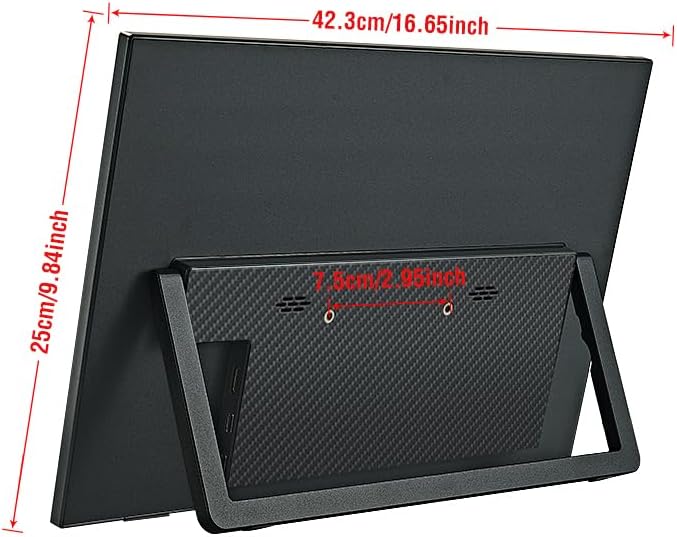
ຮູບພາບ 4.2: ດ້ານຫລັງ view of the monitor with its stand extended, showing the overall dimensions and stability.
5. ຄໍາແນະນໍາການດໍາເນີນງານ
5.1. ເປີດ/ປິດ
ກົດຄ້າງໄວ້ ປຸ່ມເປີດ/ສົ່ງຄືນ for a few seconds to turn the monitor on or off.
5.2. ເມນູການສະແດງເທິງໜ້າຈໍ (OSD).
The OSD menu allows you to adjust various display settings. Use the Roli Button to navigate and select options.
- ກົດ Roli Button ເພື່ອເປີດເມນູ OSD.
- ມ້ວນ Roli Button up or down to navigate through menu options.
- ກົດ Roli Button ເພື່ອເລືອກຕົວເລືອກ ຫຼືໃສ່ເມນູຍ່ອຍ.
- ໃຊ້ ປຸ່ມເປີດ/ສົ່ງຄືນ to go back to the previous menu or exit the OSD.
5.3. ການຕັ້ງຄ່າ OSD ທົ່ວໄປ
- ຄວາມສະຫວ່າງ / ກົງກັນຂ້າມ: Adjust the display's luminance and contrast levels.
- ການຕັ້ງຄ່າສີ: Modify color temperature, hue, and saturation.
- ແຫຼ່ງປ້ອນຂໍ້ມູນ: Manually select between Type-C and HDMI inputs if auto-detection fails.
- ອັດຕາສ່ວນ: Change the display aspect ratio (e.g., 16:9, 4:3).
- ປະລິມານ: Adjust the volume of the built-in speakers or connected headphones.
5.4. ທິດທາງຂອງຈໍສະແດງຜົນ
The monitor supports both landscape and portrait orientations. The display will automatically adjust if your connected device supports auto-rotation. Otherwise, you may need to manually change the display orientation in your device's operating system settings.
6. ບໍາລຸງຮັກສາ
6.1. ເຮັດຄວາມສະອາດ Monitor
- ປິດເຄື່ອງທຸກຄັ້ງ ແລະຖອດສາຍຈໍອອກກ່ອນທຳຄວາມສະອາດ.
- ໃຊ້ຜ້າແພທີ່ອ່ອນໆ ທີ່ບໍ່ມີເສັ້ນດ່າງ dampຫຸ້ມດ້ວຍນ້ໍາຫຼືເຄື່ອງເຮັດຄວາມສະອາດຫນ້າຈໍທີ່ບໍ່ມີການຂັດ.
- ຢ່າສີດນໍ້າສະອາດໃສ່ໜ້າຈໍໂດຍກົງ.
- ຫຼີກເວັ້ນການໃຊ້ເຫຼົ້າ, ແອມໂມເນຍ, ຫຼືເຄື່ອງເຮັດຄວາມສະອາດຂັດ, ເພາະວ່າພວກມັນສາມາດທໍາລາຍຫນ້າຈໍໄດ້.
6.2. ການເກັບຮັກສາ
- ເກັບຮັກສາຈໍພາບໄວ້ໃນບ່ອນທີ່ເຢັນ, ແຫ້ງ, ຫ່າງຈາກແສງແດດໂດຍກົງ ແລະອຸນຫະພູມທີ່ຮຸນແຮງ.
- If storing for an extended period, use the original packaging or a protective sleeve to prevent dust and scratches.
7. ການແກ້ໄຂບັນຫາ
If you encounter issues with your Anmite portable monitor, refer to the following common solutions:
- No Display/No Signal:
- Ensure the monitor is properly powered and turned on.
- ກວດສອບວ່າສາຍວິດີໂອ (ປະເພດ-C ຫຼື HDMI) ໄດ້ເຊື່ອມຕໍ່ກັບທັງຈໍພາບ ແລະ ອຸປະກອນຂອງທ່ານຢ່າງແໜ້ນໜາແລ້ວ.
- If using Type-C, confirm that your device's Type-C port is full-featured and supports video output. Some Type-C ports are for charging only.
- Try selecting the correct input source manually via the OSD menu.
- Test with a different cable or device if possible.
- ໜ້າຈໍກະພິບ ຫຼື ຈໍສະແດງຜົນບໍ່ໝັ້ນຄົງ:
- ກວດສອບການເຊື່ອມຕໍ່ສາຍໄຟວ່າຫຼວມຫຼືບໍ່.
- ໃຫ້ແນ່ໃຈວ່າຈໍພາບໄດ້ຮັບພະລັງງານພຽງພໍ.
- Adjust the refresh rate or resolution settings on your connected device.
- ບໍ່ມີສຽງ:
- Increase the volume on both the monitor (via OSD) and your connected device.
- Ensure the audio output on your device is set to the portable monitor.
- If using external headphones/speakers, ensure they are properly connected to the 3.5mm audio jack.
- ຈໍສະແດງຜົນບໍ່ເປີດ:
- Confirm the power cable is connected and the power source is active.
- ລອງອະແດັບເຕີໄຟ ຫຼືພອດ USB ອື່ນ.
8. ຂໍ້ມູນຈໍາເພາະ
Detailed technical specifications for the Anmite 18.5 Inch Portable Monitor (Model A185W03).

Image 8.1: Diagram illustrating the physical dimensions of the 18.5-inch monitor in centimeters and inches.
| ຄຸນສົມບັດ | ຂໍ້ມູນຈໍາເພາະ |
|---|---|
| ໝາຍເລກຕົວແບບ | A185W03 |
| ຂະໜາດໜ້າຈໍ | 18.5 ນິ້ວ |
| ປະເພດແຜງ | IPS |
| ຄວາມລະອຽດ | 1920x1080 (FHD) |
| ອັດຕາການໂຫຼດຫນ້າຈໍຄືນ | 120Hz |
| ອັດຕາສ່ວນ | 16:9 |
| ສະແດງສີ | 16.7M |
| ອຸນຫະພູມສີ | 6800K |
| ມຸມສາຍຕາ | H:178° V:178° |
| ພື້ນທີ່ສາຍຕາ | 410 x 230 ມມ |
| ອັດຕາສ່ວນກົງກັນຂ້າມ | 1000:1 |
| ຄວາມສະຫວ່າງ | 300cd/m² |
| ສີທີ່ຮອງຮັບ | 100% sRGB |
| ອິນເຕີເຟດຂາເຂົ້າ | Mini-HDMI, Type-C (Full Function), Type-C (Power) |
| Output Interface | ການໂຕ້ຕອບສຽງ 3.5mm |
| ລໍາໂພງ | Built-in (1W*2) |
| ນ້ຳໜັກສຸດທິ | 1.2 ກິໂລ |
| ຂະໜາດ | 423 x 250 x 6-13 ມມ (16.65 x 9.84 x 0.24-0.51 ນິ້ວ) |
| ຂະໜາດສິນຄ້າ (ຫຸ້ມຫໍ່) | 8.26 x 14.96 x 19.29 ນິ້ວ |
| ສະບັບtage | 5 ໂວນ (DC) |
| ລາຍລະອຽດຫນ້າຈໍ | Matte |

Image 8.2: Illustration of the monitor's ultra-portable design, highlighting its thinness and lightweight nature with dimensions.

Image 8.3: Visual comparison of the 18.5-inch monitor alongside 17.3-inch and 15.6-inch models, demonstrating its larger screen size.
9. ການຮັບປະກັນແລະການສະຫນັບສະຫນູນ
9.1. ຂໍ້ມູນການຮັບປະກັນ
For detailed warranty information regarding your Anmite portable monitor, please refer to the warranty card included in your product packaging or visit the official Anmite website. Protection plans may also be available for purchase separately.
9.2. ການຊ່ວຍເຫຼືອລູກຄ້າ
If you require further assistance or have questions not covered in this manual, please contact Anmite customer support. You can find contact information and additional resources on the Anmite Official Store.