
1. ບົດແນະນຳ
The EE Smart 4G Hub 2 (model HH10E) is a versatile 4G WiFi router designed to provide high-speed internet connectivity using a mobile network SIM card. It offers an alternative to traditional fixed-line broadband, ideal for temporary setups, areas with poor fixed-line infrastructure, or mobile offices. This manual provides detailed instructions for setting up, operating, and maintaining your device to ensure optimal performance.
2. ສິ່ງທີ່ຢູ່ໃນກ່ອງ
ກະລຸນາກວດສອບວ່າອົງປະກອບຕໍ່ໄປນີ້ລວມຢູ່ໃນຊຸດຂອງທ່ານ:
- Smart 4G Hub 2 (HH10E): The main router unit.
- Power Adapter: For connecting the hub to a power outlet.
- USB Cable (Power): Used with the power adapter.
- ຄູ່ມືເລີ່ມຕົ້ນດ່ວນ: A brief guide for initial setup.
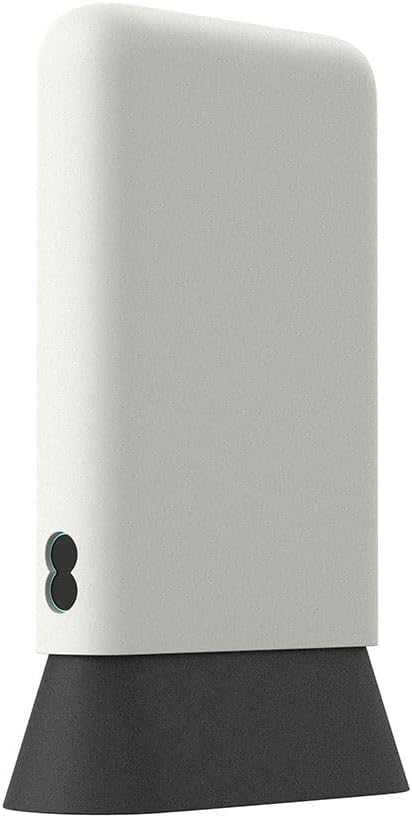
Figure 2.1: The EE Smart 4G Hub 2 and its standard accessories. Ensure all items are present before proceeding.
3. ແຜນຜັງອຸປະກອນ
Familiarize yourself with the various ports, indicators, and buttons on your Smart 4G Hub 2.
ຮູບ 3.1: ດ້ານຫນ້າ view of the HH10E router, showing the minimalist design and status indicators.

ຮູບ 3.2: ດ້ານຫລັງ view displaying the LAN ports, power input, and SIM card slot.
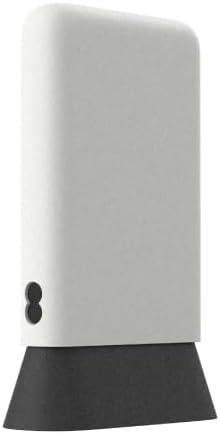
ຮູບ 3.3: ຂ້າງ view, highlighting the compact form factor.
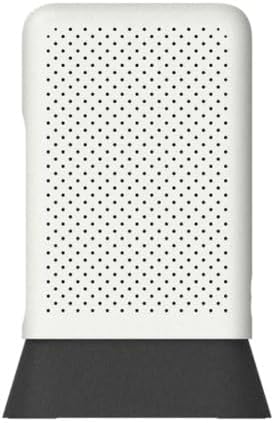
ຮູບທີ 3.4: ທາງເທິງ view, showing the ventilation pattern for heat dissipation.
4. ຄູ່ມືການຕິດຕັ້ງ
4.1. ການຕິດຕັ້ງຊິມກາດ
The Smart 4G Hub 2 requires a Nano SIM card (sold separately) to access mobile network data. Ensure the device is powered off before inserting or removing the SIM card.
- Locate the SIM card slot on the rear of the device (refer to Figure 3.2).
- Gently insert the Nano SIM card into the slot with the gold contacts facing down and the notched corner aligned correctly. Push until it clicks into place.
- To remove, gently push the SIM card inwards until it springs out.
4.2. ເປີດເຄື່ອງ
Connect the provided power adapter to the power input port on the rear of the hub, then plug the adapter into a wall outlet. The device will automatically power on and begin its startup sequence.
4.3. ການຕັ້ງຄ່າເບື້ອງຕົ້ນ
Upon first power-on, the hub will attempt to connect to the mobile network. The status indicator lights on the front of the device will provide feedback:
- Flashing Aqua: The device is attempting to connect to the network.
- Steady Aqua: The device is successfully connected to the network and providing internet access.
The default WiFi network name (SSID) and password (WiFi Key) are typically found on a label on the bottom or rear of the device. Use these credentials to connect your devices.
5. ຄໍາແນະນໍາການດໍາເນີນງານ
5.1. ອຸປະກອນເຊື່ອມຕໍ່
You can connect devices to the Smart 4G Hub 2 via WiFi or Ethernet cable.
- ການເຊື່ອມຕໍ່ WiFi: On your device (laptop, smartphone, tablet), search for available WiFi networks. Select the SSID of your Smart 4G Hub 2 and enter the WiFi Key when prompted. The hub supports up to 60 connected devices.
- ການເຊື່ອມຕໍ່ອີເທີເນັດ: For wired connections, use a standard Ethernet cable to connect a device (e.g., desktop computer, gaming console) to one of the LAN ports on the rear of the hub.
5.2. ການເຂົ້າເຖິງ Web ການໂຕ້ຕອບ
For advanced settings and monitoring, you can access the hub's web- ການໂຕ້ຕອບການຄຸ້ມຄອງທີ່ອີງໃສ່:
- Ensure your device is connected to the Smart 4G Hub 2's WiFi network or via an Ethernet cable.
- ເປີດ ກ web browser (ເຊັ່ນ: Chrome, Firefox, Edge).
- ໃນແຖບທີ່ຢູ່, ພິມທີ່ຢູ່ IP ເລີ່ມຕົ້ນ (ປົກກະຕິແລ້ວ
192.168.1.1or192.168.8.1) ຫຼື web address provided on the device label, then press Enter. - Enter the administrator username and password. These are typically found on the device label.
5.3. ການຕັ້ງຄ່າເຄືອຂ່າຍ
ພາຍໃນ web interface, you can configure various network settings, including:
- WiFi Name (SSID) and Password: Change these for better security or personalization.
- WiFi ແຂກ: Enable a separate network for guests.
- ການຕັ້ງຄ່າ APN: If your SIM card requires specific Access Point Name settings, these can be configured here.
- ອັບເດດເຟີມແວ: Check for and install the latest firmware to improve performance and security.
6. ບໍາລຸງຮັກສາ
To ensure the longevity and optimal performance of your EE Smart 4G Hub 2, follow these maintenance guidelines:
- ການຈັດວາງ: Position the hub in a central location, away from obstructions, large metal objects, and other electronic devices that may cause interference. Avoid direct sunlight and extreme temperatures.
- ທໍາຄວາມສະອາດ: Use a soft, dry cloth to clean the exterior of the device. Do not use liquid cleaners or aerosols. Ensure ventilation holes remain clear of dust.
- ອັບເດດເຟີມແວ: Regularly check for and install firmware updates via the web ອິນເຕີເຟດ. ການອັບເດດມັກຈະປະກອບມີການປັບປຸງປະສິດທິພາບ, ການແກ້ໄຂຂໍ້ຜິດພາດ ແລະ ການປັບປຸງຄວາມປອດໄພ.
- ກຳລັງຣີສະຕາດ: If you experience connectivity issues, try restarting the hub by unplugging the power adapter, waiting 10 seconds, and then plugging it back in.
7. ການແກ້ໄຂບັນຫາ
This section addresses common issues you might encounter with your Smart 4G Hub 2.
| ບັນຫາ | ສາເຫດທີ່ເປັນໄປໄດ້ | ການແກ້ໄຂ |
|---|---|---|
| No internet connection (Flashing Aqua light) | No SIM card, incorrect SIM insertion, no network signal, incorrect APN settings. | Ensure SIM is correctly inserted. Check network coverage in your area. Verify APN settings via the web interface. Restart the hub. |
| ຄວາມໄວອິນເຕີເນັດຊ້າ | Poor network signal, too many connected devices, network congestion, hub placement. | Relocate the hub to an area with better signal. Reduce the number of active devices. Try restarting the hub. |
| ບໍ່ສາມາດເຊື່ອມຕໍ່ກັບ WiFi ໄດ້ | Incorrect WiFi password, device too far from hub, WiFi disabled. | Double-check WiFi password. Move closer to the hub. Ensure WiFi is enabled via the web ການໂຕ້ຕອບ. |
| ບໍ່ສາມາດເຂົ້າເຖິງໄດ້ web ການໂຕ້ຕອບ | Incorrect IP address, device not connected to hub, incorrect login credentials. | Verify the IP address (e.g., 192.168.1.1). Ensure your device is connected to the hub. Use the correct admin username and password from the device label. |
If issues persist after following these steps, please contact customer support for further assistance.
8. ຂໍ້ມູນຈໍາເພາະ
Key technical specifications for the EE Smart 4G Hub 2 (HH10E):
| ຊື່ຕົວແບບ | HH10E |
| ຍີ່ຫໍ້ | EE |
| ເຕັກໂນໂລຊີການເຊື່ອມຕໍ່ | Wi-Fi, LTE |
| ມາດຕະຖານການສື່ສານໄຮ້ສາຍ | 802.11n, 802.11b, 802.11a, 802.11g, 802.11ac |
| ຫ້ອງຮຽນແຖບຄວາມຖີ່ | Dual-Band |
| SIM Size | ນາໂນຊິມ |
| ພອດ LAN | 2 |
| ອຸປະກອນເຊື່ອມຕໍ່ສູງສຸດ | ເຖິງ 60 |
| WiFi Radius | 30 ແມັດ |
| Average Download Speeds | 40 Mbps |
| ອົງປະກອບລວມ | Smart 4G Hub, USB cable (Power), Power adapter, Quick Start Guide |
| ຂະໜາດ (ປະມານ) | 22 x 14.1 x 7.8 cm |
| ນ້ຳໜັກ (ປະມານ) | 350 g |
9. ການຮັບປະກັນແລະການສະຫນັບສະຫນູນ
As this product is listed as "Renewed" by Amazon Renewed, it typically comes with a specific return policy and limited warranty provided by the seller or Amazon Renewed program. Please refer to your purchase documentation or the Amazon Renewed policy for details regarding warranty coverage and return periods.
For technical support or assistance with your EE Smart 4G Hub 2, please contact the seller directly through your Amazon order history. For general inquiries about the EE network or services, refer to the official EE support channels.