
1. ຜະລິດຕະພັນເກີນview
The SIXWIN 4+64G Android 15 Car Radio is designed for Mercedes Benz Smart Fortwo 451 models manufactured between 2005 and 2010. This unit features a 9-inch HD touchscreen display, a quad-core processor, 4GB RAM, and 64GB internal storage, running on Android 15. It integrates advanced connectivity options including wireless CarPlay, Android Auto, Mirror Link, built-in GPS navigation, Wi-Fi, and Bluetooth 5.0. The system also includes a 32-band equalizer for audio customization and supports original steering wheel controls.

Image: The SIXWIN Android 15 Car Radio seamlessly integrated into the dashboard of a Mercedes Benz Smart Fortwo 451.
2. ເນື້ອໃນຊຸດ
ກວດສອບວ່າອົງປະກອບທັງໝົດມີຢູ່ໃນຊຸດກ່ອນທີ່ຈະດໍາເນີນການຕິດຕັ້ງ.
- Autoradio unit
- Power Cable (A and B options)
- ເຄື່ອງມືການຕິດຕັ້ງ
- ເສົາອາກາດວິທະຍຸ
- ອະແດບເຕີເສົາອາກາດ
- Accessories (mounting brackets)
- GPS Antenna
- Rear Camera Input Cable (for optional camera)
- USB Cable (2 ports)
- ສາຍ RCA
- ຄູ່ມືຜູ້ໃຊ້
- ໄມໂຄຣໂຟນ

Image: A visual representation of the complete packing list, including the main unit, various cables, antennas, and installation tools.
3. ຄູ່ມືການຕິດຕັ້ງ
3.1 ການກວດສອບການຕິດຕັ້ງກ່ອນ
- ກວດໃຫ້ແນ່ໃຈວ່າການຕິດໄຟຂອງລົດຖືກປິດ ແລະ ແບັດເຕີຣີຖືກຕັດການເຊື່ອມຕໍ່ກ່ອນທີ່ຈະເລີ່ມການຕິດຕັ້ງ.
- Confirm compatibility with your Mercedes Benz Smart Fortwo 451 (2005-2010).
- Identify the correct wiring harness for your vehicle (Cable A or Cable B).
3.2 ການເຊື່ອມຕໍ່ສາຍໄຟ
The unit comes with two power cables (A and B). Under normal circumstances, prioritize using Cable A. If the unit does not power on or function correctly, use Cable B.
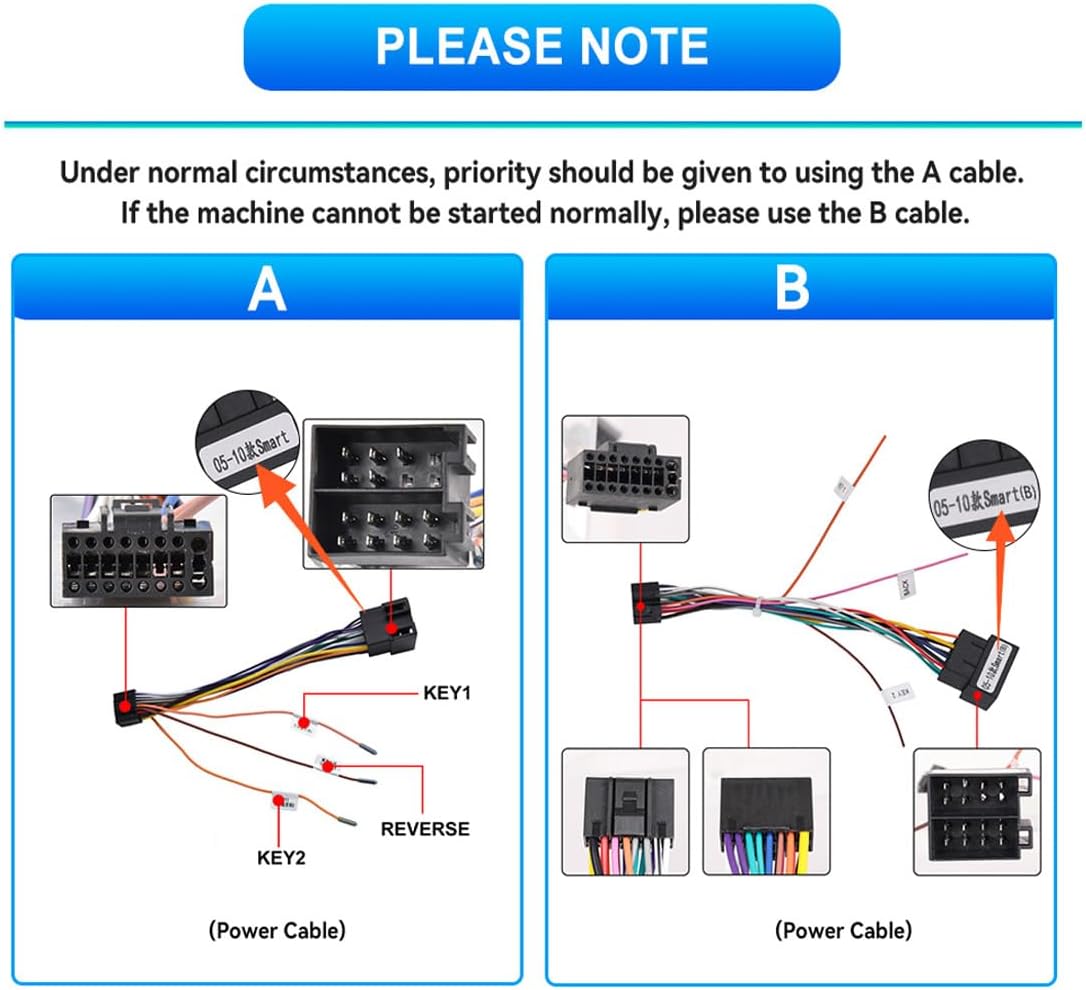
Image: Detailed wiring diagrams for Power Cable A and Power Cable B, indicating connections for KEY1, KEY2, and REVERSE signals. Choose the cable that matches your vehicle's wiring harness.
- ສາຍໄຟ: Connect the appropriate power cable (A or B) to the vehicle's wiring harness.
- ເສົາອາກາດ GPS: ເຊື່ອມຕໍ່ເສົາອາກາດ GPS ແລະວາງມັນໄວ້ໃນສະຖານທີ່ທີ່ມີບ່ອນໂລ່ງແຈ້ງ view ຂອງທ້ອງຟ້າສໍາລັບການຮັບສັນຍານທີ່ດີທີ່ສຸດ.
- ເສົາອາກາດວິທະຍຸ: Connect the radio antenna and adapter if necessary.
- ສາຍ USB: Connect the two USB cables for charging and multimedia playback.
- ສາຍ RCA: Connect RCA cables for external amplifiers (subwoofer output) or rear entertainment systems (AV input).
- ໄມໂຄຣໂຟນ: Connect the external microphone for improved hands-free call quality.
- ກ້ອງຫຼັງ (ທາງເລືອກ): If installing a reversing camera, connect its input cable to the designated port on the head unit.
3.3 ການຕິດຕັ້ງຫນ່ວຍງານ
Secure the autoradio unit into the dashboard opening using the provided mounting brackets and screws. Ensure all cables are properly routed and not pinched.
4. ຄໍາແນະນໍາການດໍາເນີນງານ
4.1 ເປີດ ແລະ ຕັ້ງຄ່າເບື້ອງຕົ້ນ
- ເຊື່ອມຕໍ່ຫມໍ້ໄຟລົດຄືນໃໝ່.
- Turn on the vehicle ignition. The unit should power on automatically.
- Follow the on-screen prompts for initial setup, including language selection and time zone.
4.2 ການເຮັດວຽກຂອງຫນ້າຈໍສໍາຜັດ
The 9-inch HD touchscreen supports multi-touch gestures. Tap to select, swipe to navigate menus, and pinch to zoom where applicable.

Image: The IPS display screen with 2.5D touch glass, highlighting its responsive touchscreen and anti-blue light features.
4.3 Wireless CarPlay & Android Auto
Connect your iPhone or Android device wirelessly to access CarPlay or Android Auto features. This allows for safe use of navigation, music, calls, and messages via voice commands (Siri or Google Assistant) or the touchscreen.
- ໃຫ້ແນ່ໃຈວ່າ Bluetooth ແລະ Wi-Fi ຖືກເປີດໃຊ້ຢູ່ໃນໂທລະສັບສະຫຼາດຂອງທ່ານ.
- ໃນວິທະຍຸລົດ, ເລືອກແອັບພລິເຄຊັນ CarPlay ຫຼື Android Auto.
- ປະຕິບັດຕາມຄໍາແນະນໍາໃນຫນ້າຈໍເພື່ອຈັບຄູ່ອຸປະກອນຂອງທ່ານ.

Image: The user interface for CarPlay and Android Auto, showing various compatible applications for navigation, music, and communication.
4.4 ຟັງຊັນ Mirror Link
Mirror Link allows you to display your smartphone screen directly on the car radio's display.
- ສໍາລັບອຸປະກອນ iOS: ເຊື່ອມຕໍ່ຜ່ານ Wi-Fi.
- ສໍາລັບອຸປະກອນ Android: Connect via Wi-Fi or USB cable.
- Select the "Mirror Link" app on the car radio and follow the pairing instructions.

Image: A demonstration of the Mirror Link function, showing a smartphone screen mirrored onto the car radio display.
4.5 GPS Navigation
The unit features built-in GPS navigation with support for both online and offline maps. A pre-installed map of your country is included.
- To use online maps, ensure the unit is connected to Wi-Fi.
- For offline navigation, download maps to the internal storage.
- Access navigation through the dedicated "Navigation" app.

Image: The GPS navigation interface showing a map with route guidance and various navigation icons.
4.6 ການເຊື່ອມຕໍ່ Wi-Fi
Connect the car radio to the internet via a Wi-Fi hotspot (e.g., from your smartphone) to browse the web, stream content, and download applications.
- ໄປທີ່ "ການຕັ້ງຄ່າ" > "ເຄືອຂ່າຍ ແລະ ອິນເຕີເນັດ" > "Wi-Fi".
- ເລືອກເຄືອຂ່າຍ Wi-Fi ທີ່ທ່ານຕ້ອງການ ແລະ ໃສ່ລະຫັດຜ່ານ.
4.7 ບລູທູດ 5.0
Bluetooth 5.0 provides stable connectivity for hands-free calling and wireless music streaming.
- Enable Bluetooth on your smartphone and the car radio.
- On the car radio, go to the "Bluetooth" app, search for your device, and pair.
- The unit supports automatic phone book loading and music playback.
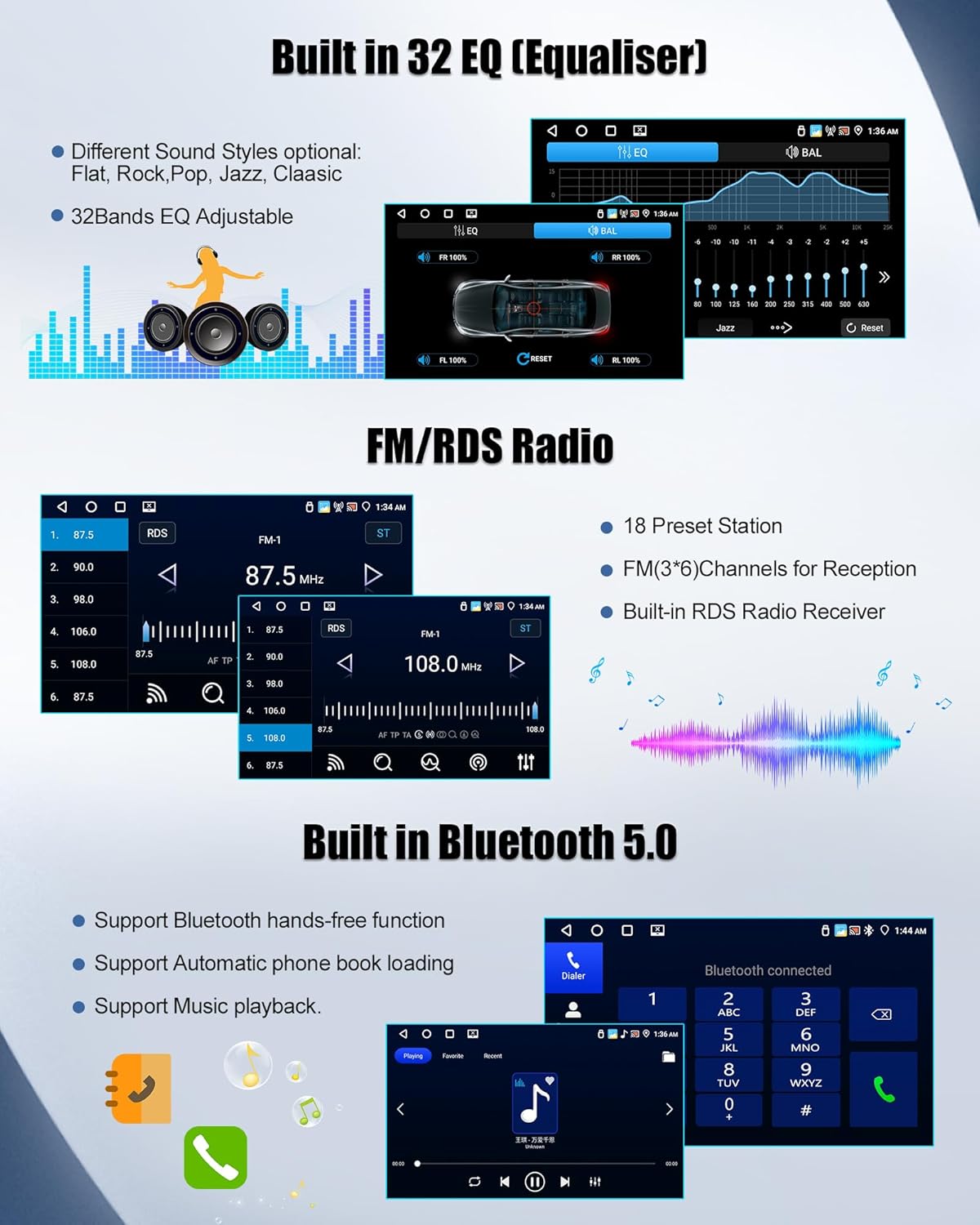
Image: The Bluetooth interface showing a dialer for hands-free calls and options for music playback.
4.8 ວິທະຍຸ FM/RDS
The integrated FM/RDS tuner provides clear reception of radio stations. It supports 18 preset stations and displays real-time station information (RDS).
- Access the "Radio" app to tune into FM stations.
- Use the scan function to find available stations and save them as presets.

Image: The FM/RDS radio interface showing frequency display, preset stations, and RDS information.
4.9 ຕົວປັບສຽງ (EQ)
Customize your audio experience with the professional 32-band equalizer. Choose from various sound styles (Jazz, Classical, Rock, etc.) or manually adjust frequency bands for personalized sound.
- Access the "EQ" app to adjust audio settings.
- Select a preset or drag the sliders to fine-tune the sound.

Image: The 32-band equalizer interface, showing frequency adjustment sliders and sound style presets.
4.10 ການເຊື່ອມໂຍງການຄວບຄຸມພວງມາໄລ
The unit integrates with your vehicle's original steering wheel controls, allowing you to manage volume, calls, and music tracks directly from the steering wheel for a safer driving experience.
- Access the "Steering Wheel Control" settings in the system menu.
- Follow the on-screen instructions to map your steering wheel buttons to the desired functions.

Image: The steering wheel control configuration screen, showing options to assign functions to physical buttons.
4.11 ຟັງຊັນ Split Screen
Utilize the split-screen feature to run two applications simultaneously, such as navigation and music playback.
- ເປີດແອັບພລິເຄຊັນທຳອິດ.
- Long-press the recent apps button or follow specific Android 15 gestures to activate split-screen mode.
- ເລືອກແອັບພລິເຄຊັນທີສອງເພື່ອສະແດງຄຽງຄູ່ກັບແອັບພລິເຄຊັນທຳອິດ.

Image: The split-screen function in action, showing navigation on one side and a music player on the other.
4.12 Reversing Function (with optional camera)
If an external AHD rear-view camera is connected, the unit will automatically display the camera feed when the vehicle is put into reverse gear, providing a clear view for safe maneuvering.

Image: An illustration of the reversing function, showing an external AHD rear-view camera and the display with parking guidelines.
5. ບໍາລຸງຮັກສາ
To ensure optimal performance and longevity of your SIXWIN car radio, follow these maintenance guidelines:
- ທໍາຄວາມສະອາດຫນ້າຈໍ: Use a soft, lint-free cloth to gently wipe the touchscreen. Avoid abrasive cleaners or solvents that may damage the display.
- ອັບເດດຊອບແວ: Periodically check for available software updates to ensure you have the latest features and bug fixes. Updates can typically be found in the system settings or on the manufacturer's webເວັບໄຊ.
- ການເຊື່ອມຕໍ່ສາຍ: ຮັບປະກັນວ່າສາຍໄຟທັງໝົດໄດ້ເຊື່ອມຕໍ່ກັນຢ່າງແໜ້ນໜາ. ການເຊື່ອມຕໍ່ທີ່ວ່າງອາດນຳໄປສູ່ການເຮັດວຽກທີ່ບໍ່ຕໍ່ເນື່ອງ.
- ເງື່ອນໄຂສິ່ງແວດລ້ອມ: ຫຼີກລ້ຽງການເປີດເຄື່ອງໃຫ້ຢູ່ໃນອຸນຫະພູມທີ່ຮ້າຍແຮງ, ແສງແດດໂດຍກົງເປັນເວລາດົນນານ, ຫຼືຄວາມຊຸ່ມເກີນໄປ.
6. ການແກ້ໄຂບັນຫາ
| ບັນຫາ | ສາເຫດທີ່ເປັນໄປໄດ້ | ການແກ້ໄຂ |
|---|---|---|
| ຫນ່ວຍບໍລິການບໍ່ເປີດ. | Incorrect power cable connection (A vs. B), loose wiring, blown fuse. |
|
| CarPlay/Android Auto ບໍ່ເຊື່ອມຕໍ່. | Bluetooth/Wi-Fi off on phone, incorrect pairing, software glitch. |
|
| ບໍ່ມີສຽງ ຫຼືຄຸນນະພາບສຽງບໍ່ດີ. | Volume too low, incorrect EQ settings, loose speaker wires. |
|
| ສັນຍານ GPS ອ່ອນ ຫຼື ບໍ່ຖືກຕ້ອງ. | ເສົາອາກາດ GPS ຖືກກີດຂວາງ ຫຼື ຖືກວາງໄວ້ບໍ່ຖືກຕ້ອງ. |
|
| Buttons on the unit are not illuminated at night. | Wiring issue or setting. |
|
| Battery drain when car is off. | Incorrect wiring of constant and accessory power. |
|
7. ຂໍ້ມູນຈໍາເພາະ
| ຄຸນສົມບັດ | ລາຍລະອຽດ |
|---|---|
| ຍີ່ຫໍ້ | SIXWIN |
| ລະບົບປະຕິບັດການ | Android 15 |
| RAM | 4GB |
| ການເກັບຮັກສາພາຍໃນ | 64GB |
| ໂຮງງານຜະລິດ | Quad-core |
| ຂະຫນາດຈໍສະແດງຜົນ | 9 ນິ້ວ |
| ຄວາມລະອຽດການສະແດງ | HD 1280*720 |
| ການເຊື່ອມຕໍ່ | USB, Wi-Fi, Bluetooth 5.0 |
| ຄຸນນະສົມບັດພິເສດ | Wireless CarPlay, Wireless Android Auto, Mirror Link, Built-in GPS, RDS FM Radio, 32-band EQ, Steering Wheel Control Integration, Split Screen Function, Reversing Function Support |
| ອຸປະກອນທີ່ເຂົ້າກັນໄດ້ | Smartphone, USB drive, Bluetooth devices |
| ຮູບແບບການອອກສຽງ | ສຽງດັງຮອບທິດທາງ (ການຕັ້ງຄ່າຊ່ອງ 5.1) |
| ການເຂົ້າລະຫັດວິດີໂອ | H.264, H.265 |
| ສີ | ດຳ |
| ປະເທດຕົ້ນກໍາເນີດ | ຈີນ |
8. ການຮັບປະກັນແລະການສະຫນັບສະຫນູນ
The SIXWIN car radio comes with a ຮັບປະກັນ 1 ປີ from the date of purchase, covering manufacturing defects. For technical assistance, troubleshooting, or warranty claims, please contact our support team.
ອີເມວສະຫນັບສະຫນູນ: SIXWINVIP@126.com

ຮູບພາບ: ຕົວແທນຝ່າຍຊ່ວຍເຫຼືອລູກຄ້າໃສ່ຊຸດຫູຟັງ, ເຊິ່ງເປັນສັນຍາລັກຂອງການຊ່ວຍເຫຼືອທີ່ມີຢູ່.