
ແນະນຳ
This manual provides essential information for the proper setup, operation, and maintenance of your ONN 24-inch FHD Gaming Monitor, model 100027813. Please read this manual thoroughly before using the product to ensure optimal performance and safety. This monitor is designed to deliver a high-quality gaming experience with its 1080p resolution, 165Hz refresh rate, 1ms response time, and FreeSync technology.
ຂໍ້ມູນຄວາມປອດໄພ
ປະຕິບັດຕາມຄວາມລະມັດລະວັງດ້ານຄວາມປອດໄພຕໍ່ໄປນີ້ສະເໝີເພື່ອປ້ອງກັນຄວາມເສຍຫາຍຕໍ່ຈໍພາບ ແລະຮັບປະກັນຄວາມປອດໄພຂອງຜູ້ໃຊ້:
- ຫ້າມບໍ່ໃຫ້ຈໍພາບຖືກຝົນ ຫຼື ຄວາມຊຸ່ມຊື້ນ ເພື່ອຫຼີກລ່ຽງອັນຕະລາຍຈາກໄຟໄໝ້ ຫຼື ຊັອດ.
- ຫ້າມເປີດຈໍພາບ casing. ບໍ່ມີສ່ວນທີ່ຜູ້ໃຊ້ບໍລິການພາຍໃນ. ອ້າງອີງການບໍລິການທັງໝົດໃຫ້ກັບພະນັກງານບໍລິການທີ່ມີຄຸນວຸດທິ.
- ວາງຈໍພາບຢູ່ເທິງພື້ນຜິວຮາບພຽງທີ່ໝັ້ນຄົງເພື່ອປ້ອງກັນບໍ່ໃຫ້ມັນຕົກ.
- ຮັບປະກັນການລະບາຍອາກາດທີ່ເຫມາະສົມຮອບຈໍ. ຫ້າມປິດຊ່ອງລະບາຍອາກາດ.
- ໃຊ້ພຽງແຕ່ອະແດັບເຕີພະລັງງານທີ່ສະໜອງໃຫ້ກັບຈໍພາບເທົ່ານັ້ນ.
- ຖອດປລັກຈໍພາບອອກຈາກປລັກສຽບໄຟໃນເວລາມີພາຍຸຟ້າຜ່າ ຫຼືເມື່ອບໍ່ໄດ້ໃຊ້ເປັນເວລາດົນນານ.
ເນື້ອໃນຊຸດ
ກວດສອບວ່າລາຍການທັງຫມົດແມ່ນມີຢູ່ໃນຊຸດ:
- ONN 24-inch FHD Gaming Monitor
- Monitor Stand (ຖານ ແລະ ຄໍ)
- Power Adapter
- DisplayPort Cable (6 ft)
- HDMI Cable (6 ft)
- ຄູ່ມືຜູ້ໃຊ້ (ເອກະສານນີ້)

Image: Retail box of the ONN 24-inch Gaming Monitor, highlighting key features like 165Hz, 1ms response time, DisplayPort, HDMI, and Adaptive-Sync.
ຕັ້ງຄ່າ
1. ການປະກອບຂາຕັ້ງ
- ລະມັດລະວັງຖອດຈໍແລະອົງປະກອບຢືນອອກຈາກການຫຸ້ມຫໍ່.
- Attach the stand neck to the stand base. Secure it with the provided screw, if applicable.
- Align the assembled stand with the mounting slot on the back of the monitor. Gently push until it clicks into place or secure with screws as per the design.
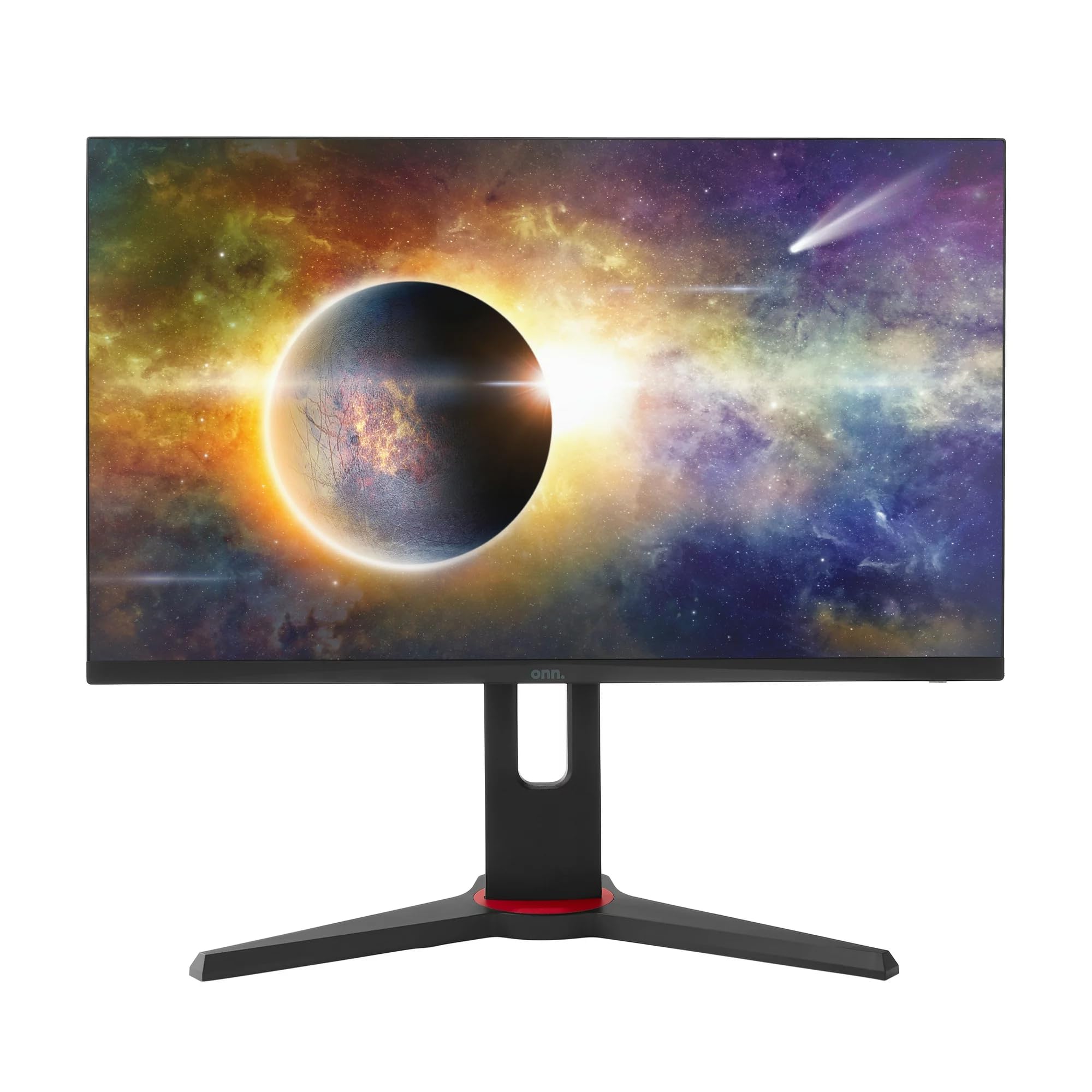
ຮູບພາບ: ທາງຫນ້າ view of the ONN 24-inch Gaming Monitor, fully assembled with its stand.

ຮູບພາບ: ດ້ານຫລັງ view of the ONN 24-inch Gaming Monitor, illustrating the stand attachment and cable management area.
2. ສາຍເຊື່ອມຕໍ່
Locate the input ports on the back of your monitor:
- ພະລັງງານ: ເຊື່ອມຕໍ່ອະແດບເຕີໄຟກັບອິນພຸດໄຟຂອງຈໍພາບ ແລະຈາກນັ້ນໄປຫາປລັກສຽບໄຟ.
- Video Input: Connect one end of the provided DisplayPort or HDMI cable to the corresponding port on your computer's graphics card and the other end to the monitor. The monitor supports 2 HDMI inputs and 1 DisplayPort input.
- ຜົນຜະລິດສຽງ (ທາງເລືອກ): If your monitor has a 3.5mm audio jack, you can connect external speakers or headphones.

ຮູບພາບ: ໃກ້ຊິດ view of the monitor's rear ports, including HDMI 1, HDMI 2, DisplayPort (DP), and power input.
3. ການເປີດເຄື່ອງເບື້ອງຕົ້ນ
- ກວດໃຫ້ແນ່ໃຈວ່າສາຍທັງໝົດຖືກເຊື່ອມຕໍ່ຢ່າງປອດໄພ.
- Press the power button on the monitor (usually located on the back or bottom right).
- The monitor should display the ONN logo and then search for an input signal.
- If no image appears, ensure your computer is powered on and the correct input source is selected on the monitor (see Operating section).
ປະຕິບັດການ
1. ເປີດ/ປິດ
Press the power button to turn the monitor on or off. The power indicator light will show the monitor's status (e.g., blue for on, amber for standby).
2. ການນຳທາງເມນູການສະແດງເທິງໜ້າຈໍ (OSD).
Your monitor features an OSD menu for adjusting various settings. Typically, buttons on the back or bottom of the monitor control the OSD:
- ປຸ່ມເມນູ: ເປີດເມນູ OSD.
- ປຸ່ມນຳທາງ (ຂຶ້ນ/ລົງ/ຊ້າຍ/ຂວາ): ໃຊ້ເພື່ອນຳທາງຜ່ານຕົວເລືອກເມນູ.
- ເລືອກ/ໃສ່ປຸ່ມ: ຢືນຢັນການເລືອກ ຫຼືໃສ່ເມນູຍ່ອຍ.
- ປຸ່ມອອກ: ອອກຈາກເມນູປະຈຸບັນ ຫຼື OSD.
3. ປັບການຕັ້ງຄ່າ
Key settings you can adjust via the OSD menu include:
- ຄວາມສະຫວ່າງ/ຄວາມຄົມຊັດ: ປັບຄວາມສະຫວ່າງໂດຍລວມ ແລະຄວາມແຕກຕ່າງລະຫວ່າງພື້ນທີ່ແສງສະຫວ່າງ ແລະບ່ອນມືດ.
- ການຕັ້ງຄ່າສີ: ແກ້ໄຂອຸນຫະພູມສີ, gamma, ແລະລະດັບ RGB ສ່ວນບຸກຄົນ.
- ແຫຼ່ງປ້ອນຂໍ້ມູນ: ເລືອກດ້ວຍຕົນເອງລະຫວ່າງວັດສະດຸປ້ອນ HDMI 1, HDMI 2, ຫຼື DisplayPort.
- ອັດຕາການໂຫຼດຂໍ້ມູນຄືນໃໝ່: Ensure your graphics card and monitor are set to 165Hz for the smoothest experience. This is usually configured in your operating system's display settings.
- ເວລາຕອບສະໜອງ: Adjust the monitor's response time setting (e.g., 1ms) for reduced motion blur in fast-paced games.
- ເຕັກໂນໂລຊີ FreeSync: Enable FreeSync in the OSD menu and in your AMD graphics card settings to synchronize the monitor's refresh rate with your GPU's frame rate, eliminating screen tearing and stuttering.
- ໂໝດຮູບ: Select from preset modes optimized for different content (e.g., Standard, Game, Movie, Text).

Image: The ONN 24-inch Gaming Monitor displayed in a typical desk setup, connected to a laptop with gaming peripherals.
ບໍາລຸງຮັກສາ
ອະນາໄມຈໍສະແດງຜົນ
- ຖອດສາຍຈໍສະແດງຜົນກ່ອນທຳຄວາມສະອາດທຸກຄັ້ງ.
- ໃຊ້ຜ້າແພອ່ອນໆ ທີ່ບໍ່ມີເສັ້ນດ່າງ ງampຜະສົມດ້ວຍນ້ໍາຫຼືເຄື່ອງເຮັດຄວາມສະອາດຫນ້າຈໍອ່ອນໆທີ່ບໍ່ມີການຂັດ.
- ຢ່າສີດນໍ້າສະອາດໃສ່ໜ້າຈໍໂດຍກົງ. ທາໃສ່ຜ້າກ່ອນ.
- ຫຼີກເວັ້ນການນໍາໃຊ້ສານເຄມີທີ່ຮຸນແຮງ, ແຜ່ນຂັດ, ຫຼືສານລະລາຍ.
ການເກັບຮັກສາ
ຖ້າເກັບຮັກສາຈໍພາບໄວ້ເປັນເວລາດົນ, ຖອດສາຍເຄເບິນທັງໝົດອອກ, ບັນຈຸມັນໄວ້ໃນບັນຈຸພັນເດີມ (ຖ້າມີ), ແລະເກັບຮັກສາໄວ້ໃນບ່ອນທີ່ເຢັນ, ແຫ້ງແລ້ງຫ່າງຈາກແສງແດດໂດຍກົງ ແລະ ອຸນຫະພູມສູງສຸດ.
ການແກ້ໄຂບັນຫາ
ຖ້າເຈົ້າພົບບັນຫາກັບຈໍພາບຂອງເຈົ້າ, ໃຫ້ອ້າງອີງເຖິງບັນຫາ ແລະວິທີແກ້ໄຂບັນຫາທົ່ວໄປຕໍ່ໄປນີ້:
| ບັນຫາ | ການແກ້ໄຂທີ່ເປັນໄປໄດ້ |
|---|---|
| ບໍ່ມີຮູບພາບໃນ ໜ້າ ຈໍ |
|
| Image is flickering or distorted |
|
| No sound (if using monitor speakers/audio out) |
|
| Monitor not reaching 165Hz |
|
ຂໍ້ມູນຈໍາເພາະ
Detailed technical specifications for the ONN 24-inch FHD Gaming Monitor (Model 100027813):
| ຄຸນສົມບັດ | ຂໍ້ມູນຈໍາເພາະ |
|---|---|
| ໝາຍເລກຕົວແບບ | 100027813 |
| ຂະໜາດໜ້າຈໍ | 24 ນິ້ວ |
| ຄວາມລະອຽດ | FHD 1080p (1920x1080) |
| ອັດຕາການໂຫຼດຂໍ້ມູນຄືນໃໝ່ | 165 Hz |
| ເວລາຕອບສະຫນອງ | 1 ມິນລິວິນາທີ |
| ເຕັກໂນໂລຊີການສະແດງ | IPS |
| Adaptive Sync | FreeSync |
| ອັດຕາສ່ວນ | 16:9 |
| ອັດຕາສ່ວນກົງກັນຂ້າມ | 2000:1 |
| ຫນ້າຈໍ | Matte, Anti-glare with low blue light setting |
| ການເຊື່ອມຕໍ່ | 2 x HDMI, 1 x DisplayPort |
| ຂະໜາດສິນຄ້າ (ກວ້າງ x ຍາວ x ສູງ) | 61.3 x 11.3 x 37.3 cm |
| ນ້ໍາຫນັກລາຍການ | 6.1 ກິໂລ |
| ສີ | ດຳ |
| ປະເພດການຕິດຕັ້ງ | ໂຕະຕັ້ງ |
| ການນໍາໃຊ້ສະເພາະ | Entertainment, Gaming |
ຮັບປະກັນ
This ONN 24-inch FHD Gaming Monitor is a renewed product. Warranty terms and conditions for renewed products may vary. Please refer to the specific warranty information provided by the seller or retailer at the time of purchase. It is recommended to retain your proof of purchase for any warranty claims.
ສະຫນັບສະຫນູນ
For technical assistance, troubleshooting beyond this manual, or warranty inquiries, please contact the retailer or the Amazon Renewed support channel where the product was purchased. Have your model number (100027813) and proof of purchase ready when contacting support.