
ແນະນຳ
The Maxcom FW59 Kiddo is a 4G smartwatch specifically designed for children, offering a blend of safety features and communication capabilities. It allows parents to stay connected with their children and monitor their location, providing peace of mind. Key features include video and voice calls, GPS tracking with safe zone definition, an SOS button for emergencies, and a user-friendly interface.
This manual provides detailed instructions on how to set up, operate, and maintain your Maxcom FW59 Kiddo smartwatch to ensure optimal performance and safety.
ເນື້ອໃນຊຸດ
ກະລຸນາກວດເບິ່ງກ່ອງສໍາລັບລາຍການຕໍ່ໄປນີ້:
- Maxcom FW59 Kiddo Smartwatch
- ສາຍສາກ USB
- ຄູ່ມືຜູ້ໃຊ້ (ເອກະສານນີ້)
- ເຄື່ອງມືຖອດຊິມກາດ (ຖ້າມີ)
ຄູ່ມືການຕິດຕັ້ງ
1. ການຕິດຕັ້ງຊິມກາດ
The Maxcom FW59 Kiddo requires a nano SIM card for 4G connectivity, enabling calls and GPS tracking. Ensure the SIM card is active and supports 4G LTE networks.
- ຊອກຫາຊ່ອງໃສ່ຊິມກາດຢູ່ດ້ານຂ້າງຂອງ smartwatch.
- Using the provided SIM ejector tool or a small pin, gently press into the small hole next to the SIM slot to open the tray.
- Carefully place the nano SIM card into the tray with the gold contacts facing down, ensuring it is correctly oriented.
- ຄ່ອຍໆຍູ້ຖາດຊິມກັບຄືນເຂົ້າໄປໃນຊ່ອງຈົນກວ່າມັນຈະເຂົ້າທີ່.
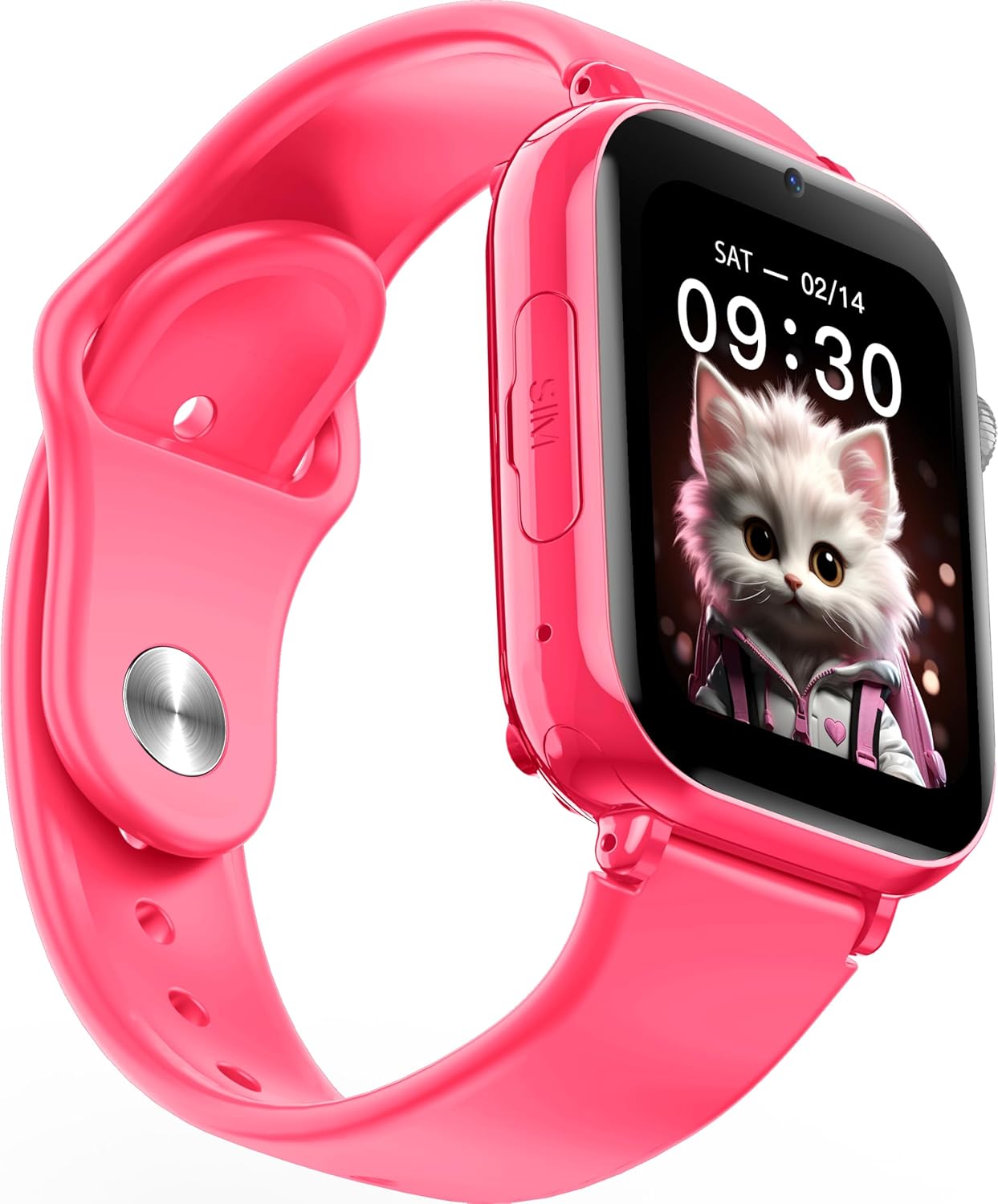
ຮູບພາບ: ມຸມ view of the Maxcom FW59 Kiddo smartwatch, highlighting the location of the SIM card slot on the side.
2. ການສາກ Smartwatch
Before first use, fully charge the smartwatch. The device is equipped with a 670 mAh Lithium Ion battery.
- Connect the USB charging cable to the charging port on the smartwatch.
- ເຊື່ອມຕໍ່ອີກສົ້ນຂອງສາຍ USB ກັບອະແດັບເຕີໄຟ USB ທີ່ເຂົ້າກັນໄດ້ (ບໍ່ລວມ) ຫຼືພອດ USB ຂອງຄອມພິວເຕີ.
- ໜ້າຈໍຈະສະແດງສະຖານະການສາກໄຟ. ການສາກໄຟເຕັມໂດຍປົກກະຕິແລ້ວໃຊ້ເວລາປະມານ 2-3 ຊົ່ວໂມງ.
3. ການຕິດຕັ້ງແອັບ ແລະ ການຈັບຄູ່
To utilize all features, parents must install the "MAXCOM TRACKER" mobile application on their smartphone and pair it with the smartwatch.
- Download the "MAXCOM TRACKER" app from your smartphone's app store (Google Play Store for Android or Apple App Store for iOS).
- ເປີດ app ແລະສ້າງບັນຊີຫຼືເຂົ້າສູ່ລະບົບຖ້າຫາກວ່າທ່ານມີແລ້ວ.
- Follow the in-app instructions to add a new device. This usually involves scanning a QR code displayed on the smartwatch screen or manually entering the device ID.
- Once paired, you can configure settings, add contacts, define safe zones, and track the smartwatch's location from the app.
ປະຕິບັດການ Smartwatch
ການນໍາທາງພື້ນຖານ
The Maxcom FW59 Kiddo features a 1.85" IPS touchscreen display for easy interaction. Swipe left/right or up/down to navigate through menus and applications. Press the side button to return to the home screen or wake the device.

ຮູບພາບ: ທາງຫນ້າ view of the Maxcom FW59 Kiddo smartwatch displaying the time and a cute cat wallpaper.
Video and Voice Calls
With a nano SIM card inserted, the smartwatch supports both video and voice calls to pre-approved contacts.
- ໂທອອກ: Navigate to the "Contacts" or "Phone" application, select the desired contact, and choose to initiate a voice or video call.
- ຮັບສາຍ: When a call comes in, the smartwatch will ring and display the caller ID. Tap the green icon to answer or the red icon to decline.
ຟັງຊັນ SOS
The dedicated SOS button provides an immediate way for the child to alert pre-set emergency contacts.
- ການເປີດໃຊ້ SOS: Press and hold the SOS button (usually a prominent side button) for a few seconds.
- The smartwatch will automatically call the emergency contacts in a pre-defined sequence until one answers. It will also send an alert with the child's current location to the parent's app.
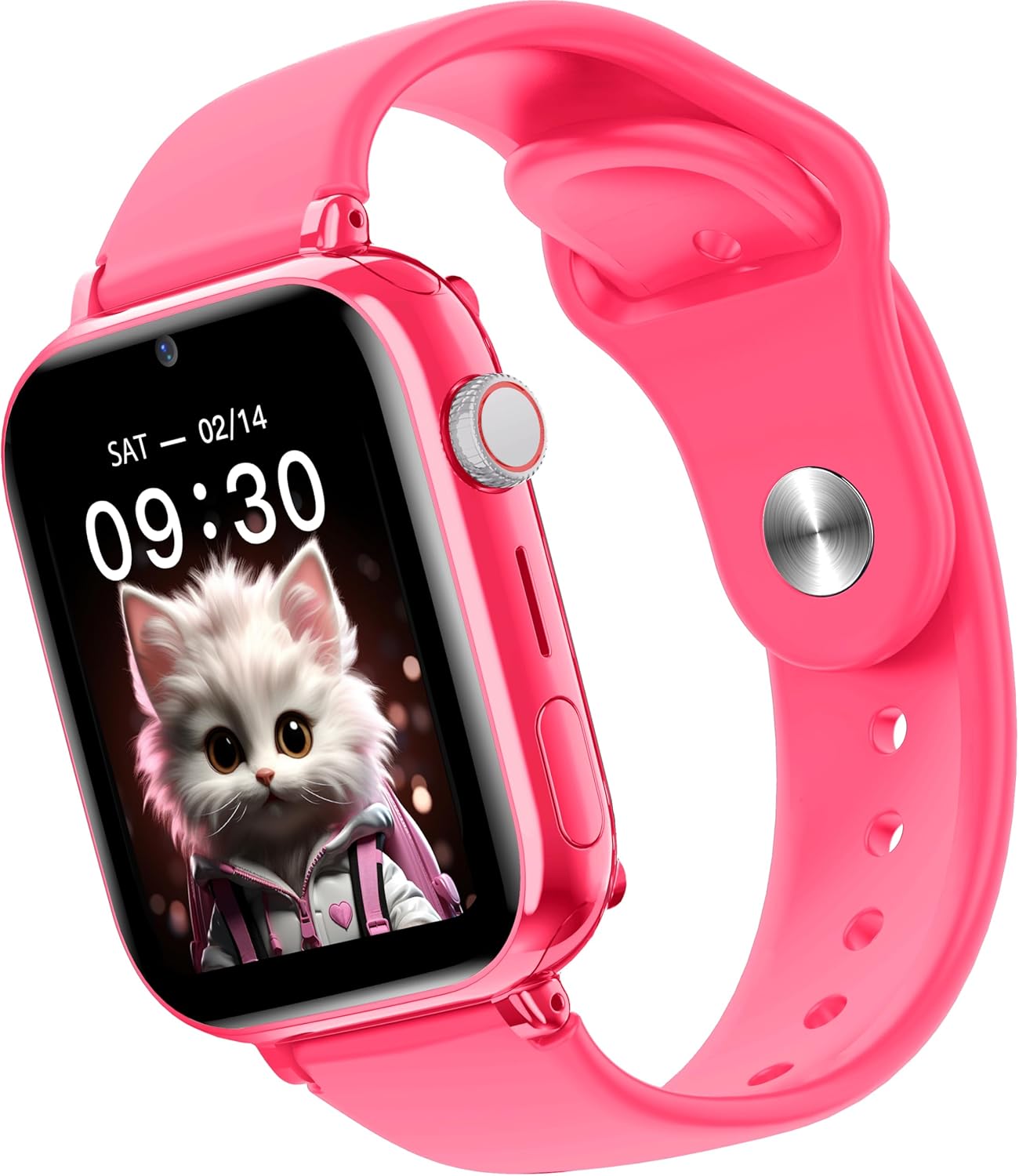
ຮູບພາບ: ຂ້າງ view of the Maxcom FW59 Kiddo smartwatch, illustrating the physical buttons, including the SOS button.
GPS Tracking and Safe Zones
Parents can monitor the child's location in real-time via the MAXCOM TRACKER app.
- ການຕິດຕາມເວລາຈິງ: Open the MAXCOM TRACKER app on your smartphone to view the smartwatch's current location on a map.
- ເຂດປອດໄພ: In the app, you can define virtual geographic boundaries (e.g., home, school). You will receive notifications when the smartwatch enters or exits these designated safe zones.
- ປະຫວັດເສັ້ນທາງ: The app also allows you to review the historical movement data of the smartwatch.
ຟັງຊັນກ້ອງຖ່າຍຮູບ
The smartwatch includes a built-in camera. Children can take photos directly from the watch, and parents can remotely activate the camera from the MAXCOM TRACKER app to capture images of the surroundings.
Phone Book Management
Contacts can only be added and managed through the MAXCOM TRACKER app by the parent. This ensures that the child can only communicate with pre-approved numbers.
ບໍາລຸງຮັກສາ
ທໍາຄວາມສະອາດ
To keep your smartwatch clean and in good condition:
- ເຊັດໜ້າຈໍ ແລະ ຮ່າງກາຍດ້ວຍຜ້າອ່ອນໆ, ທີ່ບໍ່ມີເສັ້ນດ່າງ.
- ສໍາລັບຮອຍແຂງ, ເລັກນ້ອຍ dampen ຜ້າທີ່ມີນ້ໍາ. ຫຼີກເວັ້ນການນໍາໃຊ້ສານເຄມີທີ່ຮຸນແຮງຫຼືວັດສະດຸຂັດ.
- Ensure the charging port and SIM slot are free of dust and debris.
ການດູແລຫມໍ້ໄຟ
ການດູແລແບັດເຕີຣີທີ່ເໝາະສົມຈະຊ່ວຍຍືດອາຍຸການໃຊ້ງານຂອງອຸປະກອນຂອງທ່ານ:
- ຫຼີກເວັ້ນອຸນຫະພູມທີ່ຮຸນແຮງ, ຍ້ອນວ່າພວກມັນສາມາດເຮັດໃຫ້ປະສິດທິພາບຫມໍ້ໄຟຫຼຸດລົງ.
- ສາກອຸປະກອນເປັນປະຈຳ, ແຕ່ຫຼີກລ່ຽງການປ່ອຍມັນອອກເຕັມທີ່ເປັນເວລາດົນ.
- ໃຊ້ພຽງແຕ່ສາຍສາກທີ່ໃຫ້ມາ.
ການແກ້ໄຂບັນຫາ
If you encounter issues with your Maxcom FW59 Kiddo, refer to the following common solutions:
- ໂມງອັດສະລິຍະບໍ່ເປີດ: ໃຫ້ແນ່ໃຈວ່າໄດ້ສາກໄຟແລ້ວ. ເຊື່ອມຕໍ່ກັບສາຍສາກ ແລະລໍຖ້າສອງສາມນາທີກ່ອນທີ່ຈະພະຍາຍາມເປີດເຄື່ອງ.
- ບໍ່ມີສັນຍານເຄືອຂ່າຍ/ບໍ່ສາມາດໂທອອກໄດ້:
- Check if the nano SIM card is correctly inserted and active.
- Verify that the SIM card has sufficient credit or an active data plan.
- Ensure you are in an area with 4G network coverage.
- GPS location inaccurate:
- ໃຫ້ແນ່ໃຈວ່າ smartwatch ມີຄວາມຊັດເຈນ view ຂອງທ້ອງຟ້າສໍາລັບການຮັບສັນຍານ GPS ທີ່ດີທີ່ສຸດ.
- Location accuracy can be affected by dense buildings, underground areas, or poor network signal.
- Check the MAXCOM TRACKER app settings to ensure location services are enabled for the smartwatch.
- ບໍ່ສາມາດຈັບຄູ່ກັບແອັບ:
- Ensure the smartwatch is powered on and has a network connection.
- Verify that the QR code or device ID is entered correctly in the app.
- Try restarting both the smartwatch and your smartphone.
- ຊີວິດຫມໍ້ໄຟສັ້ນ:
- Frequent video calls, high screen brightness, and continuous GPS tracking can consume more battery.
- Adjust settings in the app to optimize battery usage (e.g., location update frequency).
ຖ້າບັນຫາຍັງຄົງຢູ່, ກະລຸນາຕິດຕໍ່ຫາຝ່າຍສະໜັບສະໜູນລູກຄ້າ Maxcom ເພື່ອຂໍຄວາມຊ່ວຍເຫຼືອຕື່ມອີກ.
ຂໍ້ມູນຈໍາເພາະ
| ຄຸນສົມບັດ | ລາຍລະອຽດ |
|---|---|
| ຍີ່ຫໍ້ | Maxcom |
| ຊື່ຕົວແບບ | FW59 Kiddo |
| ຂະໜາດໜ້າຈໍ | 1.85 ນິ້ວ |
| ປະເພດການສະແດງ | IPS (240 x 280 resolution) |
| ລະບົບປະຕິບັດການ | Closed OS |
| ຄວາມອາດສາມາດເກັບຮັກສາຫນ່ວຍຄວາມຈໍາ | 2 MB |
| ຄວາມອາດສາມາດຫມໍ້ໄຟ | 670 mAh (Lithium Ion) |
| ເຕັກໂນໂລຊີໂທລະສັບມືຖື | 4G |
| ເຕັກໂນໂລຊີການເຊື່ອມຕໍ່ | ບລູທູດ, ຄວາມຖີ່ວິທະຍຸ |
| ຄຸນນະສົມບັດພິເສດ | Kids Tracking, SOS Button, Video/Voice Calls |
| ນ້ໍາຫນັກລາຍການ | 300 g |
ການຮັບປະກັນແລະການສະຫນັບສະຫນູນ
For information regarding warranty coverage and terms for your Maxcom FW59 Kiddo smartwatch, please refer to the warranty card included with your purchase or visit the official Maxcom website. For technical support, troubleshooting beyond this manual, or service inquiries, please contact Maxcom customer support through their official channels.