
1. ບົດແນະນຳ
This manual provides essential instructions for the safe and efficient use of your Meizu Note 21 Pro smartphone. Please read this manual thoroughly before operating the device and retain it for future reference.
2. ສິ່ງທີ່ຢູ່ໃນກ່ອງ
- Meizu Note 21 Pro Smartphone
- Power Adapter
- (Other accessories such as USB cable, SIM ejector tool, and documentation may vary by region.)
3. ແຜນຜັງອຸປະກອນ
Familiarize yourself with the physical components of your Meizu Note 21 Pro.
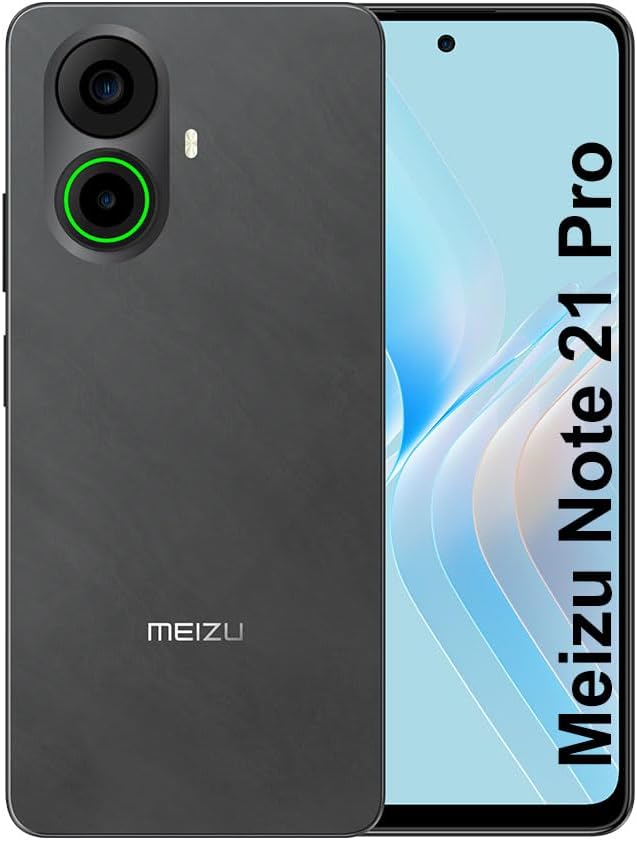
ຮູບພາບ 3.1: ດ້ານໜ້າ ແລະ ດ້ານຫຼັງ view of the Meizu Note 21 Pro. The front displays the screen with a punch-hole camera. The rear shows the dual camera module with a green accent ring on one lens, a flash, and the "MEIZU" logo at the bottom.
- ຈໍສະແດງຜົນດ້ານຫນ້າ: 6.78-inch FHD+ screen with a 120Hz refresh rate.
- ກ້ອງໜ້າ: ຕັ້ງຢູ່ໃຈກາງເທິງຂອງຈໍສະແດງຜົນ.
- ກ້ອງຫຼັງ: Dual camera system, including a 64MP main camera.
- ເຊັນເຊີລາຍນິ້ວມືດ້ານຂ້າງ: Integrated for secure access.
- ພອດ USB: ສໍາລັບການສາກໄຟແລະການໂອນຂໍ້ມູນ.
- Jack ສຽງ 3.5mm: ສໍາລັບຫູຟັງ.
- ຖາດແຜ່ນ SIM/MicroSD: Supports Dual Nano SIM and MicroSD cards.
4. ຕັ້ງຄ່າ
4.1. ກຳລັງໃສ່ແຜ່ນ SIM ແລະ MicroSD
- ຊອກຫາຖາດຊິມກາດຢູ່ດ້ານຂ້າງຂອງອຸປະກອນຂອງທ່ານ.
- ສຽບເຄື່ອງຖອດຊິມເຂົ້າໄປໃນຮູນ້ອຍຂ້າງຖາດແລະຍູ້ຄ່ອຍໆຈົນກວ່າຖາດຈະປົ່ງອອກ.
- ວາງ Nano SIM card(s) ແລະ/ຫຼື MicroSD card ເຂົ້າໄປໃນຊ່ອງທີ່ກໍານົດໄວ້ເທິງຖາດ. ຮັບປະກັນການຕິດຕໍ່ສີຄຳຫັນໜ້າລົງລຸ່ມ.
- ໃສ່ຖາດໃສ່ອຸປະກອນຄືນໃໝ່ຢ່າງລະມັດລະວັງຈົນກວ່າມັນຈະກົດໃສ່ບ່ອນ.
4.2. ເປີດ ແລະ ຕັ້ງຄ່າເບື້ອງຕົ້ນ
- Press and hold the Power button until the Meizu logo appears.
- ປະຕິບັດຕາມການເຕືອນໃນຫນ້າຈໍເພື່ອເລືອກພາສາຂອງທ່ານ, ເຊື່ອມຕໍ່ກັບເຄືອຂ່າຍ Wi-Fi, ແລະຕັ້ງຄ່າບັນຊີ Google ຂອງທ່ານ.
- During setup, you will be guided to configure security features such as a PIN, pattern, or password.
4.3. Fingerprint Recognition Setup
- ທ່ອງໄປຫາ ການຕັ້ງຄ່າ > ຄວາມປອດໄພ & ຄວາມເປັນສ່ວນຕົວ > ປົດລັອກດ້ວຍລາຍນິ້ວມື.
- Follow the on-screen instructions to register your fingerprint by repeatedly touching the side-mounted sensor.
- Ensure your finger covers the entire sensor area during registration for optimal performance.
5. ປະຕິບັດການອຸປະກອນຂອງທ່ານ
5.1. ການສະແດງແລະການນໍາທາງ
- The 6.78-inch FHD+ display operates at a 120Hz refresh rate for smooth visuals.
- Navigate the Android 14 operating system using touch gestures: tap, swipe, pinch-to-zoom.
- ເຂົ້າເຖິງການຕັ້ງຄ່າດ່ວນໂດຍການປັດລົງມາຈາກດ້ານເທິງຂອງໜ້າຈໍ.
5.2. ຟັງຊັນກ້ອງຖ່າຍຮູບ
- ເປີດແອັບພລິເຄຊັນກ້ອງຖ່າຍຮູບຈາກໜ້າຈໍຫຼັກ ຫຼືລິ້ນຊັກແອັບ.
- The rear camera system features a 64MP main sensor for high-resolution photos and a 2MP depth-of-field camera for portrait effects.
- The 13MP front-facing camera is suitable for selfies and video calls.
- Tap on the screen to focus, and use the on-screen shutter button to capture images. Explore various modes like Portrait, Night, and Pro within the camera app.
5.3. ປະສິດທິພາບແລະການເກັບຮັກສາ
- The MediaTek G99 Octa Core processor ensures efficient performance for applications and multitasking.
- The device comes with 256GB of internal storage and 8GB of RAM.
- Storage can be expanded using a MicroSD card (sold separately).
5.4. ຫມໍ້ໄຟແລະການສາກໄຟ
- The Meizu Note 21 Pro is equipped with a 5000mAh battery.
- Use the provided Power Adapter for 30W fast charging.
- To charge, connect the USB cable to the phone's USB port and the power adapter, then plug the adapter into a wall outlet.
5.5. ການເຊື່ອມຕໍ່
- 4G LTE: Supports various LTE FDD and TDD bands for cellular data. Note: This international version works on T-Mobile in the USA and globally with other carriers.
- Wi-Fi 5: ເຊື່ອມຕໍ່ຫາເຄືອຂ່າຍໄຮ້ສາຍເພື່ອເຂົ້າເຖິງອິນເຕີເນັດ.
- Bluetooth: ຈັບຄູ່ກັບອຸປະກອນເສີມໄຮ້ສາຍເຊັ່ນ: ຫູຟັງ ແລະ ລຳໂພງ.
- NFC: ສໍາລັບການຈ່າຍເງິນແບບ contactless ແລະການຈັບຄູ່ໄວກັບອຸປະກອນທີ່ເຂົ້າກັນໄດ້.
- GPS: ສໍາລັບການບໍລິການສະຖານທີ່ແລະການນໍາທາງ.
6. ບໍາລຸງຮັກສາ
- ທໍາຄວາມສະອາດ: ໃຊ້ຜ້າອ່ອນໆທີ່ບໍ່ມີຂົນເພື່ອທຳຄວາມສະອາດໜ້າຈໍ ແລະ ຕົວເຄື່ອງຂອງອຸປະກອນ. ຫຼີກລ່ຽງສານເຄມີຮຸນແຮງ ຫຼື ວັດສະດຸທີ່ມີສານຂັດ.
- ການດູແລຫມໍ້ໄຟ: Avoid extreme temperatures. Do not fully discharge the battery frequently. For optimal battery longevity, keep the charge between 20% and 80%.
- ອັບເດດຊອບແວ: ກວດສອບ ແລະຕິດຕັ້ງການອັບເດດລະບົບເປັນປະຈຳເພື່ອຮັບປະກັນປະສິດທິພາບ ແລະຄວາມປອດໄພທີ່ດີທີ່ສຸດ. ໄປທີ່ ການຕັ້ງຄ່າ > ລະບົບ > ອັບເດດລະບົບ.
7. ການແກ້ໄຂບັນຫາ
| ສະບັບ | ການແກ້ໄຂທີ່ເປັນໄປໄດ້ |
|---|---|
| ອຸປະກອນບໍ່ເປີດ | Ensure the battery is charged. Connect the device to the power adapter and try again. If unresponsive, press and hold the Power button for 10-15 seconds to force a restart. |
| ສັນຍານເຄືອຂ່າຍບໍ່ດີ | Check if the SIM card is correctly inserted. Move to an area with better network coverage. Restart the device. Verify with your carrier that your plan is active. |
| ແອັບຯຊ້າ ຫຼືຂັດຂ້ອງ | ປິດແອັບພລິເຄຊັນພື້ນຫຼັງ. ລຶບລ້າງແຄດແອັບ (ການຕັ້ງຄ່າ > ແອັບ > ເລືອກແອັບ > ການເກັບຮັກສາ & cache > ລຶບລ້າງແຄດ). Restart the device. Ensure sufficient storage space. |
| ເຊັນເຊີລາຍນິ້ວມືບໍ່ເຮັດວຽກ | Ensure your finger and the sensor are clean and dry. Re-register your fingerprint in settings. |
8. ຂໍ້ມູນຈໍາເພາະ
- ຕົວແບບ: Meizu Note 21 Pro
- ລະບົບປະຕິບັດການ: Android 14
- ໜ່ວຍປະມວນຜົນ: MediaTek G99 Octa Core (2.2GHz)
- ຈໍສະແດງຜົນ: 6.78 inches FHD+ (1080 x 2160 resolution), 120Hz Refresh Rate
- RAM: 8 GB
- ການເກັບຮັກສາພາຍໃນ: 256 GB
- ກ້ອງຫຼັງ: 64MP Main + 2MP Depth
- ກ້ອງໜ້າ: 13MP
- ແບັດເຕີຣີ: 5000mAh, ສາກໄວ 30W
- ການເຊື່ອມຕໍ່: 4G LTE (FDD:1,2,3,4,5,7,8,12,17,18,19,20,26,28,66; TDD:38,40,41), 3G WCDMA, 2G Quad Band, Wi-Fi 5, Bluetooth, NFC, GPS
- Jack ສຽງ: 3.5 ມມ
- ຂະໜາດ: 6.64 x 2.96 x 0.33 ນິ້ວ
- ນ້ຳໜັກ: 1.1 ປອນ
9. ການຮັບປະກັນແລະການສະຫນັບສະຫນູນ
For warranty information and technical support, please refer to the warranty card included with your product or visit the official Meizu webເວັບໄຊ. ຮັກສາຫຼັກຖານການຊື້ຂອງທ່ານສໍາລັບການຮ້ອງຂໍການຮັບປະກັນ.
For further assistance, you may contact Meizu customer service through their official channels.