
ແນະນຳ
ຂອບໃຈສໍາລັບການຊື້asing the KTC H27S17 27-inch WQHD 180Hz Curved Gaming Monitor. This manual provides essential information for the safe and efficient use of your new monitor. Please read it thoroughly before use and retain it for future reference.
ສິນຄ້າເກີນview ວິດີໂອ
ວິດີໂອ: ວິດີໂອຜະລິດຕະພັນຢ່າງເປັນທາງການasing the key features and design of the KTC H27S17 27-inch Curved Gaming Monitor.
ເນື້ອໃນຊຸດ
ກວດສອບວ່າລາຍການທັງຫມົດທີ່ລະບຸໄວ້ຂ້າງລຸ່ມນີ້ແມ່ນລວມຢູ່ໃນຊຸດຂອງທ່ານ:
- ສາຍໄຟ
- ສາຍ DisplayPort
- Power Adapter
- ຕິດຕາມ Stand
- ພື້ນຖານຢືນ
- ຊີດີໄດຣເວີ (ຫຼືລິ້ງດາວໂຫຼດ)
- screws ການຕິດຕັ້ງ
- Instruction Manual (Japanese version)
- ຄູ່ມືເລີ່ມຕົ້ນດ່ວນ
- ບັດຮັບປະກັນ
ຄໍາແນະນໍາການຕິດຕັ້ງ
1. ການປະກອບຂາຕັ້ງ
Attach the stand base to the monitor stand using the provided screws. Then, securely attach the assembled stand to the back of the monitor.
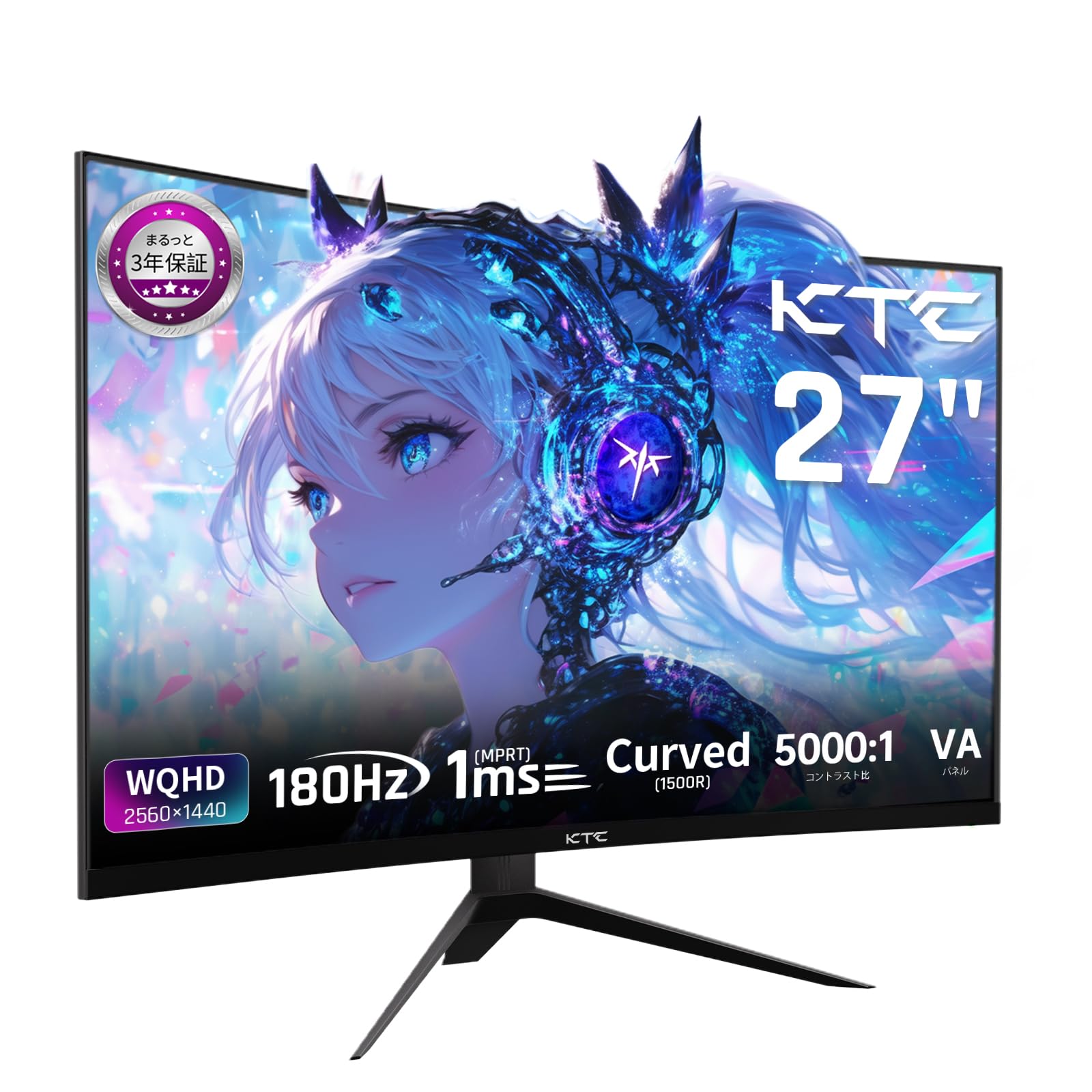
Image: The KTC H27S17 monitor fully assembled with its stand, viewed ຈາກທາງຫນ້າ.
2. ການເຊື່ອມຕໍ່ກັບແຫຼ່ງພະລັງງານ
ເຊື່ອມຕໍ່ອະແດບເຕີໄຟກັບຜອດອິນພຸດ DC ຂອງຈໍພາບ, ຈາກນັ້ນສຽບສາຍໄຟໃສ່ກັບປລັກສຽບໃສ່ຝາ.
3. ການເຊື່ອມຕໍ່ກັບອຸປະກອນ
Use the appropriate cable (DisplayPort or HDMI) to connect your computer or gaming console to the monitor. Ensure the cable is securely connected to both the monitor and your device.

ຮູບພາບ: ດ້ານຫລັງ view of the monitor showing the various input ports including DC, USB, HDMI, DisplayPort, and headphone jack.
4. ການຕິດຕັ້ງ VESA (ທາງເລືອກ)
The monitor supports VESA 100mm x 100mm mounting. If using a VESA mount, remove the stand and attach the monitor to your VESA-compatible arm or wall mount using appropriate screws.
Image: Diagram illustrating the VESA 100x100mm mounting pattern and tilt adjustment range on the back of the monitor.
ຄໍາແນະນໍາການດໍາເນີນງານ
ເປີດ/ປິດ
Press the power button, usually located on the back or bottom of the monitor, to turn it on or off. The power indicator light will illuminate when the monitor is on.
ເມນູການສະແດງຢູ່ໜ້າຈໍ (OSD).
Use the joystick or buttons on the monitor to navigate the OSD menu. This menu allows you to adjust various display settings such as brightness, contrast, color temperature, input source, and gaming features.
ການເລືອກແຫຼ່ງປ້ອນຂໍ້ມູນ
If multiple devices are connected, use the OSD menu to select the desired input source (HDMI 1, HDMI 2, DisplayPort 1, DisplayPort 2).
ຄຸນສົມບັດການສະແດງ
Curved Display (1500R)
ເສັ້ນໂຄ້ງ 1500R ສະຫນອງການ immersive viewing experience, reducing eye strain during extended use by matching the natural curve of the human eye.

Image: A curved monitor displaying a vibrant image, highlighting the 1500R curvature for an immersive experience.
WQHD Resolution (2560x1440)
Experience detailed visuals with WQHD (2560x1440) resolution, offering approximately 1.7 times the pixel density of Full HD displays.

Image: A monitor displaying a high-resolution image, emphasizing the clarity of WQHD (2560x1440) compared to lower resolutions.
High Refresh Rate (180Hz) and Fast Response Time (1ms MPRT)
The 180Hz refresh rate and 1ms (MPRT) response time ensure smooth, blur-free visuals, crucial for fast-paced gaming and action scenes.

Image: A split screen comparison on the monitor, demonstrating the difference between 180Hz/1ms and 60Hz/5ms, highlighting reduced motion blur.
Vibrant Color Reproduction and HDR10
With sRGB 132%, DCI-P3 104%, Adobe RGB 112% color volume, and HDR10 support, the monitor delivers accurate and vivid colors with enhanced contrast between bright and dark areas.

Image: A monitor displaying a colorful scene, illustrating the wide color gamut and high contrast ratio (5000:1).
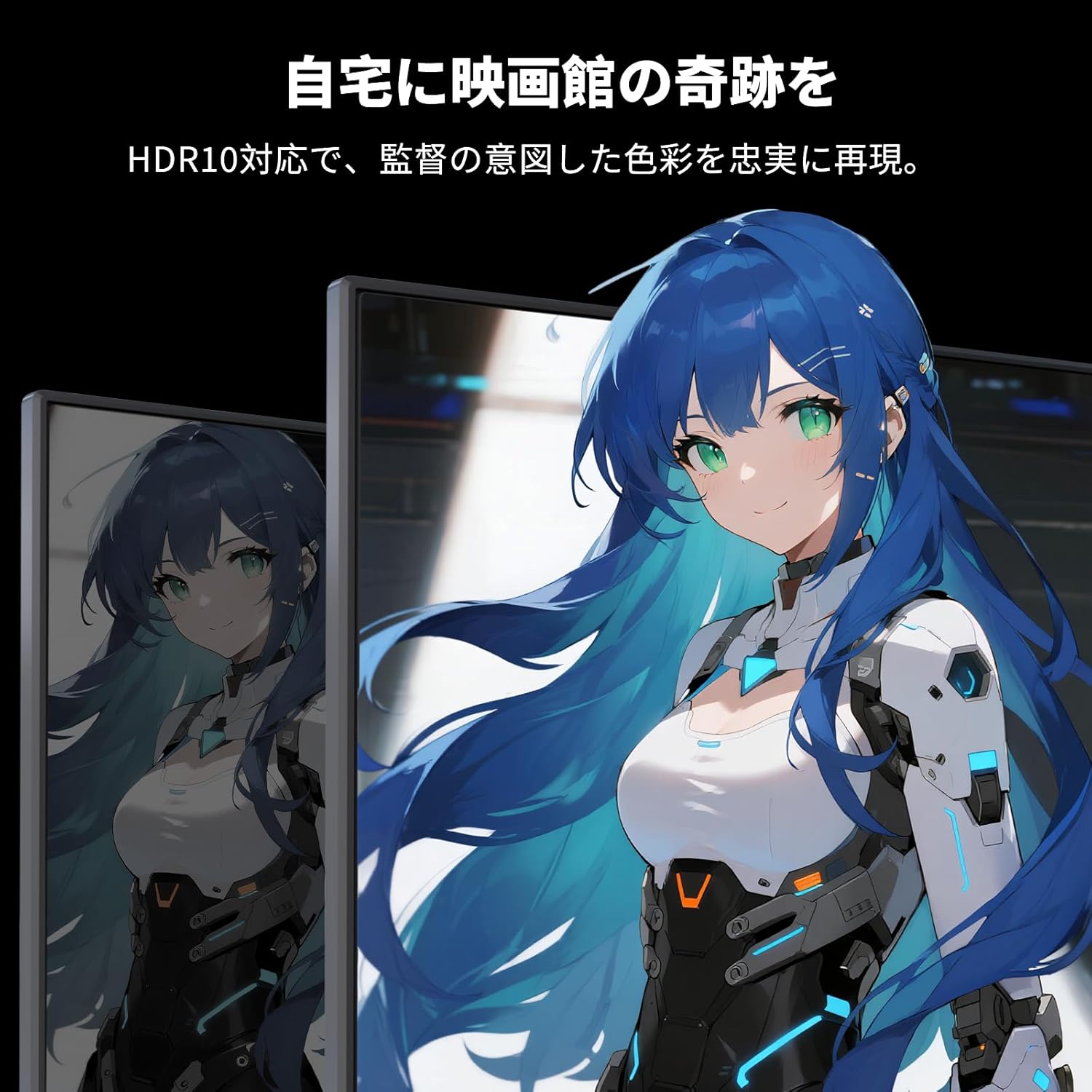
Image: A monitor showing a scene with HDR10 enabled, demonstrating improved dynamic range and detail in both bright and dark areas.
ເທັກໂນໂລຍີການຊິງຄ໌ແບບປັບຕົວໄດ້
Adaptive Sync (FreeSync and G-Sync compatible) eliminates screen tearing and stuttering, providing a fluid gaming experience.

Image: A split screen comparison on the monitor, showing the difference between Adaptive Sync OFF (screen tearing) and ON (smooth image).
ຄຸນນະສົມບັດການດູແລຕາ
The monitor includes Flicker-Free technology and a Low Blue Light mode to reduce eye strain during prolonged use.

Image: Illustrations demonstrating Flicker-Free technology and Low Blue Light mode, designed to reduce eye fatigue.
ການເຊື່ອມຕໍ່
The KTC H27S17 monitor offers multiple connectivity options:
- 2 x HDMI 2.0: Supports WQHD (2560x1440) at 144Hz.
- 2 x DisplayPort 1.4: Supports WQHD (2560x1440) at 180Hz.
- 1 x USB 2.0: ສຳລັບການອັບເກຣດເຟີມແວເທົ່ານັ້ນ.
- 1 x 3.5mm Headphone Jack: ສໍາລັບຜົນຜະລິດສຽງ.
- 1 x DC Input: ສໍາລັບການເຊື່ອມຕໍ່ພະລັງງານ.
ຮູບພາບ: ລາຍລະອຽດ view of the monitor's rear panel, highlighting the DC input, USB port, HDMI ports, DisplayPort inputs, and headphone jack.
Physical Adjustments
ການປັບຕົວອຽງ
The monitor stand allows for tilt adjustment from -5 to 15 degrees, enabling you to find an optimal viewໃນມຸມເພື່ອຄວາມສະດວກສະບາຍ.
Image: Diagram illustrating the tilt adjustment range of the monitor stand.
ຄວາມເຂົ້າກັນໄດ້ຂອງ VESA
The monitor is compatible with VESA 100mm x 100mm mounting standards, allowing for flexible installation with monitor arms or wall mounts.
ບໍາລຸງຮັກສາ
ການທໍາຄວາມສະອາດຫນ້າຈໍ
ເຊັດໜ້າຈໍຢ່າງອ່ອນໂຍນດ້ວຍຜ້າອ່ອນໆ, ບໍ່ມີເຈັ້ຍ. ສໍາລັບຮອຍແຂງ, ເບົາບາງ dampໃສ່ຜ້າດ້ວຍນ້ໍາຫຼືການແກ້ໄຂເຮັດຄວາມສະອາດຫນ້າຈໍ. ຫຼີກເວັ້ນການນໍາໃຊ້ສານເຄມີທີ່ຮຸນແຮງຫຼືວັດສະດຸຂັດ.
Cleaning the Monitor Body
Wipe the monitor body with a soft, dry cloth. Do not use liquid cleaners directly on the monitor.
ການເກັບຮັກສາ
ເມື່ອບໍ່ໄດ້ໃຊ້ເປັນເວລາດົນ, ໃຫ້ເກັບຮັກສາຈໍພາບໄວ້ໃນບ່ອນທີ່ເຢັນ, ແຫ້ງ, ຫ່າງຈາກແສງແດດໂດຍກົງ ແລະ ອຸນຫະພູມທີ່ຮ້າຍກາດ.
ການແກ້ໄຂບັນຫາ
ຖ້າທ່ານພົບບັນຫາກັບຈໍພາບຂອງທ່ານ, ໃຫ້ອ້າງອີງເຖິງວິທີແກ້ໄຂທົ່ວໄປຕໍ່ໄປນີ້:
- ບໍ່ມີພະລັງງານ: Ensure the power cable and adapter are securely connected and the power outlet is functional.
- ບໍ່ມີສັນຍານ: Verify that the input cable (HDMI/DisplayPort) is correctly connected to both the monitor and the source device. Select the correct input source via the OSD menu.
- ຮູບພາບທີ່ກະພິບ/ບິດເບືອນ: Check cable connections. Ensure your graphics card drivers are up to date. Try adjusting the refresh rate in your device's display settings.
- Dead Pixels: While rare, a small number of dead pixels may be within manufacturing tolerances. Refer to the warranty policy for details.
- Audio Issues (Headphone Jack): Ensure headphones are fully plugged in. Check audio settings on your connected device.
For further assistance, please contact KTC customer support.
ຂໍ້ມູນຈໍາເພາະ
| ຄຸນສົມບັດ | ຂໍ້ມູນຈໍາເພາະ |
|---|---|
| ຍີ່ຫໍ້ | KTC |
| ຕົວແບບ | H27S17 |
| ຂະໜາດໜ້າຈໍ | 27 ນິ້ວ |
| ຄວາມລະອຽດ | WQHD (2560 x 1440 ພິກເຊວ) |
| ອັດຕາສ່ວນ | 16:9 |
| ເສັ້ນໂຄ້ງ | 1500R |
| ປະເພດແຜງ | VA |
| ອັດຕາການໂຫຼດຂໍ້ມູນຄືນໃໝ່ | 180 Hz |
| ເວລາຕອບສະຫນອງ | 1 ມລ (MPRT) |
| ອັດຕາສ່ວນກົງກັນຂ້າມ | 5000:1 |
| ຄວາມສະຫວ່າງ | 300 cd/m² |
| ສີ Gamut | sRGB 132% / DCI-P3 104% / Adobe RGB 112% |
| ຮອງຮັບ HDR | HDR10 |
| Adaptive Sync | FreeSync, G-Sync Compatible |
| ການເຊື່ອມຕໍ່ | 2x HDMI 2.0, 2x DisplayPort 1.4, 1x USB 2.0 (Upgrade only), 1x Headphone Jack |
| VESA ພູເຂົາ | 100mm x 100mm |
| ການປັບຕົວອຽງ | -5 ເຖິງ 15 ອົງສາ |
| ຄຸນນະສົມບັດການດູແລຕາ | ບໍ່ມີ Flicker, ແສງສະຫວ່າງສີຟ້າຕ່ໍາ |
ການຮັບປະກັນແລະການສະຫນັບສະຫນູນ
KTC provides a 3-year warranty and a 12-month exchange service for this product. For any questions or issues, please contact customer support.
- ໂທລະສັບ: 050-3606-8990
- ອີເມວ: support@ktcplay.com

Image: Information regarding KTC's 3-year warranty and contact details for customer support.
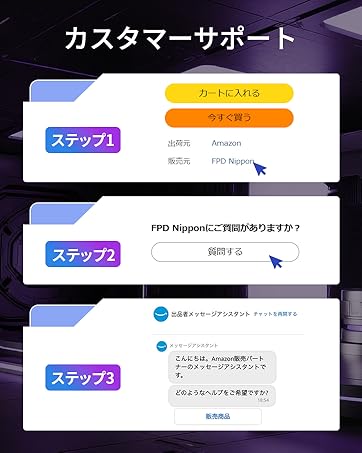
Image: Step-by-step guide on how to contact customer support via Amazon.