
1. ບົດແນະນຳ
This manual provides detailed instructions for the installation, operation, and maintenance of your GAMEON Midnight I Series Mid Tower Gaming PC Case. Please read this manual thoroughly before beginning installation to ensure proper setup and to maximize the performance and lifespan of your product. Keep this manual for future reference.
2. ຂໍ້ມູນຄວາມປອດໄພ
- ໃຫ້ຖອດສາຍໄຟອອກຈາກປລັກໄຟສະເໝີກ່ອນຕິດຕັ້ງ ຫຼື ບຳລຸງຮັກສາພາຍໃນເຄສຄອມພິວເຕີ.
- Handle the tempered glass panels with care. Tempered glass, while durable, can shatter if dropped or subjected to sharp impacts.
- Avoid exposing the case to extreme temperatures or high humidity.
- Do not attempt to modify the case or its components. Unauthorized modifications may void your warranty and pose safety risks.
- ເກັບຮັກສາຊິ້ນສ່ວນຂະໜາດນ້ອຍ ແລະ ສະກູໃຫ້ໄກຈາກເດັກນ້ອຍ.
3. ເນື້ອໃນຊຸດ
ກະລຸນາກວດສອບວ່າລາຍການທັງໝົດທີ່ມີລາຍຊື່ລຸ່ມນີ້ຢູ່ໃນຊຸດຂອງທ່ານ:
- GAMEON Midnight I Series Mid Tower Gaming PC Case
- 7 x 120mm ARGB PWM Cooling Fans (pre-installed)
- Accessory Box (containing screws, cable ties, and other mounting hardware)
- ARGB/PWM Fan Controller and Remote Control
- ຄູ່ມືຜູ້ໃຊ້ (ເອກະສານນີ້)
4. ຜະລິດຕະພັນເກີນview
The GAMEON Midnight I Series PC case is designed for optimal cooling and aesthetic appeal, featuring tempered glass panels and pre-installed ARGB PWM fans.

Figure 4.1: Internal layout of the PC case, highlighting the spacious interior for component installation.

Figure 4.2: Rear and top internal view, illustrating fan placement and overall structure.
4.1 ARGB+PWM Case Fans
The case comes with 7 pre-installed 120mm ARGB PWM fans, providing efficient cooling and customizable lighting. The fans are controlled via an included ARGB/PWM controller and remote.

Figure 4.3: ARGB+PWM fan features and fan mounting support. The front supports 360mm water cooling. Fan mounts include 3x120mm for PSU cover, 3x120mm for bottom, 3x120mm for top, and 1x120mm for rear.
4.2 ພອດ I/O ທາງໜ້າ
The front panel provides convenient access to essential ports for connectivity.
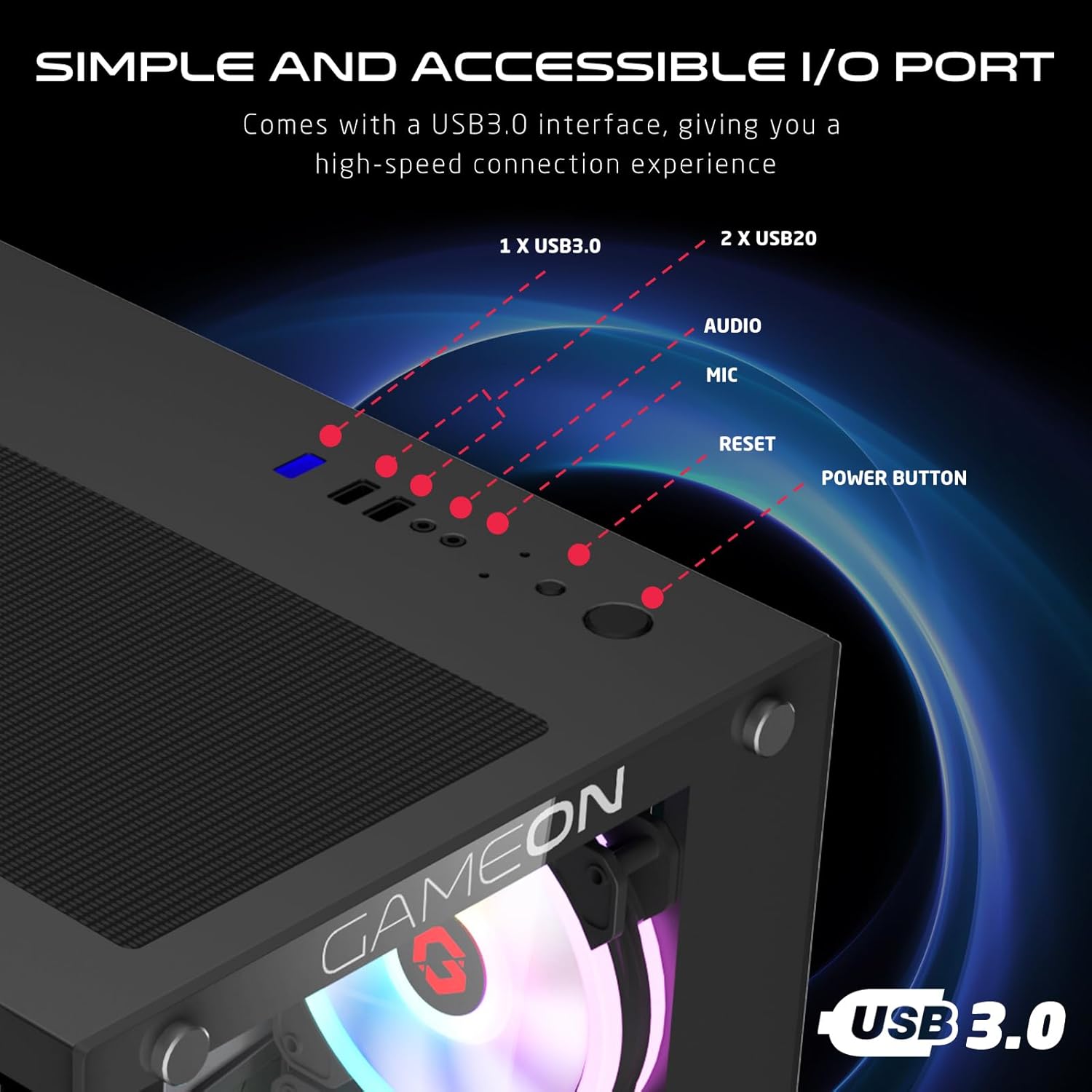
Figure 4.4: Front I/O ports, including 1x USB 3.0, 2x USB 2.0, Audio jack, Microphone jack, Reset button, and Power button.
4.3 Cooling and Construction
The case is designed with an optimized cooling solution, featuring multiple fan mounts and durable tempered glass panels.

Figure 4.5: Optimized cooling solution with massive air intake and exhaust. Features 7 pre-installed fans and durable tempered glass construction.
4.4 Compatibility and Drive Support
The case offers wide compatibility for various motherboard form factors and ample drive bay support.

Figure 4.6: Motherboard compatibility includes ATX, M-ATX, and ITX. Drive bay support for 2x HDD and 2x SSD. Also shown are the front panel header connections.
5. ຄໍາແນະນໍາການຕິດຕັ້ງ
Follow these steps to install your components into the GAMEON Midnight I Series PC case.
5.1 ການກະກຽມກໍລະນີ
- ວາງກະເປົ໋າໄວ້ເທິງພື້ນຜິວທີ່ຮາບພຽງ ແລະ ໝັ້ນຄົງ.
- Carefully remove the tempered glass side panel(s) by unscrewing the thumb screws and gently sliding the panel off. Set them aside in a safe place.
- Remove any internal packaging materials.
5.2 ການຕິດຕັ້ງເມນບອດ
- ຕິດຕັ້ງແຜ່ນປ້ອງກັນ I/O (ຖ້າບໍ່ໄດ້ຕິດຕັ້ງໄວ້ລ່ວງໜ້າໃນເມນບອດຂອງທ່ານ) ເຂົ້າກັບຊ່ອງເປີດດ້ານຫຼັງຂອງເຄສ.
- Align your motherboard with the standoffs inside the case. Ensure the standoffs match your motherboard's form factor (ATX, M-ATX, ITX).
- ຮັບປະກັນ motherboard ດ້ວຍ screws ທີ່ສະຫນອງໃຫ້.
5.3 ການຕິດຕັ້ງຫນ່ວຍບໍລິການພະລັງງານ (PSU).
- ຊອກຫາພື້ນທີ່ຕິດຕັ້ງ PSU ຢູ່ທາງລຸ່ມດ້ານຫຼັງຂອງເຄສ.
- Slide your PSU into position from the rear of the case.
- ຍຶດ PSU ດ້ວຍສະກູທີ່ໃຫ້ມາ.
5.4 ການຕິດຕັ້ງໄດຣຟ໌ (HDD/SSD)
ເຄສນີ້ຮອງຮັບ HDD ຂະໜາດ 3.5 ນິ້ວ 2 ໜ່ວຍ ແລະ SSD ຂະໜາດ 2.5 ນິ້ວ 2 ໜ່ວຍ.
- For 3.5" HDDs: Locate the drive cage, typically near the PSU shroud. Slide the HDD into the drive bay and secure it with screws.
- For 2.5" SSDs: Mount the SSDs to the designated mounting points, usually on the back of the motherboard tray or within the drive cage, using the provided screws.
5.5 ການຕິດຕັ້ງກາດກຣາບຟິກ ແລະ ກາດຂະຫຍາຍ
- ເອົາຊ່ອງສຽບ PCIe ທີ່ຈໍາເປັນອອກຈາກດ້ານຫລັງຂອງກໍລະນີ.
- Insert your graphics card or other expansion cards into the appropriate PCIe slots on your motherboard.
- ຮັດບັດໃຫ້ແໜ້ນດ້ວຍສະກູ.
5.6 ການຈັດການສາຍ
ນຳໃຊ້ແຜ່ນຕັດເສັ້ນທາງສາຍເຄເບິນ ແລະຈຸດຜູກລົງທາງຫຼັງຖາດເມນບອດເພື່ອຈັດການສາຍ. ນີ້ປັບປຸງການໄຫຼຂອງອາກາດແລະຄວາມງາມ.
5.7 Connecting Front Panel I/O and Fans
- Connect the front panel cables (Power SW, Reset SW, HDD LED, Power LED, USB 3.0, USB 2.0, HD Audio) to their corresponding headers on your motherboard. Refer to your motherboard manual for header locations.
- Ensure the pre-installed ARGB fans are connected to the included ARGB/PWM controller. Connect the controller to a SATA power connector from your PSU and a 3-pin ARGB header (if available) and a 4-pin PWM header on your motherboard for software control, or use the remote for standalone control.
6. ຄໍາແນະນໍາການດໍາເນີນງານ
6.1 ການເປີດ/ປິດ
- After all components are installed and cables connected, replace the side panels.
- Connect your monitor, keyboard, mouse, and power cable to the PSU.
- Press the Power button on the front panel to turn on your PC.
- To turn off, use the operating system's shutdown function or press and hold the Power button for several seconds.
6.2 ການຄວບຄຸມພັດລົມ ARGB
ພັດລົມ ARGB ທີ່ຕິດຕັ້ງໄວ້ລ່ວງໜ້າສາມາດຄວບຄຸມໄດ້ສອງວິທີຄື:
- ການຄວບຄຸມໄລຍະໄກ: Use the included remote to cycle through various lighting effects, adjust brightness, and change fan speed.
- ຊອບແວເມນບອດ: If the ARGB controller is connected to a compatible 3-pin ARGB header on your motherboard, you can synchronize lighting effects with your motherboard's RGB software (e.g., ASUS Aura Sync, MSI Mystic Light Sync, ASRock Polychrome RGB, Gigabyte RGB Fusion).
7. ບໍາລຸງຮັກສາ
ການບຳລຸງຮັກສາເປັນປະຈຳຊ່ວຍຮັບປະກັນປະສິດທິພາບທີ່ດີທີ່ສຸດ ແລະ ອາຍຸການໃຊ້ງານທີ່ຍາວນານຂອງເຄສຄອມພິວເຕີຂອງທ່ານ.
7.1 ການເຮັດຄວາມສະອາດກອງຂີ້ຝຸ່ນ
The case includes dust filters to prevent dust buildup. It is recommended to clean them every 1-3 months, depending on your environment.
- Locate the dust filters (e.g., top, bottom, front).
- ຄ່ອຍໆເອົາຕົວກອງອອກ.
- Clean them using compressed air, a soft brush, or by rinsing with water (ensure they are completely dry before re-installing).
- Re-attach the dust filters.
7.2 ການທໍາຄວາມສະອາດທົ່ວໄປ
- ໃຊ້ອ່ອນ, ງamp cloth to wipe down the exterior surfaces of the case. Avoid abrasive cleaners.
- For tempered glass panels, use a glass cleaner and a microfiber cloth to avoid streaks.
7.3 ການທໍາຄວາມສະອາດພັດລົມ
Periodically inspect the fan blades for dust accumulation. Use compressed air to gently clear dust from the fan blades and grilles.
8. ການແກ້ໄຂບັນຫາ
If you encounter issues with your PC case, refer to the following common problems and solutions.
8.1 Fans Not Spinning or ARGB Not Working
- ກວດເບິ່ງການເຊື່ອມຕໍ່ພະລັງງານ: Ensure the ARGB/PWM controller is properly connected to a SATA power connector from your PSU.
- ກວດເບິ່ງການເຊື່ອມຕໍ່ພັດລົມ: Verify that all fans are securely connected to the ARGB/PWM controller.
- ຫມໍ້ໄຟຄວບຄຸມໄລຍະໄກ: If using the remote, check if its battery needs replacement.
- ຊອບແວເມນບອດ: If using motherboard software for control, ensure the controller is connected to the correct ARGB header and the software is installed and configured correctly.
- ທິດທາງພັດລົມ: Ensure fans are oriented correctly for optimal airflow (intake/exhaust).
8.2 Front I/O Ports Not Functioning
- Check Motherboard Connections: Ensure all front panel cables (USB 3.0, USB 2.0, HD Audio) are correctly and securely connected to their respective headers on the motherboard. Refer to your motherboard manual.
8.3 ຄອມພິວເຕີບໍ່ເປີດເຄື່ອງ
- Power Button Connection: Verify the Power SW cable from the front panel is correctly connected to the motherboard's front panel header.
- PSU Connection: ໃຫ້ແນ່ໃຈວ່າ PSU ໄດ້ເຊື່ອມຕໍ່ກັບປລັກສຽບຝາຢ່າງຖືກຕ້ອງ ແລະ ສະວິດໄຟຂອງ PSU ຢູ່ໃນຕຳແໜ່ງ 'ເປີດ'.
- Internal Power Cables: Check that all necessary power cables (24-pin ATX, CPU, GPU) are securely connected to the motherboard and components.
9. ຂໍ້ມູນຈໍາເພາະ
| ຄຸນສົມບັດ | ຂໍ້ມູນຈໍາເພາະ |
|---|---|
| ຊື່ຕົວແບບ | GO-EMPERORII-M (Midnight I Series) |
| ປະເພດກໍລະນີ | ຫໍກາງ |
| ວັດສະດຸ | ແກ້ວ Tempered |
| ສີ | ດຳ |
| ຂະໜາດສິນຄ້າ (L x W x H) | 44 x 28 x 42.7 cm |
| ນ້ໍາຫນັກລາຍການ | 6.45 ກິໂລ |
| ຮອງຮັບເມນບອດ | ATX, ໄມໂຄຣ ATX, ITX |
| ພັດລົມທີ່ຕິດຕັ້ງໄວ້ລ່ວງໜ້າ | 7 x 120mm ARGB PWM Fans |
| ຂະໜາດພັດລົມ | 120ມມ |
| ວິທີການເຮັດຄວາມເຢັນ | Air, Water (supports up to 360mm radiator in front) |
| ຂັບລົດ Bays | ຮາດດິດ 2 ໜ່ວຍ ຂະໜາດ 3.5 ນິ້ວ, SSD 2 ໜ່ວຍ ຂະໜາດ 2.5 ນິ້ວ |
| ທ່າເຮືອທາງ ໜ້າ I / O | 1 x USB 3.0, 2 x USB 2.0, Audio, Mic, Reset, Power |
| ຄຸນສົມບັດເພີ່ມເຕີມ | Dust Filters, ARGB Controller with Remote |
10. ການຮັບປະກັນແລະການສະຫນັບສະຫນູນ
This product comes with a standard manufacturer's warranty. For specific warranty terms and conditions, please refer to the documentation provided with your purchase or contact GAMEON customer support. For technical assistance or further inquiries, please visit the official GAMEON webເວັບໄຊ ຫຼືຕິດຕໍ່ຊ່ອງທາງການຊ່ວຍເຫຼືອຂອງເຂົາເຈົ້າ.