
1. ບົດແນະນຳ
This manual provides detailed instructions for the installation, operation, and maintenance of the Intellinet 48-Port L3 Managed Gigabit PoE+ Switch, Model 562041. This device is designed for enterprise networks requiring efficient and scalable routing solutions with high-powered Power over Ethernet (PoE) capabilities.
2. ຂໍ້ມູນຄວາມປອດໄພ
Observe the following safety precautions to prevent damage to the device and injury to personnel:
- ຮັບປະກັນການພື້ນຖານທີ່ເຫມາະສົມຂອງອຸປະກອນ.
- ຢ່າໃຫ້ສະວິດຖືກນໍ້າ ຫຼື ຄວາມຊຸ່ມຊື່ນຫຼາຍເກີນໄປ.
- ປະຕິບັດການອຸປະກອນພາຍໃນຂອບເຂດອຸນຫະພູມແລະຄວາມຊຸ່ມຊື່ນທີ່ກໍານົດໄວ້.
- Use only the power cable provided or a compatible replacement.
- Do not open the switch casing; ສົ່ງຕໍ່ການບໍລິການໄປຫາພະນັກງານທີ່ມີຄຸນວຸດທິ.
- ຮັບປະກັນການລະບາຍອາກາດທີ່ພຽງພໍອ້ອມຮອບສະວິດເພື່ອປ້ອງກັນຄວາມຮ້ອນເກີນໄປ.
3. ເນື້ອໃນຊຸດ
ກວດສອບວ່າລາຍການທັງຫມົດແມ່ນມີຢູ່ໃນຊຸດ:
- Intellinet 48-Port L3 Managed Gigabit PoE+ Switch (Model 562041)
- ສາຍໄຟ
- 19" rackmount brackets
- ຕີນຢາງ
- ຄໍາແນະນໍາ (ຄູ່ມືນີ້)
4. ຜະລິດຕະພັນເກີນview
The Intellinet 562041 is a robust Layer 3 managed switch featuring 48 Gigabit PoE+ ports and six 10G SFP+ uplink slots. It supports a total power budget of 850 watts for PoE devices.
4.1 ກະດານດ້ານ ໜ້າ
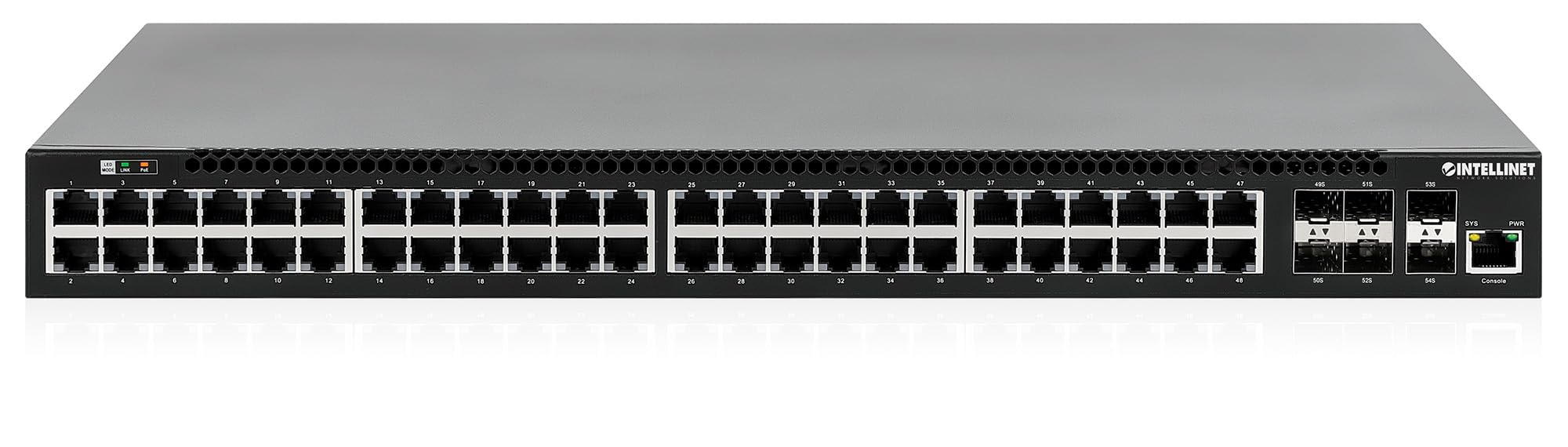
ແຜງດ້ານຫນ້າປະກອບມີ:
- 48 x 10/100/1000 Mbps RJ45 Ports: These ports support Power over Ethernet Plus (PoE+) for connecting compatible devices.
- 6 x 10 Gigabit SFP+ Slots: For high-speed uplink connections to other network devices.
- ຕົວຊີ້ວັດ LED: Provide status information for power, system, link activity, and PoE status.
- ຜອດຄອນໂຊນ: For local management and configuration.


4.2 ແຜງດ້ານຫລັງ

The rear panel typically includes the AC power input and cooling fans for heat dissipation.

5. ຕັ້ງຄ່າ
5.1 ການຕິດຕັ້ງທາງດ້ານຮ່າງກາຍ
The switch can be installed in a standard 19-inch equipment rack or placed on a desktop.
- ການຕິດຕັ້ງ Rackmount: Attach the provided rackmount brackets to the sides of the switch using the included screws. Secure the switch into a standard 19-inch rack.
- ການຕິດຕັ້ງເດັສທັອບ: Attach the provided rubber feet to the bottom of the switch to prevent scratching and ensure stability. Place the switch on a flat, stable surface.
5.2 ການເຊື່ອມຕໍ່ພະລັງງານ
Connect the provided power cable to the AC power input on the rear panel of the switch and then to a grounded electrical outlet. Ensure the power switch is in the OFF position before connecting the power cable.
5.3 ການເຊື່ອມຕໍ່ເຄືອຂ່າຍ
- ອຸປະກອນ PoE: Connect PoE-compatible devices (e.g., IP cameras, VoIP phones, wireless access points) to any of the 48 Gigabit RJ45 ports. The switch will automatically detect and provide power to these devices.
- ການເຊື່ອມຕໍ່ Uplink: Insert compatible SFP+ transceivers into the 10 Gigabit SFP+ slots and connect them to your core network or other high-speed devices using appropriate fiber optic cables.
- ການເຊື່ອມຕໍ່ຄອນໂຊນ: For initial configuration or direct management, connect a console cable from your computer to the console port on the switch.
5.4 ການຕັ້ງຄ່າເບື້ອງຕົ້ນ
Refer to the separate software configuration guide for detailed instructions on accessing the switch's management interface (web-based GUI or command-line interface via console port) and performing initial setup, including IP address assignment, user accounts, and basic network settings.
6. ຄໍາແນະນໍາການດໍາເນີນງານ
6.1 ການກຳນົດເສັ້ນທາງຊັ້ນທີ 3
This switch offers dynamic Layer 3 IP routing capabilities, including OSPF (Open Shortest Path First), RIP (Routing Information Protocol), and VRRP (Virtual Router Redundancy Protocol). These protocols enable efficient and scalable routing within complex network environments.

6.2 ພະລັງງານຜ່ານອີເທີເນັດ (PoE+)
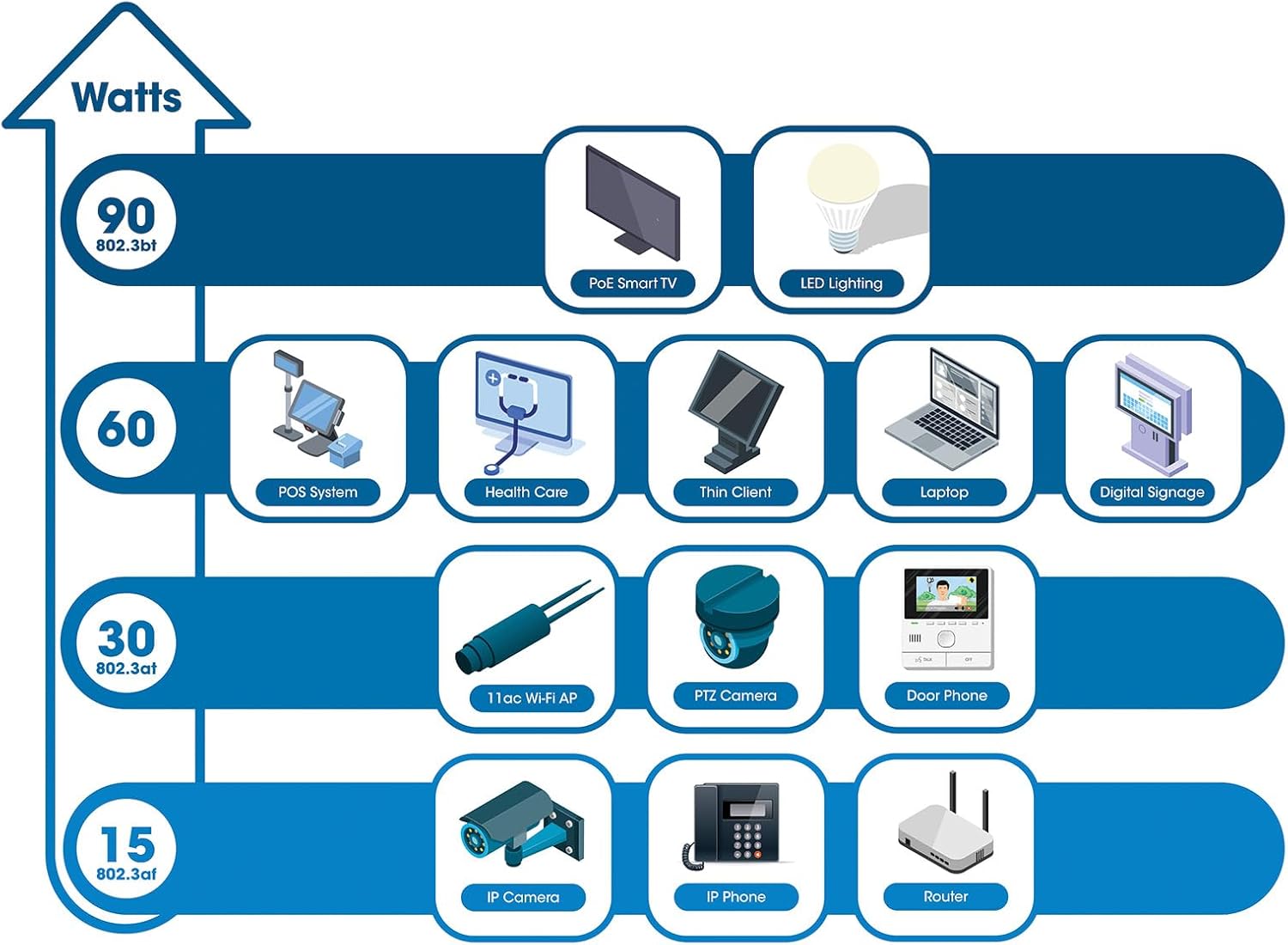
The switch provides up to 30 watts of power per port across its 48 PoE+ ports, with a total power budget of 850 watts. This allows for seamless integration of various PoE devices without the need for separate power adapters.
6.3 PoE Scheduling
The switch supports PoE scheduling, allowing administrators to define specific times for powering on, powering off, or rebooting connected PoE devices. This feature can optimize power consumption and enhance network security.


6.4 Self-Healing Functionality (PDM)
The Powered Device Monitor (PDM) feature enables the switch to proactively monitor the status of connected PoE devices. If a device becomes unresponsive, the PDM can automatically restart the PoE port to restore functionality, minimizing downtime and maintaining network integrity.
6.5 ການຄຸ້ມຄອງຄລາວ
The switch supports cloud management capabilities, allowing for remote configuration, monitoring, and troubleshooting of the device from a centralized platform. Refer to the cloud management documentation for setup and usage details.
7. ບໍາລຸງຮັກສາ
7.1 ການອັບເດດເຟີມແວ
Regularly check the Intellinet Network Solutions website for the latest firmware updates. Applying firmware updates can improve performance, add new features, and address security vulnerabilities. Follow the instructions provided with the firmware update package carefully.
7.2 ການທໍາຄວາມສະອາດ
To clean the switch, power it off and disconnect all cables. Use a soft, dry cloth to wipe the exterior. Do not use liquid or aerosol cleaners. Ensure ventilation openings are free from dust and debris.
7.3 ການພິຈາລະນາດ້ານສິ່ງແວດລ້ອມ
Ensure the switch operates within its specified temperature and humidity ranges. Avoid placing the switch in direct sunlight, near heat sources, or in areas with high dust accumulation.
8. ການແກ້ໄຂບັນຫາ
This section addresses common issues you might encounter with the switch.
8.1 ບໍ່ມີພະລັງງານ
- Verify the power cable is securely connected to both the switch and a working electrical outlet.
- ກວດໃຫ້ແນ່ໃຈວ່າສະວິດໄຟຢູ່ແຜງດ້ານຫຼັງຢູ່ໃນຕຳແໜ່ງເປີດ.
- ກວດສອບປລັກໄຟດ້ວຍອຸປະກອນອື່ນເພື່ອຢືນຢັນວ່າມັນໃຊ້ງານໄດ້.
8.2 ບໍ່ມີການເຊື່ອມຕໍ່ໃນພອດ
- Check the Ethernet cable connection at both ends. Ensure it is securely plugged in.
- Verify the cable is not damaged. Try a different cable.
- ໃຫ້ແນ່ໃຈວ່າອຸປະກອນທີ່ເຊື່ອມຕໍ່ນັ້ນເປີດຢູ່ ແລະ ເຮັດວຽກຢ່າງຖືກຕ້ອງ.
- ກວດສອບສະຖານະພອດໃນອິນເຕີເຟດການຄຸ້ມຄອງຂອງສະວິດ.
8.3 ອຸປະກອນ PoE ບໍ່ໄດ້ຮັບພະລັງງານ
- Confirm the connected device is a PoE-compatible device.
- ກວດເບິ່ງ LED ສະຖານະ PoE ສໍາລັບພອດສະເພາະ.
- Verify the total PoE power budget (850W) is not exceeded by all connected devices.
- Utilize the Powered Device Monitor (PDM) feature to automatically restart the port if the device is unresponsive.
- Check PoE settings in the switch's management interface.
9. ຂໍ້ມູນຈໍາເພາະ
| ຄຸນສົມບັດ | ຂໍ້ມູນຈໍາເພາະ |
|---|---|
| ໝາຍເລກຕົວແບບ | 562041 |
| ຍີ່ຫໍ້ | ວິທີແກ້ໄຂເຄືອຂ່າຍ INTELLINET |
| ຈໍານວນພອດ | 54 (48 x Gigabit PoE+, 6 x 10G SFP+) |
| ປະເພດການໂຕ້ຕອບ | PoE, SFP |
| Maximum Power (PoE Budget) | 850 ວັດ |
| ອັດຕາການໂອນຂໍ້ມູນ | 10 Gigabits Per Second (SFP+ uplinks) |
| ນ້ໍາຫນັກລາຍການ | 6.2 ກິໂລ (13.64 ປອນ) |
| ຂະໜາດສິນຄ້າ (L x W x H) | 13.78 x 17.32 x 1.73 ນິ້ວ |
| ລະດັບອຸນຫະພູມສູງສຸດ | 104 ອົງສາຟາເຣນຮາຍ (40°C) |
| ການປະເມີນອຸນຫະພູມຕ່ໍາ | 32 ອົງສາຟາເຣນຮາຍ (0°C) |
| ອຸປະກອນທີ່ເຂົ້າກັນໄດ້ | Desktop, Router, PoE devices (IP cameras, VoIP phones, WAPs) |
| ອົງປະກອບລວມ | 19" rackmount brackets, Instructions, Rubber feet, power cable |
| UPC | 766623562041 |
10. ການຮັບປະກັນແລະການສະຫນັບສະຫນູນ
10.1 ຂໍ້ມູນການຮັບປະກັນ
This Intellinet Network Solutions product is covered by a ການຮັບປະກັນຂອງຜູ້ຜະລິດ 3 ປີ. ກະລຸນາຮັກສາຫຼັກຖານການຊື້ຂອງທ່ານສໍາລັບການຮຽກຮ້ອງການຮັບປະກັນ. ການຮັບປະກັນກວມເອົາຂໍ້ບົກພ່ອງຂອງວັດສະດຸແລະການເຮັດວຽກພາຍໃຕ້ການນໍາໃຊ້ປົກກະຕິ.
10.2 ສະຫນັບສະຫນູນດ້ານວິຊາການ
For technical assistance, product documentation, or to register your product, please visit the official Intellinet Network Solutions webເວັບໄຊທ໌ ຫຼື ຕິດຕໍ່ຝ່າຍສະໜັບສະໜູນລູກຄ້າຂອງເຂົາເຈົ້າ. ຂໍ້ມູນຕິດຕໍ່ສາມາດພົບໄດ້ໂດຍປົກກະຕິແລ້ວຢູ່ໃນເວັບໄຊທ໌ຂອງຜູ້ຜະລິດ webສະຖານທີ່ຫຼືຢູ່ໃນການຫຸ້ມຫໍ່ຜະລິດຕະພັນ.