
1. ບົດແນະນຳ
This manual provides detailed instructions for the setup, operation, maintenance, and troubleshooting of your JOMAA Wireless Bluetooth Keyboard and Mouse Combo. This combo offers versatile connectivity options, RGB backlighting, and an ergonomic design for enhanced user comfort and productivity across multiple devices.
2. ເນື້ອໃນຊຸດ
ກະລຸນາກວດສອບໃຫ້ແນ່ໃຈວ່າສິນຄ້າທັງໝົດຢູ່ໃນຊຸດຂອງທ່ານ:
- JOMAA Wireless Bluetooth Keyboard
- JOMAA Wireless Bluetooth Mouse
- ສາຍສາກ USB-A ຫາ Type-C
- ຕົວຮັບສັນຍານໄຮ້ສາຍ USB (ເກັບໄວ້ພາຍໃນເມົ້າ)
- ຄູ່ມືຜູ້ໃຊ້ (ເອກະສານນີ້)
3. ຕັ້ງຄ່າ
3.1 ການສາກໄຟອຸປະກອນ
Both the keyboard and mouse are equipped with built-in rechargeable lithium batteries. Before initial use, or when the battery is low (indicated by flashing lights), charge both devices using the provided USB-A to Type-C cable.
- Connect the Type-C end of the cable to the charging port on the keyboard/mouse.
- ເຊື່ອມຕໍ່ສົ້ນ USB-A ເຂົ້າກັບແຫຼ່ງພະລັງງານ (ເຊັ່ນ: ພອດ USB ຂອງຄອມພິວເຕີ, ອະແດບເຕີຕິດຝາ USB).
- Charging indicators will show the charging status.

Image: Type-C rechargeable feature of the JOMAA keyboard and mouse.
3.2 ການເຊື່ອມຕໍ່ຫນູ
The mouse supports two connection methods: 2.4G wireless via USB dongle and Bluetooth.
3.2.1 2.4G Wireless Connection (USB Dongle)
- Locate the USB wireless receiver stored in the compartment on the underside of the mouse.
- ສຽບເຄື່ອງຮັບສັນຍານ USB ເຂົ້າກັບພອດ USB-A ທີ່ມີຢູ່ໃນຄອມພິວເຕີ ຫຼື ອຸປະກອນຂອງທ່ານ.
- ເປີດເມົາສ໌ໂດຍໃຊ້ສະວິດເປີດປິດທີ່ຢູ່ດ້ານລຸ່ມຂອງມັນ. ເມົາສ໌ຄວນຈະເຊື່ອມຕໍ່ໂດຍອັດຕະໂນມັດ.
3.2.2 ການເຊື່ອມຕໍ່ Bluetooth
- ເປີດເມົ້າໂດຍໃຊ້ສະວິດໄຟຢູ່ຂ້າງລຸ່ມຂອງມັນ.
- Press the Bluetooth button on the bottom of the mouse to switch to Bluetooth mode. The indicator light will flash, indicating it's in pairing mode.
- ໃນອຸປະກອນຂອງທ່ານ (ແລັບທັອບ, ແທັບເລັດ, ສະມາດໂຟນ), ໄປທີ່ການຕັ້ງຄ່າ Bluetooth ແລະຄົ້ນຫາອຸປະກອນໃໝ່.
- Select "BT5.0 Mouse" from the list of available devices to pair.
3.3 ການເຊື່ອມຕໍ່ຄີບອດ
The keyboard supports 2.4G wireless via USB dongle (shared with mouse) and two Bluetooth channels.
3.3.1 2.4G Wireless Connection (USB Dongle)
- Ensure the USB wireless receiver is plugged into your device.
- ເປີດແປ້ນພິມໂດຍໃຊ້ສະວິດໄຟ.
- Press the 'Fn' key + '1' key to activate the 2.4G wireless channel. The keyboard should connect automatically.
3.3.2 Bluetooth Connection (Channels 2 & 3)
- ເປີດແປ້ນພິມ.
- Press 'Fn' + '2' or 'Fn' + '3' to select a Bluetooth channel. The indicator light for the selected channel will flash, indicating pairing mode.
- ໃນອຸປະກອນຂອງທ່ານ, ໄປທີ່ການຕັ້ງຄ່າ Bluetooth ແລະຊອກຫາອຸປະກອນໃໝ່.
- Select "Wireless Keyboard" from the list to pair.
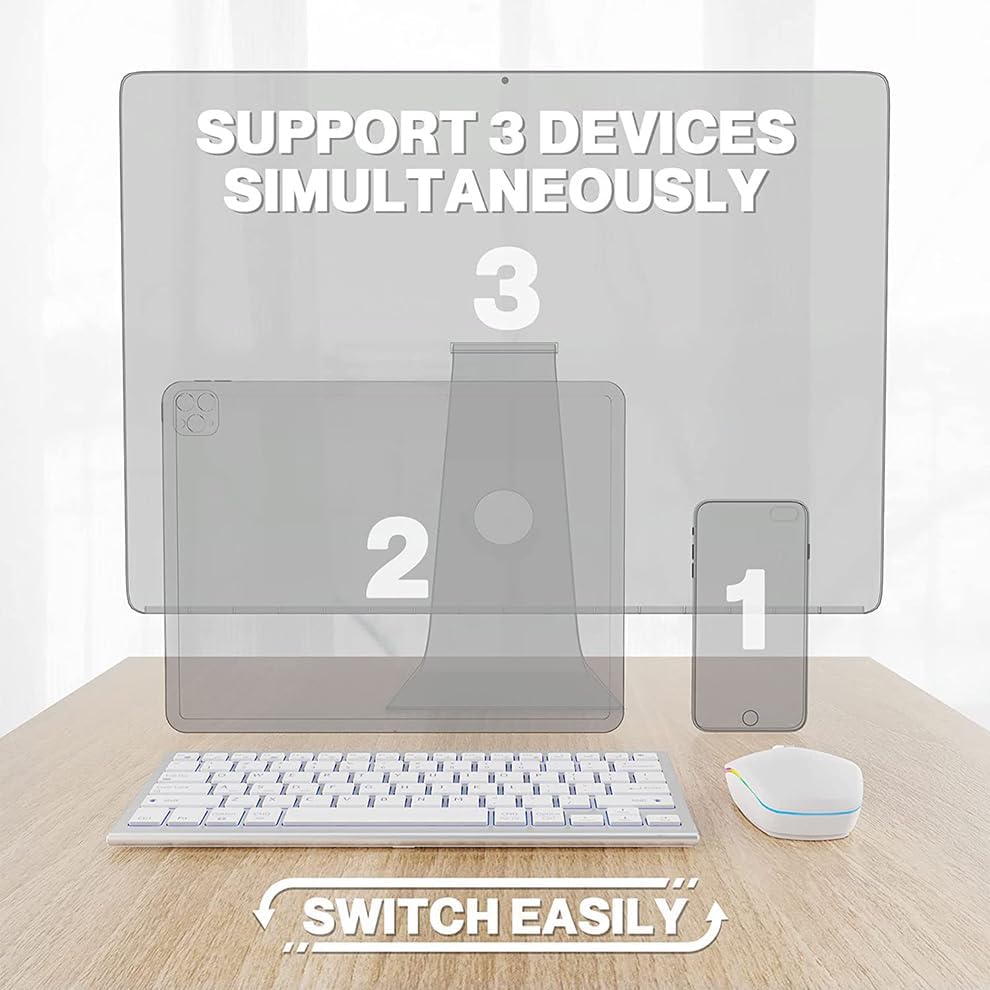
Image: Multi-device connectivity of the JOMAA keyboard and mouse.
4. ຄໍາແນະນໍາການດໍາເນີນງານ
4.1 ການປ່ຽນລະຫວ່າງອຸປະກອນ
Both the keyboard and mouse can connect to up to three devices and switch between them seamlessly.
- ແປ້ນພິມ: Press 'Fn' + '1' (for 2.4G USB), 'Fn' + '2' (for Bluetooth 1), or 'Fn' + '3' (for Bluetooth 2) to switch to the desired connected device.
- ຫນູ: Use the switch on the underside of the mouse to toggle between 2.4G wireless and Bluetooth modes.

Image: Switching between devices on the keyboard.
4.2 Keyboard Backlighting (RGB)
The keyboard features adjustable RGB backlighting with multiple color options and effects.
- ກົດ ປຸ່ມ RGB (often labeled with a sun or light icon, typically F12 or similar) to cycle through different backlight colors and effects (e.g., pulse, solid red, green, blue, yellow, purple, teal, white).
- Adjust brightness using dedicated function keys (refer to keyboard legends for specific keys, often Fn + F11/F12 or similar).
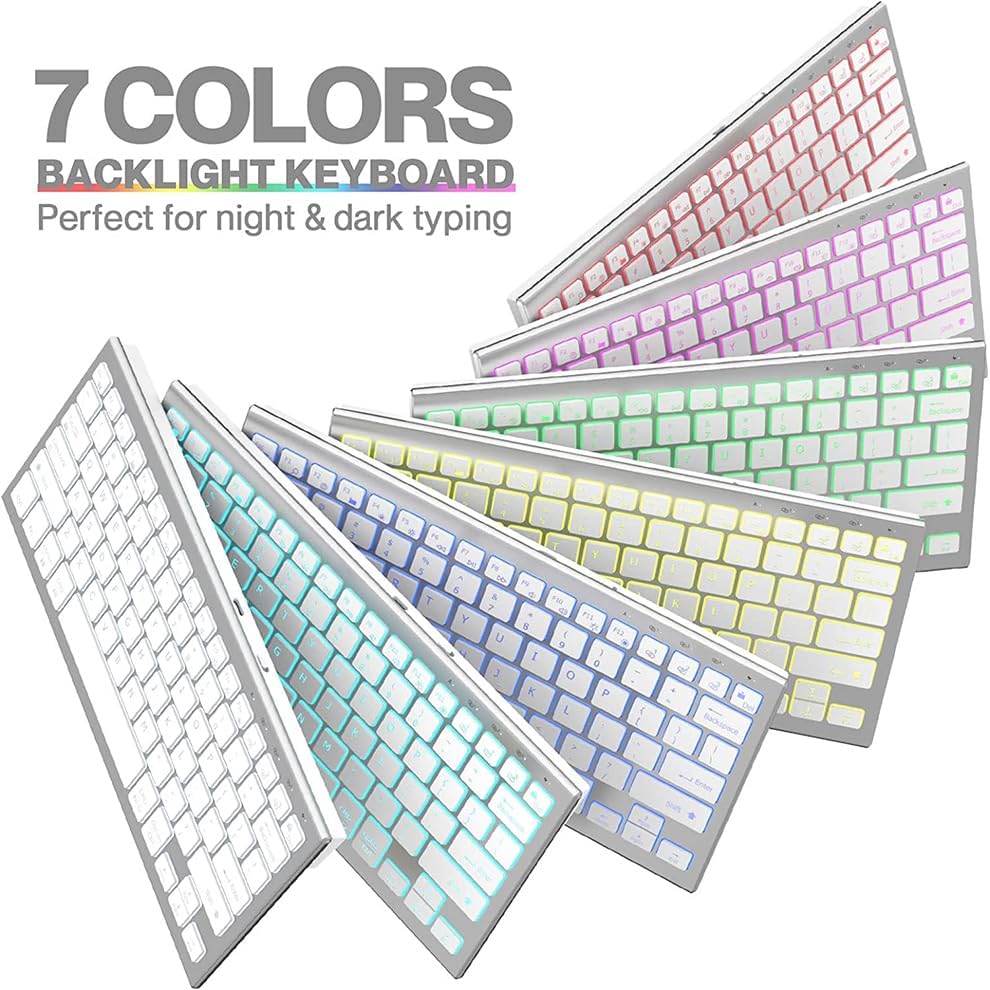
Image: JOMAA keyboard with 7-color backlighting.
4.3 ການພິມ ແລະ ການຄລິກທີ່ງຽບໆ
The keyboard utilizes scissor-switch keys for a quiet typing experience, and the mouse is designed for silent clicks, minimizing disturbance in quiet environments.
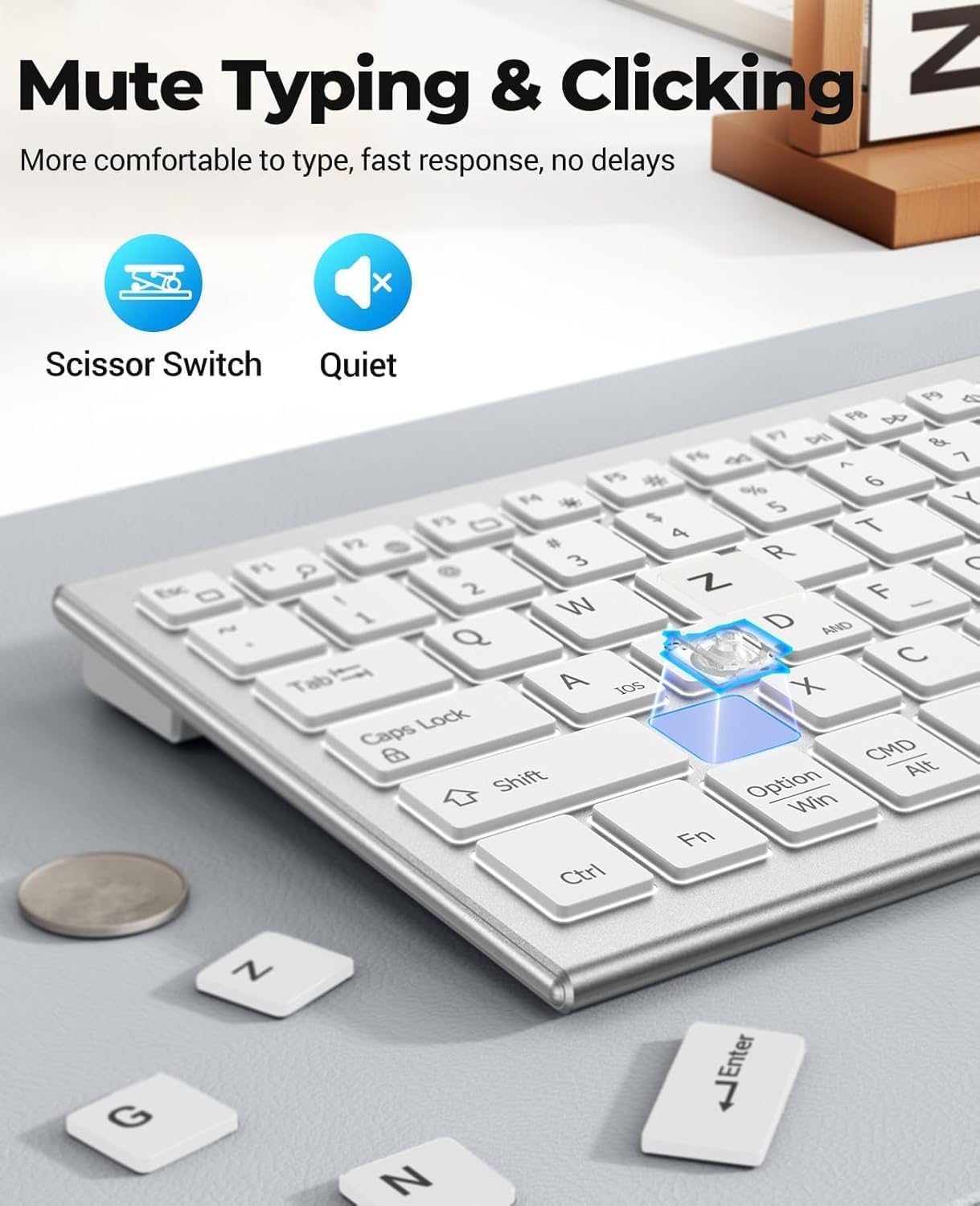
Image: Quiet typing and clicking features.
4.4 ການອອກແບບ Ergonomic
The keyboard features a slight incline for comfortable typing, and the mouse's curvature is designed to fit the palm, reducing fatigue during extended use.

Image: Ergonomic design and dimensions of the keyboard and mouse.
4.5 ການປັບຕົວ DPI ຂອງຫນູ
The mouse offers 3 adjustable DPI levels (800/1200/1600) to suit different user preferences and tasks. Use the DPI button on the mouse to cycle through these settings.

Image: Mouse features including DPI adjustment and quiet click.
5. ບໍາລຸງຮັກສາ
5.1 ການຄຸ້ມຄອງຫມໍ້ໄຟ
The devices feature smart power-saving management. They will enter a sleep mode after 5 minutes of inactivity to conserve battery. Move the mouse or press any key on the keyboard to wake them up.
- A full charge provides approximately 365 days of standby time.
- Recharge when the low battery indicator flashes.
5.2 ການທໍາຄວາມສະອາດ
ເພື່ອເຮັດຄວາມສະອາດແປ້ນພິມ ແລະ ເມົ້າຂອງທ່ານ, ໃຫ້ໃຊ້ຜ້າອ່ອນໆ ແລະ ແຫ້ງ. ສຳລັບຝຸ່ນທີ່ຝັງແໜ້ນ, ໃຫ້ໃຊ້ຜ້າເຊັດໜ້າບາງໆ.amp cloth with mild soap can be used, ensuring no liquid enters the devices. Avoid harsh chemicals or abrasive materials.
6. ການແກ້ໄຂບັນຫາ
6.1 ບັນຫາການເຊື່ອມຕໍ່
- ອຸປະກອນບໍ່ເຊື່ອມຕໍ່: Ensure both the keyboard and mouse are turned on and fully charged. For 2.4G wireless, verify the USB dongle is securely plugged in. For Bluetooth, ensure Bluetooth is enabled on your device and the keyboard/mouse is in pairing mode.
- ການເຊື່ອມຕໍ່ແບບບໍ່ຢຸດຢັ້ງ: Move the devices closer to your computer to reduce interference. Ensure no other wireless devices are causing interference.
6.2 Backlight ບໍ່ເຮັດວຽກ
- Check if the keyboard battery is low. Backlighting may be disabled to conserve power.
- Press the RGB button (F12 or similar) to ensure the backlight is not turned off or set to a very dim setting.
6.3 Mouse Cursor Jumps or is Unresponsive
- Clean the mouse sensor on the underside.
- ລອງໃຊ້ເມົ້າເທິງພື້ນຜິວອື່ນ.
- Adjust the DPI setting to see if it improves responsiveness.
7. ຂໍ້ມູນຈໍາເພາະ
| ຍີ່ຫໍ້ | JOMAA |
| ສີ | ສີຂາວ |
| ເຕັກໂນໂລຊີການເຊື່ອມຕໍ່ | 2.4G, Bluetooth |
| ຄຸນນະສົມບັດພິເສດ | 7 Color Backlit |
| ອຸປະກອນທີ່ເຂົ້າກັນໄດ້ | ແລັບທັອບ, ຄອມພິວເຕີສ່ວນຕົວ, ໂທລະສັບສະຫຼາດ |
| ຕ້ອງໃຊ້ແບັດເຕີຣີ | Yes (1 Lithium Ion battery included for each device) |
| ແຫຼ່ງພະລັງງານ | ພະລັງງານຫມໍ້ໄຟ |
| ທິດທາງມື | Ambidextrous (Mouse) |
| ຄວາມເຂົ້າກັນໄດ້ຂອງລະບົບປະຕິບັດການ | Mac, Windows |
| ຈຳນວນປຸ່ມ (ແປ້ນພິມ) | 81 |
| ຄຳອະທິບາຍແປ້ນພິມ | ມັນຕິມີເດຍ |
8. ການຮັບປະກັນ
This product comes with a three-month manufacturer's warranty. Please retain your proof of purchase for warranty claims. The warranty covers manufacturing defects but does not cover damage caused by misuse, accidents, or unauthorized modifications.
9. ສະຫນັບສະຫນູນ
For further assistance, technical support, or warranty inquiries, please contact JOMAA customer service through the retailer where you purchased the product or visit the official JOMAA webເວັບໄຊສໍາລັບຂໍ້ມູນຕິດຕໍ່.
10. ວິດີໂອສາທິດຜະລິດຕະພັນ
Video: Demonstration of the use of a keyboard and mouse set. This video provides a visual guide on connecting the keyboard and mouse, switching between devices, and showcasing the RGB lighting features.