
ແນະນຳ
The One For All URC7985 Smart Control Pro is a universal remote control designed to simplify your home entertainment experience. It allows you to control up to 12 devices, including TVs, soundbars, streaming devices, and more, using an intuitive E-Ink touchscreen, motion detection, and both infrared and Bluetooth connectivity. This manual provides instructions for setting up, operating, and maintaining your remote control.

Figure 1: One For All URC7985 Smart Control Pro Universal Remote Control
ຕັ້ງຄ່າ
1. Charging the Remote
Before initial use, ensure the remote control is fully charged. Connect the remote to a suitable USB power source using the provided charging cable. The remote features a rechargeable battery.
2. ການຕິດຕັ້ງແອັບ ແລະ ການຈັບຄູ່
The One For All Advanced app is essential for setting up and customizing your remote. It is available for both Android and iOS devices.
- ດາວນ໌ໂຫລດ One For All Advanced app ຈາກ app store ຂອງອຸປະກອນຂອງທ່ານ.
- Open the app and follow the on-screen instructions to pair your URC7985 remote control via Bluetooth.
- The app will guide you through the process of adding your home entertainment devices.

Figure 2: Remote control alongside the One For All Advanced app on a smartphone, illustrating the app-based setup process.
3. ການຈັບຄູ່ອຸປະກອນ
The remote can control up to 12 devices using both Infrared (IR) and Bluetooth connectivity. The One For All Advanced app simplifies this process:
- Within the app, select 'Add Device' and choose the type of device you wish to control (e.g., TV, Soundbar, Streaming Device).
- The app will provide step-by-step instructions to pair your device, often by testing various codes or using an automatic search function.
- For Bluetooth devices like Android TVs, the app will guide you through the Bluetooth pairing process.
ປະຕິບັດການໄລຍະໄກ
1. E-Ink Touchscreen
The remote features an innovative E-Ink touchscreen display. This display offers a clear, high-contrast view of available functions and automatically adjusts via motion detection, waking up when you pick up the remote. It is energy-saving and provides intuitive access to various buttons and functions.

Figure 3: A hand interacting with the E-Ink touchscreen of the remote, with a television in the background.
2. ກິດຈະກໍາ
Create custom activities to control multiple devices with a single touch. For example, an activity named "Watch TV" can combine your TV, set-top box, and soundbar for seamless operation. These activities are configured through the One For All Advanced app.
- Access activities by tapping the 'Activities' button on the remote or selecting them from the E-Ink display.
- The app allows you to define which devices are part of an activity and what functions each button performs within that activity.

Figure 4: The remote's E-Ink display highlighting options for Devices, Activities, and Favourites.
3. ການຄວບຄຸມສຽງ
For Google TV and Android TV devices, the remote supports integrated voice control. Use voice commands to navigate menus, search for content, and control your entertainment.
- Press the dedicated microphone button on the remote to activate voice control.
- ເວົ້າຄຳສັ່ງຂອງທ່ານໃສ່ຣີໂໝດໃຫ້ຊັດເຈນ.
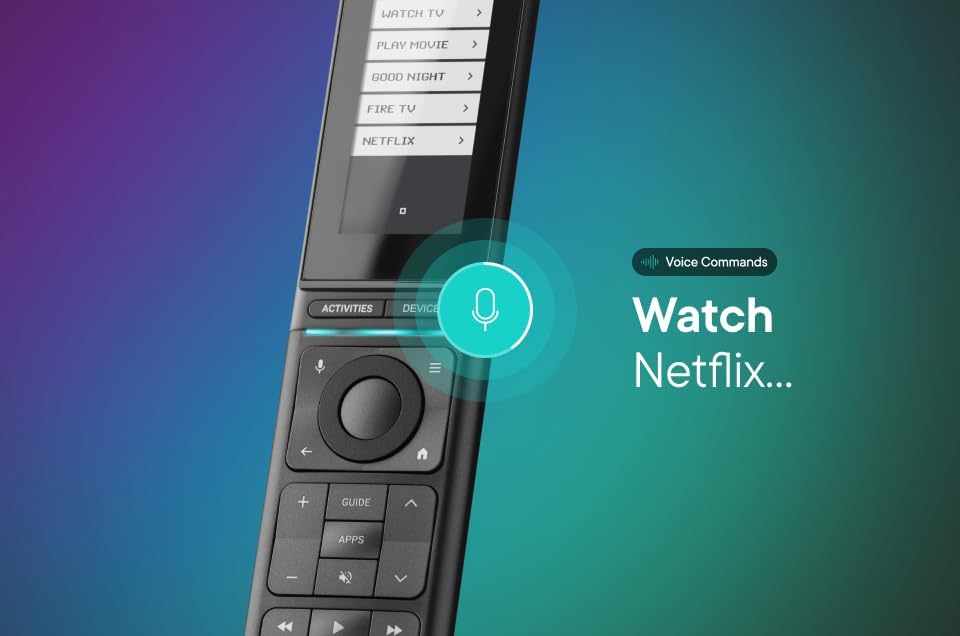
Figure 5: The remote control displaying a voice command prompt, indicating active voice control functionality.
4. Backlight and Light Sensor
The remote features an automatic backlight for its physical buttons and an integrated light sensor. This ensures comfortable operation even in low-light conditions, as the backlight adjusts automatically to the ambient light.
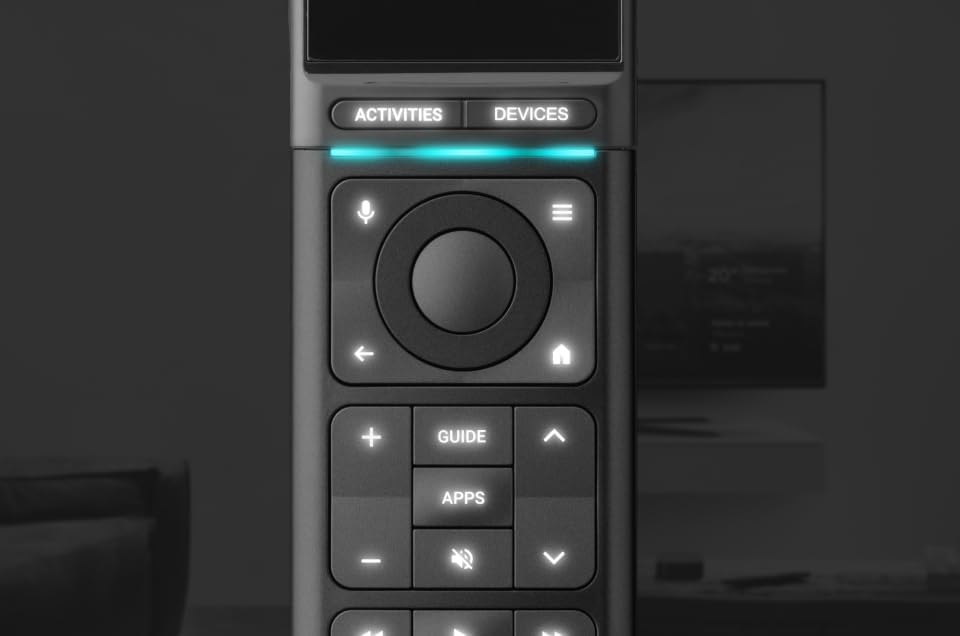
ຮູບທີ 6: ຮູບທີ່ໃກ້ຊິດ view of the remote's physical buttons, illuminated by the automatic backlight.
5. Find My Remote Function
If you misplace your remote control, you can activate the built-in piezo speaker to help locate it. This function is typically initiated via the One For All Advanced app.
6. ການປັບແຕ່ງ
The remote is highly customizable through the One For All Advanced app. You can:
- Create your own actions and macros.
- Add missing buttons to the E-Ink display.
- Utilize the learning feature to teach the remote new functions from original remote controls.
ບໍາລຸງຮັກສາ
To ensure the longevity and optimal performance of your One For All URC7985 remote control, follow these maintenance guidelines:
- ທໍາຄວາມສະອາດ: Use a soft, dry cloth to clean the remote's surface. Avoid abrasive cleaners or solvents, as they may damage the finish or E-Ink screen.
- ການເກັບຮັກສາ: ເກັບຮັກສາຣີໂໝດໄວ້ໃນບ່ອນເຢັນ ແລະ ແຫ້ງ ຫ່າງຈາກແສງແດດໂດຍກົງ ແລະ ອຸນຫະພູມທີ່ຮ້າຍກາດ.
- ການດູແລຫມໍ້ໄຟ: Recharge the remote regularly to maintain battery health. Avoid fully discharging the battery for extended periods.
- ການປົກປ້ອງ: Avoid dropping the remote or exposing it to liquids.
ການແກ້ໄຂບັນຫາ
If you encounter issues with your One For All URC7985 remote control, consider the following troubleshooting steps:
- ໄລຍະໄກບໍ່ຕອບສະໜອງ: Ensure the remote is charged. If the E-Ink screen is blank, it may need charging.
- ອຸປະກອນບໍ່ຕອບສະໜອງ: Verify that the correct device is selected on the remote (via the E-Ink screen or 'Devices' button). Ensure the remote has a clear line of sight to the device (for IR control). Check that the device is properly paired in the One For All Advanced app.
- ບັນຫາການເຊື່ອມຕໍ່ແອັບ: Ensure your smartphone's Bluetooth is enabled and the remote is within range. Try restarting the app or your phone.
- ການຄວບຄຸມດ້ວຍສຽງບໍ່ເຮັດວຽກ: Confirm that your Google TV or Android TV device is properly paired via Bluetooth and supports voice commands. Ensure the remote's microphone is not obstructed.
- Buttons Not Working as Expected: Review the activity or device settings in the One For All Advanced app. You may need to re-learn specific functions or adjust button assignments.
- ປັບຄ່າໂຮງງານ: As a last resort, a factory reset can be performed via the One For All Advanced app. This will erase all custom settings and paired devices, requiring a complete re-setup.
ຂໍ້ມູນຈໍາເພາະ
| ຍີ່ຫໍ້ | ຫນຶ່ງສໍາລັບທຸກຄົນ |
| ຊື່ຕົວແບບ | ອຄ. ອງ |
| ຄຸນນະສົມບັດພິເສດ | Backlit, Universal, Voice Search |
| ສີ | ດຳ |
| ຈຳນວນສູງສຸດຂອງອຸປະກອນທີ່ຮອງຮັບ | 12 |
| ອຸປະກອນທີ່ເຂົ້າກັນໄດ້ | Android TV, Decoder, Set Top Box, Soundbar, Streaming Device, Television, Top Box Set, Google TV |
| ເຕັກໂນໂລຊີການເຊື່ອມຕໍ່ | Bluetooth, ອິນຟາເຣດ |
| ຈໍານວນປຸ່ມ | 20 |
| ປະເພດການຄວບຄຸມ | Touch control, Voice control, Bluetooth control |
| ນ້ໍາຫນັກລາຍການ | 0.25 ກິໂລກຣາມ |
| ປະເພດຫມໍ້ໄຟ | ສາມາດສາກໄຟໄດ້ |