
Z CAM Z CAM E2-F8
Z CAM E2-F8 Professional Full-Frame 8K Cinema Camera
ຄູ່ມືຜູ້ໃຊ້
1. ບົດແນະນຳ
The Z CAM E2-F8 is a professional-grade full-frame 8K cinema camera designed for high-definition video production. It features a full-frame sensor, 10-bit 4:2:2 color support, and 14 stops of dynamic range. This camera is capable of recording up to 8K resolution at 30 frames per second, with data rates up to 300 Mb/s to CFast 2.0 media. It supports various recording formats including ZRAW, MOV, and MP4, utilizing H.265 for 10-bit and H.264 for 8-bit recording. The E2-F8 offers versatile connectivity and control options for professional videographers.

ຮູບ 1.1: ດ້ານຫນ້າ view of the Z CAM E2-F8 camera, showcasing its compact design and PL mount.
2. ຂໍ້ມູນຄວາມປອດໄພ
- ການສະຫນອງພະລັງງານ: Use only the specified power adapter and cables. Incorrect power sources can damage the device or cause fire.
- ສະພາບແວດລ້ອມການດໍາເນີນງານ: Avoid exposing the camera to extreme temperatures, humidity, dust, or direct sunlight. Operate within the recommended temperature range.
- ການຈັດການ: Handle the camera with care. Do not drop or subject it to strong impacts. Avoid touching the sensor directly.
- ທໍາຄວາມສະອາດ: Disconnect power before cleaning. Use a soft, dry cloth. Do not use liquid cleaners or solvents.
- ການຖອດອອກໄດ້: ຢ່າພະຍາຍາມຖອດປະກອບ ຫຼືດັດແປງກ້ອງຖ່າຍຮູບ. ອ້າງອີງການບໍລິການທັງໝົດໃຫ້ກັບບຸກຄະລາກອນທີ່ມີຄຸນວຸດທິ.
3. ເນື້ອໃນຊຸດ
ກວດສອບວ່າລາຍການທັງຫມົດແມ່ນມີຢູ່ໃນຊຸດ:
- Z CAM E2-F8 Camera Body
- PL Mount Cap
- Power Adapter
- ຄູ່ມືເລີ່ມຕົ້ນດ່ວນ
- ບັດຮັບປະກັນ
4. ຕັ້ງຄ່າ
4.1 ການຕິດເລນ
- Remove the PL mount cap from the camera body.
- Align the red dot on the lens with the red dot on the camera's PL mount.
- Insert the lens into the mount and rotate it clockwise until it clicks into place, securing the lens.

ຮູບທີ 4.1: ໄລຍະໃກ້ view of the Z CAM E2-F8's PL mount, showing the lock/unlock mechanism and sensor.
4.2 Inserting CFast 2.0 Media
- Locate the CFast 2.0 slot on the side of the camera.
- Insert the CFast 2.0 card with the label facing the correct direction until it clicks into place.
- To eject, press the card gently inward until it springs out.

ຮູບ 4.2: ຂ້າງ view of the Z CAM E2-F8, highlighting the CFast 2.0 media slot and programmable function buttons (F1-F4).
4.3 ການເປີດກ້ອງ
- Connect the power adapter to the camera's DC input port.
- ເຊື່ອມຕໍ່ອະແດບເຕີໄຟກັບປລັກສຽບໄຟທີ່ເຫມາະສົມ.
- Press and hold the power button (usually red) until the camera powers on and the display illuminates.
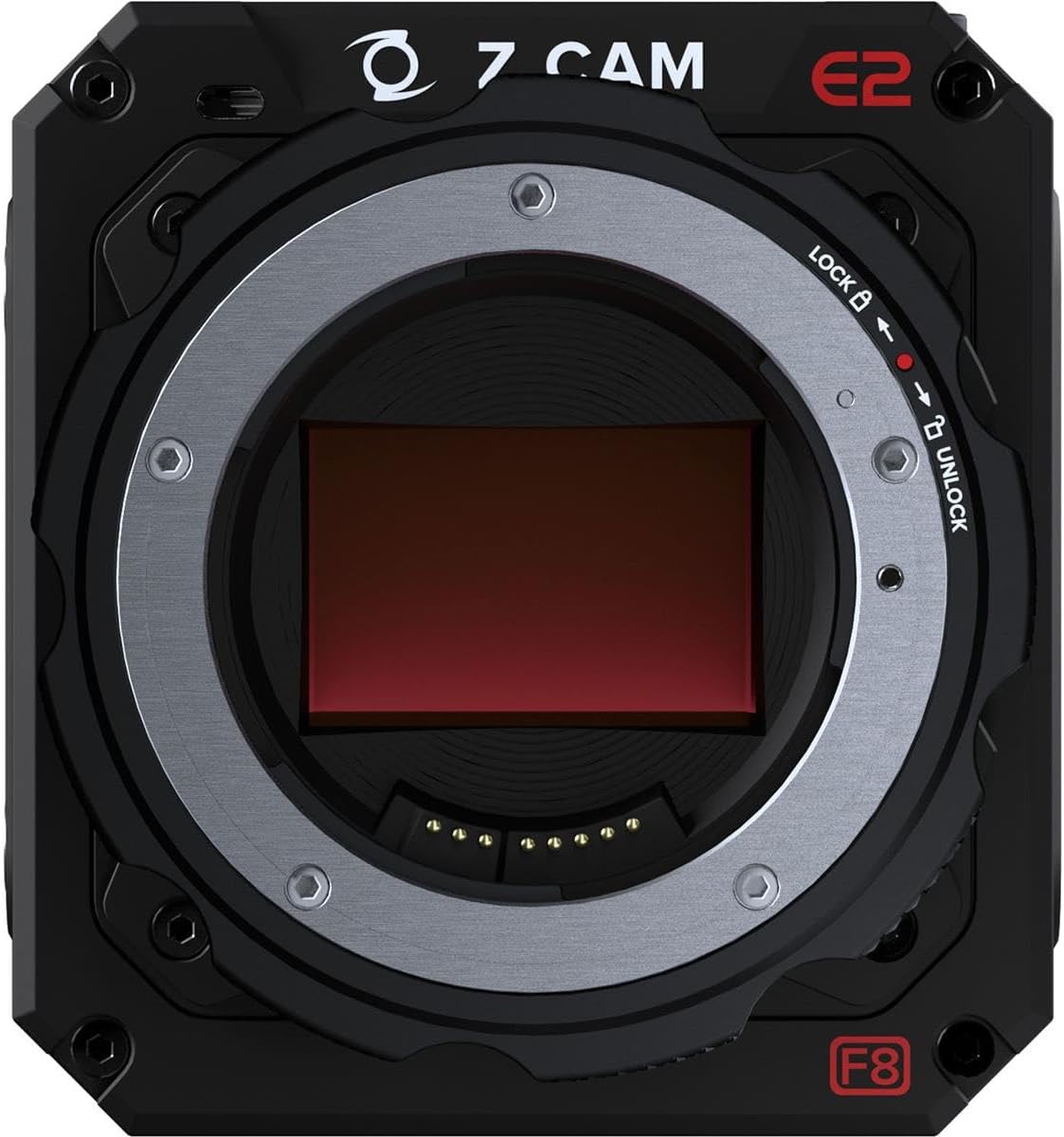
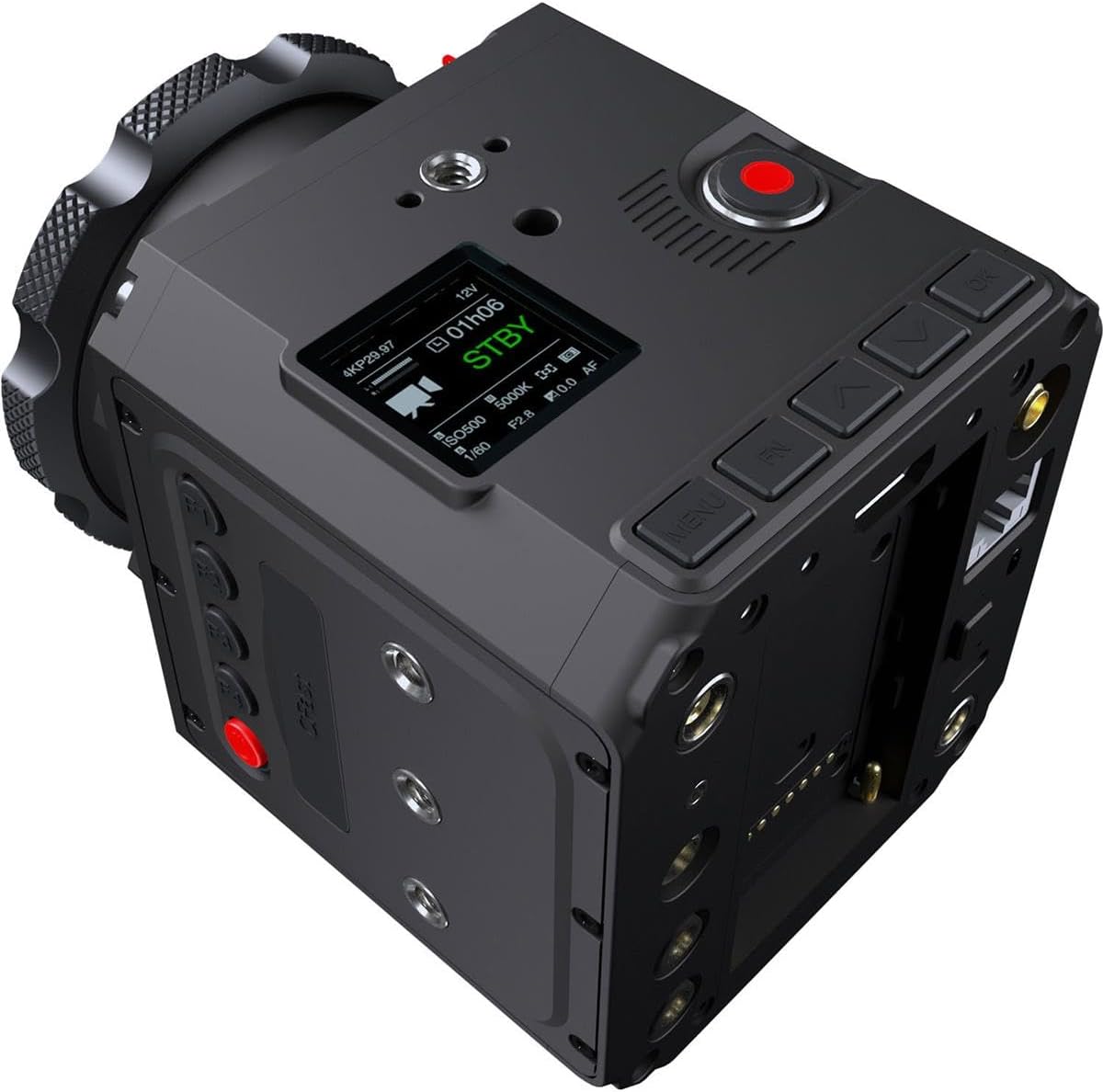
Figure 4.3: Top-rear view of the Z CAM E2-F8, showing the small display screen and various control buttons for menu navigation and settings.
5. ປະຕິບັດການກ້ອງຖ່າຍຮູບ
5.1 ການບັນທຶກພື້ນຖານ
- ເລີ່ມ/ຢຸດການບັນທຶກ: Press the dedicated record button (often red) to start and stop recording.
- ການຕິດຕາມ: Connect an external monitor via the HDMI 2.0 port for real-time video output (up to 4K60, 10-bit 4:2:2).
5.2 ເມນູນໍາທາງ ແລະການຕັ້ງຄ່າ
Use the navigation buttons (MENU, UP, DOWN, LEFT, RIGHT, OK) located on the camera body to access and adjust settings on the integrated display or an external monitor.
- ຄວາມລະອຽດ ແລະອັດຕາເຟຣມ: Navigate to the 'Video' settings to select resolutions up to 8K (8192x3456 DCI 2.4:1 or 7680x4320 UHD) and frame rates up to 30fps.
- Dynamic Range and ISO: Adjust dynamic range settings and utilize the dual native ISO (400/1250) for optimal low-light performance.
- ຮູບແບບການບັນທຶກ: Select desired recording formats (ZRAW, MOV, MP4) and compression (H.265 for 10-bit, H.264 for 8-bit).
- ການຕັ້ງຄ່າສຽງ: Configure audio input (3.5mm stereo jack or 5-pin LEMO for XLR) and format (24-bit 48 kHz AAC or PCM for MOV).
5.3 ການເຊື່ອມຕໍ່
- Gigabit-Ethernet: Connect an Ethernet cable for live streaming or remote control.
- Wi-Fi: Use the built-in Wi-Fi to connect to the Z Camera iOS app for remote control and monitoring.
- USB-C: For data transfer and firmware updates.
ຮູບ 5.1: ດ້ານຫລັງ view of the Z CAM E2-F8, displaying the HDMI, Ethernet, USB-C, and audio ports.

ຮູບ 5.2: ອີກດ້ານຫນຶ່ງ view of the Z CAM E2-F8, showing additional mounting points and various input/output ports for accessories and connectivity.
6. ບໍາລຸງຮັກສາ
- ທໍາຄວາມສະອາດຮ່າງກາຍກ້ອງຖ່າຍຮູບ: ໃຊ້ຜ້າແພທີ່ອ່ອນນຸ່ມ, ບໍ່ມີສານດ່າງເພື່ອເຊັດຕົວກ້ອງຖ່າຍຮູບ. ສໍາລັບຝຸ່ນ stubborn, ເລັກນ້ອຍ dampen ຜ້າທີ່ມີນ້ໍາ. ຢ່າໃຊ້ສານເຄມີທີ່ຮຸນແຮງ.
- ການເຮັດຄວາມສະອາດເຊັນເຊີ: Sensor cleaning should only be performed by experienced users or professional service centers. Improper cleaning can cause permanent damage.
- ການອັບເດດເຟີມແວ: Regularly check the Z CAM official website for the latest firmware updates to ensure optimal performance and access to new features. Follow the provided instructions carefully for firmware installation.
- ການເກັບຮັກສາ: When not in use, store the camera in a dry, cool place, away from direct sunlight and extreme temperatures. Use a desiccant pack if storing in humid environments.
7. ການແກ້ໄຂບັນຫາ
| ບັນຫາ | ສາເຫດທີ່ເປັນໄປໄດ້ | ການແກ້ໄຂ |
|---|---|---|
| ກ້ອງຖ່າຍຮູບບໍ່ເປີດ. | No power, faulty power adapter, or battery (if applicable) is drained. | Ensure power adapter is securely connected and outlet is functional. If using a battery, ensure it is charged. |
| ການບັນທຶກຢຸດໂດຍບໍ່ຄາດຄິດ. | CFast card full, card speed too slow, or overheating. | Check available space on CFast card. Use a high-speed CFast 2.0 card. Allow camera to cool down if it feels hot. |
| ບໍ່ມີຜົນຜະລິດວິດີໂອຜ່ານ HDMI. | Incorrect cable, monitor settings, or camera output settings. | Verify HDMI cable connection. Check monitor input source. Ensure camera's HDMI output settings match monitor capabilities. |
| ບັນຫາການເຊື່ອມຕໍ່ Wi-Fi. | Incorrect Wi-Fi settings, interference, or app issues. | Restart camera and mobile device. Reconfigure Wi-Fi settings on camera. Ensure Z Camera iOS app is updated. |
8. ຂໍ້ມູນຈໍາເພາະ
| ຄຸນສົມບັດ | ລາຍລະອຽດ |
|---|---|
| ໝາຍເລກຕົວແບບ | Z CAM E2-F8 |
| ປະເພດເຊັນເຊີ | Full-Frame CMOS (35.97 x 23.98 mm) |
| Pixels ທີ່ມີປະສິດທິພາບ | 61M |
| ຊ່ວງໄດນາມິກ | 14 ຢຸດ |
| Native ISO | 400/1250 |
| ຄວາມລະອຽດສູງສຸດ | 8192x3456 (DCI 8K 2.4:1) @ 30fps, 7680x4320 (8K UHD) @ 30fps |
| ສື່ບັນທຶກ | CFast 2.0 |
| ອັດຕາຂໍ້ມູນສູງສຸດ | 300 Mb/s |
| ຮູບແບບວິດີໂອ | ZRAW, MOV, MP4 (H.265 10-bit, H.264 8-bit) |
| ຮູບແບບສຽງ | 24-bit 48 kHz (AAC, PCM for MOV) |
| ຜົນຜະລິດວິດີໂອ | HDMI 2.0 (4K60, 10-bit 4:2:2) |
| ການເຊື່ອມຕໍ່ | Gigabit Ethernet, Wi-Fi, USB-C, 3.5mm Stereo Jack, 5-pin LEMO |
| ຂະໜາດ | 10.7 x 8.9 x 5.2 ນິ້ວ |
| ນ້ຳໜັກ | 4.85 ປອນ |
9. ການຮັບປະກັນແລະການສະຫນັບສະຫນູນ
9.1 ຂໍ້ມູນການຮັບປະກັນ
The Z CAM E2-F8 Professional Full-Frame 8K Cinema Camera typically comes with a manufacturer's limited warranty covering defects in materials and workmanship for a specified period from the date of purchase. Please refer to the warranty card included in your product package for specific terms, conditions, and duration. Keep your proof of purchase for warranty claims.
9.2 ສະຫນັບສະຫນູນລູກຄ້າ
For technical assistance, troubleshooting beyond this manual, or warranty service, please contact Z CAM customer support through their official website. You may need to provide your product's serial number and proof of purchase.
ຊັບພະຍາກອນອອນໄລນ໌: Visit the official Z CAM webເວັບໄຊສໍາລັບ:
- ອັບເດດເຟີມແວຫຼ້າສຸດ
- Detailed product documentation
- FAQs and knowledge base
- ຂໍ້ມູນຕິດຕໍ່ສໍາລັບການສະຫນັບສະຫນູນ
Ask a question about this manual
Ask about setup, troubleshooting, compatibility, parts, safety, or missing instructions. Manuals+ will review the question and use this page’s manual context to help answer it.