
1. ບົດແນະນຳ
This manual provides essential information for the proper setup, operation, and maintenance of your NexiGo NG17QH 4K Portable Monitor. Please read this manual thoroughly before using the device to ensure optimal performance and to prevent damage. Keep this manual for future reference.

Image: The NexiGo NG17QH 4K Portable Monitor, showcasing its sleek design and smart cover.
2. ເນື້ອໃນຊຸດ
Verify that all items listed below are included in your package. If any items are missing or damaged, please contact NexiGo customer support.
- NexiGo NG17QH 4K Portable Monitor
- Smart Cover / Stand
- ສາຍ USB-C ຫາ USB-C
- Mini HDMI ເຖິງ HDMI Cable
- ສາຍໄຟ USB-A ຫາ USB-C
- Power Adapter
3. ຜະລິດຕະພັນເກີນview
Familiarize yourself with the ports and controls on your NexiGo NG17QH portable monitor.
ຮູບພາບ: ລາຍລະອຽດ view ຂອງພອດ ແລະການຄວບຄຸມຂອງຈໍພາບ.
ພອດ ແລະ ປຸ່ມ:
- ພອດ USB-C ເຕັມຮູບແບບ: Used for power, video, and audio transmission with compatible devices.
- ຜອດ HDMI ຂະໜາດນ້ອຍ: Used for video and audio transmission with HDMI-compatible devices.
- ປຸ່ມເປີດປິດ: Press and hold to power the monitor on or off. Short press to access the OSD menu.
- ແສງສະຫວ່າງຕົວຊີ້ວັດພະລັງງານ: Indicates the monitor's power status.
- Multi-Function Key: Used to navigate the OSD menu and adjust settings.
- OTG Interface (USB-C): Allows connection of USB peripherals like keyboards or mice when the monitor is connected via the full-featured USB-C port.
- Jack ຫູຟັງ 3.5 ມມ: ສໍາລັບການເຊື່ອມຕໍ່ອຸປະກອນສຽງພາຍນອກ.
4. ຕັ້ງຄ່າ
Follow these steps to set up your NexiGo NG17QH portable monitor.
4.1 ການເປີດເຄື່ອງຕິດຕາມ
- Using a single USB-C cable (Full-Featured): If your device (laptop, smartphone) supports full-featured USB-C output, connect the monitor to your device using the provided USB-C to USB-C cable. This single cable can provide both power and display signal.
- Using an external power adapter: If your device does not provide sufficient power or if you are using the Mini HDMI port, connect the provided USB-A to USB-C power cable to the monitor's full-featured USB-C port and plug the USB-A end into the power adapter, then into a wall outlet.
4.2 ການເຊື່ອມຕໍ່ກັບອຸປະກອນ
- ແລັບທັອບ/PC (USB-C): Connect the monitor to your laptop/PC using the USB-C to USB-C cable. Ensure your laptop's USB-C port supports DisplayPort Alternate Mode.
- ແລັບທັອບ/PC (HDMI): Connect the monitor to your laptop/PC using the Mini HDMI to HDMI cable. Ensure the monitor is powered externally via the USB-C power cable.
- Gaming Consoles (PS5, Xbox, Switch): Connect the monitor to your console using the Mini HDMI to HDMI cable. Ensure the monitor is powered externally via the USB-C power cable.
- ໂທລະສັບສະຫຼາດ: Connect the monitor to your smartphone using the USB-C to USB-C cable. Ensure your smartphone's USB-C port supports video output.
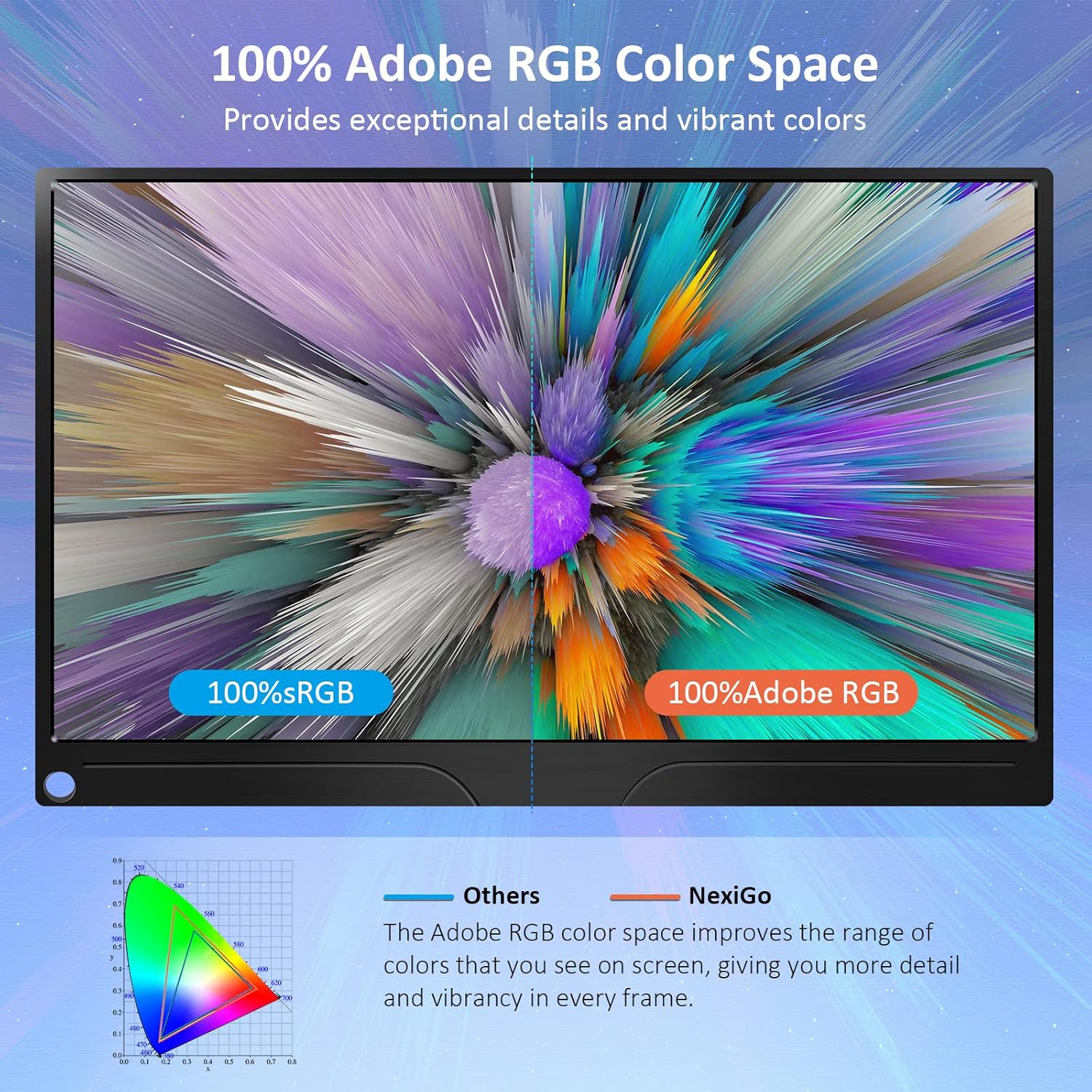
Image: The portable monitor connected to a laptop, demonstrating an extended display setup.
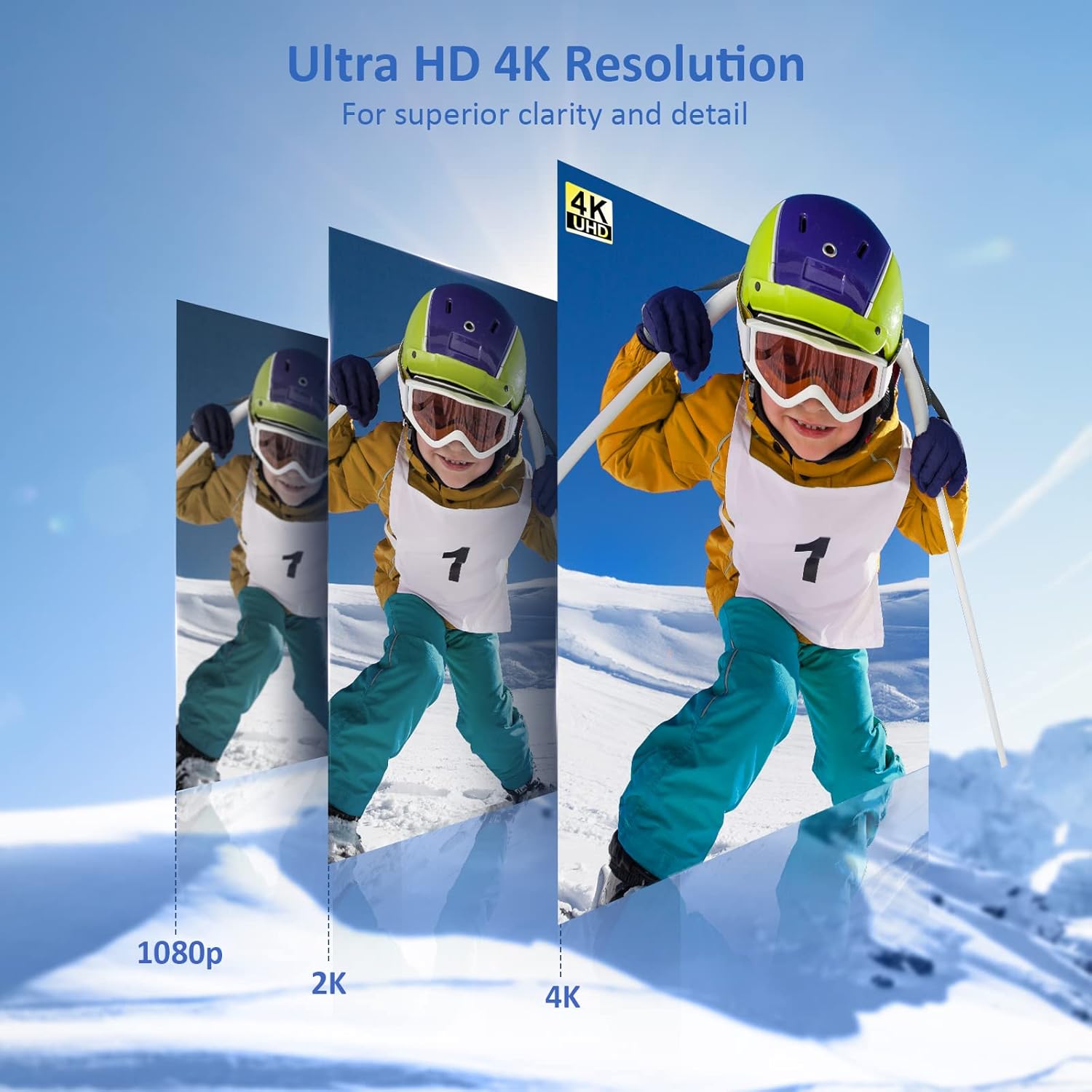
Image: The portable monitor connected to a smartphone, displaying content.
4.3 ການຕິດຕັ້ງ VESA
The monitor is compatible with VESA mounts (75x75mm). To mount the monitor, remove the smart cover and attach it to a compatible VESA arm or wall mount using appropriate screws (not included).
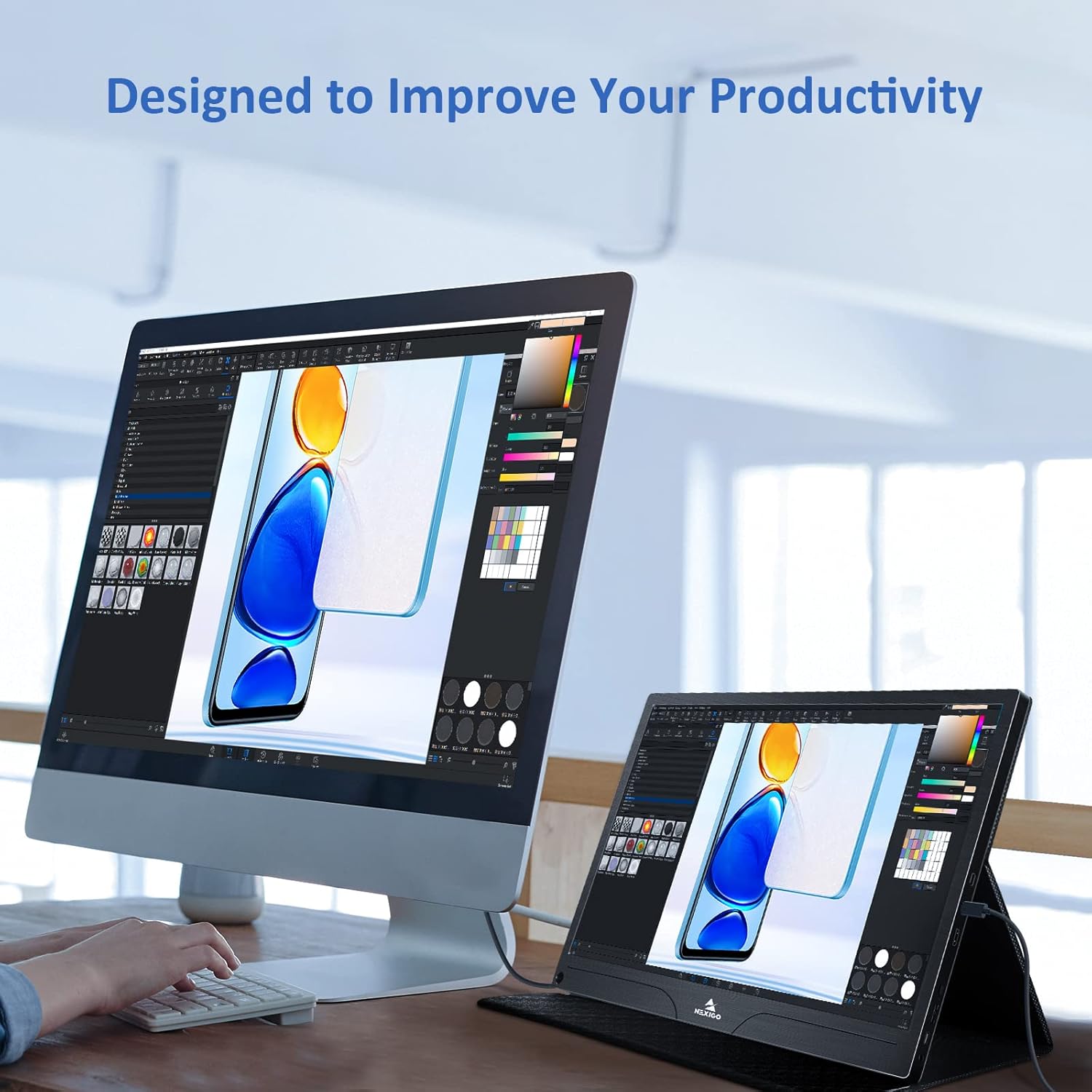
Image: The monitor mounted on a VESA-compatible desk arm.
5. ການດໍາເນີນງານຂອງ Monitor
5.1 ເປີດ/ປິດ
ກົດຄ້າງໄວ້ ປຸ່ມເປີດປິດ for approximately 3 seconds to turn the monitor on or off.
5.2 ເມນູການສະແດງເທິງໜ້າຈໍ (OSD).
The OSD menu allows you to adjust various display settings. Short press the ປຸ່ມເປີດປິດ to open the OSD menu. Use the ປຸ່ມຫຼາຍຟັງຊັນ to navigate and select options.
- ຂຶ້ນລົງ: Move the Multi-Function Key up or down to navigate through menu options.
- ປ້ອນ: Press the Multi-Function Key inward to select an option or confirm a setting.
- ອອກ: Press the Power Button to exit the current menu or the OSD.
5.3 ການຕັ້ງຄ່າການສະແດງ
- ຄວາມສະຫວ່າງ/ຄວາມຄົມຊັດ: ປັບຄວາມສະຫວ່າງໂດຍລວມແລະຄວາມຄົມຊັດຂອງຈໍສະແດງຜົນ.
- ການຕັ້ງຄ່າສີ: ປັບປ່ຽນອຸນຫະພູມສີ, ສີເຫຼື້ອມ, ແລະຄວາມອີ່ມຕົວ.
- ໂໝດ HDR: Enable or disable High Dynamic Range for enhanced visual quality with compatible content.
- FreeSync: Enable FreeSync for smoother gaming experiences by synchronizing the monitor's refresh rate with your GPU's frame rate.
- ອັດຕາສ່ວນ: Adjust the display aspect ratio (e.g., 16:9, 4:3).
5.4 ການຕັ້ງຄ່າສຽງ
Adjust the volume of the built-in dual speakers or connected headphones through the OSD menu.
6. ບໍາລຸງຮັກສາ
- ທໍາຄວາມສະອາດຫນ້າຈໍ: ໃຊ້ຜ້າແພອ່ອນໆ ທີ່ບໍ່ມີເສັ້ນດ່າງ ງampຫຸ້ມດ້ວຍນ້ໍາຫຼືເຄື່ອງເຮັດຄວາມສະອາດຫນ້າຈໍທີ່ບໍ່ມີການຂັດ. ຢ່າສີດຂອງແຫຼວໂດຍກົງໃສ່ຫນ້າຈໍ.
- ທໍາຄວາມສະອາດ Casing: ເຊັດຈໍສະແດງຜົນ casing with a soft, dry cloth. Avoid using harsh chemicals or solvents.
- ການເກັບຮັກສາ: When not in use, store the monitor in a cool, dry place, preferably in its original packaging or smart cover to protect it from dust and scratches.
- ຫຼີກລ້ຽງສະພາບທີ່ຮ້າຍແຮງ: Do not expose the monitor to extreme temperatures, humidity, or direct sunlight.
7. ການແກ້ໄຂບັນຫາ
ຖ້າທ່ານພົບບັນຫາກັບຈໍພາບຂອງທ່ານ, ໃຫ້ອ້າງອີງເຖິງຕາຕະລາງຕໍ່ໄປນີ້ສຳລັບບັນຫາ ແລະ ວິທີແກ້ໄຂທົ່ວໄປ.
| ບັນຫາ | ສາເຫດທີ່ເປັນໄປໄດ້ | ການແກ້ໄຂ |
|---|---|---|
| ບໍ່ມີການສະແດງຜົນ / ຂໍ້ຄວາມ "ບໍ່ມີສັນຍານ" | Incorrect cable connection, insufficient power, incorrect input source. | Ensure cables are securely connected. Verify external power is supplied if needed. Check the input source setting in the OSD menu. |
| ຈໍສະແດງຜົນບໍ່ເປີດ | ບໍ່ມີການສະຫນອງພະລັງງານ, ສາຍຂັດຂ້ອງ. | Ensure the power adapter is connected and working. Try a different USB-C cable or power source. |
| ໜ້າຈໍກະພິບ | Faulty cable, unstable power, incompatible resolution/refresh rate. | Replace the cable. Ensure stable power. Adjust the display resolution or refresh rate on your connected device. |
| ບໍ່ມີສຽງ | ລະດັບສຽງຕໍ່າເກີນໄປ, ການຕັ້ງຄ່າສຽງອອກບໍ່ຖືກຕ້ອງ, ສາຍຂັດຂ້ອງ. | Increase volume via OSD or connected device. Ensure the monitor is selected as the audio output device on your source. Check cable connections. |
| OTG port not working | Monitor not powered via full-featured USB-C, device incompatibility. | Ensure the monitor is connected to a device via the full-featured USB-C port that supports OTG functionality. |
8. ຂໍ້ມູນຈໍາເພາະ
Detailed technical specifications for the NexiGo NG17QH 4K Portable Monitor.
| ຄຸນສົມບັດ | ຂໍ້ມູນຈໍາເພາະ |
|---|---|
| ໝາຍເລກຕົວແບບ | NG17QH |
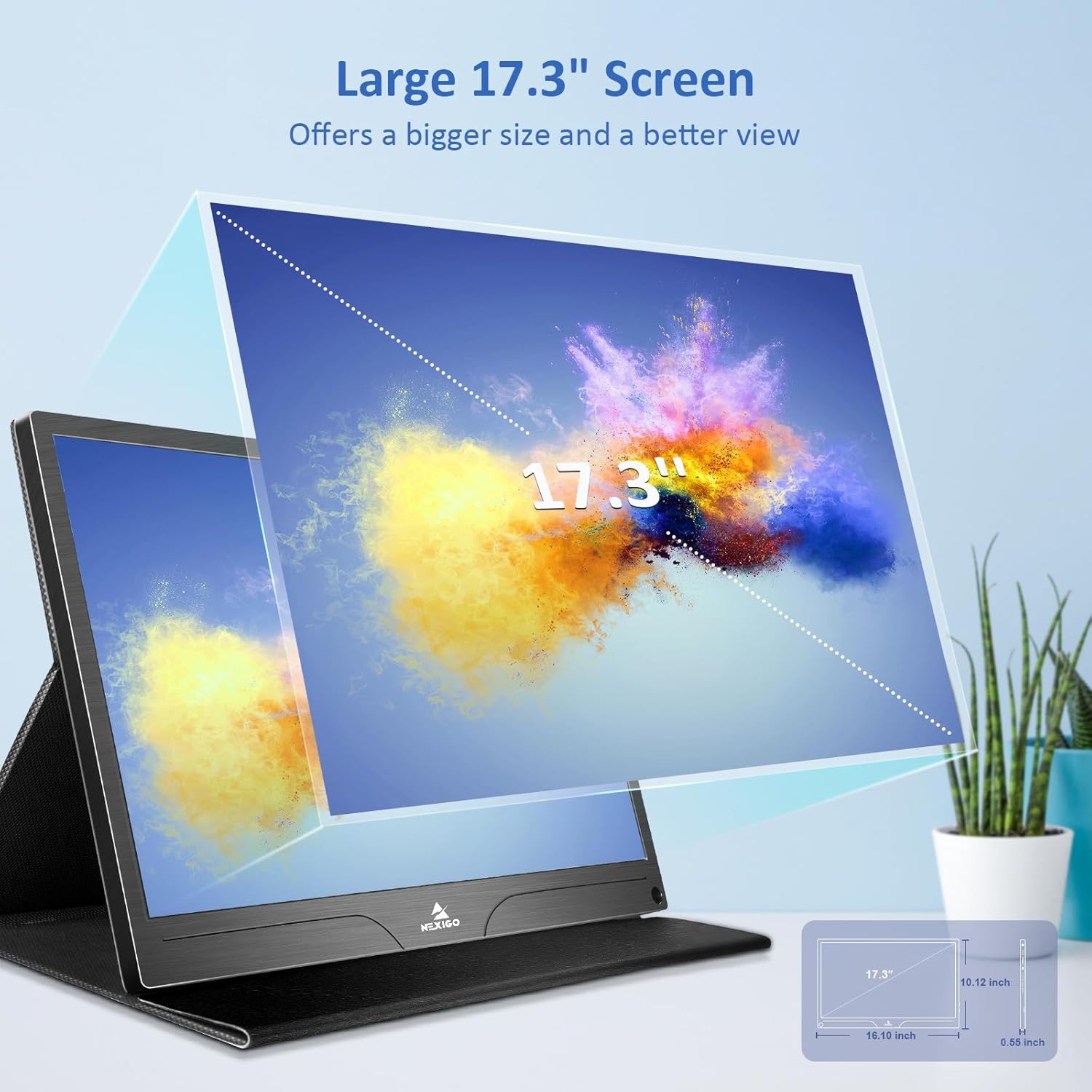
| ຂະໜາດໜ້າຈໍ | 17.3 ນິ້ວ |
| ຄວາມລະອຽດ | 3840 x 2160 (4K UHD) |
| ປະເພດແຜງ | IPS |
| ຄວາມສະຫວ່າງ | 400 cd/m² |
| ສີ Gamut | 100% Adobe RGB |
| ອັດຕາສ່ວນ | 16:9 |
| Viewໃນມຸມ | 178° |
| ຄຸນສົມບັດ | FreeSync, HDR, Eye Care Screen |
| ລໍາໂພງ | Dual Built-in Speakers |
| ການເຊື່ອມຕໍ່ | Full-Featured USB-C (x1), Mini HDMI (x1), OTG USB-C (x1), 3.5mm Audio Jack (x1) |
| ຄວາມເຂົ້າກັນໄດ້ຂອງ VESA | 75 x 75 ມມ |
| ຂະໜາດສິນຄ້າ | 16.1 x 10.12 x 0.55 ນິ້ວ |
| ນ້ໍາຫນັກລາຍການ | 6.39 ປອນ |

Image: Visual comparison of 1080p, 2K, and 4K resolutions, demonstrating the clarity of the 4K display.
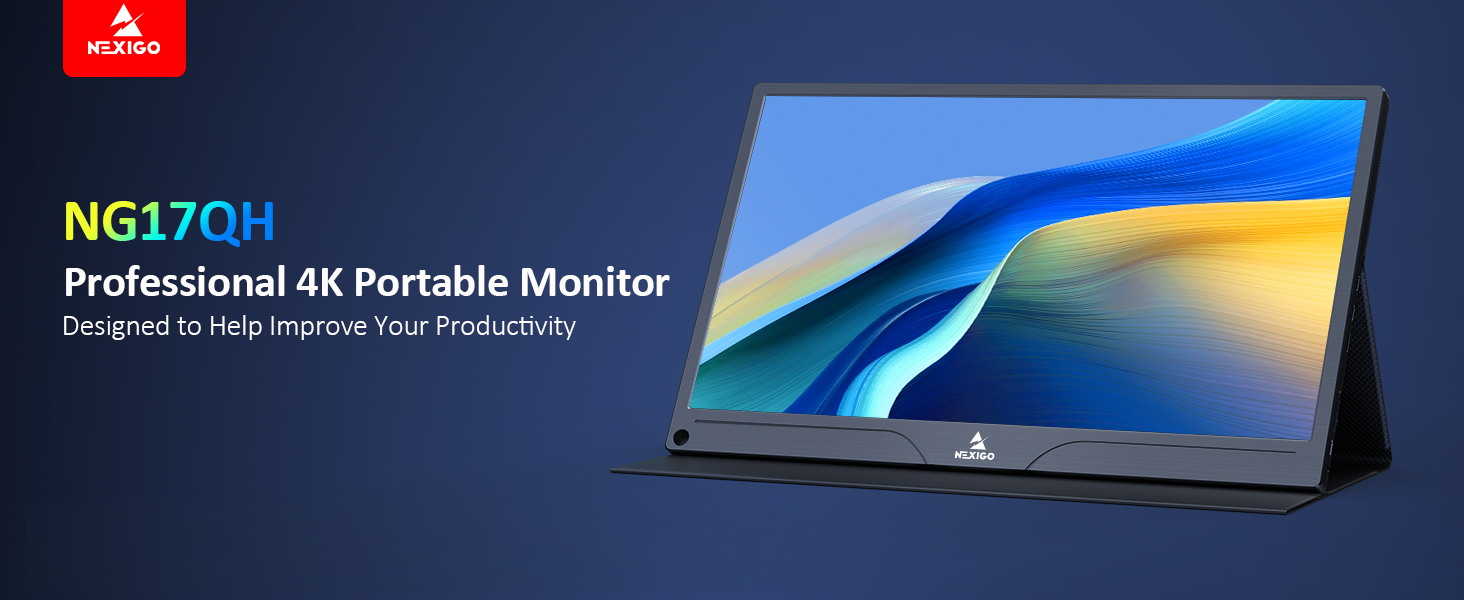
Image: A visual representation of 100% Adobe RGB color space coverage, indicating vibrant and detailed color reproduction.
9. ການຮັບປະກັນແລະການສະຫນັບສະຫນູນ
Your NexiGo NG17QH Portable Monitor comes with a manufacturer's warranty. For detailed warranty information, product registration, or technical support, please visit the official NexiGo webເວັບໄຊ ຫຼືຕິດຕໍ່ບໍລິການລູກຄ້າຂອງເຂົາເຈົ້າໂດຍກົງ. ຮັກສາໃບຮັບເງິນການຊື້ຂອງທ່ານໄວ້ເປັນຫຼັກຖານການຊື້ສໍາລັບການຮ້ອງຂໍການຮັບປະກັນ.
NexiGo Official Webເວັບໄຊ: www.nexigo.com