
1. ບົດແນະນຳ
Thank you for choosing the Mecer 23.8 Inch Full HD LED Monitor. This manual provides essential information for setting up, operating, and maintaining your monitor. Please read it thoroughly before use to ensure proper functionality and longevity of your device.
This monitor features a 23.8-inch Full HD (1920 x 1080) display, offering crisp and clear visuals. It incorporates TFT LED panel technology for energy efficiency and vibrant colors, with a 16:9 aspect ratio suitable for widescreen viewing. Connectivity options include VGA and HDMI, making it compatible with various devices. Built-in speakers provide basic audio, and wide 178° viewing angles ensure comfortable use. With a 2ms response time, it is suitable for general computing and multimedia consumption.
2. ຂໍ້ມູນຄວາມປອດໄພ
- ແຫຼ່ງພະລັງງານ: ໃຊ້ພຽງແຕ່ອະແດັບເຕີພະລັງງານທີ່ສະໜອງໃຫ້ກັບຈໍພາບເທົ່ານັ້ນ. ຮັບປະກັນວ່າປລັກສຽບໄຟມີຮາກຖານຢ່າງຖືກຕ້ອງ.
- ການລະບາຍອາກາດ: ຫ້າມປິດຊ່ອງລະບາຍອາກາດ. ອະນຸຍາດໃຫ້ມີພື້ນທີ່ພຽງພໍຮອບຈໍສໍາລັບການໄຫຼວຽນຂອງອາກາດທີ່ເຫມາະສົມເພື່ອປ້ອງກັນຄວາມຮ້ອນເກີນ.
- ການຈັດວາງ: ວາງຈໍພາບໄວ້ເທິງພື້ນຜິວທີ່ໝັ້ນຄົງ ແລະ ຮາບພຽງ. ຫຼີກລ່ຽງການວາງມັນໄວ້ໃນແສງແດດໂດຍກົງ, ໃກ້ແຫຼ່ງຄວາມຮ້ອນ, ຫຼື ໃນສະພາບແວດລ້ອມທີ່ມີຝຸ່ນ ຫຼື ຄວາມຊຸ່ມຊື່ນຫຼາຍເກີນໄປ.
- ທໍາຄວາມສະອາດ: Disconnect the power cord before cleaning. Use a soft, dry cloth for the screen and a slightly damp cloth for the casing. ຫຼີກເວັ້ນການນໍາໃຊ້ເຄື່ອງເຮັດຄວາມສະອາດຂັດຫຼືສານລະລາຍ.
- ການເປີດເຜີຍຂອງແຫຼວ: Keep liquids away from the monitor. If liquid enters the monitor, disconnect power immediately and contact qualified service personnel.
- ການຖອດອອກໄດ້: ຢ່າພະຍາຍາມຖອດ ຫຼືສ້ອມແປງຈໍສະແດງຜົນດ້ວຍຕົວເອງ. ອ້າງອີງການບໍລິການທັງໝົດໃຫ້ກັບພະນັກງານບໍລິການທີ່ມີຄຸນວຸດທິ.
3. ເນື້ອໃນຊຸດ
ກະລຸນາກວດສອບເນື້ອໃນຂອງຊຸດເພື່ອໃຫ້ແນ່ໃຈວ່າລາຍການທັງຫມົດມີຢູ່:
- Mecer 23.8 Inch LED Monitor
- Monitor Stand (ຖານ ແລະ ຄໍ)
- ອະແດບເຕີສາຍໄຟ ແລະສາຍ
- ສາຍ HDMI
- ສາຍ VGA
- ຄູ່ມືຜູ້ໃຊ້ (ເອກະສານນີ້)
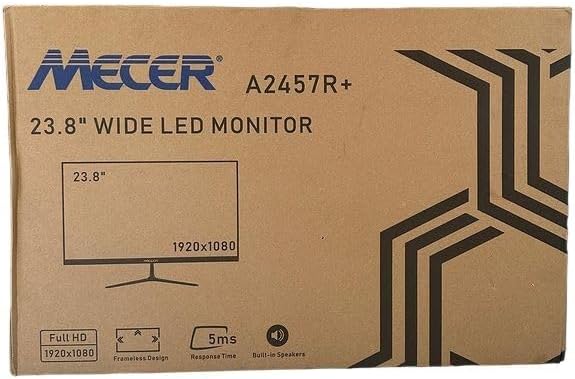
ຮູບພາບ 3.1: The monitor packaging box, indicating the model A2457R+ and key features like 23.8" display, Full HD 1920x1080 resolution, frameless design, 5ms response time, and built-in speakers.
4. ຕັ້ງຄ່າ
4.1. ການປະກອບ Monitor Stand
- ລະມັດລະວັງຖອດຈໍແລະອົງປະກອບຢືນອອກຈາກການຫຸ້ມຫໍ່.
- ແນບຄໍຂາຕັ້ງໃສ່ກັບແຜງຈໍພາບໂດຍການຈັດແຖບ ແລະ ດັນໃຫ້ແໜ້ນຈົນກວ່າມັນຈະກົດເຂົ້າບ່ອນ.
- Attach the stand base to the stand neck, securing it with the provided screw (usually hand-tightened).
- ວາງຈໍສະແດງຜົນທີ່ປະກອບໃສ່ໃນພື້ນທີ່ຮາບພຽງທີ່ຫມັ້ນຄົງ.

ຮູບພາບ 4.1: ດ້ານໜ້າ view of the Mecer 23.8 Inch LED Monitor with its stand assembled, ready for connection.
4.2. ການເຊື່ອມຕໍ່ກັບຄອມພິວເຕີ
The monitor supports both HDMI and VGA connections. Choose the appropriate cable for your computer.
- ການເຊື່ອມຕໍ່ HDMI: Connect one end of the HDMI cable to the HDMI port on your computer's graphics card and the other end to the HDMI port on the monitor. HDMI transmits both video and audio signals.
- ການເຊື່ອມຕໍ່ VGA: Connect one end of the VGA cable to the VGA port on your computer's graphics card and the other end to the VGA port on the monitor. VGA transmits only video signals.

ຮູບພາບ 4.2: ຫລັງ view of the Mecer 23.8 Inch LED Monitor, showing the input ports including HDMI and VGA, as well as the power input.
4.3. ການເຊື່ອມຕໍ່ພະລັງງານ
- Connect the power adapter cable to the DC IN port on the back of the monitor.
- ສຽບອະແດບເຕີໄຟໃສ່ກັບປລັກສຽບໃສ່ຝາ.
5. ຄໍາແນະນໍາການດໍາເນີນງານ
5.1. ເປີດ / ປິດພະລັງງານ
Press the power button, typically located on the bottom right side or rear of the monitor, to turn the monitor on or off. The power indicator light will illuminate when the monitor is on.
5.2. ການເລືອກແຫຼ່ງປ້ອນຂໍ້ມູນ
If you have multiple devices connected, you may need to manually select the input source. Use the monitor's control buttons (usually located near the power button) to navigate to the input selection menu and choose between HDMI or VGA.
5.3. ເມນູການສະແດງເທິງໜ້າຈໍ (OSD).
The OSD menu allows you to adjust various display settings. Use the monitor's control buttons to:
- ເຂົ້າຫາເມນູ OSD.
- Navigate through menu options (e.g., Brightness, Contrast, Color Settings, Input Source).
- Adjust values or select options.
- ອອກຈາກເມນູ OSD.
ການຕັ້ງຄ່າທີ່ສາມາດປັບໄດ້ທົ່ວໄປປະກອບມີ:
- ຄວາມສະຫວ່າງ/ຄວາມຄົມຊັດ: ປັບຄວາມສະຫວ່າງໂດຍລວມ ແລະຄວາມແຕກຕ່າງລະຫວ່າງພື້ນທີ່ແສງສະຫວ່າງ ແລະບ່ອນມືດ.
- ການຕັ້ງຄ່າສີ: Adjust color temperature, RGB values, or select preset color modes.
- ອັດຕາສ່ວນ: Change between 16:9, 4:3, or other available options.
- ສຽງ: Adjust volume for the built-in speakers.
5.4. ລໍາໂພງໃນຕົວ
The monitor includes built-in speakers for basic audio output. If using an HDMI connection, audio will be transmitted automatically. For VGA connections, ensure your computer's audio output is configured correctly. Adjust the volume through the OSD menu or your computer's operating system.
6. ບໍາລຸງຮັກສາ
6.1. ເຮັດຄວາມສະອາດ Monitor
- ຖອດສາຍຈໍຈາກປລັກສຽບໄຟອອກກ່ອນທຳຄວາມສະອາດທຸກຄັ້ງ.
- ໜ້າຈໍ: ເຊັດໜ້າຈໍຢ່າງອ່ອນໂຍນດ້ວຍຜ້າອ່ອນໆ, ບໍ່ມີເຈັ້ຍ. ສໍາລັບຮອຍແຂງ, ເບົາບາງ dampen the cloth with water or a specialized screen cleaner (ensure it's alcohol-free and ammonia-free) and wipe carefully. Do not spray liquid directly onto the screen.
- Casing: ໃຊ້ຜ້າອ່ອນໆເຊັດຈໍສະແດງຜົນ casing. If necessary, a slightly damp ຜ້າສາມາດນໍາໃຊ້ໄດ້, ປະຕິບັດຕາມດ້ວຍຜ້າແຫ້ງ.
6.2. ການເກັບຮັກສາ
ຖ້າເກັບຮັກສາຈໍພາບໄວ້ເປັນເວລາດົນ, ຖອດສາຍເຄເບິນທັງໝົດອອກ, ບັນຈຸມັນໄວ້ໃນບັນຈຸພັນເດີມ (ຖ້າມີ), ແລະເກັບຮັກສາໄວ້ໃນບ່ອນທີ່ເຢັນ, ແຫ້ງແລ້ງຫ່າງຈາກແສງແດດໂດຍກົງ ແລະ ອຸນຫະພູມສູງສຸດ.
7. ການແກ້ໄຂບັນຫາ
ຖ້າເຈົ້າພົບບັນຫາກັບຈໍພາບຂອງເຈົ້າ, ໃຫ້ອ້າງອີງເຖິງບັນຫາ ແລະວິທີແກ້ໄຂບັນຫາທົ່ວໄປຕໍ່ໄປນີ້:
- ບໍ່ມີພະລັງງານ:
- ໃຫ້ແນ່ໃຈວ່າສາຍໄຟໄດ້ເຊື່ອມຕໍ່ກັບຈໍພາບ ແລະ ປລັກສຽບຝາຢ່າງແໜ້ນໜາແລ້ວ.
- ກວດສອບວ່າປລັກສຽບໄຟເຮັດວຽກໄດ້ໂດຍການສຽບອຸປະກອນອື່ນ.
- Check if the power adapter is working correctly.
- ບໍ່ມີສັນຍານ:
- ໃຫ້ແນ່ໃຈວ່າສາຍວິດີໂອ (HDMI ຫຼື VGA) ໄດ້ເຊື່ອມຕໍ່ກັບທັງຈໍພາບ ແລະ ຄອມພິວເຕີຢ່າງແໜ້ນໜາແລ້ວ.
- Verify that the correct input source is selected on the monitor (via the OSD menu).
- Check if your computer is powered on and outputting a video signal.
- ລອງໃຊ້ສາຍວິດີໂອອື່ນຖ້າມີ.
- ຮູບພາບມົວ ຫຼື ບິດເບືອນ:
- Ensure the monitor's resolution is set to its native resolution (1920 x 1080) in your computer's display settings.
- Adjust the monitor's OSD settings for brightness, contrast, and sharpness.
- For VGA connections, use the 'Auto Adjust' function in the OSD menu if available.
- ບໍ່ມີສຽງຈາກລຳໂພງໃນຕົວ:
- ໃຫ້ແນ່ໃຈວ່າລະດັບສຽງຂອງຈໍພາບບໍ່ໄດ້ຖືກປິດສຽງ ຫຼື ຕັ້ງໄວ້ຕໍ່າເກີນໄປໃນເມນູ OSD.
- ກວດເບິ່ງການຕັ້ງຄ່າສຽງອອກຂອງຄອມພິວເຕີຂອງທ່ານເພື່ອຮັບປະກັນວ່າຈໍພາບຖືກເລືອກເປັນອຸປະກອນຫຼິ້ນ.
- If using VGA, ensure your computer's audio is routed to an external speaker system, as VGA does not carry audio.
8. ຂໍ້ມູນຈໍາເພາະ
| ຄຸນສົມບັດ | ຂໍ້ມູນຈໍາເພາະ |
|---|---|
| ຍີ່ຫໍ້ | Mecer |
| ໝາຍເລກຕົວແບບ | A2457R+ |
| ຂະຫນາດຈໍສະແດງຜົນ | 23.8 ນິ້ວ |
| ຄວາມລະອຽດ | 1920 x 1080 ພິກເຊລ (Full HD) |
| ປະເພດການສະແດງ | LED (TFT LED Panel) |
| ອັດຕາສ່ວນ | 16:9 |
| ເວລາຕອບສະຫນອງ | 2 ມິນລິວິນາທີ |
| ອັດຕາການໂຫຼດຂໍ້ມູນຄືນໃໝ່ | 75 Hz |
| Viewໃນ Angles | 178° ອອກຕາມລວງນອນ / 178° ຕັ້ງ |
| ການເຊື່ອມຕໍ່ | 1x HDMI, 1x VGA |
| ລຳໂພງໃນຕົວ | ແມ່ນແລ້ວ |
| ສີ | ດຳ |
| ຂະໜາດສິນຄ້າ (ກວ້າງ x ຍາວ x ສູງ) | 560D x 42W x 410H millimetres |
| ຄຸນນະສົມບັດພິເສດ | High performance intelligent multi-frequency scanning, Micro Computer digital technology control, no radiation, no glare, Comply with VESA DPMS international power saving regulation, Support DDC 1/2B and Windows PNP Plug and Play |
9. ການຮັບປະກັນແລະການສະຫນັບສະຫນູນ
This Mecer monitor comes with a ຮັບປະກັນ 1 ປີຈໍາກັດ ຈາກວັນທີ່ຊື້. ກະລຸນາຮັກສາຫຼັກຖານການຊື້ຂອງທ່ານສໍາລັບການຮຽກຮ້ອງການຮັບປະກັນ.
For technical support, service, or warranty inquiries, please contact your retailer or the authorized Mecer service center in your region. Do not attempt to repair the product yourself, as this may void your warranty.