
1. ບົດແນະນຳ
The YESIDO TV10 4G HD Wireless Screen Display Receiver is designed to wirelessly mirror content from your smartphone, tablet, or laptop to a larger display such as a TV or projector. It supports 4K resolution and is compatible with various operating systems, including iOS, Android, and Windows, utilizing technologies like Miracast and AirPlay.
2. ຂໍ້ມູນຄວາມປອດໄພ
- ຮັກສາອຸປະກອນໃຫ້ຫ່າງຈາກນໍ້າ ແລະສະພາບແວດລ້ອມທີ່ມີຄວາມຊຸ່ມຊື່ນສູງ.
- ຢ່າເຮັດໃຫ້ອຸປະກອນຢູ່ໃນອຸນຫະພູມທີ່ຮຸນແຮງ.
- ຫຼີກລ້ຽງການຫຼຸດລົງຫຼືການອຸປະກອນທີ່ມີຜົນກະທົບທີ່ເຂັ້ມແຂງ.
- Use only the provided power cable or a certified 5V/1A USB power adapter.
- ຢ່າພະຍາຍາມຖອດປະກອບ ຫຼືສ້ອມແປງອຸປະກອນດ້ວຍຕົນເອງ. ຕິດຕໍ່ພະນັກງານບໍລິການທີ່ມີຄຸນວຸດທິ.
3. ເນື້ອໃນຊຸດ
- YESIDO TV10 4G Wireless Screen Display Receiver
- USB Power Cable with Wi-Fi Antenna
- ຄູ່ມືຜູ້ໃຊ້
4. ຜະລິດຕະພັນເກີນview
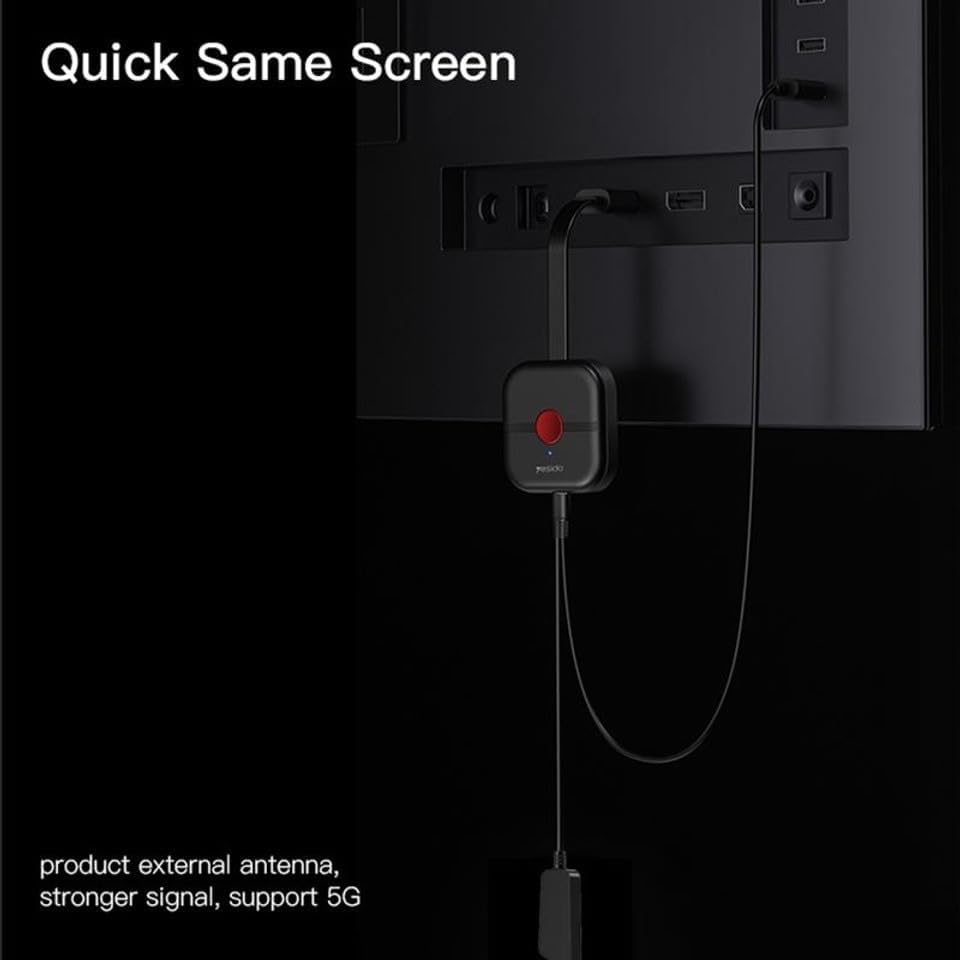
The YESIDO TV10 4G features a compact design with an integrated HDMI connector and a USB port for power and the external Wi-Fi antenna. It is designed for easy portability and discreet installation behind your display.
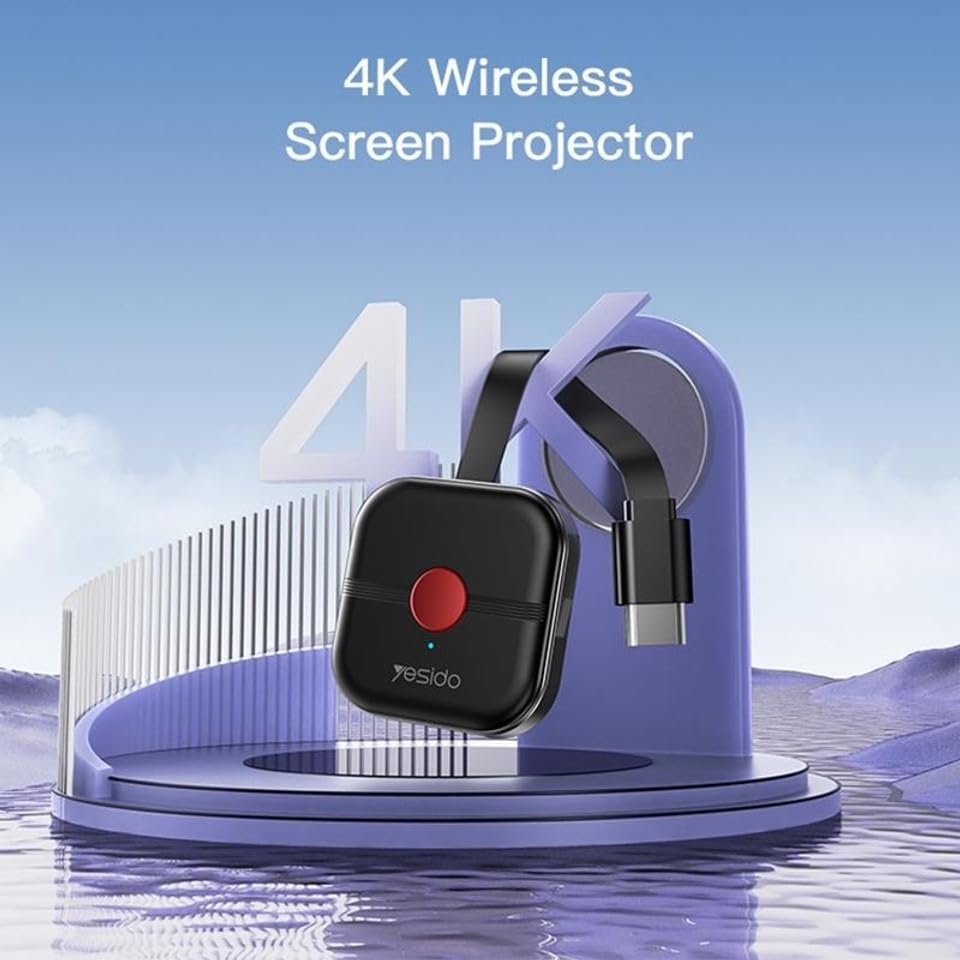
Image: The YESIDO TV10 4G dongle connected to an HDMI port on the back of a television, with its USB power cable and external antenna visible. This illustrates the compact setup.
ຮູບພາບ: ແຜນວາດຕົວຢ່າງສະແດງໃຫ້ເຫັນasing the high-performance main control chip, emphasizing its efficiency and stability for reliable wireless display.
5. ຕັ້ງຄ່າ
5.1 ການເຊື່ອມຕໍ່ອຸປະກອນ
- Plug the YESIDO TV10 4G into an available HDMI port on your TV or projector.
- ເຊື່ອມຕໍ່ສາຍໄຟ USB ກັບຜອດ micro-USB ຢູ່ dongle.
- Plug the other end of the USB power cable into a USB power adapter (5V/1A recommended) or a USB port on your TV that provides sufficient power.
- Ensure the external Wi-Fi antenna is positioned for optimal signal reception.
- Switch your TV/projector's input source to the corresponding HDMI port. You should see the YESIDO TV10 4G startup screen.
5.2 ການເຊື່ອມຕໍ່ Wi-Fi
- On the TV screen, locate the Wi-Fi network name (SSID) and password displayed by the YESIDO TV10 4G.
- On your smartphone, tablet, or laptop, go to Wi-Fi settings and connect to the YESIDO TV10 4G's Wi-Fi network.
- ເປີດ ກ web browser on your device and enter the IP address displayed on the TV screen (e.g., 192.168.x.x) to access the dongle's settings page.
- From the settings page, select 'Internet' or 'Wi-Fi Setup' and connect the dongle to your home Wi-Fi network. This allows the dongle to access the internet and for your device to maintain internet connectivity while mirroring.
6. ຄໍາແນະນໍາການດໍາເນີນງານ
6.1 Screen Mirroring (iOS/Android/Windows)
Once the YESIDO TV10 4G is connected to your home Wi-Fi network, you can initiate screen mirroring from your compatible device:
- ສຳລັບອຸປະກອນ iOS (AirPlay): Swipe down from the top-right corner (or up from the bottom for older models) to open Control Center. Tap 'Screen Mirroring' or 'AirPlay Mirroring' and select the YESIDO TV10 4G from the list.
- For Android Devices (Miracast/Smart View/Screen Cast): Go to your device's settings and look for 'Smart View', 'Screen Cast', 'Wireless Display', 'MirrorShare', or similar options. Select the YESIDO TV10 4G from the detected devices.
- For Windows Devices (Project to a wireless display): ກົດ ປຸ່ມ Windows + P, then select 'Connect to a wireless display'. Choose the YESIDO TV10 4G from the list.
6.2 ຄຸນນະພາບຂອງຮູບພາບ
The YESIDO TV10 4G supports up to 4K HD picture quality, providing clear and detailed visuals for your mirrored content.
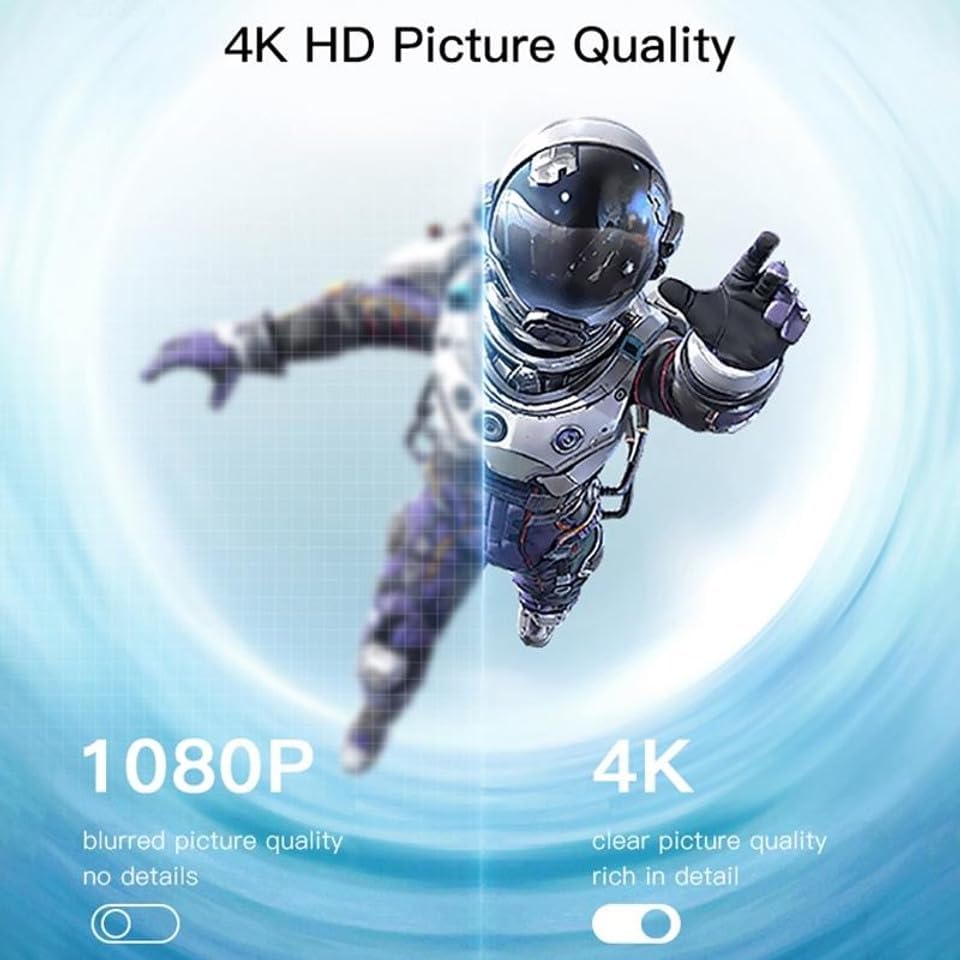
Image: A visual comparison demonstrating the difference between 1080P (blurred, no details) and 4K (clear, rich in detail) picture quality, highlighting the enhanced clarity offered by 4K resolution.
6.3 Horizontal and Vertical Screen Switching
The device supports flexible screen orientation, allowing you to switch between horizontal and vertical display modes freely, depending on your content and viewຄວາມມັກ.

Image: Two display setups, one showing content in a standard horizontal landscape mode and the other in a vertical portrait mode, illustrating the device's ability to switch screen orientation.
7. ບໍາລຸງຮັກສາ
- ເຮັດຄວາມສະອາດອຸປະກອນດ້ວຍຜ້າອ່ອນໆ, ແຫ້ງ. ຢ່າໃຊ້ເຄື່ອງເຮັດຄວາມສະອາດຂອງແຫຼວຫຼື aerosols.
- ໃຫ້ແນ່ໃຈວ່າອຸປະກອນຖືກຖອດອອກກ່ອນທີ່ຈະທໍາຄວາມສະອາດ.
- ເກັບຮັກສາອຸປະກອນໄວ້ໃນບ່ອນທີ່ເຢັນ, ແຫ້ງເມື່ອບໍ່ໄດ້ໃຊ້.
8. ການແກ້ໄຂບັນຫາ
- ບໍ່ມີການສະແດງຜົນໃນໂທລະພາບ: Ensure the dongle is properly plugged into the HDMI port and receiving power. Check that the TV input source is set to the correct HDMI port.
- Unstable connection/lag: Ensure the dongle's Wi-Fi antenna is positioned optimally. Reduce distance between the dongle and your Wi-Fi router/mirroring device. Check for interference from other wireless devices.
- ບໍ່ສາມາດເຊື່ອມຕໍ່ກັບ Wi-Fi ໄດ້: Double-check the Wi-Fi password. Ensure the dongle is within range of your router. Try restarting the dongle and your router.
- ບໍ່ມີສຽງ: Check the audio settings on your mirroring device and your TV. Ensure the TV's volume is not muted.
- Device not found for mirroring: Ensure your mirroring device's Wi-Fi is on and it's connected to the same network as the dongle (if applicable). Restart both devices.
9. ຂໍ້ມູນຈໍາເພາະ
| ຄຸນສົມບັດ | ຂໍ້ມູນຈໍາເພາະ |
|---|---|
| ຍີ່ຫໍ້ | YESIDO |
| ຕົວແບບ | TV10 4G |
| ປະເພດຕົວເຊື່ອມຕໍ່ | HDMI |
| ສີ | ດຳ |
| ຂະໜາດລາຍການ (L x W x H) | 50 x 30 x 40 ມມ |
| UPC | 723326980084 |
| ການເຊື່ອມຕໍ່ໄຮ້ສາຍ | 2.4G WiFi |
| ຄວາມລະອຽດສູງສຸດ | 4K HD |
10. ການຮັບປະກັນແລະການສະຫນັບສະຫນູນ
ສໍາລັບຂໍ້ມູນການຮັບປະກັນແລະການສະຫນັບສະຫນູນດ້ານວິຊາການ, ກະລຸນາເບິ່ງເອກະສານທີ່ສະຫນອງໃຫ້ໃນເວລາຊື້ຫຼືຕິດຕໍ່ຮ້ານຂາຍຍ່ອຍຂອງທ່ານ. ຮັກສາຫຼັກຖານການຊື້ຂອງທ່ານສໍາລັບການຮຽກຮ້ອງການຮັບປະກັນໃດໆ.