
1. ຜະລິດຕະພັນເກີນview
The ASUS ROG Ally is a powerful portable gaming handheld designed to deliver a console-like experience with the versatility of a Windows 11 PC. It features a 7-inch 120Hz touchscreen IPS display, an AMD Ryzen Z2 A processor, 16GB of LPDDR5X RAM, and a 512GB SSD, making it suitable for a wide range of PC games on the go.
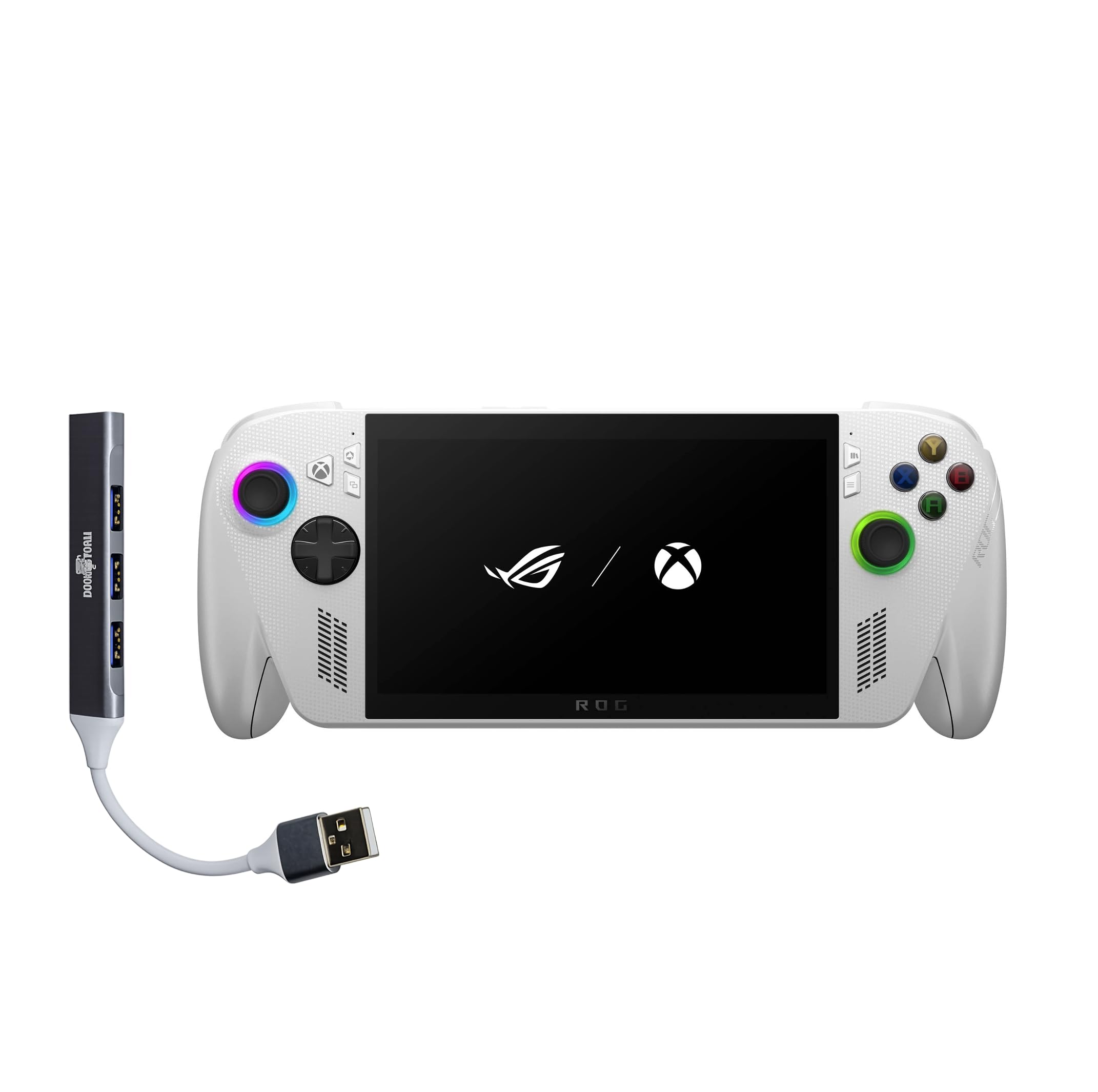
Figure 1: ASUS ROG Ally Gaming Handheld.
2. ສິ່ງທີ່ຢູ່ໃນກ່ອງ
Upon unboxing your ASUS ROG Ally, ensure all components are present:
- ASUS ROG Ally Gaming Handheld
- Power Adapter
- ເອກະສານ (ຄູ່ມືເລີ່ມຕົ້ນດ່ວນ, ບັດຮັບປະກັນ)

Figure 2: Included items in the ROG Ally package.
3. ການຈັດວາງອຸປະກອນ ແລະການຄວບຄຸມ
Familiarize yourself with the physical layout and controls of your ROG Ally for optimal gaming and navigation.
ດ້ານໜ້າ View
- 7-inch IPS Touchscreen Display: Main interface for visuals and touch input.
- Joystick ຊ້າຍ: ສຳລັບການເຄື່ອນໄຫວ ແລະ ການນຳທາງ.
- D-Pad: ການປ້ອນຂໍ້ມູນທິດທາງ.
- ປຸ່ມ Xbox: Accesses Xbox Game Bar and other Xbox features.
- Joystick ຂວາ: For camera control and navigation.
- ປຸ່ມ A/B/X/Y: ປຸ່ມປະຕິບັດມາດຕະຖານ.
- ລໍາໂພງທາງຫນ້າ: ຜົນຜະລິດສຽງສະເຕີລິໂອ.

ຮູບ 3: ດ້ານຫນ້າ view of the ROG Ally, highlighting the display and primary controls.
ເທິງ View
- ປຸ່ມເປີດ/ເຄື່ອງສະແກນລາຍນິ້ວມື: Powers the device on/off and provides secure login.
- Jack ສຽງ 3.5mm: ສໍາລັບການເຊື່ອມຕໍ່ຫູຟັງຫຼືອຸປະກອນສຽງພາຍນອກ.
- ຊ່ອງສຽບກາດ MicroSD: ສໍາລັບການເກັບຮັກສາທີ່ສາມາດຂະຫຍາຍໄດ້.
- ທໍ່ລະບາຍຄວາມຮ້ອນ: For cooling the internal components.
- ປຸ່ມປຸ່ມ Volume Up / Down: ປັບລະດັບສຽງ.
- ຕົວຊີ້ວັດ LED: Displays device status (e.g., charging, power on).
- ພອດ USB-C (x2): For charging, data transfer, and external device connectivity (one supports Thunderbolt).
- R1/R2/L1/L2 Buttons: Shoulder and trigger buttons for gaming.

ຮູບທີ 4: ທາງເທິງ view of the ROG Ally, showing various ports and buttons.
ຫລັງ View
- Rear Grips: Contoured for comfortable handling during extended play sessions.
- Rear Vents: Additional ventilation for cooling.

ຮູບ 5: ດ້ານຫລັງ view of the ROG Ally, highlighting ergonomic grips.
4. ຕັ້ງຄ່າ
Initial Power On and Windows 11 Setup
- Connect the power adapter to the ROG Ally and a power outlet.
- ກົດຄ້າງໄວ້ ປຸ່ມເປີດປິດ until the device powers on.
- ປະຕິບັດຕາມຄໍາແນະນໍາໃນໜ້າຈໍເພື່ອເຮັດສໍາເລັດການຕັ້ງຄ່າ Windows 11 Home, ລວມທັງພາສາ, ພາກພື້ນ ແລະ ການຕັ້ງຄ່າເຄືອຂ່າຍ.
- Set up your Microsoft account and create a user profile.
ກຳລັງເຊື່ອມຕໍ່ກັບ Wi-Fi
During the initial Windows setup, you will be prompted to connect to a Wi-Fi network. If you need to connect later:
- ແຕະທີ່ ໄອຄອນເຄືອຂ່າຍ ໃນແຖບວຽກ.
- ເລືອກເຄືອຂ່າຍ Wi-Fi ທີ່ທ່ານຕ້ອງການຈາກບັນຊີລາຍຊື່.
- ໃສ່ລະຫັດຜ່ານເຄືອຂ່າຍຖ້າຖືກເຕືອນ ແລະແຕະ ເຊື່ອມຕໍ່.
Fingerprint Sensor Setup
For secure and quick login, set up the integrated fingerprint sensor:
- ໄປທີ່ ການຕັ້ງຄ່າ > ບັນຊີ > ຕົວເລືອກການເຂົ້າສູ່ລະບົບ.
- ເລືອກ ການຮັບຮູ້ລາຍນິ້ວມື (Windows Hello) and follow the on-screen instructions to register your fingerprint.
5. Operating Your ROG Ally
ປະສົບການການຫຼິ້ນເກມ
The ROG Ally provides a versatile gaming experience, allowing access to various platforms.
- Xbox Game Bar Integration: Launch Game Bar with a tap of the Xbox button to access game-related features, social interactions, and performance monitoring.
- Game Libraries: Play titles natively from platforms like Xbox Game Pass, Steam, Epic Games, and other Windows game stores.
- ຄຸນສົມບັດການສະແດງ: The 7-inch 120Hz display with FreeSync Premium variable refresh rate ensures smooth gameplay and reduces screen tearing. With 500 nits of brightness, the display offers vivid and immersive visuals.

Figure 6: The 7-inch 1080p 120Hz display provides ultra-smooth graphics.
ໂໝດປະສິດທິພາບ
The ROG Ally is powered by an ultra-efficient AMD Ryzen Z2 A processor, offering console-caliber performance. You can adjust performance modes through the Armoury Crate SE software to balance power consumption and gaming fidelity.

Figure 7: The AMD Ryzen Z2 A processor ensures powerful performance.
ການຄຸ້ມຄອງຫມໍ້ໄຟ
The device features a 60Whrs battery for extended gaming sessions. It supports fast charging, allowing you to reach 50% charge from 0% in approximately 30 minutes.

Figure 8: The 60Wh battery provides longer playtime.
6. ຂໍ້ມູນຈໍາເພາະ
| ຄຸນສົມບັດ | ລາຍລະອຽດ |
|---|---|
| ເວທີ | ໜ້າຫຼັກ Windows 11 |
| ໂຮງງານຜະລິດ | AMD Ryzen Z2 A |
| ຮູບພາບ | AMD RDNA 2 Graphics |
| ຈໍສະແດງຜົນ | 7" 120Hz Touchscreen IPS Display, 1080p, 500 nits, Gorilla Glass |
| ຄວາມຊົງຈໍາ | 16GB LPDDR5X 6400MHz RAM |
| ການເກັບຮັກສາ | 512GB PCIe Gen4 M.2 2280 SSD (Upgradable) |
| ການເຊື່ອມຕໍ່ໄຮ້ສາຍ | Wi-Fi 6E MT7922, Bluetooth 5.4 |
| ອຸປະກອນປ້ອນ | Gamepad, Fingerprint Sensor |
| ແບັດເຕີຣີ | 60Whrs |
| ສີ | ສີຂາວ |
| ນ້ໍາຫນັກລາຍການ | 1.47 lbs (approx. 2 Pounds) |
7. ບໍາລຸງຮັກສາ
ການດູແລທົ່ວໄປແລະການທໍາຄວາມສະອາດ
- ໃຊ້ຜ້າອ່ອນແລະແຫ້ງເພື່ອທຳຄວາມສະອາດພາຍນອກຂອງອຸປະກອນ.
- For the screen, use a microfiber cloth specifically designed for electronics. Avoid harsh chemicals.
- Keep the device away from liquids, excessive dust, and extreme temperatures.
ອັບເດດຊອບແວ
Regularly check for and install Windows 11 updates to ensure optimal performance, security, and compatibility with the latest games and applications.
- ໄປທີ່ ການຕັ້ງຄ່າ > Windows Update.
- ກົດ ກວດສອບການອັບເດດ ແລະຕິດຕັ້ງການປັບປຸງທີ່ມີຢູ່.
8. ການແກ້ໄຂບັນຫາ
ບັນຫາທົ່ວໄປແລະການແກ້ໄຂ
- ອຸປະກອນຮ້ອນເກີນໄປ: Ensure the device's air vents are not blocked. Avoid placing it on soft surfaces like blankets during use. Consider adjusting performance modes to a lower setting if prolonged high-intensity gaming causes excessive heat.
- ອາຍຸແບັດເຕີຣີສັ້ນ: Battery life can vary significantly based on game intensity and performance settings. For longer sessions, keep the device plugged into the power adapter. Adjusting screen brightness and performance modes can also extend battery life.
- Game Compatibility/Performance: Ensure your Windows 11 and graphics drivers are up to date. Adjust in-game graphics settings to match the device's capabilities for optimal performance.
- ການຄວບຄຸມບໍ່ຕອບສະຫນອງ: Restart the device. Check for any software conflicts or driver issues.
9. ວິດີໂອຜະລິດຕະພັນ
ROG Xbox Ally X Review
ວິດີໂອ 1: A ລາຍລະອຽດ Review of the ROG Xbox Ally X, showcasing its features, design, and performance. This video provides an in-depth look at the device's capabilities and user experience.
Amazingly Powerful Mobile Device
Video 2: A user's perspective on the ROG Ally, highlighting its portability, power, and suitability for various gaming titles, including PC games and emulators.
10. ການຮັບປະກັນແລະການສະຫນັບສະຫນູນ
For warranty information, technical support, or service inquiries, please refer to the official ASUS support channels. The product typically includes a manufacturer's warranty, details of which can be found in the documentation provided with your device or on the official ASUS webເວັບໄຊ.
- ສະຫນັບສະຫນູນອອນໄລນ໌: ຢ້ຽມຢາມສະຫນັບສະຫນູນ ASUS ຢ່າງເປັນທາງການ website for FAQs, driver downloads, and troubleshooting guides.
- ຕິດຕໍ່ສະຫນັບສະຫນູນ: Refer to your product documentation for regional contact numbers for technical assistance.