
Z-EDGE U28I4K
Z-EDGE U28I4K 4K Monitor User Manual
28-inch IPS, 144Hz Refresh Rate, Ultra HD 3840x2160 Gaming Monitor
1. ບົດແນະນຳ
This user manual provides detailed instructions for the setup, operation, maintenance, and troubleshooting of your Z-EDGE U28I4K 4K Monitor. Please read this manual thoroughly before using the product to ensure proper functionality and to prevent damage.
ຄຸນນະສົມບັດຜະລິດຕະພັນ:
- ຄວາມລະອຽດ 4K UHD (3840x2160): Delivers stunningly clear and lifelike images with exceptional detail.
- ອັດຕາການໂຫຼດຂໍ້ມູນຄືນໃໝ່ 144Hz & ເວລາຕອບສະໜອງ 1ms: Ensures smooth, crisp visuals and reduces motion blur, ideal for gaming.
- ແຜງ IPS: ໃຫ້ມຸມກວ້າງ 178° viewing angles and consistent, accurate color reproduction.
- HDR10 Technology: Enhances picture quality with deeper blacks and brighter whites.
- ຕົວເລືອກການເຊື່ອມຕໍ່ຫຼາຍອັນ: Two HDMI inputs and two DisplayPort inputs for versatile device connection.
- ເຕັກໂນໂລຊີການດູແລຕາ: Features low blue light and flicker-free technology to reduce eye strain.
- VESA Mount ເຂົ້າກັນໄດ້: Supports 100x100mm VESA mounting for flexible installation.
2. ເນື້ອໃນຊຸດ
Please check the package contents upon unboxing. If any items are missing or damaged, contact Z-EDGE customer support.
- Z-EDGE U28I4K 4K Monitor
- Monitor Stand (ຖານ ແລະ ຄໍ)
- Power Adapter ແລະສາຍໄຟ
- ສາຍ HDMI
- ສາຍ DisplayPort
- ຄູ່ມືຜູ້ໃຊ້
- Screws ແລະ Screwdriver ສໍາລັບການປະກອບປະຈໍາສະ
3. ຕັ້ງຄ່າ
3.1 ການປະກອບຂາຕັ້ງ
- ເອົາຈໍພາບອອກຈາກເຄື່ອງຫຸ້ມຫໍ່ຂອງມັນຢ່າງລະມັດລະວັງ, ຮັກສາມັນໄວ້ເທິງພື້ນຜິວທີ່ຮາບພຽງ.
- Attach the stand neck to the monitor's rear panel using the provided screws. Ensure it is securely fastened.
- Connect the stand base to the stand neck and tighten the thumb screw or use the provided screwdriver to secure it.
- Gently place the assembled monitor on a stable, flat desk.

3.2 ການເຊື່ອມຕໍ່ກັບອຸປະກອນ
The Z-EDGE U28I4K monitor supports multiple input types. Choose the appropriate cable for your device.
- ການເຊື່ອມຕໍ່ HDMI: Connect one end of the HDMI cable to the HDMI port on your computer/device and the other end to an HDMI input port (HDMI 1 or HDMI 2) on the monitor.
- ການເຊື່ອມຕໍ່ DisplayPort: Connect one end of the DisplayPort cable to the DisplayPort on your computer/device and the other end to a DisplayPort input port (DP 1 or DP 2) on the monitor.
- ສຽງອອກ: Connect external speakers or headphones to the 3.5mm audio output jack on the monitor if desired.

3.3 ການເຊື່ອມຕໍ່ພະລັງງານ
Connect the power adapter to the DC 12V input on the monitor, then plug the power cable into a wall outlet.
Important: Use only the power adapter provided with your monitor.
4. ການດໍາເນີນງານຂອງ Monitor
4.1 ເປີດ/ປິດ
Press the power button located on the back or bottom of the monitor to turn it on or off. The power indicator light will illuminate when the monitor is on.
4.2 ເມນູການສະແດງເທິງໜ້າຈໍ (OSD).
The OSD menu allows you to adjust various monitor settings. Navigate the menu using the buttons typically found on the back or bottom right of the monitor.
ການຕັ້ງຄ່າ OSD ທົ່ວໄປ:
- ຄວາມສະຫວ່າງ/ຄວາມຄົມຊັດ: ປັບອັດຕາສ່ວນແສງສະຫວ່າງແລະຄວາມກົງກັນຂ້າມໂດຍລວມ.
- ການຕັ້ງຄ່າສີ: ແກ້ໄຂອຸນຫະພູມສີ, gamma, ແລະລະດັບ RGB ສ່ວນບຸກຄົນ.
- ແຫຼ່ງປ້ອນຂໍ້ມູນ: Manually select between HDMI 1, HDMI 2, DP 1, or DP 2.
- ໂໝດຮູບ: Select preset display modes (e.g., Standard, Game, Movie, Text).
- Response Time/Overdrive: Adjust the pixel response time for faster transitions.
- FreeSync/ການຊິ້ງຂໍ້ມູນແບບປັບຕົວໄດ້: Enable or disable adaptive synchronization technology.
- ແສງສີຟ້າຕ່ຳ: ຫຼຸດຜ່ອນການປ່ອຍແສງສີຟ້າເພື່ອຫຼຸດຜ່ອນຄວາມເມື່ອຍລ້າຂອງຕາ.
- Flicker-Free: Ensure the display is free from visible flickering.
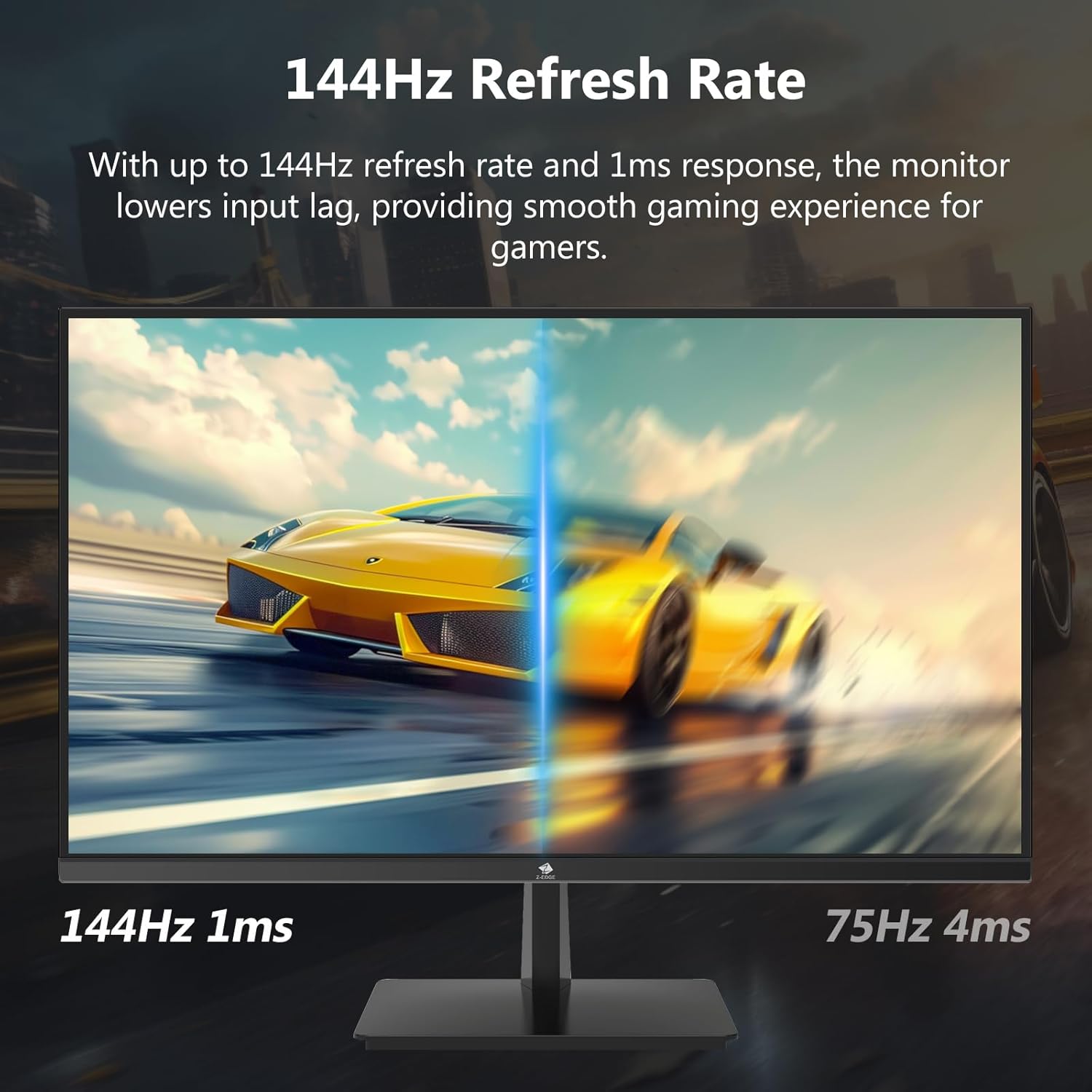

4.3 ອັດຕາການໂຫຼດຂໍ້ມູນຄືນໃໝ່ ແລະ ເວລາຕອບສະໜອງ
The monitor supports up to a 144Hz refresh rate and 1ms response time for optimal performance in fast-paced applications and gaming.
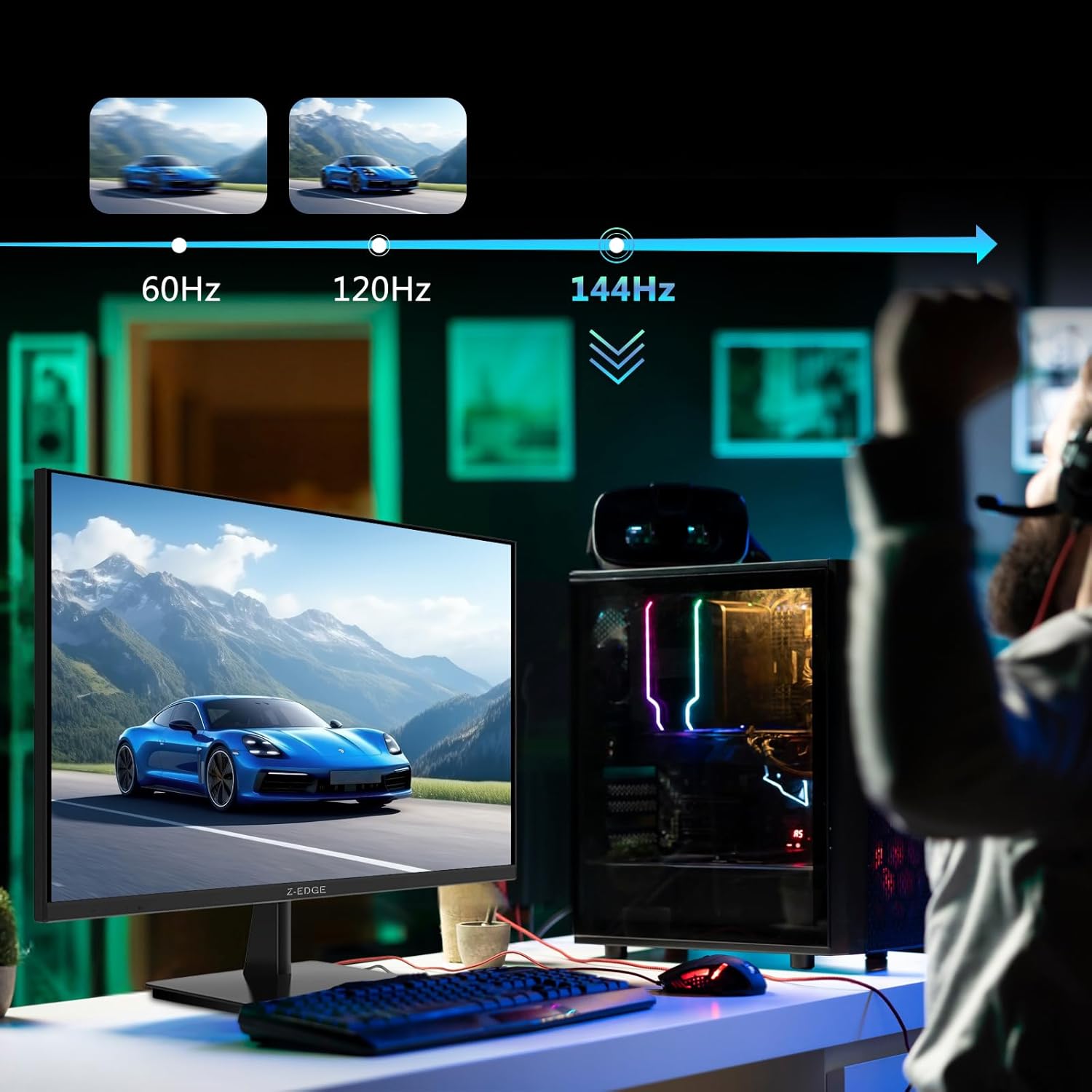

5. ບໍາລຸງຮັກສາ
5.1 ການທໍາຄວາມສະອາດ Monitor
- ຖອດສາຍຈໍຈາກປລັກສຽບໄຟອອກກ່ອນທຳຄວາມສະອາດທຸກຄັ້ງ.
- ໃຊ້ຜ້າແພທີ່ອ່ອນໆ ທີ່ບໍ່ມີເສັ້ນດ່າງ dampຫຸ້ມດ້ວຍນ້ໍາຫຼືເຄື່ອງເຮັດຄວາມສະອາດຫນ້າຈໍທີ່ບໍ່ມີການຂັດ.
- ຢ່າສີດນໍ້າສະອາດໃສ່ໜ້າຈໍໂດຍກົງ.
- ຫຼີກເວັ້ນການໃຊ້ benzene, thinner, ammonia, ຫຼືເຄື່ອງເຮັດຄວາມສະອາດຂັດ, ເພາະວ່າສິ່ງເຫຼົ່ານີ້ສາມາດທໍາລາຍພື້ນຜິວຂອງຈໍສະແດງຜົນ.
5.2 ການເກັບຮັກສາ
ເມື່ອເກັບຮັກສາຈໍພາບເປັນເວລາດົນນານ, ໃຫ້ແນ່ໃຈວ່າມັນປິດເຄື່ອງແລ້ວ ແລະ ຖອດສາຍໄຟອອກຈາກສາຍໄຟທັງໝົດ. ເກັບຮັກສາໄວ້ໃນບ່ອນທີ່ເຢັນ ແລະ ແຫ້ງ, ດີກວ່າຄວນເກັບໄວ້ໃນກ່ອງບັນຈຸເດີມເພື່ອປົກປ້ອງມັນຈາກຝຸ່ນ ແລະ ຄວາມເສຍຫາຍທາງກາຍະພາບ.
6. ການແກ້ໄຂບັນຫາ
| ບັນຫາ | ສາເຫດທີ່ເປັນໄປໄດ້ | ການແກ້ໄຂ |
|---|---|---|
| ບໍ່ມີພະລັງງານ | ບໍ່ໄດ້ເຊື່ອມຕໍ່ສາຍໄຟ; ປລັກໄຟມີບັນຫາ; ອະແດບເຕີໄຟມີບັນຫາ. | Ensure power cable is securely connected to monitor and outlet. Test outlet with another device. Contact support if adapter is suspected faulty. |
| ບໍ່ມີສັນຍານ | Input cable not connected; Incorrect input source selected; Computer/device not outputting signal. | Check HDMI/DisplayPort cable connections. Select correct input source via OSD menu. Restart computer/device. |
| ໜ້າຈໍກະພິບ | Loose cable connection; Refresh rate mismatch; DCR (Dynamic Contrast Ratio) enabled. | Ensure cables are firmly connected. Adjust refresh rate in display settings. Disable DCR in OSD menu. |
| ຄຸນນະພາບຮູບພາບບໍ່ດີ (ມົວ/ບິດເບືອນ) | Incorrect resolution; Cable quality; Graphics driver issues. | Set display resolution to 3840x2160. Try a different high-quality cable. Update graphics drivers. |
| No Audio from Monitor | Volume too low; Incorrect audio output selected on computer; External speakers not connected/powered. | Increase monitor volume via OSD. Select monitor as audio output device in OS settings. Ensure external speakers are connected and powered. |
If the problem persists after trying these solutions, please contact Z-EDGE customer support.
7. ຂໍ້ມູນຈໍາເພາະ
| ຄຸນສົມບັດ | ລາຍລະອຽດ |
|---|---|
| ໝາຍເລກຕົວແບບ | U28I4K |
| ຂະໜາດໜ້າຈໍ | 28 ນິ້ວ |
| ປະເພດແຜງ | IPS |
| ຄວາມລະອຽດ | 3840x2160 (4K UHD) |
| ອັດຕາການໂຫຼດຂໍ້ມູນຄືນໃໝ່ | 144Hz |
| ເວລາຕອບສະຫນອງ | 1ms (MPRT) |
| ຄວາມສະຫວ່າງ | 300 cd/m² |
| ອັດຕາສ່ວນກົງກັນຂ້າມ | 1000:1 |
| ສະຫນັບສະຫນູນສີ | 16.7 ລ້ານສີ (8-ບິດ) |
| Viewໃນມຸມ | 178° (H/V) |
| ຮອງຮັບ HDR | HDR10 |
| ການເຊື່ອມຕໍ່ | 2x HDMI 2.1, 2x DisplayPort 1.4, 1x Audio Out (3.5mm) |
| VESA ພູເຂົາ | 100x100ມມ |
| ຂະໜາດ (ມີຂາຕັ້ງ) | 19 x 64 x 46 cm |
| ນ້ຳໜັກ (ພ້ອມຂາຕັ້ງ) | 5.96 ກິໂລ |
| ການປ້ອນຂໍ້ມູນພະລັງງານ | DC 12V |
8. ການຮັບປະກັນແລະການສະຫນັບສະຫນູນ
8.1 ຂໍ້ມູນການຮັບປະກັນ
Z-EDGE products typically come with a limited manufacturer's warranty. Please refer to the warranty card included in your product packaging or visit the official Z-EDGE webເວັບໄຊສໍາລັບເງື່ອນໄຂການຮັບປະກັນລາຍລະອຽດ. ຮັກສາໃບຮັບເງິນການຊື້ຂອງທ່ານໄວ້ເປັນຫຼັກຖານການຊື້ສໍາລັບການຮ້ອງຂໍການຮັບປະກັນ.
8.2 ສະຫນັບສະຫນູນລູກຄ້າ
For technical assistance, troubleshooting, or warranty inquiries, please contact Z-EDGE customer support:
- Webເວັບໄຊ: www.z-edge.com (Check for support contact details, FAQs, and driver downloads)
- ອີເມວ: ອ້າງເຖິງເຈົ້າໜ້າທີ່ webເວັບໄຊທ໌ສໍາລັບທີ່ຢູ່ອີເມລ໌ສະຫນັບສະຫນູນໃນປະຈຸບັນຫຼາຍທີ່ສຸດ.
- ໂທລະສັບ: ອ້າງເຖິງເຈົ້າໜ້າທີ່ website for the most current support phone number.
When contacting support, please have your monitor's model number (U28I4K) and serial number ready.
Ask a question about this manual
Ask about setup, troubleshooting, compatibility, parts, safety, or missing instructions. Manuals+ will review the question and use this page’s manual context to help answer it.