
1. ບົດແນະນຳ
This manual provides comprehensive instructions for the GOHHDL Android 13 Car Stereo, model A7146A3454H1MI2. This unit is designed to integrate seamlessly into Hyundai Tucson IX35 models from 2010 to 2015, offering advanced features such as Wireless CarPlay, Android Auto, GPS navigation, Bluetooth 5.0, and a 10.1-inch IPS touchscreen. Please read this manual thoroughly before installation and operation to ensure proper use and to maximize your driving experience.
2. ເນື້ອໃນຊຸດ
ກວດສອບວ່າລາຍການທັງຫມົດທີ່ລະບຸໄວ້ຂ້າງລຸ່ມນີ້ແມ່ນລວມຢູ່ໃນຊຸດຂອງທ່ານ:
- 1 x GOHHDL 4+64G Android 13 Car Stereo for Hyundai Tucson IX35 2010-2015
- 1 x ສາຍໄຟ
- 1 x ເຄື່ອງມືຕິດຕັ້ງ
- 1 x ເສົາອາກາດ GPS
- 1 x ສາຍປ້ອນກ້ອງຫຼັງ
- ສາຍ 1 x RCA
- 2 x ສາຍ USB
- 1 x AHD Backup Camera
- 1 x ໄມໂຄຣໂຟນ
- 1 x ຄູ່ມືຜູ້ໃຊ້

Image: Illustration of the car stereo unit, its dimensions, and all included accessories such as cables, camera, and tools.
3. ການຕິດຕັ້ງແລະການຕິດຕັ້ງ
This unit is designed for plug-and-play installation in Hyundai Tucson IX35 models from 2010-2015. Professional installation is recommended. Ensure the vehicle's power is disconnected before beginning installation.
- Remove the Original Unit: Carefully detach the existing car stereo and trim panels. Refer to your vehicle's service manual for specific instructions on panel removal.
- ເຊື່ອມຕໍ່ສາຍສາຍໄຟ: Connect the provided power cable and other necessary wiring harnesses to the vehicle's corresponding ports. Ensure all connections are secure.
- ຕິດຕັ້ງເສົາອາກາດ GPS: ຕິດເສົາອາກາດ GPS ໃນສະຖານທີ່ທີ່ມີຄວາມຊັດເຈນ view of the sky, typically on the dashboard or under the windshield, away from metal obstructions.
- Install AHD Backup Camera (Optional): If using the included backup camera, install it at the rear of the vehicle and route the cable to the head unit. Connect the camera input cable to the designated port on the stereo.
- Mount the New Unit: Secure the GOHHDL car stereo into the dashboard opening using the provided frame and mounting hardware. Reattach all trim panels.
- ເປີດ ແລະທົດສອບ: Reconnect the vehicle's power. Turn on the car stereo and perform initial tests for all functions, including audio, touchscreen response, radio, GPS, and camera.

Image: Comparison of the car dashboard before and after the installation of the GOHHDL Android 13 Car Stereo.
4. ຄໍາແນະນໍາການດໍາເນີນງານ
4.1 ລະບົບໄຮ້ສາຍ Apple CarPlay ແລະ Android Auto
The unit supports both Wireless Apple CarPlay and Android Auto. Connect your smartphone via Bluetooth and Wi-Fi for wireless functionality, or use a USB cable for wired connection. This allows access to phone apps like messages, music, and maps directly on the car stereo screen, with voice control via Siri or Google Assistant.

Image: Display showing the Wireless Apple CarPlay and Android Auto interfaces with various app icons.
4.2 GPS Navigation and WiFi/Hotspot
The stereo comes with Google Maps pre-installed. Connect to a Wi-Fi network or mobile hotspot to view real-time traffic conditions. You can also download offline map data for navigation without an internet connection. The unit supports downloading and installing most apps from the Google Play Store.

Image: Screen displaying GPS navigation with a map and various online streaming and social media app icons, indicating WiFi connectivity.
4.3 Phone Mirror Link
Mirror your smartphone screen to the car stereo. This feature allows you to view your phone's content, such as GPS navigation or videos, directly on the larger display. Both iOS and Android phones can connect via Wi-Fi or USB cable. For Android devices, ensure necessary developer options permissions are enabled before connecting.

Image: Icon representing the Mirror Link function, showing a phone screen mirrored to the car stereo.
4.4 ບລູທູດ 5.0
The built-in Bluetooth 5.0 system and microphone enable hands-free calls, Bluetooth music streaming, and phone book synchronization. This enhances driving safety by allowing you to manage calls without handling your phone.
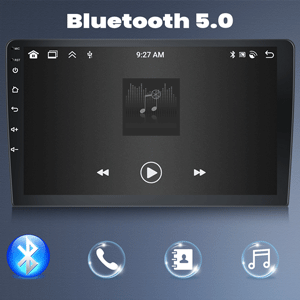
Image: Icon representing Bluetooth 5.0 connectivity.
4.5 ວິທະຍຸ FM/RDS
Enjoy high-quality FM/RDS radio with automatic channel search. The frequency range is 87.5-108 FM, and you can preset up to 18 channels. RDS (Radio Data System) provides additional information like station name and song title.

Image: Car stereo screen displaying the FM radio interface with frequency 87.50 MHz, alongside an image of a hand operating steering wheel controls.
4.6 ການຄວບຄຸມພວງມາໄລ (SWC)
The unit supports the original steering wheel buttons of your car, allowing you to control audio functions conveniently and safely without taking your hands off the wheel. This includes switching songs, adjusting volume, and navigating menus.

Image: Icon representing Steering Wheel Control functionality.
4.7 DSP/EQ Setting
Utilize the DSP (Digital Sound Processor) tuning technology with customizable EQ settings. You can adjust frequency, AE, and choose between 32-band or 10-band EQ to enhance your audio listening experience.

Image: Icon representing DSP/EQ audio settings.
4.8 ຟັງຊັນ Split Screen
The split-screen function allows you to run two applications simultaneously on the display. For example, you can use navigation on one side while controlling music on the other.

Image: Icon representing the Split Screen function.
4.9 UI Themes
The unit offers 59 UI desktop themes, allowing you to customize the visual appearance of your car stereo interface to match your preferences.
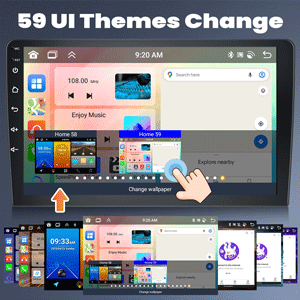
Image: Icon representing the 59 UI Themes Change feature.
4.10 AHD Backup Camera Input
The included AHD backup camera provides a 170-degree ultra-wide angle view and is waterproof. When the vehicle is shifted into reverse, the stereo automatically displays the camera feed on the screen, assisting with safe parking. The camera features night vision capabilities.
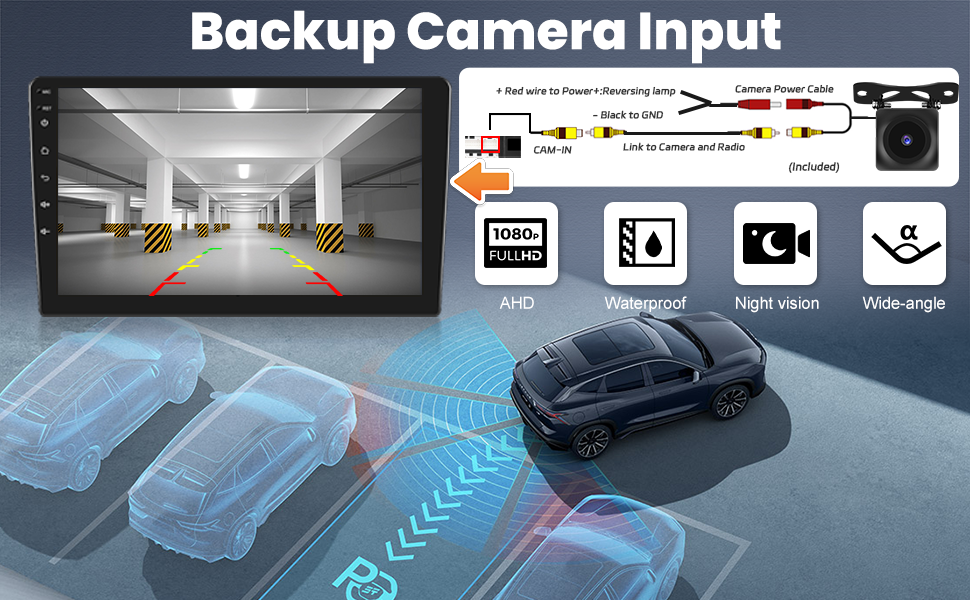
Image: Diagram showing the connection of the AHD backup camera and its features, including 1080P Full HD, waterproof, night vision, and wide-angle view.
5. ການເຊື່ອມໂຍງສື່
5.1 Product Function Display Video
Video: This video demonstrates various functions of the GOHHDL Android 13 Car Stereo, including UI navigation, app usage, and general system responsiveness.
6. ບໍາລຸງຮັກສາ
To ensure the longevity and optimal performance of your GOHHDL car stereo, follow these maintenance guidelines:
- ທໍາຄວາມສະອາດ: Use a soft, dry cloth to clean the screen and exterior. Avoid abrasive cleaners or solvents that may damage the surface.
- ອັບເດດຊອບແວ: Periodically check for software updates to ensure you have the latest features and bug fixes. Updates can typically be found in the system settings or on the manufacturer's webເວັບໄຊ.
- ການຄວບຄຸມອຸນຫະພູມ: ຫຼີກລ້ຽງການເປີດຫນ່ວຍບໍລິການກັບອຸນຫະພູມທີ່ຮ້າຍແຮງ. ການສໍາຜັດກັບແສງແດດໂດຍກົງເປັນເວລາດົນຫຼືສະພາບທີ່ເຢັນຫຼາຍສາມາດສົ່ງຜົນກະທົບຕໍ່ການປະຕິບັດແລະອາຍຸຍືນ.
- ການເຊື່ອມຕໍ່ສາຍ: ຮັບປະກັນວ່າສາຍໄຟທັງໝົດໄດ້ເຊື່ອມຕໍ່ກັນຢ່າງແໜ້ນໜາ. ການເຊື່ອມຕໍ່ທີ່ວ່າງອາດນຳໄປສູ່ການເຮັດວຽກທີ່ບໍ່ຕໍ່ເນື່ອງ.
7. ການແກ້ໄຂບັນຫາ
ຖ້າທ່ານພົບບັນຫາກັບສະເຕີລິໂອລົດຂອງທ່ານ, ໃຫ້ອ້າງອີງເຖິງຂັ້ນຕອນການແກ້ໄຂບັນຫາທົ່ວໄປຕໍ່ໄປນີ້:
| ບັນຫາ | ສາເຫດທີ່ເປັນໄປໄດ້ | ການແກ້ໄຂ |
|---|---|---|
| ຫນ່ວຍບໍລິການບໍ່ເປີດ | ການເຊື່ອມຕໍ່ພະລັງງານວ່າງ, ຟິວທີ່ເປົ່າ, ບັນຫາຫມໍ້ໄຟລົດ. | Check power cable connections. Inspect vehicle fuses. Verify vehicle battery health. |
| ບໍ່ມີສຽງ | Volume too low, incorrect audio source, loose speaker wires. | ເພີ່ມລະດັບສຽງ. ເລືອກແຫຼ່ງສຽງທີ່ຖືກຕ້ອງ. ກວດສອບການເຊື່ອມຕໍ່ສາຍລຳໂພງ. |
| ໜ້າຈໍສຳຜັດບໍ່ຕອບສະໜອງ | System freeze, software issue. | Restart the unit (press and hold power button). If issue persists, perform a factory reset (refer to settings menu). |
| GPS ບໍ່ເຮັດວຽກ | GPS antenna not connected or obstructed, software issue. | ໃຫ້ແນ່ໃຈວ່າເສົາອາກາດ GPS ຖືກເຊື່ອມຕໍ່ຢ່າງຖືກຕ້ອງແລະມີຄວາມຊັດເຈນ view ຂອງທ້ອງຟ້າ. ກວດເບິ່ງການຕັ້ງຄ່າ GPS ໃນຫນ່ວຍບໍລິການ. |
| CarPlay/Android Auto ບໍ່ເຊື່ອມຕໍ່ | Incorrect phone settings, incompatible cable, software issue. | Ensure Bluetooth and Wi-Fi are enabled on your phone. Try a different USB cable. Check phone permissions for Mirror Link/CarPlay/Android Auto. |
| ກ້ອງຖ່າຍຮູບສຳຮອງບໍ່ສະແດງ | Loose camera connection, incorrect camera settings. | Check camera input cable connection. Verify camera type settings in the unit's factory settings. |
If these steps do not resolve the issue, please contact GOHHDL customer support.
8. ຂໍ້ມູນຈໍາເພາະ
| ຄຸນສົມບັດ | ລາຍລະອຽດ |
|---|---|
| ລະບົບປະຕິບັດການ | Android 13 |
| ໂຮງງານຜະລິດ | 8-ຫຼັກ |
| RAM | 4GB |
| ROM | 64GB |
| ຈໍສະແດງຜົນ | 10.1" IPS Touchscreen |
| ຄວາມລະອຽດ | 1280x720 |
| ການເຊື່ອມຕໍ່ໄຮ້ສາຍ | Bluetooth 5.0, Wi-Fi |
| ການນໍາທາງ | GPS (Google Maps pre-installed, offline map support) |
| ການປະມວນຜົນສຽງ | 32EQ DSP |
| ວິທະຍຸ | FM/RDS (87.5-108 FM) |
| Video Playback | 1080P HD |
| ຄຸນນະສົມບັດພິເສດ | Wireless Apple CarPlay, Android Auto, Split Screen, Mirror Link, Steering Wheel Control, 59 UI Desktop Themes, AHD Backup Camera Input |
| ຍານພາຫະນະທີ່ເຂົ້າກັນໄດ້ | Hyundai Tucson IX35 (2010-2015) |
| ໝາຍເລກຕົວແບບ | A7146A3454H1MI2 |
| ນ້ໍາຫນັກລາຍການ | 4.86 ປອນ |
| ຂະໜາດແພັກເກັດ | 15.35 x 13.39 x 6.26 ນິ້ວ |
9. ການຮັບປະກັນແລະການສະຫນັບສະຫນູນ
GOHHDL provides the following support for this product:
- 30-Day Money-Back Service: ຖ້າທ່ານບໍ່ພໍໃຈກັບການຊື້ຂອງທ່ານ, ທ່ານອາດຈະມີສິດໄດ້ຮັບເງິນຄືນພາຍໃນ 30 ມື້.
- 24-Month After-Sales Support: The product is covered by a 24-month after-sales support period.
- 7*16 Hours Technical Support: Technical assistance is available 7 days a week, 16 hours a day, to help with installation and operation issues.
- ສະຫນັບສະຫນູນດ້ານວິຊາການຕະຫຼອດຊີວິດ: GOHHDL offers lifetime technical support for all its products.
For technical assistance or warranty claims, please contact GOHHDL customer service through the platform where you purchased the product or refer to the contact information provided in your package.