
BlueFinger B0CP3JKJS2
BlueFinger Wireless Gaming Keyboard and Mouse User Manual
Model: B0CP3JKJS2
ແນະນຳ
This manual provides detailed instructions for the setup, operation, maintenance, and troubleshooting of your BlueFinger Wireless Gaming Keyboard and Mouse Combo. Please read this manual thoroughly before using the product to ensure optimal performance and longevity.
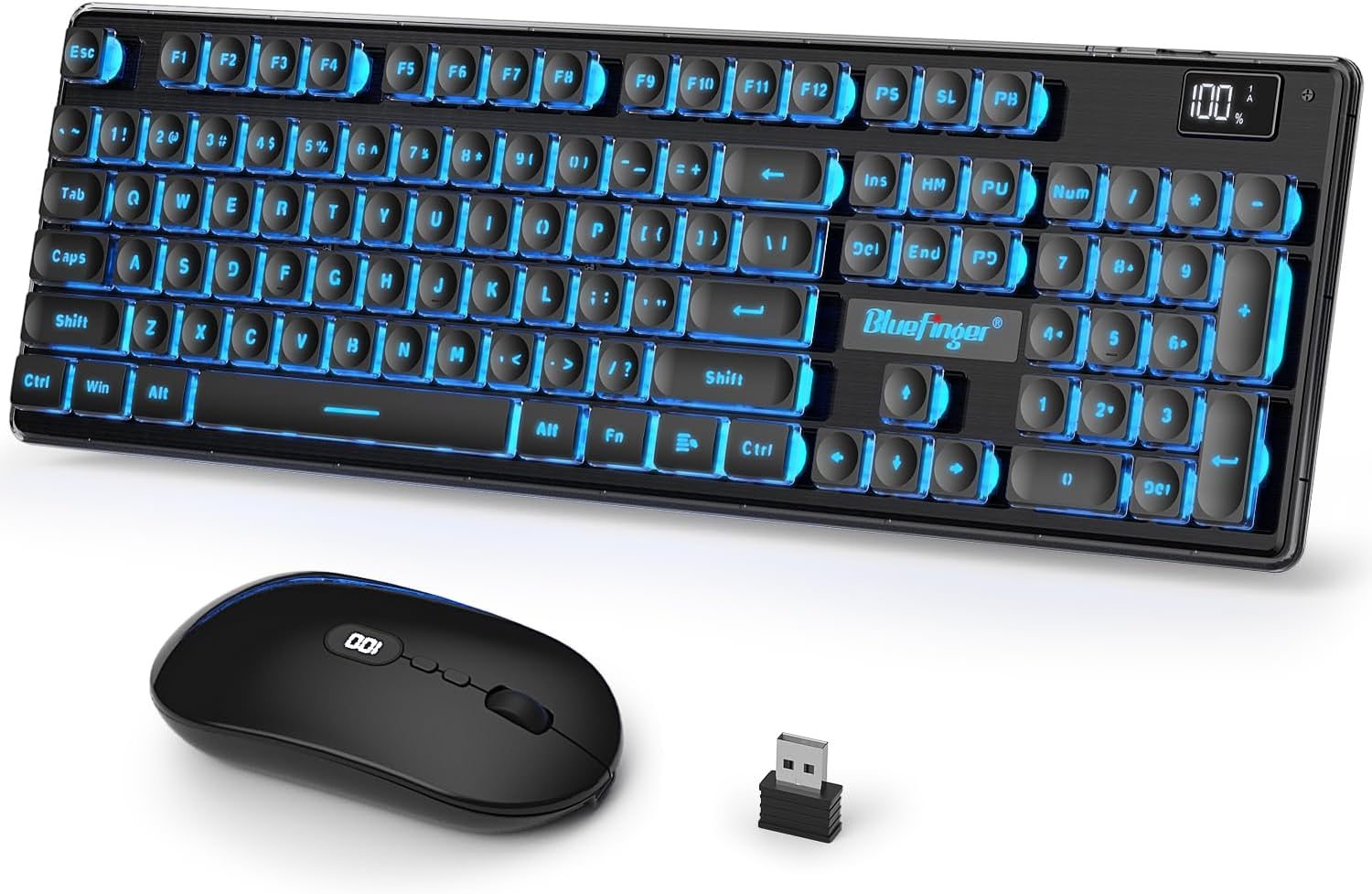
Image: The BlueFinger wireless gaming keyboard and mouse combo, featuring a black keyboard with blue backlighting, a black ergonomic mouse, and a USB receiver.
ເນື້ອໃນຊຸດ
- BlueFinger Wireless Keyboard
- BlueFinger Wireless Mouse
- USB 2.4GHz Receiver (located underneath the mouse)
- Type-C Charging Cable (1.5M)
- ຄູ່ມືຜູ້ໃຊ້ (ເອກະສານນີ້)
ຄູ່ມືການຕິດຕັ້ງ
1. ການສາກໄຟເບື້ອງຕົ້ນ
Before first use, it is recommended to fully charge both the keyboard and the mouse. Use the provided Type-C charging cable to connect the devices to a USB power source (e.g., computer USB port, USB wall adapter).
- Keyboard Battery: 1500mAh
- Mouse Battery: 500mAh
- ເວລາສາກໄຟ: ປະມານ 5 ຊົ່ວໂມງສຳລັບການສາກເຕັມ.
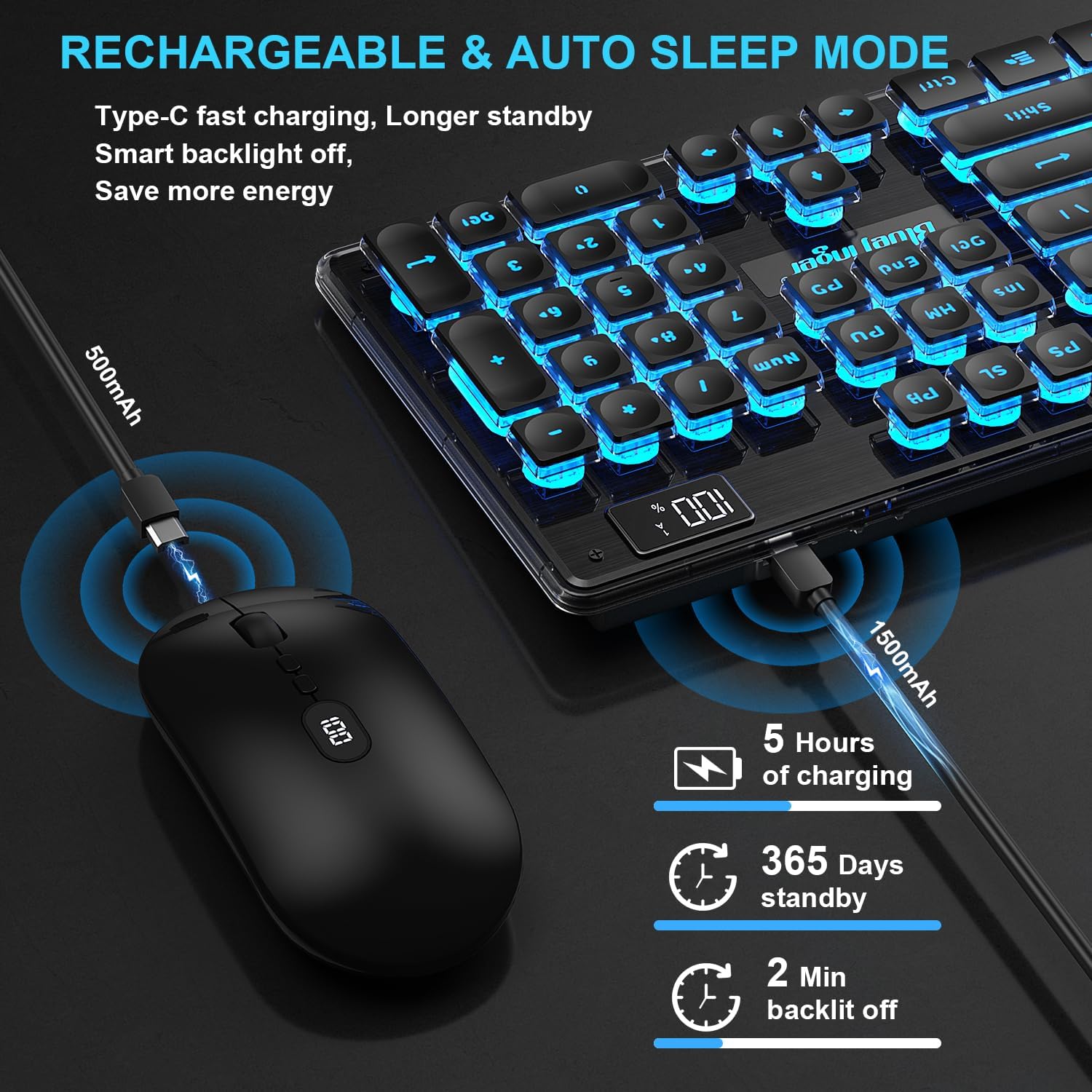
Image: Illustration showing the Type-C charging cables connected to the keyboard and mouse, indicating their respective battery capacities and charging process.
2. ການເຊື່ອມຕໍ່ອຸປະກອນ
The keyboard and mouse share a single 2.4GHz USB receiver for wireless connection.
- Locate the USB receiver: The receiver is stored in a compartment underneath the wireless mouse. Gently remove it.
- Insert the receiver: Plug the USB receiver into an available USB port on your computer (PC, Laptop, Desktop) or compatible device (e.g., TV, Xbox, PS4, PS5).
- Power On: Ensure both the keyboard and mouse are powered on. They should automatically connect to the receiver.

Image: A visual representation of the USB receiver plugged into a laptop, with the keyboard and mouse wirelessly connected, demonstrating the 2.4GHz connection and 33ft wireless range.
The devices are plug-and-play and do not require additional driver installation for most operating systems (Windows 10/8/7/XP/VISTA, Mac OS X).
ຄໍາແນະນໍາການດໍາເນີນງານ
ຄຸນນະສົມບັດແປ້ນພິມ
- ການສາກແບັດເຕີຣີtage ຈໍສະແດງຜົນ: The keyboard features a digital display showing the current battery level, allowing you to monitor charge status.
- Backlighting: The keyboard has rainbow backlighting. The luminous design of letters, logo, and gaps enhances visibility in low-light conditions.
- ປຸ່ມມັນຕິມີເດຍ: Access various functions using the Fn key in combination with F1-F12 keys.
- Fn+F1: Media
- Fn+F2: ປະລິມານ-
- Fn+F3: ປະລິມານ+
- Fn+F4: ປິດສຽງ
- Fn+F5: ຢຸດ
- Fn+F6: ເພງກ່ອນໜ້າ
- Fn+F7: ຫຼິ້ນ/ຢຸດຊົ່ວຄາວ
- Fn+F8: ເພງຕໍ່ໄປ
- Fn+F9: ອີເມວ
- Fn+F10: ຫນ້າທໍາອິດ
- Fn+F11: Lock Key
- Fn+F12: ເຄື່ອງຄິດເລກ
- ສະຫຼັບແສງຫຼັງ: Use the dedicated backlight switch (often Fn + a specific key, refer to keyboard markings) to turn the backlight on/off or adjust modes.
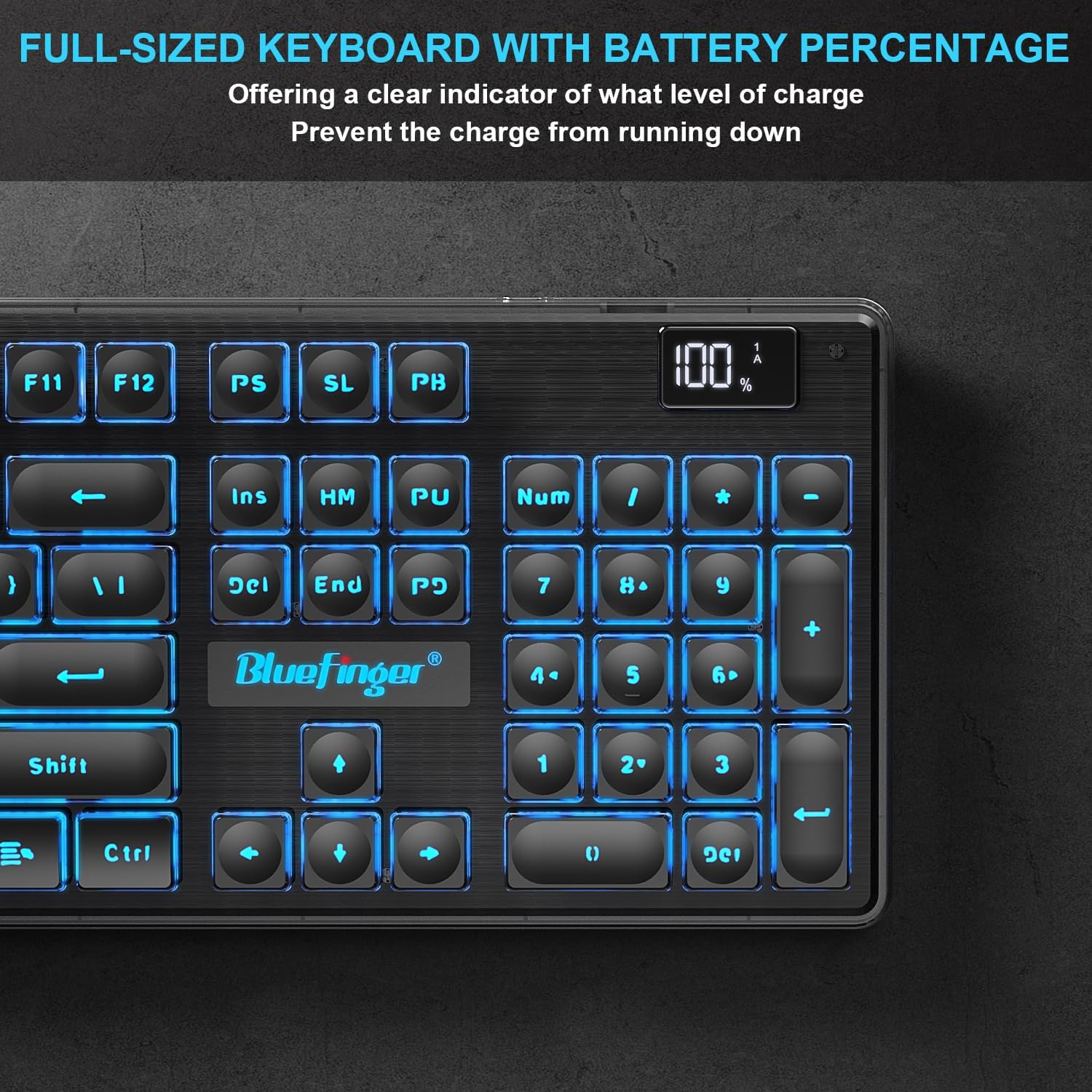
Image: Close-up of the BlueFinger keyboard's upper right corner, highlighting the digital battery percentage display and the full-sized layout with numeric keypad.

Image: Diagram of the BlueFinger keyboard highlighting the multimedia function keys (F1-F12 with Fn combinations) and the backlight switch, indicating time-saving and high-efficiency features.
ຄຸນນະສົມບັດຫນູ
- ການຕັ້ງຄ່າ DPI: The mouse offers 3 adjustable DPI settings (800/1200/1600) for varying cursor speed and responsiveness. Press the DPI button (usually located behind the scroll wheel) to cycle through settings.
- Silent Click: Designed for quiet operation, reducing click noise by 95%.
- ການສາກແບັດເຕີຣີtage ຕົວຊີ້ວັດ: The mouse also features a battery percentage indicator to show its current charge level.
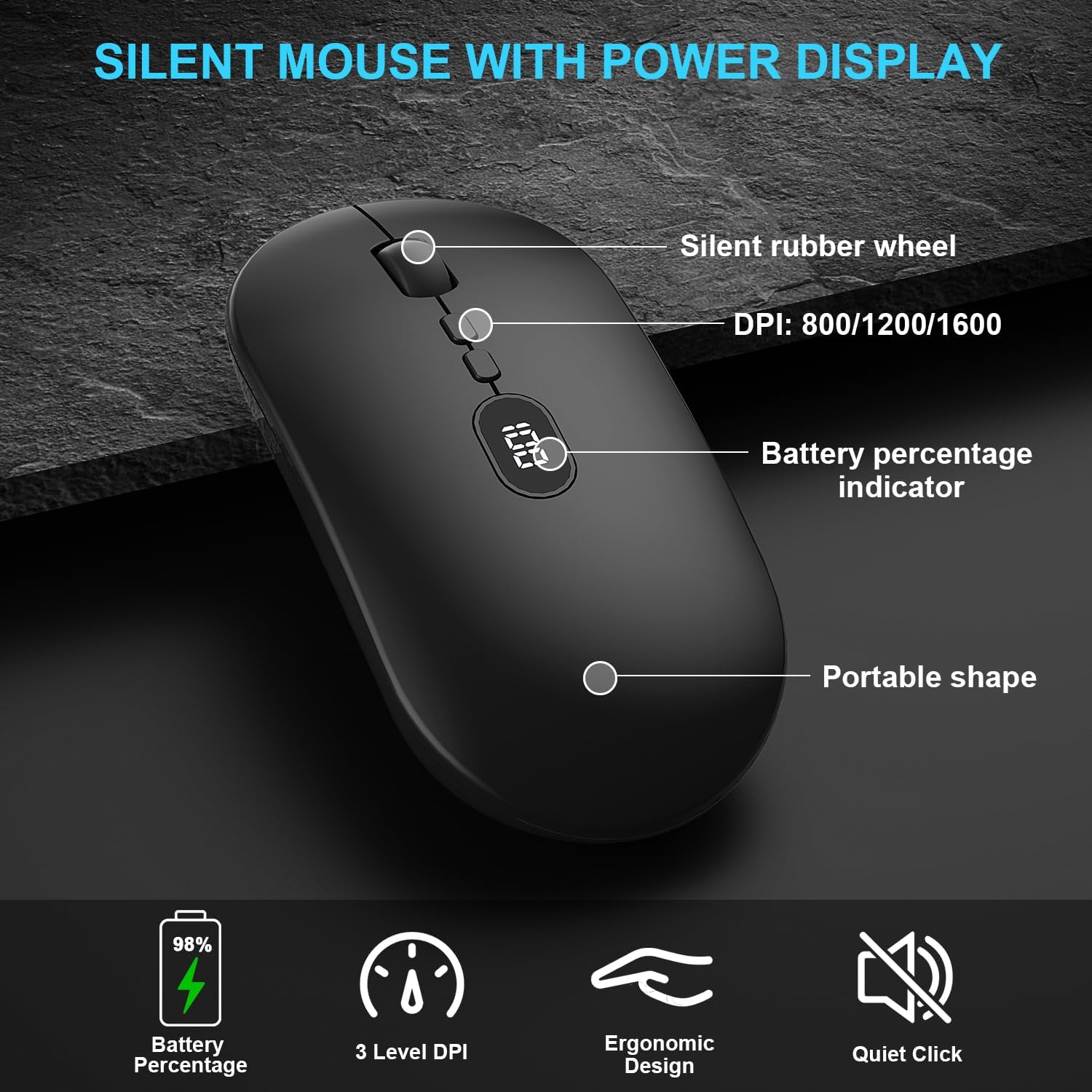
Image: Diagram of the BlueFinger mouse, pointing out its silent rubber wheel, DPI settings (800/1200/1600), battery percentage indicator, and portable shape.

Image: Close-up of the BlueFinger mouse illustrating the DPI switch and battery display, emphasizing its ultra-quiet operation and adjustable DPI levels.
Power Management and Maintenance
ໂໝດປະຢັດພະລັງງານອັດສະລິຍະ
To conserve battery life, the keyboard and mouse are equipped with smart power-saving features:
- ຄີບອດໄຟຫຼັງ: The backlight will automatically turn off after 2 minutes of inactivity.
- ຮູບແບບການນອນ: Both the keyboard and mouse will automatically enter sleep mode after a period of inactivity (keyboard after 30 minutes, mouse after 15 minutes).
- ຕື່ນ: To reactivate the devices from sleep mode, simply click any key on the keyboard or move the mouse.

Image: Visual representation of the smart sleep mode for the BlueFinger keyboard and mouse, indicating the inactivity times before entering sleep and backlight turning off.
ການສາກໄຟ ແລະ ອາຍຸແບັດເຕີຣີ
Regular charging ensures uninterrupted use. The battery percentage display on both devices helps in managing charging schedules.
- Keyboard: Up to 500 hours of non-stop use without backlight; 50 hours with backlight.
- Mouse: Long standby time.
- Recharge using the provided 1.5M Type-C charging cable.

Image: Depiction of the Type-C charging ports on the keyboard and mouse, emphasizing their rechargeable nature and long standby time.
ທໍາຄວາມສະອາດ
To maintain the appearance and functionality of your devices:
- ໃຊ້ຜ້າອ່ອນແລະແຫ້ງເພື່ອເຊັດພື້ນຜິວຕ່າງໆ.
- ສໍາລັບຝຸ່ນ stubborn, ເລັກນ້ອຍ dampen ຜ້າດ້ວຍນ້ໍາຫຼືການແກ້ໄຂການທໍາຄວາມສະອາດອ່ອນໆ.
- ຫຼີກເວັ້ນການນໍາໃຊ້ສານເຄມີທີ່ຮຸນແຮງຫຼືວັດສະດຸຂັດ.
- ຫ້າມແຊ່ອຸປະກອນລົງໃນນໍ້າ.
ການແກ້ໄຂບັນຫາ
| ບັນຫາ | ສາເຫດທີ່ເປັນໄປໄດ້ | ການແກ້ໄຂ |
|---|---|---|
| ອຸປະກອນບໍ່ຕອບສະໜອງ | Low battery; Receiver not properly connected; Devices not paired. | Charge keyboard and mouse. Ensure USB receiver is firmly plugged into a working USB port. Re-insert receiver. |
| ການເຊື່ອມຕໍ່ຊ້າຫຼືເປັນສະຫມໍ່າສະເຫມີ | Interference from other wireless devices; Distance from receiver; Obstructions. | Move devices closer to the receiver (within 10M/33ft). Remove large metal objects between devices and receiver. Avoid using near other 2.4GHz devices. |
| Backlight ບໍ່ເຮັດວຽກ | Backlight ປິດ; ແບັດເຕີຣີຕໍ່າ. | Press the backlight switch key (Fn + specific key) to turn it on. Charge the keyboard. |
| ເຄີເຊີເມົາສ໌ບໍ່ສະໝໍ່າສະເໝີ ຫຼື ບໍ່ເຄື່ອນຍ້າຍ | ເຊັນເຊີແສງເປື້ອນ; ພື້ນຜິວບໍ່ເໝາະສົມ; ແບັດເຕີຣີຕໍ່າ. | Clean the optical sensor on the mouse. Use on a clean, non-reflective surface or mouse pad. Charge the mouse. |
ຂໍ້ມູນຈໍາເພາະ
| ຄຸນສົມບັດ | ລາຍລະອຽດ |
|---|---|
| ຍີ່ຫໍ້ | BlueFinger |
| ຕົວແບບ | B0CP3JKJS2 |
| ການເຊື່ອມຕໍ່ | 2.4GHz Wireless (ຕົວຮັບ USB) |
| Range ໄຮ້ສາຍ | ສູງເຖິງ 10 ແມັດ (33 ຟຸດ) |
| ແບັດເຕີຣີແປ້ນພິມ | 1500mAh Lithium Ion (ສາມາດສາກໄຟໄດ້) |
| ແບັດເຕີລີເມົ້າ | 500mAh Lithium Ion (ສາມາດສາກໄຟໄດ້) |
| ແສງພື້ນຫລັງ | Rainbow Backlit (Single Color support) |
| ການຕັ້ງຄ່າ DPI ຂອງຫນູ | 800 / 1200 / 1600 DPI |
| ຄວາມເຂົ້າກັນໄດ້ | Windows 10/8/7/XP/VISTA, Mac OS X, PC, Laptop, Desktop, Xbox, PS4, PS5 |
| ຄຸນນະສົມບັດພິເສດ | ການສາກແບັດເຕີຣີtage Display (Keyboard & Mouse), Smart Power Saving, Ergonomic Design, Silent Click Mouse |
| ຂະ ໜາດ ຂອງຄີບອດ | Approx. 45 cm (17.7 in) length, 13.5 cm (5.3 in) width, 2.5 cm (1 in) height |
| ຂະຫນາດຫນູ | Approx. 11.3 cm (4.5 in) length, 5.2 cm (2 in) width, 2.5 cm (1 in) height |

Image: Diagram showing the precise dimensions of the BlueFinger ultra-slim wireless keyboard and mouse combo.
ການຮັບປະກັນແລະການສະຫນັບສະຫນູນ
For warranty information and technical support, please refer to the seller's return policy or contact BlueFinger customer service directly through the platform where the product was purchased. Keep your purchase receipt as proof of purchase.
- ຜູ້ຂາຍ: BlueFinger (as per buybox_winner.fulfillment.third_party_seller.name)
- ນະໂຍບາຍການສົ່ງຄືນ: Typically 30 days for refund/replacement (check current policy at time of purchase).