
1. ບົດແນະນຳ
This manual provides detailed instructions for the setup, operation, and maintenance of your KOORUI MG27K1Q 27-inch QHD 240Hz VA Mini LED Gaming Monitor. Please read this manual thoroughly before using the product to ensure proper functionality and to prevent damage.
2. ເນື້ອໃນຊຸດ
Verify that all items listed below are included in your product package. If any items are missing or damaged, please contact KOORUI customer support.
- KOORUI MG27K1Q 27-inch Gaming Monitor
- Monitor Stand (Base and Support)
- Power Adapter
- ສາຍ DisplayPort (DP).
3. ຕັ້ງຄ່າ
3.1 ການປະກອບຂາຕັ້ງ
- ລະມັດລະວັງຖອດຈໍແລະອົງປະກອບຢືນອອກຈາກການຫຸ້ມຫໍ່.
- Attach the stand support to the monitor panel. Ensure it clicks securely into place or is fastened with screws if provided.
- Connect the stand base to the stand support. Tighten any screws to secure the assembly.
- ວາງຈໍສະແດງຜົນທີ່ປະກອບໃສ່ໃນພື້ນທີ່ຮາບພຽງທີ່ຫມັ້ນຄົງ.
3.2 ການເຊື່ອມຕໍ່ກັບອຸປະກອນ
The monitor offers multiple connectivity options for various devices. Ensure the monitor is powered off before making any connections.
- DisplayPort (DP 1.4): Connect the included DisplayPort cable from your computer's graphics card to the DisplayPort input on the monitor for optimal performance, including 240Hz refresh rate and Adaptive Sync.
- HDMI (HDMI 2.0): Connect an HDMI cable from your device (PC, gaming console) to one of the two HDMI 2.0 inputs on the monitor.
- ອອກສຽງ: Use the 3.5mm audio jack to connect external speakers or headphones.
ຮູບພາບ: ດ້ານຫລັງ view of the monitor illustrating the available connection ports (DisplayPort 1.4, 2x HDMI 2.0, Audio Out) and VESA mount points. Examples of compatible devices like PS5, Xbox, Laptop, and Nintendo Switch are shown.
3.3 ການເຊື່ອມຕໍ່ພະລັງງານ
- ເຊື່ອມຕໍ່ອະແດບເຕີໄຟຟ້າເຂົ້າກັບຊ່ອງສຽບພະລັງງານຂອງຈໍພາບ.
- ສຽບອະແດບເຕີໄຟໃສ່ກັບປລັກສຽບໃສ່ຝາ.
4. ການດໍາເນີນງານຂອງ Monitor
4.1 ການດໍາເນີນງານພື້ນຖານ
- ເປີດ/ປິດ: ກົດປຸ່ມເປີດປິດ, ໂດຍປົກກະຕິແລ້ວຈະຕັ້ງຢູ່ດ້ານຫຼັງ ຫຼື ລຸ່ມຂວາຂອງຈໍພາບ, ເພື່ອເປີດ ຫຼື ປິດຈໍພາບ.
- ການຄັດເລືອກການປ້ອນຂໍ້ມູນ: Use the On-Screen Display (OSD) menu to select the desired input source (DP, HDMI 1, HDMI 2).
4.2 ຄຸນສົມບັດການສະແດງ
The KOORUI MG27K1Q monitor is equipped with advanced display technologies for an enhanced visual experience.
- ຄວາມລະອຽດ QHD (2560x1440): ໃຫ້ຮູບພາບທີ່ຄົມຊັດ ແລະ ລະອຽດ.
- VA Mini LED Panel: Offers deep blacks, high contrast, and vibrant colors.
- HDR 1000: High Dynamic Range support for brighter whites and darker blacks, enhancing visual depth and realism.

Image: Visual comparison demonstrating the enhanced contrast and detail provided by HDR 1000 technology compared to a standard display.
4.3 ປະສິດທິພາບການຫຼິ້ນເກມ
Designed for gaming, this monitor delivers smooth and responsive gameplay.
- ອັດຕາການສົດຊື່ນ 240Hz: Ensures ultra-smooth motion and reduced input lag.
- ເວລາຕອບສະໜອງ 1ms: ຫຼຸດຜ່ອນການມົວຂອງການເຄື່ອນໄຫວ ແລະ ຮອຍເງົາເພື່ອການກະທຳທີ່ຊັດເຈນ ແລະ ວ່ອງໄວ.
- Adaptive Sync (G-SYNC Compatible): synchronizes ອັດຕາການໂຫຼດຫນ້າຈໍຄືນຂອງຈໍພາບກັບອັດຕາເຟຣມ GPU ຂອງທ່ານເພື່ອລົບລ້າງການ tearing ຫນ້າຈໍແລະ stuttering.
- Exclusive Game Display Modes: Features like Crosshair, Timer, and FPS Counter can be enabled via the OSD for an advantagອີ ໃນການຫຼິ້ນເກມ.

Image: The monitor displaying a high-speed racing game, emphasizing its 240Hz refresh rate and 1ms response time for a fluid gaming experience.
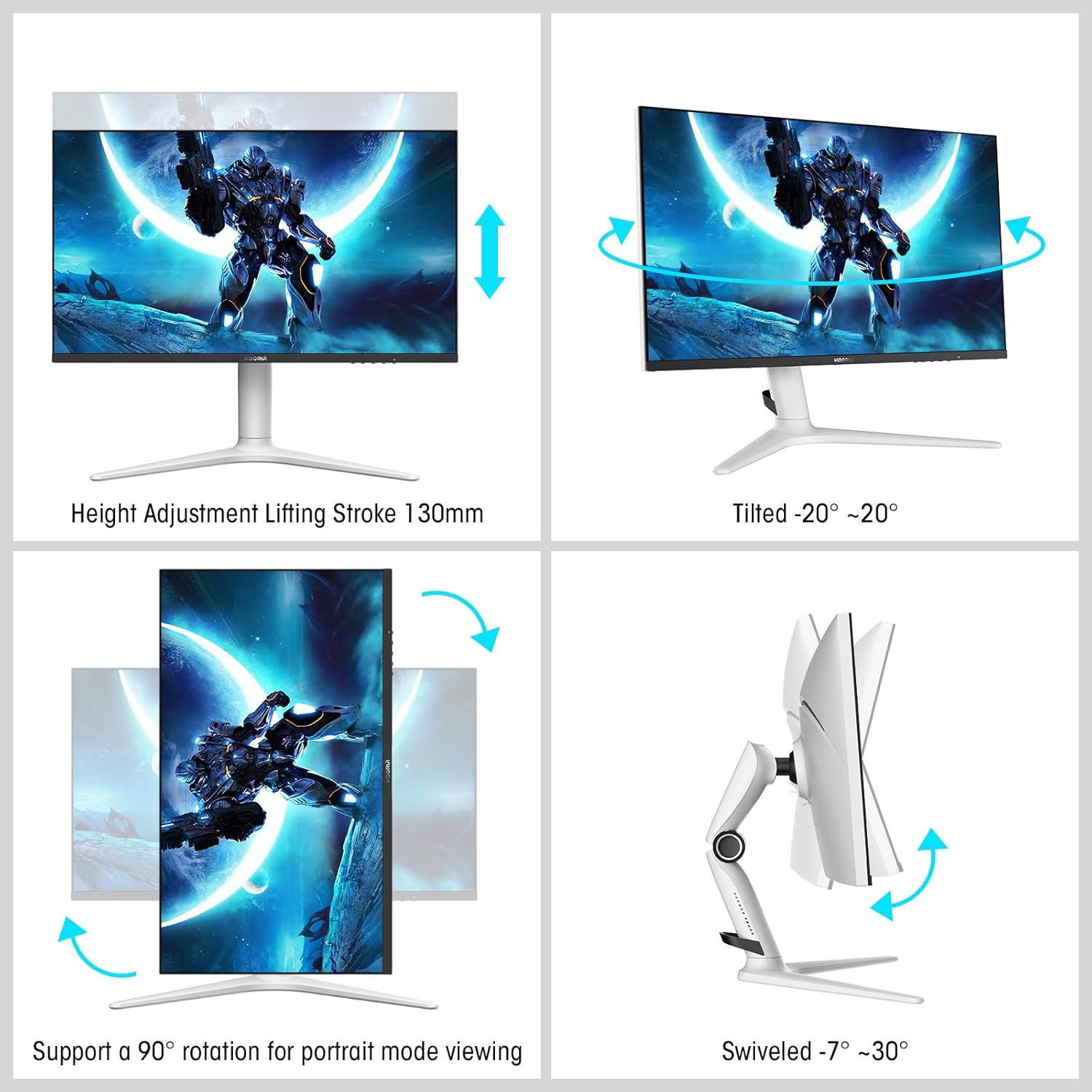
Image: A gaming scenario on the monitor, illustrating the 'Exclusive Game Display Mode' features such as Crosshair, Timer, FPS Counter, and RTS Counter, alongside Adaptive Sync functionality.
4.4 ຄຸນສົມບັດການດູແລຕາ
The monitor includes features to reduce eye strain during prolonged use.
- ການກັ່ນຕອງແສງສີຟ້າ: Reduces harmful blue light emissions. This can be adjusted or enabled/disabled through the OSD menu.
5. ການປັບຕົວ
ຂາຕັ້ງຈໍພາບອະນຸຍາດໃຫ້ມີການປັບຕົວ ergonomic ຕ່າງໆເພື່ອເພີ່ມປະສິດທິພາບຂອງທ່ານ viewສະດວກສະບາຍ.
- ການປັບຄວາມສູງ: Adjust the monitor height up to 130mm.
- ອຽງ: Tilt the screen from -7° (downward) to 30° (upward).
- ໝູນ: Rotate the monitor horizontally from -20° to 20°.
- pivot: ໝຸນໜ້າຈໍ 90° ສຳລັບໂໝດຕັ້ງ viewing.
- VESA Mount: Compatible with VESA 75x75mm mounting solutions for alternative setups.

Image: Diagrams demonstrating the monitor's ergonomic adjustments, including height, tilt, swivel, and pivot for portrait mode.
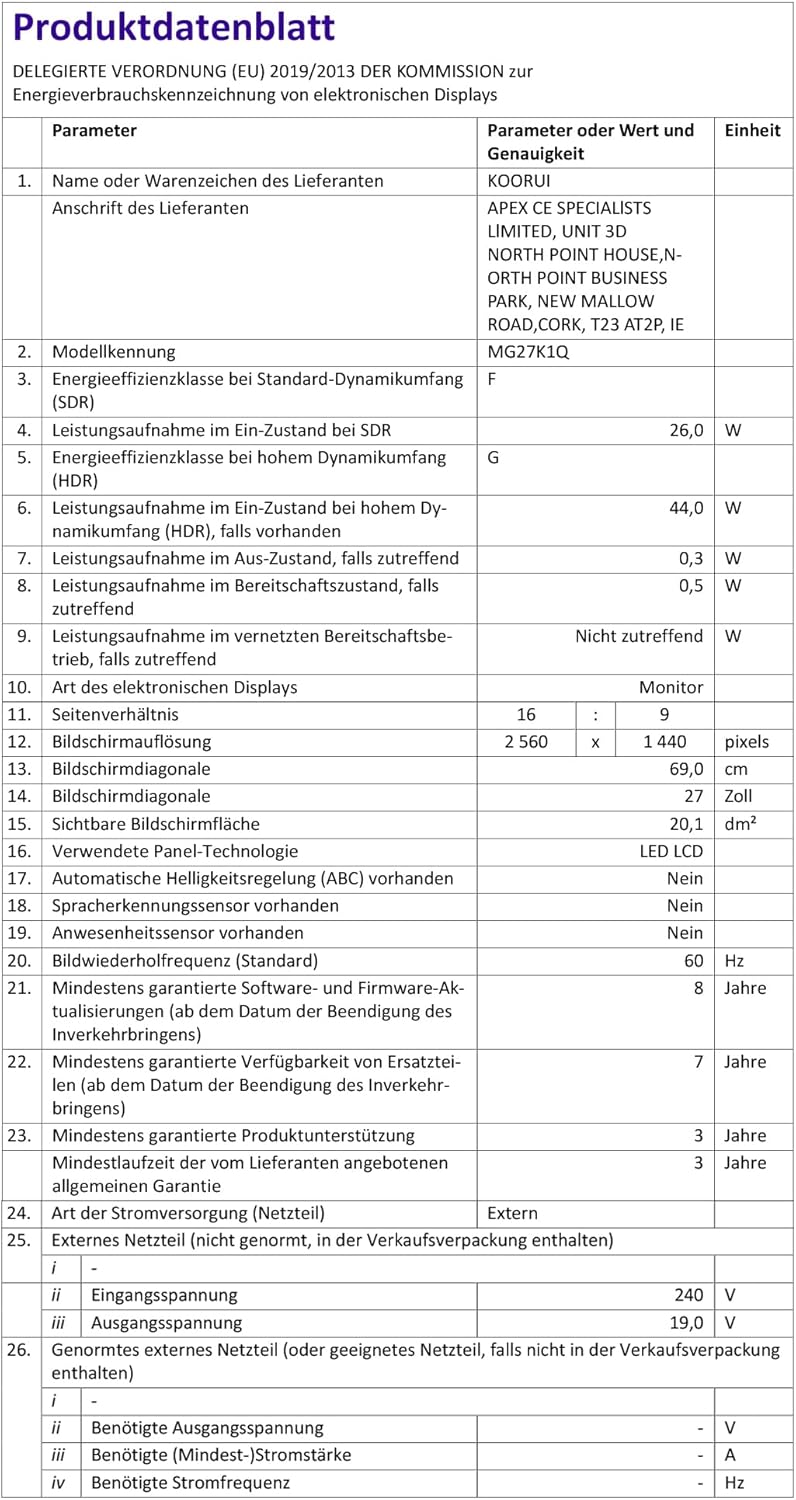
6. ຂໍ້ມູນຈໍາເພາະ
| ຄຸນສົມບັດ | ຂໍ້ມູນຈໍາເພາະ |
|---|---|
| ໝາຍເລກຕົວແບບ | MG27K1Q |
| ຂະໜາດໜ້າຈໍ | 27 ນິ້ວ |
| ປະເພດແຜງ | VA Mini-LED |
| ຄວາມລະອຽດ | QHD (2560 x 1440) |
| ອັດຕາສ່ວນ | 16:9 |
| ອັດຕາການໂຫຼດຂໍ້ມູນຄືນໃໝ່ | 240 Hz |
| ເວລາຕອບສະຫນອງ | 1 ມລ |
| ອັດຕາສ່ວນຄວາມຄົມຊັດ (ຄົງທີ່) | 3000:1 |
| ອັດຕາສ່ວນຄວາມຄົມຊັດ (ໄດນາມິກ) | 20,000,000:1 |
| ຄວາມສະຫວ່າງ | 275 nits |
| Viewໃນມຸມ | 178 ອົງສາ |
| ຮອງຮັບ HDR | HDR 1000 |
| Adaptive Sync | Compatible with NVIDIA G-SYNC |
| ການເຊື່ອມຕໍ່ | 2x HDMI 2.0, 1x DisplayPort 1.4, ສຽງອອກ |
| VESA ພູເຂົາ | 75x75ມມ |
| ການບໍລິໂພກພະລັງງານ | 90 ວັດ |
| ຂະ ໜາດ (D x W x H) | 32 x 61.3 x 52.3 cm |
| ນ້ຳໜັກ | 9.34 ກິໂລກຣາມ |
| ຄຸນນະສົມບັດພິເສດ | Blue Light Filter, Gaming Modes (Crosshair, Timer, FPS Counter) |
7. ການແກ້ໄຂບັນຫາ
ຖ້າທ່ານພົບບັນຫາກັບຈໍພາບຂອງທ່ານ, ກະລຸນາອ້າງອີງເຖິງຂັ້ນຕອນການແກ້ໄຂບັນຫາທົ່ວໄປຕໍ່ໄປນີ້:
- ບໍ່ມີພະລັງງານ: Ensure the power adapter is securely connected to both the monitor and a working power outlet. Check if the power indicator light on the monitor is on.
- ບໍ່ມີສັນຍານ: Verify that the video cable (DP or HDMI) is correctly connected to both the monitor and your computer/device. Ensure the correct input source is selected in the monitor's OSD menu. Try a different video cable or port.
- ຮູບພາບທີ່ກະພິບ/ບິດເບືອນ: Check the video cable connections. Ensure your graphics card drivers are up to date. Try reducing the refresh rate in your display settings to see if the issue persists.
- Adaptive Sync Not Working: Ensure Adaptive Sync (G-SYNC Compatible) is enabled in both the monitor's OSD settings and your graphics card control panel. Use a DisplayPort cable for optimal performance.
- Dead Pixels: While rare, a small number of dead pixels may be considered within manufacturing tolerances. Refer to the warranty policy for specific details regarding pixel defects.
8. ການຮັບປະກັນແລະການສະຫນັບສະຫນູນ
KOORUI provides comprehensive support for your product.
- ການຮັບປະກັນ: This monitor comes with a 3-year warranty from the date of purchase.
- ບໍລິການປ່ຽນແທນ: A 1-year replacement service is offered for qualifying issues.
- ການຊ່ວຍເຫຼືອລູກຄ້າ: If you encounter any damages, malfunctions, or find missing accessories, please do not hesitate to contact KOORUI customer support for assistance.