
Star Micronics MCL32CBI
Star Micronics mC-Label3 MCL32CBI Direct Thermal Printer User Manual
Model: MCL32CBI
ແນະນຳ
This manual provides essential information for the setup, operation, maintenance, and troubleshooting of your Star Micronics mC-Label3 MCL32CBI Direct Thermal Printer. Please read this manual thoroughly before using the printer to ensure proper and safe operation.
ເນື້ອໃນຊຸດ
ກວດສອບວ່າລາຍການທັງຫມົດທີ່ລະບຸໄວ້ຂ້າງລຸ່ມນີ້ແມ່ນລວມຢູ່ໃນຊຸດຂອງທ່ານ:
- mC-Label3 Multifunctional Printer
- ອະແດບເຕີ AC
- ສາຍໄຟ
- USB Cables (C-C 1.0m and C-A 1.8m)
- ສາຍ LAN (1m)
- Simple Setup Sheet Safety Guide

ຮູບພາບ: ທາງຫນ້າ view of the Star Micronics mC-Label3 printer, showcasing its compact design and label output slot.
ຕັ້ງຄ່າ
1. ການເຊື່ອມຕໍ່ເຄື່ອງພິມ
The mC-Label3 MCL32CBI printer offers multiple connectivity options:
- USB-C: Connect the printer directly to your PC, Android, or iOS device using the provided USB-C to USB-C or USB-C to USB-A cables.
- ອີເທີເນັດ (LAN): For network connectivity, connect the printer to your router or network switch using the supplied LAN cable.
- Bluetooth: The MCL32CBI model supports Bluetooth connectivity for iOS and Android devices. Ensure Bluetooth is enabled on your device and pair with the printer.

ຮູບພາບ: ດ້ານຫລັງ view of the mC-Label3 printer, highlighting the LAN, USB, and power ports for various connection types.
2. ກຳ ລັງໂຫລດ Media
The printer supports various media types, including linerless labels, die-cut labels, continuous labels, and thermal receipt paper.
- Open the top cover of the printer by lifting the latch.
- Place the media roll into the media compartment, ensuring the leading edge feeds out from the top.
- Pull a small amount of media past the print head and close the top cover securely.
- Ensure the media is properly aligned within the guides.

ຮູບພາບ: ເທິງລົງລຸ່ມ view of the mC-Label3 printer with its cover open, illustrating the internal mechanism for loading thermal paper or label rolls.
ຄໍາແນະນໍາການດໍາເນີນງານ
1. ເປີດ / ປິດພະລັງງານ
Connect the power cable to the printer and a power outlet. Press the power button located on the front of the printer to turn it on. The status indicator light will illuminate.
2. Printing Labels and Receipts
The mC-Label3 MCL32CBI printer is designed for efficient label and receipt printing. It supports various applications and cloud services.
- ຄວາມເຂົ້າກັນໄດ້ຂອງຊອບແວ: Works seamlessly with PC, Android, and iOS applications.
- ບໍລິການຄລາວ: Utilize Star Micronics Cloud Services to design and manage labels.
- One Touch Label: This feature allows storing pre-made receipts and labels for quick and easy printing directly from the printer.
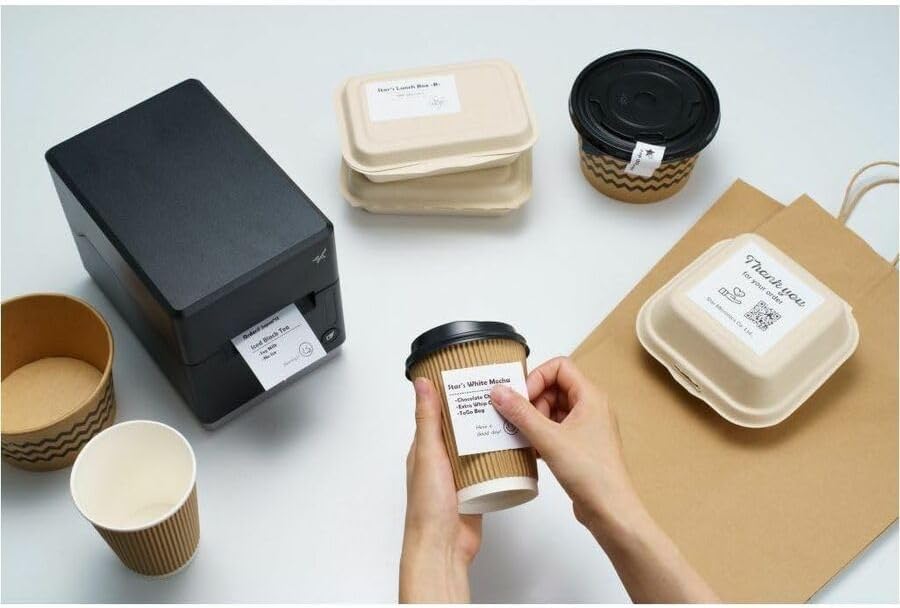
Image: A hand pressing the feed button on the mC-Label3 printer, demonstrating the printing of a 'Thank you' label.

Image: The mC-Label3 printer shown in a practical setting, printing labels for food containers and coffee cups, illustrating its versatility.
ບໍາລຸງຮັກສາ
1. ການເຮັດຄວາມສະອາດເຄື່ອງພິມ
Regular cleaning ensures optimal performance and extends the life of your printer.
- ໃຊ້ຜ້າແພທີ່ອ່ອນນຸ້ມ ງampened with isopropyl alcohol to clean the print head.
- ເຊັດດ້ານນອກຂອງເຄື່ອງພິມດ້ວຍຜ້າອ່ອນ, ແຫ້ງ.
- ຫຼີກເວັ້ນການນໍາໃຊ້ເຄື່ອງເຮັດຄວາມສະອາດຂັດຫຼືສານລະລາຍ.
2. ການປ່ຽນສື່
When the media roll is depleted, follow the media loading instructions in the Setup section to replace it.
3. Effortless Repairs
The mC-Label3 is designed for effortless, no-tools-required repairs with minimal upkeep, simplifying any necessary component replacements.
ການແກ້ໄຂບັນຫາ
ພາກນີ້ສະຫນອງການແກ້ໄຂບັນຫາທົ່ວໄປທີ່ທ່ານອາດຈະພົບ.
| ບັນຫາ | ສາເຫດທີ່ເປັນໄປໄດ້ | ການແກ້ໄຂ |
|---|---|---|
| ເຄື່ອງພິມບໍ່ເປີດ | ສາຍໄຟບໍ່ໄດ້ເຊື່ອມຕໍ່; ບັນຫາປລັກສຽບໄຟ | ໃຫ້ແນ່ໃຈວ່າສາຍໄຟໄດ້ເຊື່ອມຕໍ່ຢ່າງແໜ້ນໜາແລ້ວ; ລອງໃຊ້ປລັກໄຟອື່ນ. |
| ບໍ່ມີຜົນຜະລິດພິມອອກ | Out of media; Media loaded incorrectly; Driver issue | Load new media; Re-load media correctly; Reinstall printer drivers. |
| ຄຸນນະພາບການພິມບໍ່ດີ | Dirty print head; Low quality media | Clean the print head; Use recommended thermal media. |
| ບັນຫາການເຊື່ອມຕໍ່ | Incorrect cable connection; Bluetooth not paired; Network configuration | Check USB/Ethernet cables; Re-pair Bluetooth; Verify network settings. |
ຂໍ້ມູນຈໍາເພາະ
| ຄຸນສົມບັດ | ລາຍລະອຽດ |
|---|---|
| ຊື່ຕົວແບບ | mC-Label3 |
| ໝາຍເລກຕົວແບບ | MCL32CBI |
| ເຕັກໂນໂລຊີການພິມ | ຄວາມຮ້ອນໂດຍກົງ |
| ຜົນຜະລິດເຄື່ອງພິມ | ໂມໂນໂຄມ |
| ຄວາມໄວການພິມສູງສຸດ monochrome | 23 ppm |
| ຄວາມລະອຽດການພິມສີດໍາ ແລະສີຂາວສູງສຸດ | 203 DPI (203 x 203 DPI) |
| ສື່ສິ່ງພິມ | Labels (Linerless, Die-Cut, Continuous), Thermal Receipt |
| ເຕັກໂນໂລຊີການເຊື່ອມຕໍ່ | Bluetooth, Wired (USB, Ethernet) |
| ການໂຕ້ຕອບຮາດແວ | USB, ອີເທີເນັດ |
| ອຸປະກອນທີ່ເຂົ້າກັນໄດ້ | PC, Android, iOS |
| ປະເພດການຄວບຄຸມ | iOS, Android |
| ຂະໜາດສິນຄ້າ | 6.7"D x 5.6"W x 8.3"H (17.0 x 14.2 x 21.1 cm) |
| ນ້ໍາຫນັກລາຍການ | 7.2 ປອນ (3.27 ກິໂລ) |
| ຄວາມອາດສາມາດເກັບຮັກສາຫນ່ວຍຄວາມຈໍາ | 64 MB |
| ສີ | ດຳ |
| ຜູ້ຜະລິດ | STAR MICRONICS |
| ປະເທດຕົ້ນກໍາເນີດ | ຈີນ |
ຂໍ້ມູນການຮັບປະກັນ
The Star Micronics mC-Label3 MCL32CBI printer comes with a manufacturer's warranty. For specific terms and conditions, please refer to the warranty card included in your package or visit the official Star Micronics webເວັບໄຊ.
ປະເພດການຮັບປະກັນ: ຜູ້ຜະລິດ
ສະຫນັບສະຫນູນ
For further assistance, technical support, or to download the latest drivers and firmware, please visit the official Star Micronics support webເວັບໄຊ ຫຼືຕິດຕໍ່ບໍລິການລູກຄ້າຂອງເຂົາເຈົ້າ.
Star Micronics Official Webເວັບໄຊ: www.starmicronics.com
ການເຊື່ອມຕໍ່ສະຫນັບສະຫນູນ: www.starmicronics.com/support
Ask a question about this manual
Ask about setup, troubleshooting, compatibility, parts, safety, or missing instructions. Manuals+ will review the question and use this page’s manual context to help answer it.