
1. ບົດແນະນຳ
This manual provides instructions for the proper setup, operation, and maintenance of your Tera 3106-2 1D USB Wired Barcode Scanner. Please read this manual thoroughly before using the device to ensure optimal performance and longevity.
2. ຜະລິດຕະພັນເກີນview
The Tera 3106-2 is a high-speed, accurate 1D barcode scanner designed for various applications including retail, small businesses, libraries, and warehouses. It features a plug-and-play USB connection and supports multiple customization options.

ຮູບທີ 2.1: The Tera 3106-2 scanner is designed to be eye-safe, operating without a visible laser.
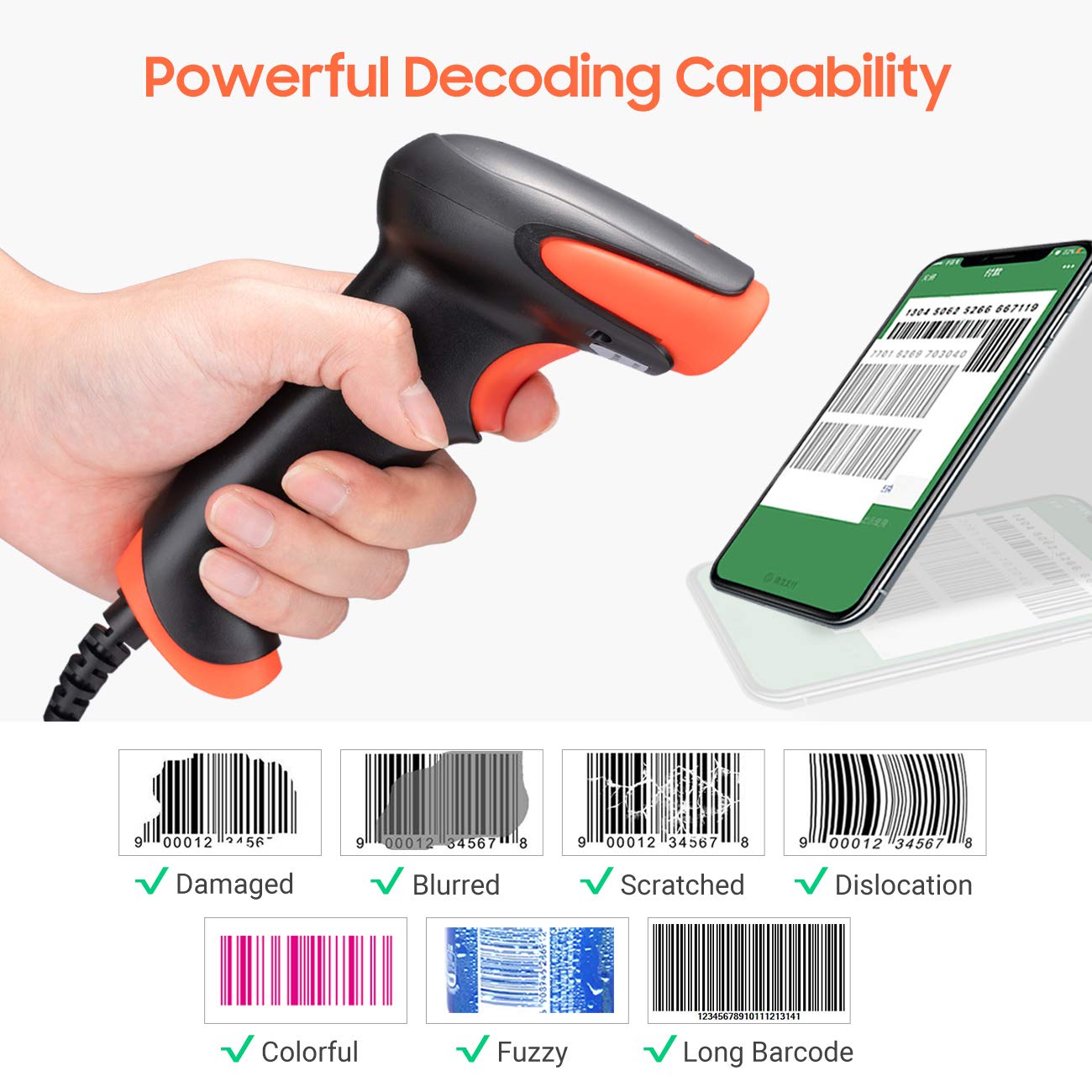
ຮູບທີ 2.2: The scanner offers powerful decoding capabilities, accurately reading damaged, blurred, scratched, dislocated, colorful, fuzzy, and long 1D barcodes.
3. ເນື້ອໃນຊຸດ
- Tera 3106-2 Barcode Scanner x1
- ຄູ່ມືຜູ້ໃຊ້ x1
4. ຕັ້ງຄ່າ
The Tera 3106-2 barcode scanner is designed for simple plug-and-play operation. No additional drivers or software installation is required for most systems.
- ເຊື່ອມຕໍ່ສາຍ USB: Plug the USB cable of the scanner into an available USB 2.0 port on your computer (desktop or laptop).
- ການຮັບຮູ້ລະບົບ: Your operating system (Windows, Linux, macOS, iOS, Android) will automatically detect and install the necessary device drivers. This process may take a few moments.
- ພ້ອມສໍາລັບການນໍາໃຊ້: Once the system indicates that the device is ready, the scanner can be used with applications such as Word, Excel, Novell, or other common software that accepts keyboard input.

ຮູບທີ 4.1: The scanner is compatible with various devices and operating systems, including Windows, Linux, macOS, iOS, and Android.
5. ຄໍາແນະນໍາການດໍາເນີນງານ
5.1 ການສະແກນພື້ນຖານ
To scan a barcode, aim the scanner's light beam at the center of the barcode. A successful scan will typically be indicated by an audible beep and/or a visual confirmation (e.g., LED indicator). The decoded data will appear in the active input field on your connected device.
5.2 ຮູບແບບການສະແກນ
ເຄື່ອງສະແກນຮອງຮັບສອງໂໝດການສະແກນຫຼັກຄື:
- ການສະແກນດ້ວຍຕົນເອງ: Press the trigger button to initiate a scan. This is the default mode.
- Auto Continuous Scanning: The scanner continuously emits a scan beam, automatically reading barcodes presented to it without needing to press the trigger.
To switch between these modes, refer to the configuration barcodes provided in the supplementary user guide or quick start sheet that came with your scanner. Scan the appropriate barcode to change the mode.
6. ຕົວເລືອກການປັບແຕ່ງ
The Tera 3106-2 scanner offers various customization settings to adapt to your specific needs. These settings are typically configured by scanning special barcodes found in the included user guide.
- ຄຳນຳໜ້າ/ຄຳຕໍ່ທ້າຍ: ເພີ່ມຕົວອັກສອນແບບກຳນົດເອງກ່ອນ ຫຼື ຫຼັງຈາກສະແກນຂໍ້ມູນ.
- ປະລິມານ: Adjust the sound level of the scan confirmation beep.
- Terminator: Configure the character sent after the barcode data (e.g., Carriage Return, Tab).
- Upper/Lower Case: Convert scanned data to all uppercase or all lowercase.
- ພາສາແປ້ນພິມ: Select the appropriate keyboard layout for your region. Supported languages include English, Spanish, German, French, Italian, Japanese, and more.
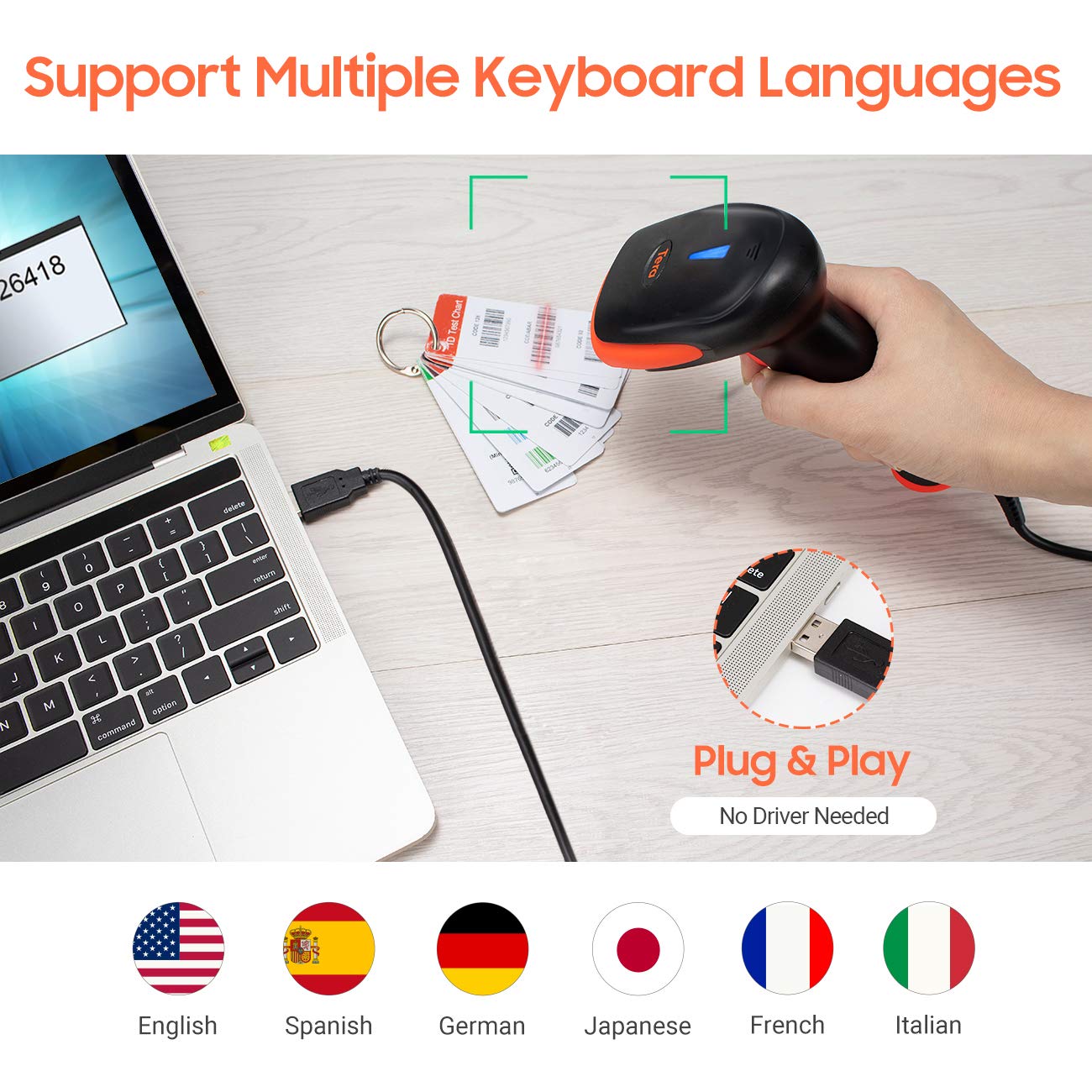
ຮູບທີ 6.1: The scanner supports multiple keyboard languages for diverse international use.

ຮູບທີ 6.2: Customize barcode output by adding prefixes, suffixes, or hiding specific digits.
7. ບາໂຄດທີ່ຮອງຮັບ
This scanner is compatible with a wide range of 1D barcode symbologies, including but not limited to:
- UPC&EAN (UPC-A, UPC-E, EAN-8, EAN-13)
- Code 39, CODE32, Code 93, CODE11, Code 128, UCC-EAN128
- ISSN, ISBN
- CODABAR, MSI
- Interleaved 2 of 5, Matrix 2 of 5, Industrial 2 of 5
- ແລະອື່ນໆອີກ.
The scanner also supports reading 1D barcodes directly from digital screens.
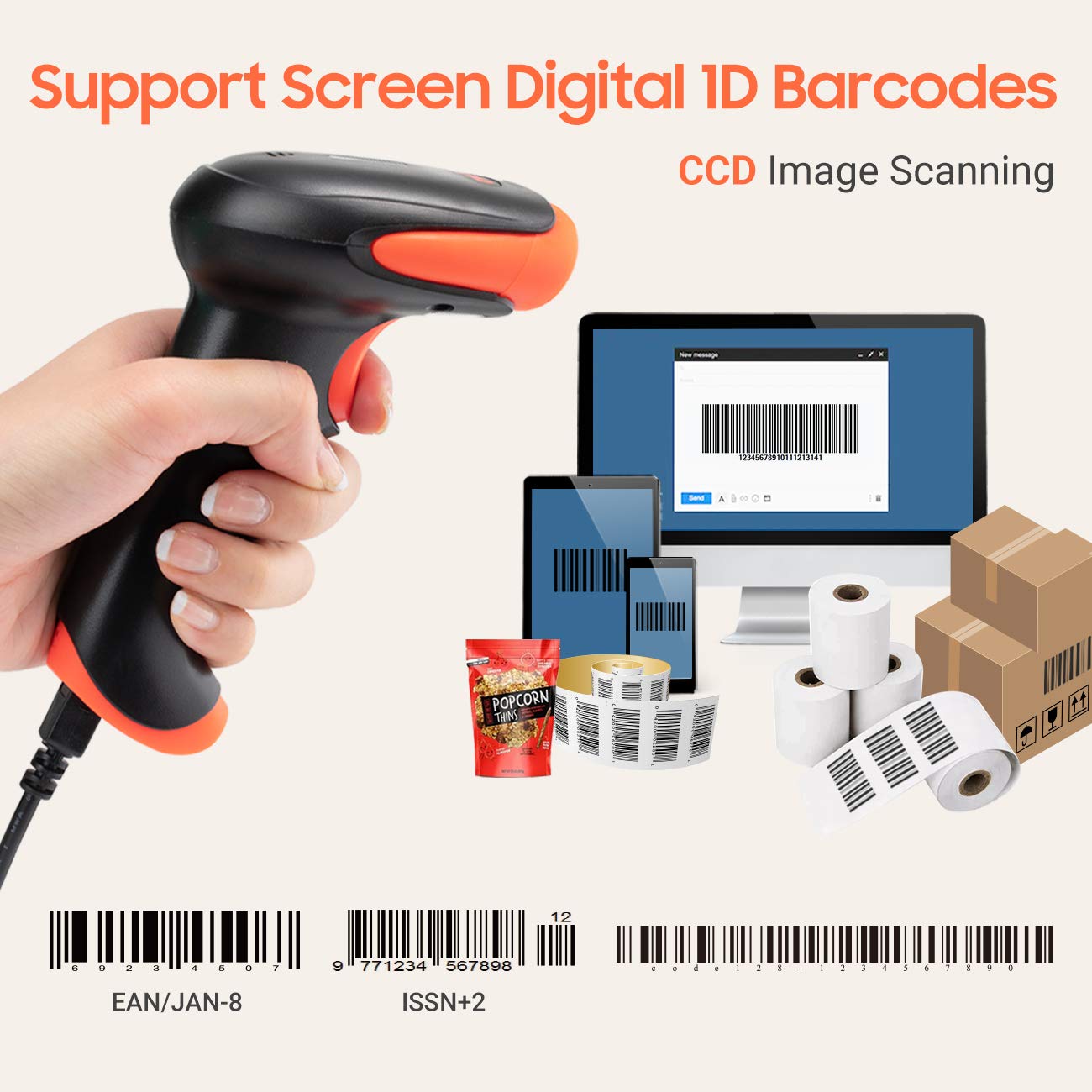
ຮູບທີ 7.1: The scanner supports reading 1D barcodes from various sources, including digital screens and printed labels.
8. ບໍາລຸງຮັກສາ
- ທໍາຄວາມສະອາດ: ໃຊ້ຜ້າອ່ອນໆແຫ້ງເພື່ອທຳຄວາມສະອາດພາຍນອກຂອງເຄື່ອງສະແກນ. ສຳລັບໜ້າຕ່າງການສະແກນ, ໃຫ້ໃຊ້ຜ້າອ່ອນໆທີ່ບໍ່ມີຂົນເຊັດເບົາໆ.ampened with water or a mild, non-abrasive cleaner. Avoid harsh chemicals.
- ການເກັບຮັກສາ: ເກັບຮັກສາເຄື່ອງສະແກນໄວ້ໃນບ່ອນທີ່ເຢັນ, ແຫ້ງ, ຫ່າງຈາກແສງແດດໂດຍກົງແລະອຸນຫະພູມທີ່ຮຸນແຮງ.
- ການຈັດການ: Avoid dropping the scanner or subjecting it to strong impacts. Do not attempt to disassemble the device.
9. ການແກ້ໄຂບັນຫາ
| ບັນຫາ | ສາເຫດທີ່ເປັນໄປໄດ້ | ການແກ້ໄຂ |
|---|---|---|
| Scanner does not power on or respond. | ສາຍ USB ບໍ່ໄດ້ເຊື່ອມຕໍ່ຢ່າງຖືກຕ້ອງ ຫຼື ພອດ USB ມີຂໍ້ບົກຜ່ອງ. | ໃຫ້ແນ່ໃຈວ່າສາຍ USB ໄດ້ສຽບເຂົ້າກັບທັງເຄື່ອງສະແກນ ແລະ ຄອມພິວເຕີຢ່າງແໜ້ນໜາແລ້ວ. ລອງໃຊ້ພອດ USB ອື່ນ. |
| Scanner reads barcodes slowly or inaccurately. | Barcode is damaged, blurred, or poorly printed. Insufficient lighting. Scanner window is dirty. | Ensure the barcode is clear and well-lit. Clean the scanner window. Try scanning from a different angle or distance. |
| Scanner does not read barcodes from digital screens. | Screen brightness is too low or glare is present. | Increase screen brightness. Adjust the angle of the scanner to minimize glare. Ensure the barcode is fully displayed on the screen. |
| Scanned data appears incorrectly (e.g., wrong characters, missing digits). | Incorrect keyboard language setting. Prefix/suffix or other data formatting settings are active. | Verify the keyboard language setting matches your computer's keyboard layout. Review and adjust prefix/suffix or other data formatting settings using the configuration barcodes. |
| ເຄື່ອງສະແກນສົ່ງສຽງດັງແຕ່ບໍ່ມີຂໍ້ມູນຖືກສົ່ງ. | Application not in focus or not accepting input. | Ensure the cursor is in the desired input field of your application. Test with a simple text editor like Notepad. |
10. ຂໍ້ມູນຈໍາເພາະ
| ຄຸນສົມບັດ | ລາຍລະອຽດ |
|---|---|
| ຕົວແບບ | 3106-2 |
| ປະເພດການສະແກນ | 1D Laser (Eye Safe) |
| ການເຊື່ອມຕໍ່ | USB Wired (USB 2.0) |
| ຄວາມໄວສະແກນ | ສູງສຸດ 300 ການສະແກນຕໍ່ວິນາທີ |
| ອັດຕາຄວາມຜິດພາດ | 1 in 5 million scans |
| ອຸປະກອນທີ່ເຂົ້າກັນໄດ້ | ເດັສທັອບ, ແລັບທັອບ |
| ລະບົບທີ່ເຂົ້າກັນໄດ້ | Windows, Linux, macOS, iOS, Android |
| ແຫຼ່ງພະລັງງານ | ໄຟຟ້າສາຍ (ຜ່ານ USB) |
| ຂະໜາດສິນຄ້າ (ກວ້າງ x ຍາວ x ສູງ) | 7.9 x 19.3 x 10.4 ຊັງຕີແມັດ |
| ບາໂຄດ 1D ທີ່ຮອງຮັບ | UPC&EAN, UPC-A, UPC-E, Code 39, CODE32, Code 93, CODE11, Code 128, UCC-EAN128, EAN-8, EAN-13, ISSN, ISBN, CODABAR, MSI, Interleaved 2 of 5, Matrix 2 of 5, Industrial 2 of 5, etc. |
11. ການຮັບປະກັນແລະການສະຫນັບສະຫນູນ
For warranty information, technical support, or service inquiries, please refer to the contact details provided with your purchase documentation or visit the official Tera webເວັບໄຊ. ກະລຸນາຮັກສາຫຼັກຖານການຊື້ຂອງທ່ານສໍາລັບການຮຽກຮ້ອງການຮັບປະກັນ.