
1. ຜະລິດຕະພັນເກີນview
The Ruijie Reyee RG-EW1200R, also known as RAP1261, is an AX3000 Wi-Fi 6 dual-band Gigabit in-wall Access Point (AP) designed to extend and enhance wireless network coverage. It features built-in antennas and supports both 2.4GHz (300Mbps) and 5GHz (867Mbps) dual-radio frequencies, adhering to 802.11a/b/g/n/ac Wave1/Wave2/ax protocols. This device includes a 10/100/1000 Base-T port and supports both AP and routing modes, along with layer 2 and layer 3 roaming capabilities. Management is facilitated through Reyee unified networking and the Ruijie Cloud app.
The unit is designed for wall-mounted installation and supports 802.3at Power over Ethernet (PoE) input, with a maximum power consumption of less than 18W. When using a non-standard PoE adapter, it is essential to configure the "PoE settings" to "IEEE 802.3at" via the device's web interface to ensure proper operation.
2. ການຕິດຕັ້ງແລະການຕິດຕັ້ງ
This section outlines the general steps for installing and setting up your Ruijie Reyee RAP1261 in-wall AP. Professional installation by a qualified technician is recommended due to the in-wall nature of the device and its power requirements.
2.1 Unboxing ແລະອົງປະກອບ
ກວດສອບວ່າອົງປະກອບທັງໝົດມີຢູ່ໃນຊຸດ:
- Ruijie Reyee RAP1261 In-wall AP unit
- Mounting hardware (if included, typically for in-wall installation)
- ຄູ່ມືເລີ່ມຕົ້ນດ່ວນ (ອ້າງອີງໃສ່ຄູ່ມືນີ້ສຳລັບຄຳແນະນຳລະອຽດ)
2.2 ການຕິດຕັ້ງທາງດ້ານຮ່າງກາຍ
The RAP1261 is designed for in-wall installation. This typically involves:
- Power Source Preparation: Ensure a suitable 802.3at PoE-enabled network switch or injector is available to provide power to the AP. The power supply output must exceed the AP's maximum power consumption of 18W.
- ຕິດຝາ: Carefully follow the provided mounting instructions to secure the AP within a standard wall outlet box.
- ການເຊື່ອມຕໍ່ເຄືອຂ່າຍ: Connect an Ethernet cable from your PoE source to the WAN/PoE port on the back of the RAP1261.
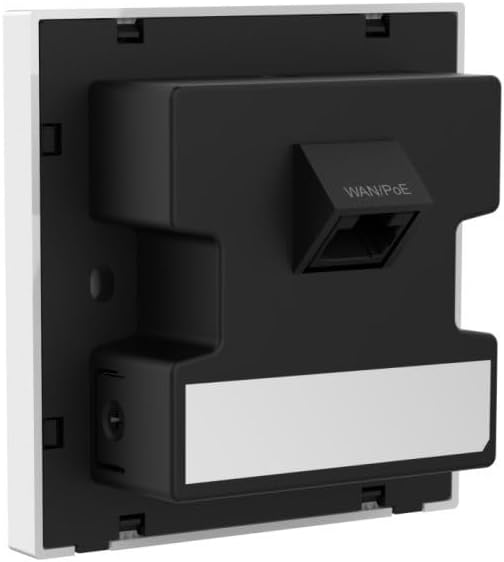
ຮູບທີ 1: ຫລັງ view of the Ruijie Reyee RAP1261 In-wall AP. This image displays the back panel of the device, highlighting the WAN/PoE Ethernet port for network and power connection, and the mounting tabs for in-wall installation. A label area is also visible at the bottom.
2.3 ການຕັ້ງຄ່າເບື້ອງຕົ້ນ
After physical installation and power-up:
- ເປີດ: The device will power on automatically when connected to a PoE source. Observe the LED indicators for status.
- ການເຂົ້າເຖິງເຄືອຂ່າຍ: Connect a device (e.g., laptop, smartphone) to the default Wi-Fi network broadcast by the AP (SSID and password typically found on a label on the device or in the quick start guide).
- Web ການເຂົ້າເຖິງອິນເຕີເຟດ: ເປີດ ກ web browser and navigate to the default IP address of the AP (e.g., 192.168.1.1 or similar, refer to the quick start guide). Log in using the default credentials.
- PoE Settings (if applicable): If using a non-standard PoE adapter, navigate to the "PoE settings" in the web interface and set the "PoE mode" to "IEEE 802.3at".
- Basic Wi-Fi Configuration: Configure your desired Wi-Fi network name (SSID), password, and security settings for both 2.4GHz and 5GHz bands.
- ຮູບແບບການເຮັດວຽກ: Select between AP mode or routing mode based on your network requirements.
- ການຈັດການແອັບ: Download the Ruijie Cloud app or Reyee Router App from your device's app store. Follow the in-app instructions to add and manage your RAP1261.
3. ຄໍາແນະນໍາການດໍາເນີນງານ
The Ruijie Reyee RAP1261 offers various functionalities to optimize your wireless network.
3.1 ການເຊື່ອມຕໍ່ Wi-Fi
- ການດໍາເນີນງານສອງແຖບ: The AP broadcasts Wi-Fi on both 2.4GHz and 5GHz frequencies. Connect your devices to the appropriate band for optimal performance. The 5GHz band offers higher speeds but shorter range, while 2.4GHz provides wider coverage.
- Mesh Functionality: If deployed as part of a Reyee Mesh network, the AP will seamlessly integrate to provide extended and unified Wi-Fi coverage.
3.2 Management via Reyee App / Ruijie Cloud
The dedicated mobile application provides comprehensive control over your AP:
- ການຕິດຕາມເຄືອຂ່າຍ: View connected devices, network traffic, and AP status.
- Configuration Changes: Modify Wi-Fi settings, operating modes, and other network parameters.
- ການອັບເດດເຟີມແວ: Check for and apply the latest firmware to ensure optimal performance and security.
- ການຄວບຄຸມໄຟ LED: Adjust or disable the LED indicators on the device for discreet operation.
3.3 ຄຸນສົມບັດຂັ້ນສູງ
Depending on your configuration and network setup, the RAP1261 supports:
- ແບບ AP: Functions as a wireless access point, extending an existing wired network wirelessly.
- ຮູບແບບການກຳນົດເສັ້ນທາງ: Can act as a basic router for smaller networks.
- Layer 2 and Layer 3 Roaming: Facilitates seamless transitions for wireless clients between multiple APs in a larger network.
4. ບໍາລຸງຮັກສາ
Regular maintenance ensures the longevity and optimal performance of your Ruijie Reyee RAP1261.
- ຮັກສາຄວາມສະອາດ: Gently wipe the exterior of the device with a soft, dry cloth. Avoid using liquid cleaners or aerosols.
- ການອັບເດດເຟີມແວ: Periodically check for and install firmware updates via the Ruijie Cloud app or web ການໂຕ້ຕອບ. ການອັບເດດເຟີມແວມັກຈະລວມເຖິງການປັບປຸງປະສິດທິພາບ, ການແກ້ໄຂຄວາມປອດໄພ ແລະຄຸນສົມບັດໃໝ່.
- ເງື່ອນໄຂສິ່ງແວດລ້ອມ: Ensure the device is operating within its specified temperature and humidity ranges to prevent overheating or damage.
5. ການແກ້ໄຂບັນຫາ
This section addresses common issues you might encounter with your RAP1261.
5.1 ບໍ່ມີພະລັງງານ / ອຸປະກອນບໍ່ເປີດ
- ກວດສອບການເຊື່ອມຕໍ່ PoE: Ensure the Ethernet cable is securely connected to the WAN/PoE port and to a functioning 802.3at PoE source.
- ກວດສອບແຫຼ່ງ PoE: Confirm that your PoE switch or injector is powered on and providing sufficient power (output > 18W).
- Non-Standard PoE: If using a non-standard PoE adapter, ensure the "PoE mode" is set to "IEEE 802.3at" in the device's web ການໂຕ້ຕອບ.
5.2 No Wi-Fi Signal or Connectivity Issues
- ກວດເບິ່ງຕົວຊີ້ວັດ LED: Refer to the device's LED status lights (if visible) to determine its operational state. Consult the quick start guide for LED meanings.
- Verify Configuration: ເຂົ້າສູ່ລະບົບ web interface or Ruijie Cloud app to ensure Wi-Fi settings (SSID, password, security type) are correctly configured and enabled.
- ຣີສະຕາດອຸປະກອນ: Power cycle the AP by disconnecting and reconnecting the PoE cable.
- ແຊກແຊງ: Ensure there are no major sources of interference (e.g., microwaves, cordless phones) near the AP.
5.3 ຄວາມໄວ Wi-Fi ຊ້າ
- ການຄັດເລືອກແຖບ: Ensure high-bandwidth devices are connected to the 5GHz band if possible.
- ການແຊກແຊງຊ່ອງ: Use the Ruijie Cloud app or web interface to perform a channel scan and select less congested Wi-Fi channels.
- ເຟີມແວ: Ensure the AP has the latest firmware installed.
- Network Load: Check if other devices on your network are consuming significant bandwidth.
5.4 ບໍ່ສາມາດເຂົ້າເຖິງໄດ້ Web Interface or App
- ທີ່ຢູ່ IP: Confirm you are using the correct IP address for the AP. If the AP is in routing mode, its IP might be different from the default.
- ການເຊື່ອມຕໍ່ເຄືອຂ່າຍ: Ensure your device is connected to the AP's network (either wired or wirelessly).
- Firewall/Antivirus: ປິດໃຊ້ງານ firewall ຫຼື ຊອບແວ antivirus ໃນຄອມພິວເຕີຂອງທ່ານຊົ່ວຄາວທີ່ອາດຈະບລັອກການເຂົ້າເຖິງ.
- ຕັ້ງຄ່າ ໃໝ່: As a last resort, perform a factory reset (refer to the quick start guide for the reset procedure). This will revert all settings to default.
6. ຂໍ້ມູນຈໍາເພາະ
| ຄຸນສົມບັດ | ລາຍລະອຽດ |
|---|---|
| ຍີ່ຫໍ້ | ຣູຈີ |
| ຊື່ຕົວແບບ | RAP1261 (RG-EW1200R Series) |
| ມາດຕະຖານໄຮ້ສາຍ | 802.11ax (Wi-Fi 6), 802.11a/b/g/n/ac Wave1/Wave2 |
| ຫ້ອງຮຽນແຖບຄວາມຖີ່ | Dual-Band (2.4 GHz, 5 GHz) |
| ອັດຕາການໂອນຂໍ້ມູນ | Up to 1200 Mbps (300 Mbps at 2.4GHz, 867 Mbps at 5GHz) |
| ປະເພດເສົາອາກາດ | ພາຍໃນ |
| ປະເພດຕົວເຊື່ອມຕໍ່ | Ethernet (WAN/PoE) |
| ຈໍານວນພອດ | 1 (WAN/PoE) |
| ການປ້ອນຂໍ້ມູນພະລັງງານ | 802.3at PoE-in (57 Volts DC) |
| ການບໍລິໂພກພະລັງງານສູງສຸດ | <18W |
| ຄຸນນະສົມບັດພິເສດ | Access Point Mode, Routing Mode, Mesh Wi-Fi, LED Control, Reyee App Management |
| ອຸປະກອນທີ່ເຂົ້າກັນໄດ້ | ເຄື່ອງຫຼິ້ນເກມ, ຄອມພິວເຕີສ່ວນບຸກຄົນ, ເຄື່ອງພິມ, ກ້ອງຖ່າຍຮູບຄວາມປອດໄພ, ໂທລະພາບອັດສະລິຍະ, ເຄື່ອງຄວບຄຸມອຸນຫະພູມອັດສະລິຍະ, ໂທລະສັບສະຫຼາດ, ແທັບເລັດ |
| ຂະໜາດສິນຄ້າ | 8.6 x 0.16 x 4.24 cm |
| ນ້ໍາຫນັກລາຍການ | 160 g |
| ລະບົບປະຕິບັດການ (ພາຍໃນ) | Cisco IOS (Note: This refers to the internal operating system, not user-facing) |
7. ການຮັບປະກັນແລະການສະຫນັບສະຫນູນ
For warranty information, please refer to the documentation provided with your purchase or contact your reseller. Support resources, including FAQs and further technical assistance, may be available through the Ruijie official website or the Reyee Cloud app.