
Otovoda B-T50
ຄູ່ມືຜູ້ໃຊ້ກ້ອງວົງຈອນປິດ Otovoda B-T50
Front and Rear Camera System
1. ຜະລິດຕະພັນເກີນview
The Otovoda B-T50 Dash Cam is a comprehensive front and rear camera system designed to enhance driving safety and provide reliable evidence in case of incidents. It features high-resolution recording, Wi-Fi connectivity for easy access, advanced night vision, and a 24-hour parking monitor.

Figure 1: Otovoda B-T50 Dash Cam components and features.

Figure 2: Key features of the Otovoda B-T50 Dash Cam.
2. ເນື້ອໃນຊຸດ
ກວດສອບວ່າລາຍການທັງຫມົດແມ່ນມີຢູ່ໃນຊຸດຂອງທ່ານ:
- Otovoda B-T50 Dash Cam (Main Unit)
- ກ້ອງຫຼັງ
- ດູດຈອກ Mount
- ເຄື່ອງສາກໄຟລົດ (Type-C)
- ສາຍກ້ອງຫຼັງ
- ສາຍ USB
- SD ກາດ 64GB
- ຄູ່ມືຜູ້ໃຊ້
- Cable Clips / 3M Tape
- SIM Ejector Tool (for SD card removal)

ຮູບທີ 3: ລວມອຸປະກອນເສີມ ແລະ ສ່ວນປະກອບ.
3. ການຕິດຕັ້ງແລະການຕິດຕັ້ງ
3.1 ການໃສ່ SD Card
The dash cam supports Micro SD cards up to 256GB (a 64GB card is included). Ensure the card is Class 10, U3 or higher for optimal performance.
- Locate the SD card slot on the side of the main dash cam unit.
- ໃສ່ກາດ Micro SD ໂດຍໃຫ້ດ້ານໜ້າສີທອງຫັນໄປທາງຫຼັງຂອງກ້ອງຖ່າຍຮູບຈົນກວ່າມັນຈະເຂົ້າທີ່.
- ເພື່ອເອົາອອກ, ຄ່ອຍໆຍູ້ບັດເຂົ້າຈົນກ່ວາມັນອອກມາ.

Figure 4: SD card insertion.
3.2 ການຕິດຕັ້ງ Dash Cam
Mount the main unit on your car's windshield using the provided suction cup mount. Choose a location that does not obstruct your view ຂອງຖະຫນົນຫົນທາງ.
- Clean the windshield surface where you intend to mount the camera.
- ຕິດຕັ້ງຕົວຍຶດຈອກດູດເຂົ້າກັບຊຸດກ້ອງວົງຈອນປິດ.
- ກົດຈອກດູດໃຫ້ແຫນ້ນກັບກະຈົກແລະປີ້ນ lever ເພື່ອຮັບປະກັນມັນ.
- ປັບມຸມກ້ອງເພື່ອຮັບປະກັນຄວາມຊັດເຈນ view ຂອງເສັ້ນທາງຂ້າງຫນ້າ.

Figure 5: Dash cam mounted on windshield.

Figure 6: Suction cup mounting steps.
3.3 ການເຊື່ອມຕໍ່ກ້ອງຫຼັງ
The rear camera provides a 1080P recording of the rear view. It can be mounted inside the rear window or externally near the license plate.
- Connect the rear camera cable to the rear camera unit.
- Route the cable neatly along the vehicle's interior trim to the main dash cam unit.
- Plug the other end of the rear camera cable into the designated port on the main dash cam.
- Secure the rear camera in your desired location using the provided 3M tape or screws.

Figure 7: Dual channel recording setup.

Figure 8: Rear camera design.
3.4 ການເຊື່ອມຕໍ່ພະລັງງານ
ເຊື່ອມຕໍ່ກ້ອງວົງຈອນປິດກັບແຫຼ່ງຈ່າຍໄຟຂອງລົດຂອງທ່ານໂດຍໃຊ້ເຄື່ອງສາກໄຟໃນລົດທີ່ໃຫ້ມາ.
- Plug the Type-C end of the car charger into the dash cam's power port.
- Plug the other end of the car charger into your vehicle's cigarette lighter socket.
- ກ້ອງວົງຈອນປິດຈະເປີດໂດຍອັດຕະໂນມັດ ແລະ ເລີ່ມບັນທຶກເມື່ອເປີດລະບົບຈູດໄຟຂອງລົດ.

Figure 9: Type-C power port.
4. ຄໍາແນະນໍາການດໍາເນີນງານ
4.1 ການບັນທຶກພື້ນຖານ
Once powered on, the dash cam will automatically start recording. The 3-inch screen will display the live view from the front and rear cameras.

Figure 10: Dash cam 3-inch display.
4.2 Wi-Fi ແລະການຄວບຄຸມແອັບ
The built-in Wi-Fi allows you to connect your smartphone to the dash cam via the free Viidure APP (available for Android and iOS). This enables real-time viewing, video playback, downloading, and sharing.
- Download and install the "Viidure" app from your device's app store.
- Turn on Wi-Fi on your dash cam (refer to the camera's menu settings).
- ໃນໂທລະສັບສະຫຼາດຂອງທ່ານ, ໃຫ້ເຊື່ອມຕໍ່ກັບເຄືອຂ່າຍ Wi-Fi ຂອງກ້ອງວົງຈອນປິດ (SSID ແລະລະຫັດຜ່ານໂດຍປົກກະຕິແລ້ວຈະສະແດງຢູ່ໜ້າຈໍກ້ອງວົງຈອນປິດ).
- Open the Viidure app to access live view, ວິດີໂອທີ່ບັນທຶກໄວ້, ແລະ ການຕັ້ງຄ່າຕ່າງໆ.
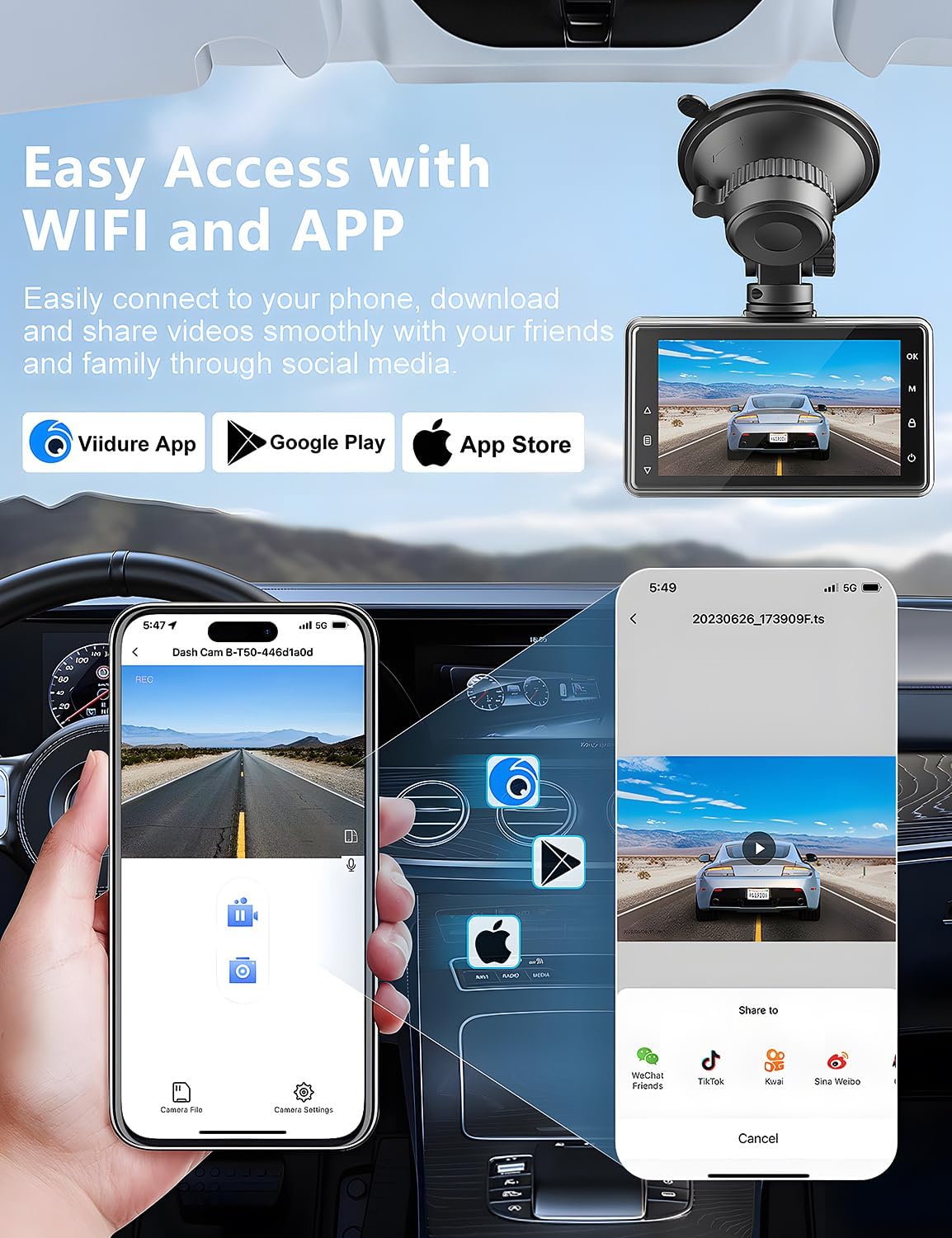
Figure 11: Wi-Fi connectivity and app control.

Figure 12: Sharing videos via Wi-Fi.
4.3 G-Sensor (ລັອກສຸກເສີນ)
The built-in G-Sensor automatically detects sudden shakes or collisions. When triggered, it locks the current video footage to prevent it from being overwritten by loop recording, ensuring critical evidence is preserved.

Figure 13: G-Sensor feature.

Figure 14: G-Sensor icon.
4.4 ການບັນທຶກວົງ
The dash cam continuously records video in a loop. When the memory card is full, the oldest unlocked video files are automatically overwritten to make space for new recordings. This ensures uninterrupted recording.

Figure 15: Loop Recording icon.
4.5 Parking Monitor & Motion Detection
When enabled, the parking monitor function detects collisions or motion around your parked vehicle. If an event is detected, the dash cam will automatically turn on and record a short video, providing 24/7 surveillance. For continuous 24-hour monitoring, a hardwire kit (not included) is required to connect the dash cam directly to the car's battery.

Figure 16: 24-hour parking monitor.

Figure 17: Parking monitor icon.
Figure 18: Motion detection in parking mode.
4.6 ວິໄສທັດໃນຕອນກາງຄືນທີ່ດີເລີດ
The dash cam is equipped with an F1.8 aperture lens and WDR (Wide Dynamic Range) technology, enhancing its ability to capture clear and detailed footage in low-light conditions, including license plates at night.

Figure 19: Super Night Vision capabilities.

Figure 20: Night vision clarity for license plates.
5. ບໍາລຸງຮັກສາ
5.1 ການຈັດການ SD Card
Regularly format the SD card to ensure optimal performance and prevent data corruption. Formatting can be done through the dash cam's menu settings or via the Viidure app.
- It is recommended to format the SD card once a month.
- Always back up important videos before formatting.
5.2 ການທໍາຄວາມສະອາດ
Keep the camera lenses and screen clean for clear recordings and display.
- Use a soft, lint-free cloth to wipe the lenses and screen.
- ຫຼີກເວັ້ນການນໍາໃຊ້ເຄື່ອງເຮັດຄວາມສະອາດຂັດຫຼືສານລະລາຍ.
5.3 ການພິຈາລະນາດ້ານສິ່ງແວດລ້ອມ
The dash cam is designed for automotive use but extreme temperatures can affect its performance and longevity.
- Avoid prolonged exposure to direct sunlight in extremely hot climates when the vehicle is parked.
- If the camera is exposed to extreme heat, allow it to cool down before operation.
6. ການແກ້ໄຂບັນຫາ
If you encounter issues with your Otovoda B-T50 Dash Cam, refer to the following common problems and solutions:
| ບັນຫາ | ສາເຫດທີ່ເປັນໄປໄດ້ | ການແກ້ໄຂ |
|---|---|---|
| Dash cam turns on and off repeatedly. | Unstable power connection; faulty power cable; internal issue. |
|
| Rear camera is not recognized or not working. | Loose connection; damaged cable; faulty rear camera. |
|
| Suction cup mount does not stay attached to the windshield. | Dirty windshield; improper application; worn suction cup. |
|
| Viidure app is slow or unresponsive. | App cache; outdated app version; phone's Wi-Fi interference. |
|
| Slow video download to phone. | ຂະຫນາດໃຫຍ່ file size; Wi-Fi interference; phone processing speed. |
|

Figure 21: Settings and troubleshooting.
7. ຂໍ້ມູນຈໍາເພາະ
| ຄຸນສົມບັດ | ລາຍລະອຽດ |
|---|---|
| ຊື່ຕົວແບບ | B-T50 |
| ຂະໜາດສິນຄ້າ | 0.59 x 3.15 x 1.77 ນິ້ວ |
| ນ້ໍາຫນັກລາຍການ | 1.1 ປອນ |
| ຄວາມລະອຽດການຖ່າຍວິດີໂອ | Front: 2.5K (1440P), Rear: 1080P |
| ມຸມກ້ອງໜ້າ | ມຸມກວ້າງ 170° |
| ມຸມກ້ອງຫຼັງ | ມຸມກວ້າງ 140° |
| ຈໍສະແດງຜົນ | ຫນ້າຈໍ 3 ນິ້ວ |
| ເຕັກໂນໂລຊີການເຊື່ອມຕໍ່ | ໄຮ້ສາຍ (Wi-Fi) |
| ຄຸນນະສົມບັດພິເສດ | Built-In WiFi/Smart APP Control, Parking Monitor, Super Night Vision, G-Sensor, Loop Recording, WDR |
| ຮອງຮັບກາດຫນ່ວຍຄວາມຈໍາ | ສູງສຸດ 256GB (ລວມ 64GB) |
| ພອດພະລັງງານ | ປະເພດ-C |
| ປະເພດການຕິດຕັ້ງ | Windshield Mount, License Plate Mount |
| ປະເພດການບໍລິການພາຫະນະ | Minivan, ລົດເມ, ລົດ, ລົດບັນທຸກ |
8. ການຮັບປະກັນແລະການສະຫນັບສະຫນູນ
Otovoda is committed to providing high-quality products and excellent customer service.
- ການຮັບປະກັນ: The Otovoda B-T50 Dash Cam comes with an extendable 2-year repair warranty.
- ຜົນຕອບແທນ: Full refunds are available within 30 days of purchase.
- ສະຫນັບສະຫນູນດ້ານວິຊາການ: For any questions, missing accessories, or technical assistance, please contact our support team. We aim to respond within 24 hours.
- ອີເມວຕິດຕໍ່: dashcam@bestservices.vip

Figure 22: Otovoda Brand Logo.
Ask a question about this manual
Ask about setup, troubleshooting, compatibility, parts, safety, or missing instructions. Manuals+ will review the question and use this page’s manual context to help answer it.