
ແນະນຳ
This manual provides instructions for the setup, operation, maintenance, and troubleshooting of your AWOW AiBook 10 detachable 2-in-1 laptop. The AiBook 10 functions as both a tablet and a laptop, featuring a 10.1-inch touchscreen display and running Windows 11. It is equipped with an Intel Celeron N4120 processor, 8GB RAM, and 256GB SSD storage.
ແມ່ນຫຍັງຢູ່ໃນກ່ອງ
ພາຍຫຼັງການຫຸ້ມຫໍ່, ໃຫ້ກວດເບິ່ງວ່າມີລາຍການທັງໝົດຢູ່:
- AWOW AiBook 10 Detachable 2-in-1 Laptop
- ແປ້ນພິມທີ່ສາມາດຖອດອອກໄດ້
- Power Adapter (AC adapter)
ສິນຄ້າເກີນview
The AWOW AiBook 10 is designed for versatility, allowing seamless transition between tablet and laptop modes. Familiarize yourself with the device's components and ports.

Image: The AWOW AiBook 10 in laptop configuration, showcasing the main unit and attached keyboard.

ຮູບພາບ: ລາຍລະອຽດ view of the AiBook 10, highlighting its dimensions and port locations.
ພອດ ແລະຕົວເຊື່ອມຕໍ່:
- ພອດ USB 3.0: For connecting USB devices such as external storage, mice, or printers.
- ພອດ Micro HDMI: ສໍາລັບການເຊື່ອມຕໍ່ກັບຈໍສະແດງຜົນພາຍນອກຫຼືໂປເຈັກເຕີ.
- ສະລັອດຕິງບັດ TF: For expanding storage with a microSD card (up to 512GB).
- Jack ຫູຟັງ (3.5mm): ສໍາລັບການເຊື່ອມຕໍ່ຫູຟັງຫຼືລໍາໂພງພາຍນອກ.
- DC 12V/3A Jack: ສຳລັບເຊື່ອມຕໍ່ອະແດບເຕີໄຟຟ້າເພື່ອສາກອຸປະກອນ.
ກ້ອງຖ່າຍຮູບ:
- ກ້ອງໜ້າ: 2.0MP, suitable for video calls.
- ກ້ອງຫຼັງ: 5.0MP, for capturing photos and videos.

Image: Illustration of the 2MP front camera and 5MP rear camera on the AiBook 10.
ຕັ້ງຄ່າ
1. ການສາກໄຟເບື້ອງຕົ້ນ
Before first use, fully charge the AiBook 10. Connect the provided power adapter to the DC 12V/3A jack on the device and plug it into a power outlet. The charging indicator will illuminate.
2. ການຕິດຕັ້ງແປ້ນພິມ
Align the magnetic connector of the detachable keyboard with the corresponding port at the bottom edge of the tablet. The keyboard will snap into place magnetically.

Image: The detachable keyboard being connected to the AiBook 10 tablet.
3. ເປີດເຄື່ອງ
Press and hold the power button located on the side of the tablet until the screen illuminates. The device will boot into Windows 11.
4. ການຕິດຕັ້ງ Windows ເບື້ອງຕົ້ນ
Follow the on-screen prompts to complete the Windows 11 setup process. This includes selecting your language, region, connecting to a Wi-Fi network, and creating a user account.
ປະຕິບັດການ
Switching Between Tablet and Laptop Modes
The AiBook 10 automatically detects the presence of the detachable keyboard. When the keyboard is attached, it functions as a laptop. When detached, it operates as a tablet, and Windows 11 will adjust its interface accordingly.
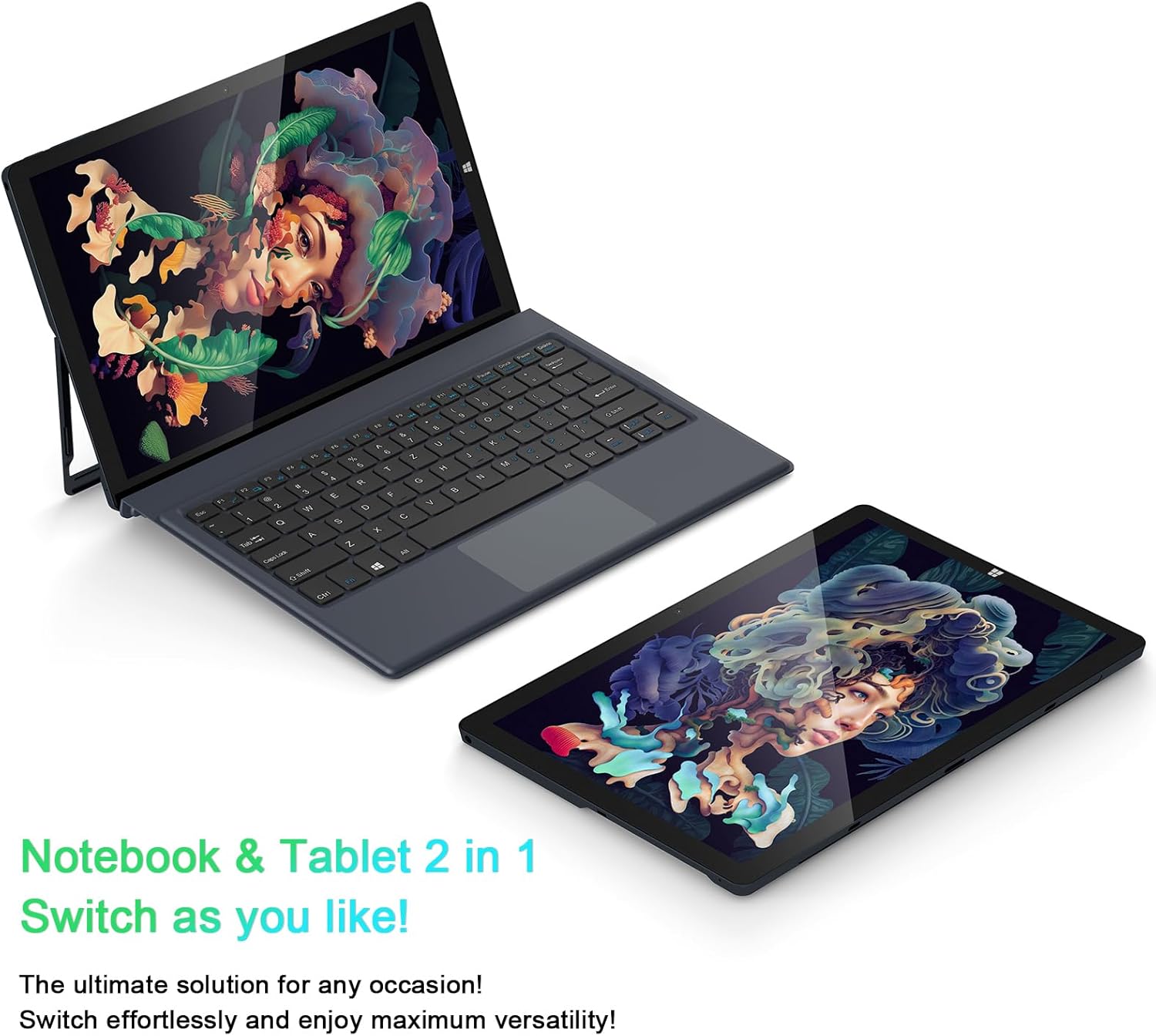
Image: The AiBook 10 displayed in both its laptop and tablet configurations.
ການໃຊ້ Touchscreen
The 10.1-inch IPS display supports multi-touch gestures. Use your fingers to navigate, tap, swipe, and pinch-to-zoom.
ການເຊື່ອມຕໍ່ອຸປະກອນຕໍ່ພ່ວງ
- Bluetooth: Enable Bluetooth in Windows settings to pair with compatible devices such as headphones, mice, or keyboards. The device supports Bluetooth 4.2.
- ອຸປະກອນ USB: Plug USB devices into the USB 3.0 port.
- ການສະແດງພາຍນອກ: Connect an external monitor using the Micro HDMI port. An appropriate adapter or cable may be required.
ການປັບຕົວຢືນ
The integrated stand bracket allows you to adjust the viewing angle of the tablet up to 145 degrees. Carefully extend the stand from the back of the tablet to your desired position.
ບໍາລຸງຮັກສາ
ການເຮັດຄວາມສະອາດອຸປະກອນ
Use a soft, lint-free cloth to clean the screen and exterior surfaces. For stubborn marks, slightly dampເຊັດຜ້າດ້ວຍນ້ຳ ຫຼື ນ້ຳຢາທຳຄວາມສະອາດໜ້າຈໍ. ຫຼີກລ່ຽງສານເຄມີຮຸນແຮງ ຫຼື ວັດສະດຸທີ່ມີສີຂັດ.
ການດູແລຫມໍ້ໄຟ
To prolong battery life, avoid fully discharging the battery frequently. Store the device in a cool, dry place when not in use for extended periods. The device features a 6500mAh Lithium Polymer battery.

Image: Visual representation of the 6500mAh battery capacity.
ອັບເດດຊອບແວ
ກວດສອບ ແລະ ຕິດຕັ້ງການອັບເດດ Windows ເປັນປະຈຳເພື່ອຮັບປະກັນປະສິດທິພາບ ແລະ ຄວາມປອດໄພທີ່ດີທີ່ສຸດ. ເຂົ້າເຖິງ Windows Update ຜ່ານເມນູການຕັ້ງຄ່າ.
ການແກ້ໄຂບັນຫາ
This section addresses common issues you might encounter with your AiBook 10.
ອຸປະກອນບໍ່ເປີດ
- ໃຫ້ແນ່ໃຈວ່າອຸປະກອນສາກໄຟແລ້ວ. ເຊື່ອມຕໍ່ອະແດບເຕີໄຟຟ້າ ແລະລໍຖ້າສອງສາມນາທີກ່ອນທີ່ຈະພະຍາຍາມເປີດເຄື່ອງອີກຄັ້ງ.
- ກົດປຸ່ມເປີດປິດຄ້າງໄວ້ 10-15 ວິນາທີເພື່ອເຮັດການຣີເຊັດຍາກ.
Screen Flickering or Display Issues
- ປິດເປີດອຸປະກອນຄືນໃໝ່.
- Check for updated display drivers through Windows Update or the device manufacturer's webເວັບໄຊ.
- If connected to an external display, ensure the cable is securely connected.
ແປ້ນພິມ ຫຼື Touchpad ບໍ່ຕອບສະໜອງ
- Ensure the detachable keyboard is securely attached to the tablet.
- ປິດເປີດອຸປະກອນຄືນໃໝ່.
- Check Windows settings for keyboard and touchpad functionality.
ບັນຫາການເຊື່ອມຕໍ່ Wi-Fi ຫຼື Bluetooth
- ກວດໃຫ້ແນ່ໃຈວ່າ Wi-Fi ຫຼື Bluetooth ເປີດຢູ່ໃນການຕັ້ງຄ່າ Windows.
- ຣີສະຕາດເຣົາເຕີ/ໂມເດັມຂອງທ່ານສຳລັບບັນຫາ Wi-Fi.
- For Bluetooth, try unpairing and re-pairing the device.
- ກວດສອບໄດຣເວີເຄືອຂ່າຍທີ່ອັບເດດແລ້ວ.
ປະສິດທິພາບຊ້າ
- ປິດແອັບພລິເຄຊັນທີ່ບໍ່ຈໍາເປັນທີ່ເຮັດວຽກຢູ່ໃນພື້ນຫຼັງ.
- ຮັບປະກັນພື້ນທີ່ຈັດເກັບຂໍ້ມູນຫວ່າງພຽງພໍໃນ SSD.
- Run a disk cleanup and optimize drives in Windows.
- ກວດເບິ່ງ ແລະຕິດຕັ້ງການອັບເດດ Windows ທີ່ຍັງຄ້າງຢູ່.
ຂໍ້ມູນຈໍາເພາະ
| ຍີ່ຫໍ້ | ອ້າວ |
| ຊື່ຕົວແບບ | AiBook 10 |
| ຂະໜາດໜ້າຈໍ | 10.1 ນິ້ວ |
| ຄວາມລະອຽດການສະແດງ | 1280 x 800 Pixels (Full HD IPS) |
| ລະບົບປະຕິບັດການ | Windows 11 |
| ຕົວແບບ CPU | Intel Celeron N4120 (up to 2.6 GHz) |
| ຫນ່ວຍຄວາມຈໍາ RAM | 8 GB LPDDR4 |
| ຂະຫນາດຮາດດິດ | 256 GB SSD (eMMC) |
| ບັດກາຟິກ | ປະສົມປະສານ Intel UHD Graphics 600 |
| ການເຊື່ອມຕໍ່ | 2.4G+5G WiFi, Bluetooth 4.2, USB 3.0, Micro HDMI |
| ກ້ອງຖ່າຍຮູບ | ກ້ອງໜ້າ 2.0MP, ກ້ອງຫຼັງ 5.0MP |
| ແບັດເຕີຣີ | ໂພລີເມີລີທຽມ 6500mAh |
| ນ້ໍາຫນັກລາຍການ | 1.4 Pounds (tablet only) |
| Dimensions (L x W x Thickness) | 10.1" x 6.8" x 0.38" (tablet only) |
ການຮັບປະກັນແລະການສະຫນັບສະຫນູນ
ຂໍ້ມູນການຮັບປະກັນ
The AWOW AiBook 10 comes with a ຮັບປະກັນ 1 ປີຈໍາກັດ. ກະລຸນາຮັກສາຫຼັກຖານການຊື້ຂອງທ່ານສໍາລັບການຮຽກຮ້ອງການຮັບປະກັນ. ການຮັບປະກັນກວມເອົາຄວາມບົກຜ່ອງດ້ານການຜະລິດພາຍໃຕ້ເງື່ອນໄຂການນໍາໃຊ້ປົກກະຕິ.
ການຊ່ວຍເຫຼືອລູກຄ້າ
For technical assistance, troubleshooting beyond this manual, or warranty inquiries, please contact AWOW customer support. Refer to the product packaging or the official AWOW webເວັບໄຊສໍາລັບຂໍ້ມູນຕິດຕໍ່ໃນປະຈຸບັນຫຼາຍທີ່ສຸດ.